1. บทนำ
Thank you for choosing the JENNOV HS4007 Outdoor WiFi Security Camera. This manual provides essential information for the proper installation, operation, and maintenance of your device. Please read it thoroughly before use and retain it for future reference.

Image 1.1: JENNOV HS4007 Outdoor WiFi Security Camera
The JENNOV HS4007 is an outdoor WiFi security camera designed for comprehensive surveillance. It features a durable, weather-resistant casing and offers advanced functionalities for home and business security.
2. เนื้อหาบรรจุภัณฑ์
ตรวจสอบว่าสินค้าทั้งหมดที่ระบุไว้ด้านล่างนี้รวมอยู่ในแพ็คเกจของคุณแล้ว หากมีสินค้าใดสูญหายหรือเสียหาย โปรดติดต่อฝ่ายสนับสนุนลูกค้า

ภาพที่ 2.1: เนื้อหาบรรจุภัณฑ์
This image displays the JENNOV WiFi camera, power adapter, mounting screws, and user manual included in the package.
- JENNOV WiFi Camera
- อะแดปเตอร์ไฟฟ้า 5V1A
- สกรูยึด
- คู่มือการใช้งาน
- สติกเกอร์วางตำแหน่ง
- สติ๊กเกอร์คำเตือน
3. การตั้งค่า
3.1 ดาวน์โหลดและติดตั้งแอพ
To use the camera, you need to download the AJCloud app on your smartphone or tablet.
- Scan the QR code provided in the package or search for "AJCloud" in your device's app store.
- Download and install the AJCloud app.
- สร้างบัญชีหรือเข้าสู่ระบบหากคุณมีบัญชีอยู่แล้ว

Image 3.1: AJCloud App Download
This image shows QR codes for downloading the AJCloud app from the App Store and Google Play, along with the app icons.
ลิงค์ดาวน์โหลด: AJCloud for iOS, AJCloud for Android
3.2 การติดตั้งกล้อง
The camera is designed for wall mounting. Ensure the installation location has a stable WiFi signal and a power outlet.
- Use the positioning sticker to mark the drill holes on the desired surface.
- เจาะรูและเสียบพุกยึดผนัง
- ยึดโครงยึดกล้องเข้ากับผนังโดยใช้สกรูที่ให้มา
- ติดกล้องเข้ากับตัวยึด
- Connect the camera to the power adapter.
3.3 การกำหนดค่าเริ่มต้น
Follow the in-app instructions to connect your camera to your WiFi network. The camera supports both 2.4GHz and 5GHz WiFi bands.
- Open the AJCloud app and tap the '+' icon to add a new device.
- Select your camera model and follow the on-screen prompts.
- Ensure your smartphone is connected to the same WiFi network you intend to connect the camera to.
- The app will guide you through the process of scanning a QR code with the camera or connecting via Bluetooth.
4. คู่มือการใช้งาน
4.1 Pan/Tilt and Auto-Tracking
The camera features Pan/Tilt functionality, allowing for a wide surveillance area. It can rotate horizontally 0-355 degrees and vertically 0-90 degrees.

Image 4.1: 360-Degree Pan and 90-Degree Tilt
This image illustrates the camera's ability to pan horizontally and tilt vertically, covering a wide area, with a smartphone displaying the live feed.
The auto-tracking feature enables the camera to automatically follow detected movement within its field of view. When an intruder is detected, the camera will track their movement and trigger an alarm.
4.2 โหมดการมองเห็นตอนกลางคืน
The camera offers three night vision modes for optimal visibility in low-light conditions:
- สมาร์ทไนท์วิชั่น: Automatically switches between infrared and color night vision based on detected motion and lighting conditions.
- การมองเห็นสีกลางคืน: Utilizes built-in white LED lights to provide full-color video even in complete darkness.
- อินฟราเรดคืนวิสัยทัศน์: Uses infrared lights for clear black-and-white video in dark environments.
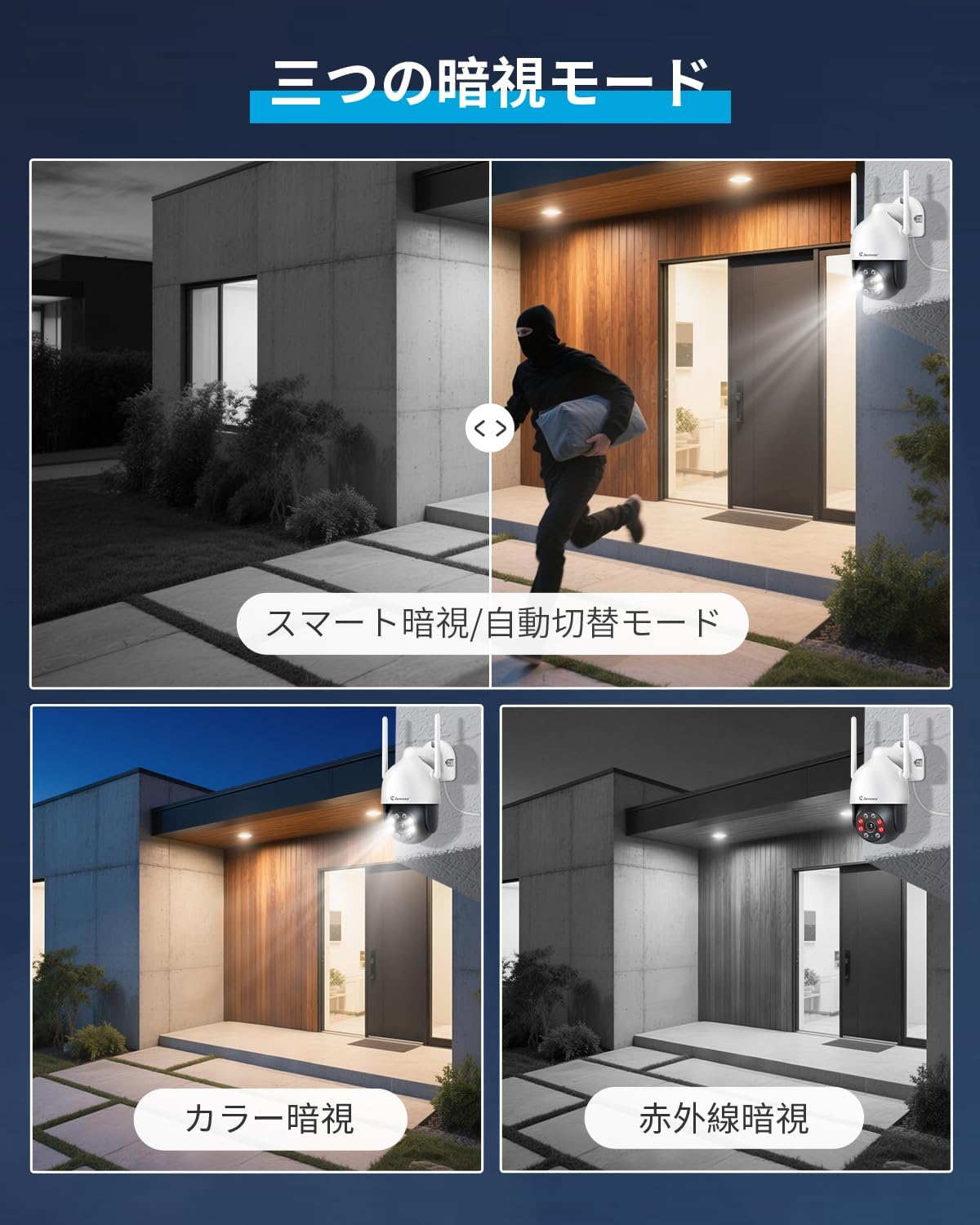
Image 4.2: Night Vision Modes
This image demonstrates the three available night vision modes: Smart Night Vision (automatic), Color Night Vision (using floodlights), and Infrared Night Vision (black and white).
4.3 เสียงสองทาง
The camera is equipped with a microphone and speaker, enabling two-way communication. You can speak through the camera using the AJCloud app and hear audio from the camera's location.
Image 4.3: Two-Way Audio Communication
This image illustrates the two-way audio feature, showing a user speaking into their phone and a person at the camera's location hearing the message.
4.4 การตรวจจับการเคลื่อนไหวและการแจ้งเตือน
The camera features advanced motion detection. When motion is detected, the camera can:
- Send alert notifications to your smartphone.
- Trigger a sound alarm from the camera.
- Activate its built-in floodlight to deter intruders.

Image 4.4: Human Motion Detection and Alarm Notification
This image shows the camera detecting a person, triggering a floodlight and sound alarm, and sending a notification to the AJCloud app.
You can customize motion detection areas and schedules within the app to minimize false alarms.
4.5 ตัวเลือกการบันทึก
The camera supports 24-hour continuous recording and offers two storage methods:
- ที่เก็บข้อมูลไมโคร SD การ์ด: Supports up to 64GB Micro SD cards (not included). When the card is full, older footage will be overwritten automatically.
- การเก็บข้อมูลบนคลาวด์: An optional paid subscription service for secure cloud backup of your recordings. This ensures footage is safe even if the camera is stolen or damaged.

Image 4.5: 24-Hour Recording with SD Card and Cloud Options
This image illustrates the camera's 24-hour recording capability, highlighting both TF card (Micro SD) and cloud storage options, with a smartphone displaying the app interface.
Recorded videos can be played back at up to 4x speed, saving time when reviewอิงฟูtage.
5. Connectivity & App Features
5.1 Multi-Device Monitoring
The JENNOV HS4007 camera can be monitored from multiple devices simultaneously, including smartphones, tablets, and computers. You can share camera access with family members, allowing up to 4 devices to view the same feed concurrently. A single smartphone can manage up to 64 cameras.

Image 5.1: Simultaneous Monitoring on Multiple Devices
This image shows the camera feed being viewed on a laptop, tablet, and smartphone simultaneously, demonstrating multi-device compatibility.
5.2 RTSP Support
The camera supports the open RTSP protocol, allowing integration with third-party surveillance software like Blue Iris or iSpy for advanced monitoring capabilities. Note that PC software is for monitoring only; camera settings cannot be adjusted via PC software.
5.3 การรวม Alexa
The JENNOV HS4007 is compatible with Amazon Alexa. You can use voice commands to view the camera feed on compatible Alexa-enabled devices (e.g., Echo Show).

Image 5.2: Alexa Voice Control
This image shows a person using an Alexa-enabled device to view the camera feed with a voice command.
To enable Alexa integration:
- เปิดแอป Amazon Alexa
- Navigate to the Skills & Games section and search for "AJCloud".
- Enable the AJCloud skill and link your AJCloud account.
- Discover devices. Once detected, you can assign the camera to a group (e.g., "Office") for easy control.
6. การบำรุงรักษา
- การทำความสะอาด: ควรทำความสะอาดเลนส์กล้องเป็นประจำด้วยผ้าแห้งเนื้อนุ่ม เพื่อให้ได้ภาพที่คมชัด ห้ามใช้สารเคมีรุนแรง
- อัพเดตเฟิร์มแวร์: Check the AJCloud app periodically for firmware updates. Keeping your camera's firmware updated ensures optimal performance and security.
- แหล่งจ่ายไฟ: ตรวจสอบให้แน่ใจว่าอะแดปเตอร์แปลงไฟและสายไฟอยู่ในสภาพสมบูรณ์
- การป้องกันสภาพอากาศ: While the camera is IP66 waterproof, ensure it is installed in a location that minimizes direct exposure to extreme weather conditions for extended durability.

Image 6.1: IP66 Outdoor Waterproof Rating
This image highlights the camera's IP66 waterproof rating, showing it functioning in various weather conditions like rain and snow, and its operating temperature range from -20°C to 50°C.
7 การแก้ไขปัญหา
- กล้องไม่เชื่อมต่อกับ WiFi:
- Ensure your WiFi password is correct.
- Verify the camera is within range of your WiFi router.
- Check if your router is operating on 2.4GHz or 5GHz, and ensure the camera is configured for the correct band.
- Restart your router and the camera. - คุณภาพของภาพไม่ดี:
- ทำความสะอาดเลนส์กล้อง
- Ensure there are no obstructions in front of the lens.
- ตรวจสอบความเร็วในการเชื่อมต่ออินเตอร์เน็ตของคุณ - การตรวจจับการเคลื่อนไหวไม่ทำงาน:
- Verify motion detection is enabled in the app.
- Adjust the sensitivity settings.
- Ensure the detection area is correctly configured. - ไม่มีเสียงหรือคุณภาพเสียงไม่ดี:
- Check the microphone and speaker settings in the app.
- Ensure there are no obstructions blocking the microphone or speaker. - การ์ด SD ไม่บันทึก:
- ตรวจสอบให้แน่ใจว่าใส่การ์ด SD ถูกต้อง
- Format the SD card via the app (this will erase all data).
- Check if the SD card is damaged or full.
8. ข้อมูลจำเพาะ
| คุณสมบัติ | ข้อมูลจำเพาะ |
|---|---|
| ประเภทการติดตั้ง | ติดผนัง |
| ความละเอียดในการจับภาพวิดีโอ | 1440p |
| สี | สีขาวและสีดำ |
| จำนวนรายการ | 1 |
| ส่วนประกอบที่รวมอยู่ | 5V1A Power Adapter, Camera Body, Mounting Screws, User Manual |
| จำนวนช่อง | 1 |
| เทคโนโลยีการสื่อสารไร้สาย | Wi-Fi (2.4GHz & 5GHz compatible) |
| ฟอร์มแฟกเตอร์ | โดม |
| ทุ่งแห่ง View | 80 องศา |
| ประเภทการติดตั้ง | สกรูเข้า |
| ช่วงการมองเห็นตอนกลางคืน | 30 เมตร |
| วัสดุ | พลาสติก |
| ขนาดสินค้า (กxยxส) | 17 x 14 x 10 ซม. |
| ระดับความต้านทานต่อน้ำ | กันน้ำ (IP66) |
| หมายเลขรุ่นผลิตภัณฑ์ | HS4007 |
| น้ำหนักผลิตภัณฑ์ | 570 กรัม |
| การใช้ที่แนะนำ | Baby Monitor, Pet Monitor, Indoor Security, Outdoor Security |
| อุปกรณ์ที่รองรับ | Smartphone, Tablet, Desktop, Laptop |
| แหล่งพลังงาน | สายไฟ |
| โปรโตคอลการเชื่อมต่อ | ไวไฟ |
| ประเภทตัวควบคุม | ไอโอเอส, แอนดรอยด์ |

Image 8.1: Camera Dimensions
ภาพนี้ให้รายละเอียด view of the camera's dimensions, including height, width, and depth.
9. การรับประกันและการสนับสนุน
JENNOV is committed to providing reliable outdoor security cameras. This product comes with a one-year warranty from the date of purchase and lifetime customer support.
If you have any questions or encounter issues with your product, please contact us with your order number and model number at:
อีเมล: jnwjp@jennov.com (24-hour response)
Support Hours: Monday - Friday, 10:00 - 13:00, 14:30 - 19:00 (excluding Saturdays, Sundays, and public holidays)


