1. สินค้าหมดview
The DOOGEE Tab A9 is a 10.1-inch Android 15 tablet designed for versatile use, from productivity to entertainment. It features a quad-core processor, ample memory, and a high-capacity battery, complemented by a suite of accessories for enhanced functionality.
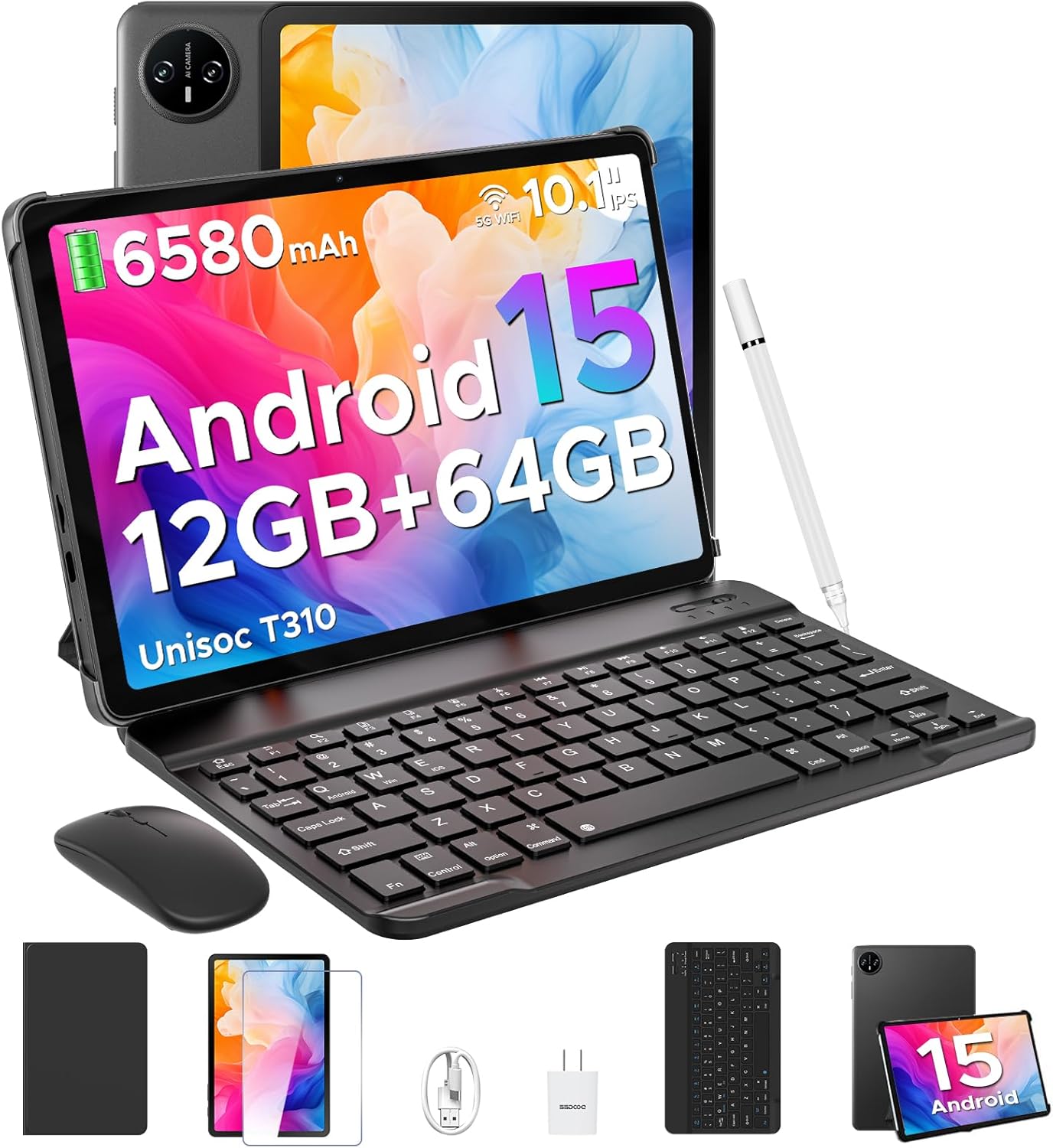
Image 1.1: DOOGEE Tab A9 tablet with its complete accessory kit.
คุณสมบัติหลัก:
- ระบบปฏิบัติการ: Android 15 for enhanced performance and privacy.
- โปรเซสเซอร์: Unisoc T310 Quad-Core, 2.0GHz.
- หน่วยความจำและการจัดเก็บ: 12GB RAM (3GB physical + 9GB virtual) and 64GB internal storage, expandable up to 2TB via microSD.
- แสดง: 10.1-inch IPS HD (1280x800) touchscreen.
- แบตเตอรี่: แบตเตอรี่ 6580mAh ใช้งานได้ยาวนานขึ้น
- กล้องถ่ายรูป: กล้องหลัง 8 ล้านพิกเซล และกล้องหน้า 5 ล้านพิกเซล
- การเชื่อมต่อ: 2.4G/5G Dual-band WiFi, Bluetooth 5.0.
- ความปลอดภัย: ปลดล็อคด้วยใบหน้า
- เสียง: Dual speakers and 3.5mm headphone jack.
2. สิ่งที่รวมอยู่
Your DOOGEE Tab A9 package includes the following items:

Image 2.1: Contents of the DOOGEE Tab A9 package.
- DOOGEE Tab A9 Tablet
- แป้นพิมพ์บลูทูธ
- เมาส์บลูทู ธ
- ปากกาสไตลัส
- ฟิล์มกันรอยหน้าจอ
- เคสป้องกัน
- เครื่องชาร์จ
- สายเคเบิล USB Type-C
- คู่มือการใช้งาน
3. การตั้งค่า
3.1 การชาร์จเริ่มต้น
Before first use, fully charge your tablet using the provided charger and USB Type-C cable. Connect the cable to the tablet's charging port and the charger to a power outlet. The battery indicator on the screen will show charging status.
3.2 เปิด/ปิดเครื่อง
- การเปิดเครื่อง: Press and hold the Power button (located on the side of the tablet) until the DOOGEE logo appears.
- วิธีปิดเครื่อง: กดปุ่มเปิด/ปิดค้างไว้ จากนั้นเลือก "ปิดเครื่อง" จากตัวเลือกที่ปรากฏบนหน้าจอ
- ในการรีสตาร์ท: กดปุ่มเปิด/ปิดค้างไว้ จากนั้นเลือก "รีสตาร์ท" จากตัวเลือก
3.3 Connecting Accessories (Keyboard & Mouse)
The included keyboard and mouse connect via Bluetooth:
- Ensure the keyboard/mouse is charged and powered on.
- บนแท็บเล็ตของคุณ ให้ไปที่ การตั้งค่า > อุปกรณ์ที่เชื่อมต่อ > บลูทูธ.
- เปิดใช้งานบลูทูธและค้นหาอุปกรณ์ที่ใช้งานได้
- Select the keyboard or mouse from the list and follow any on-screen pairing instructions.
3.4 การใส่การ์ด MicroSD
To expand storage, insert a microSD card (up to 2TB, sold separately):
- หาช่องใส่ซิมการ์ด/ไมโคร SD ที่ด้านข้างของแท็บเล็ต
- ใช้เครื่องมือถอดซิมที่ให้มาเพื่อเปิดถาด
- วางการ์ด microSD ลงในช่องที่กำหนดบนถาด
- ค่อยๆ ใส่ถาดกลับเข้าไปในแท็บเล็ตอย่างระมัดระวัง
4. คู่มือการใช้งาน
4.1 ระบบ Android 15
Your DOOGEE Tab A9 runs on Android 15, offering improved app launch speeds, system smoothness, and enhanced privacy controls. Explore the intuitive interface and customize settings to your preference.
วิดีโอ 4.1: จบview of the DOOGEE Tab A9 tablet's features, including its display, speakers, and connectivity.

Image 4.1: The Android 15 system logo, highlighting its intelligent, seamless, and secure features.
4.2 การตั้งค่าการแสดงผล
The 10.1-inch IPS HD display offers clear visuals. You can adjust display settings for comfort:
- โหมดดูแลดวงตา: Reduces blue light to minimize eye strain. Activate it in Settings > Display > Eye Care Mode.
- โหมดมืด: Changes the system theme to a darker palette, ideal for low-light environments. Activate it in Settings > Display > Dark Mode.

Image 4.2: Visual representation of the tablet's 10.1-inch IPS HD display and its key specifications.
4.3 การใช้งานกล้อง
Capture photos and videos with the tablet's cameras:
- กล้องหลัง (8MP): เหมาะสำหรับการถ่ายภาพทั่วไป
- กล้องหน้า (5MP): เหมาะอย่างยิ่งสำหรับการสนทนาทางวิดีโอและการถ่ายเซลฟี่
Open the Camera app from the home screen or app drawer to start. Tap the shutter button to take a photo or switch to video mode to record.

ภาพที่ 4.3: อดีตamples of photos taken with the 8MP main camera.

Image 4.4: The 5MP front camera is suitable for clear video calls.
4.4 คุณสมบัติด้านเสียง
The tablet is equipped with dual speakers for clear audio output and a 3.5mm audio jack for private listening with headphones.

Image 4.5: Illustration of the tablet's dual speaker system for enhanced audio.
4.5 การเชื่อมต่อ
- ไวไฟ : Supports 2.4G and 5G dual-band Wi-Fi for stable and fast internet access. Connect via การตั้งค่า > เครือข่ายและอินเทอร์เน็ต > Wi-Fi.
- Bluetooth 5.0: For connecting wireless peripherals like headphones, speakers, and the included keyboard and mouse. Manage connections in การตั้งค่า > อุปกรณ์ที่เชื่อมต่อ > บลูทูธ.

Image 4.6: Features of the tablet's WiFi 5 connectivity.
4.6 การปลดล็อคด้วยใบหน้า
เพื่อความสะดวกและปลอดภัยในการเข้าใช้งาน โปรดตั้งค่าการปลดล็อกด้วยใบหน้า:
- ไปที่ การตั้งค่า > ความปลอดภัยและความเป็นส่วนตัว > ปลดล็อคด้วยใบหน้า.
- ปฏิบัติตามคำแนะนำบนหน้าจอเพื่อลงทะเบียนใบหน้าของคุณ
- Ensure you are in a well-lit area during registration for optimal performance.

Image 4.7: The tablet's facial recognition unlock feature in action.
4.7 Multitasking with Split-Screen
Utilize the split-screen feature to run two apps simultaneously:
- เปิดแอปพลิเคชั่นแรก
- ปัดขึ้นจากด้านล่างของหน้าจอแล้วกดค้างไว้เพื่อเข้าถึงแอปที่ใช้งานล่าสุด
- Tap the app icon at the top of the first app's card and select "Split screen".
- เลือกแอปที่สองจากแอปที่ใช้งานล่าสุดหรือลิ้นชักแอปเพื่อเติมเต็มครึ่งหนึ่งของหน้าจอ

Image 4.8: Demonstrating efficient split-screen multitasking on the tablet.
4.8 ประสิทธิภาพและการจัดเก็บ
The Unisoc T310 Quad-Core processor and 12GB RAM (3GB physical + 9GB virtual) ensure smooth operation for daily tasks and multitasking. The 64GB internal storage provides space for essential apps and files, with expandable storage up to 2TB via microSD card.
Video 4.2: Highlights of the DOOGEE Tab A9's processor, RAM, and storage capabilities.

Image 4.9: Visual representation of the Unisoc T310 Quad-Core processor.

Image 4.10: Illustrates the tablet's memory and storage capacity, including expandable memory.
4.9 อายุการใช้งานแบตเตอรี่
The 6580mAh battery, combined with smart battery management, provides all-day usage. Actual battery life may vary based on usage patterns and settings.

Image 4.11: Details on the 6580mAh battery capacity and estimated usage times.
5. การบำรุงรักษา
- การอัปเดตซอฟต์แวร์: ตรวจสอบและติดตั้งการอัปเดตระบบเป็นประจำเพื่อให้มั่นใจถึงประสิทธิภาพและความปลอดภัยที่เหมาะสมที่สุด ไปที่ การตั้งค่า > ระบบ > อัปเดตระบบ.
- การทำความสะอาด: ใช้ผ้านุ่มไม่เป็นขุยทำความสะอาดหน้าจอและตัวเครื่องแท็บเล็ต หลีกเลี่ยงวัสดุที่มีฤทธิ์กัดกร่อนหรือสารเคมีรุนแรง
- การดูแลแบตเตอรี่ เพื่อยืดอายุการใช้งานแบตเตอรี่ ควรหลีกเลี่ยงอุณหภูมิที่สูงหรือต่ำเกินไป และอย่าปล่อยให้แบตเตอรี่หมดเกลี้ยงบ่อยๆ
- การจัดการพื้นที่เก็บข้อมูล: ล้างสิ่งที่ไม่จำเป็นออกเป็นระยะๆ files and apps to maintain system speed.
6 การแก้ไขปัญหา
โปรดดูตารางด้านล่างเพื่อดูปัญหาทั่วไปและวิธีแก้ไข:
| ปัญหา | วิธีแก้ปัญหาที่เป็นไปได้ |
|---|---|
| แท็บเล็ตไม่สามารถเปิดเครื่องได้ | Ensure the battery is charged. Connect the charger and try again. If unresponsive, press and hold the Power button for 10-15 seconds to force a restart. |
| ปัญหาการเชื่อมต่อ Wi-Fi | Restart the tablet and your Wi-Fi router. Check Wi-Fi settings to ensure the correct network is selected and the password is entered correctly. |
| อุปกรณ์บลูทูธไม่จับคู่ | Ensure the Bluetooth device is in pairing mode and within range. Restart both the tablet and the Bluetooth device. Check tablet's Bluetooth settings. |
| ประสิทธิภาพการทำงานช้า | ปิดแอปพลิเคชันที่ไม่ได้ใช้ ล้างแคชและแคชชั่วคราว files. Consider uninstalling rarely used apps. Perform a system update if available. |
| หน้าจอไม่ตอบสนอง | รีสตาร์ทแท็บเล็ต หากปัญหายังคงอยู่ โปรดตรวจสอบให้แน่ใจว่าหน้าจอสะอาดและไม่มีเศษฝุ่น |
7. ข้อมูลจำเพาะ
| คุณสมบัติ | รายละเอียด |
|---|---|
| ชื่อรุ่น | แท็บ A9 |
| ระบบปฏิบัติการ | แอนดรอยด์ 15 |
| โปรเซสเซอร์ | Unisoc T310 Quad-Core, 2 GHz |
| แรม | 12GB (3GB หน่วยความจำจริง + 9GB หน่วยความจำเสมือน) |
| การจัดเก็บข้อมูลภายใน | 64GB |
| พื้นที่เก็บข้อมูลแบบขยายได้ | สูงสุด 2TB ผ่านการ์ด MicroSD |
| ขนาดหน้าจอ | 10.1 นิ้ว |
| ความละเอียดหน้าจอ | 1280 x 800 พิกเซล (IPS HD) |
| กล้องหลัง | 8 MP |
| กล้องหน้า | 5 MP |
| ความจุของแบตเตอรี่ | 6580 มิลลิแอมป์ |
| ประเภทไร้สาย | 802.11ac, 802.11b, 802.11g, 802.11n (2.4G/5G WiFi) |
| บลูทูธ | บลูทูธ 5.0 |
| ขนาด (กxยxส) | 9.54 x 6.33 x 0.38 นิ้ว |
| น้ำหนักสินค้า | 1.12 ปอนด์ |
8. การรับประกันและการสนับสนุน
Your DOOGEE Tab A9 tablet comes with a รับประกัน 2 ปี และ การสนับสนุนทางเทคนิคตลอดอายุการใช้งาน. For any questions, issues, or support needs, please contact DOOGEE customer service. Refer to the warranty card included in your package for specific terms and conditions.


