1. บทนำ
This manual provides detailed instructions for the installation, operation, and maintenance of your Zomolither 8257 Android 13 Car Stereo. This unit is specifically designed for Honda CRV models manufactured between 2007 and 2011. Please read this manual thoroughly before using the product to ensure proper function and safety.

Image 1.1: Zomolither Car Stereo installed in a Honda CRV dashboard, showing the main interface with various app icons.
2. สินค้าหมดview
The Zomolither 8257 Car Stereo is an advanced in-dash navigation and entertainment system featuring the Android 13 operating system. It offers a comprehensive suite of functions to enhance your driving experience.
- ระบบปฏิบัติการ: แอนดรอยด์ 13
- โปรเซสเซอร์: 8 คอร์
- หน่วยความจำ: แรม 4GB + รอม 64GB
- แสดง: 9-inch IPS Touchscreen with 1280x720 resolution
- การเชื่อมต่อ: Wireless Apple CarPlay, Wireless Android Auto, Bluetooth 5.0, Wi-Fi, Mirror Link
- เสียง: Digital Signal Processor (DSP) with 32-band Equalizer (EQ)
- การนำทาง: มีระบบ GPS ในตัว รองรับการใช้งานแผนที่ทั้งแบบออนไลน์และออฟไลน์
- วิทยุ: เครื่องรับสัญญาณวิทยุ FM/RDS
- คุณสมบัติเพิ่มเติม: Support for AHD Backup Camera, Steering Wheel Control (SWC), Multiple User Interface (UI) themes.
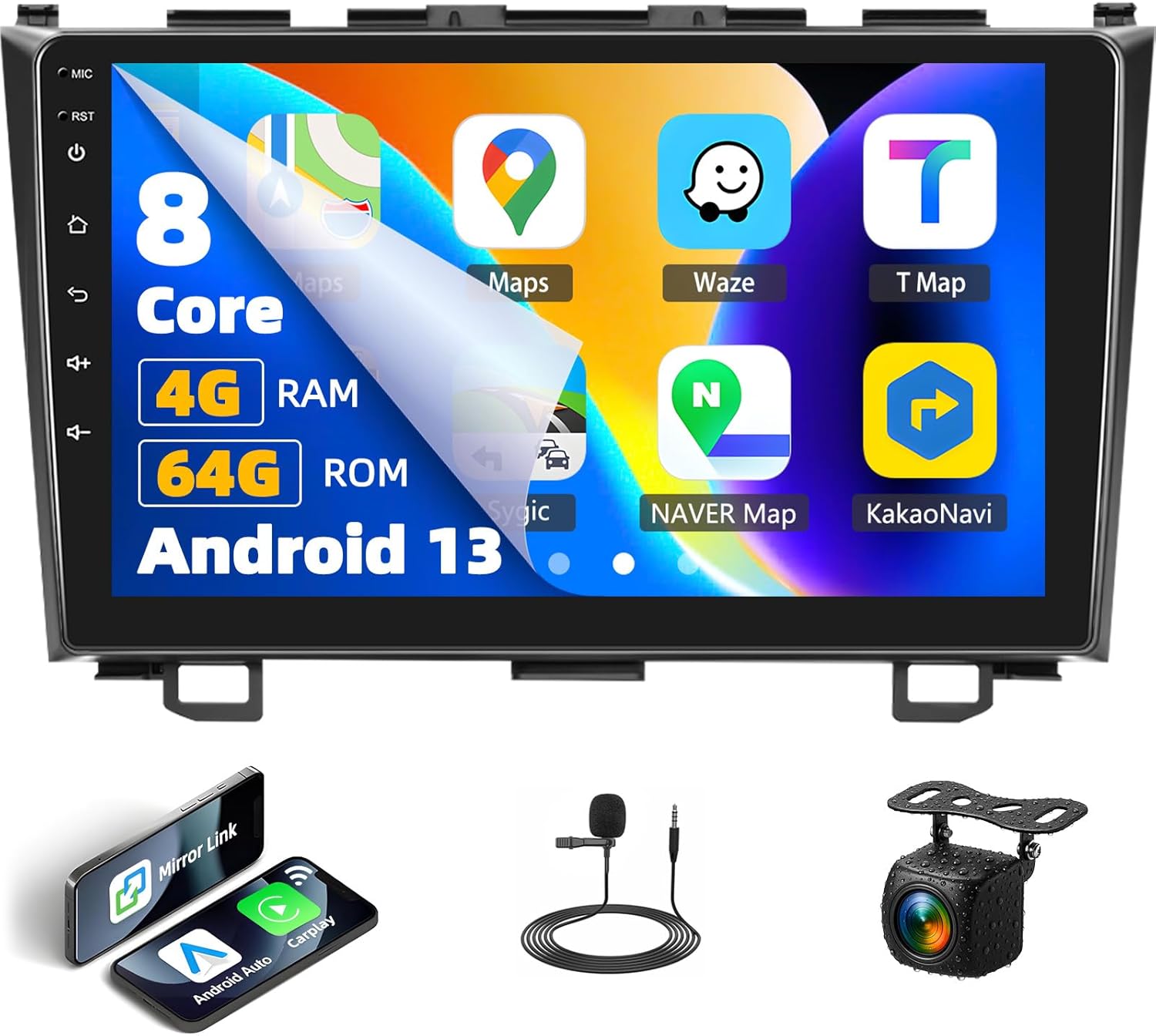
ภาพที่ 2.1: ด้านหน้า view of the Zomolither 8257 Car Stereo, showcasing the 9-inch display and key specifications like 8-Core, 4GB RAM, 64GB ROM, and Android 13.

Image 2.2: Diagram illustrating the high-performance processor, highlighting Android 13, 4GB RAM, 64GB ROM, and 8-Core architecture.
3. การติดตั้ง
The Zomolither 8257 Car Stereo is designed for direct fitment in Honda CRV models from 2007 to 2011. Professional installation is recommended to ensure correct wiring and functionality. Before installation, verify all components are present as listed in the package contents.
3.1 เนื้อหาบรรจุภัณฑ์
Refer to the diagram below for a visual representation of the included components:

Image 3.1: Package contents including the head unit, AHD rear camera, installation tool, microphone, RCA cable, power cable, USB cables, camera input cable, user manual, and GPS antenna.
3.2 การตรวจสอบความเข้ากันได้
Ensure your vehicle's dashboard configuration matches the compatible type. This unit is designed for Honda CRV models with a "Low Configuration" dashboard (as shown in Image 3.2, option A).

Image 3.2: Comparison of Honda CRV dashboard configurations. Option A (Low Configuration) is compatible, while Option B (High Configuration) is not.
3.3 ขั้นตอนการติดตั้งทั่วไป
- ถอดแบตเตอรี่: Before starting, disconnect the vehicle's negative battery terminal.
- ถอดหน่วยเก่าออก: ถอดเครื่องเสียงรถยนต์และแผงหน้าปัดเดิมออกอย่างระมัดระวัง
- เชื่อมต่อสายรัดสายไฟ: เชื่อมต่อชุดสายไฟที่ให้มาเข้ากับชุดสายไฟเดิมของรถยนต์ ตรวจสอบให้แน่ใจว่าการเชื่อมต่อทั้งหมดแน่นหนาดีแล้ว
- เชื่อมต่ออุปกรณ์ต่อพ่วง: Connect the GPS antenna, microphone, backup camera (if applicable), and USB cables.
- หน่วยภูเขาใหม่: Secure the Zomolither car stereo into the dashboard opening.
- เชื่อมต่อแบตเตอรี่อีกครั้ง: ต่อขั้วแบตเตอรี่ลบของรถกลับเข้าที่
- ทดสอบฟังก์ชันการทำงาน: Power on the unit and test all functions (radio, audio, touchscreen, GPS, Bluetooth, etc.) before reassembling the dashboard trim.
4. การตั้งค่าและการกำหนดค่าเริ่มต้น
4.1 เปิดเครื่องครั้งแรก
Upon first power-on, the system will boot into the Android 13 operating system. Follow any on-screen prompts for initial setup, such as language selection and time zone.
4.2 การเชื่อมต่อ Wi-Fi
To access online features, download apps, or use real-time traffic updates, connect the unit to a Wi-Fi network (e.g., a mobile hotspot).
- ไปที่ การตั้งค่า.
- เลือก เครือข่ายและอินเตอร์เน็ต.
- เปิดเครื่อง ไวไฟ และเลือกเครือข่ายที่คุณต้องการ
- หากได้รับแจ้ง ให้กรอกรหัสผ่าน

Image 4.1: The car stereo display showing Wi-Fi connectivity and access to various applications like YouTube and social media platforms.
4.3 การปรับแต่งอินเทอร์เฟซผู้ใช้
The unit supports 59 UI desktop themes. You can personalize the interface by selecting themes and rearranging app icons on the home screen.
- นำทางไปที่ การตั้งค่า หรือว่า ธีม แอปพลิเคชัน.
- Browse available themes and select your preference.
- To rearrange icons, long-press an app icon and drag it to the desired position.

Image 4.2: The 9-inch IPS screen displaying various UI themes and the split-screen feature, allowing two applications to run simultaneously.
5. คู่มือการใช้งาน
5.1 Apple CarPlay ไร้สายและ Android Auto
Connect your smartphone wirelessly via Bluetooth or USB for seamless integration with Apple CarPlay or Android Auto. This allows access to navigation, music, calls, and messages through the car stereo interface.
- โปรดตรวจสอบให้แน่ใจว่าได้เปิดใช้งานบลูทูธทั้งในโทรศัพท์และเครื่องเสียงรถยนต์แล้ว
- ในเครื่องเสียงรถยนต์ เปิดแอปพลิเคชัน CarPlay หรือ Android Auto
- Follow the on-screen instructions to pair your device. For wireless connection, select your phone from the list of available devices. For wired connection, connect your phone via a USB cable.
- Once connected, you can use voice commands (e.g., "Hey Siri" or "OK Google") to control functions.

Image 5.1: Visual representation of Wireless Apple CarPlay, Android Auto, and Mirror Link connections, showing phone integration with the car stereo.

Image 5.2: The car stereo screen demonstrating voice control capabilities for CarPlay and Android Auto, with examples of commands like "Hey Siri" and "OK Google".
5.2 ระบบนำทาง GPS
The unit comes with pre-installed Google Maps. You can use it for navigation with real-time traffic updates when connected to Wi-Fi. Offline maps can be downloaded for navigation without an internet connection.
- เปิด แผนที่ แอปพลิเคชัน.
- ป้อนจุดหมายปลายทางของคุณ
- Select your preferred route and start navigation.
- To download offline maps: In the Maps app, go to การตั้งค่า > แผนที่ออฟไลน์ and select the area you wish to download.

Image 5.3: The car stereo screen displaying GPS navigation, illustrating support for both online and offline maps with various map applications.
5.3 บลูทู ธ 5.0
Bluetooth 5.0 provides stable connections for hands-free calling and music streaming.
- ไปที่ การตั้งค่า > บลูทูธ.
- Turn on Bluetooth and make the device discoverable.
- On your phone, search for the car stereo and pair.
- เมื่อจับคู่แล้ว คุณสามารถโทรออก/รับสาย และสตรีมเสียงได้

Image 5.4: The car stereo screen demonstrating Bluetooth functionality, including incoming calls, phonebook access, and music playback.
วิทยุ FM/RDS 5.4
Access local radio stations and receive real-time traffic updates via RDS.
- เปิด วิทยุ แอปพลิเคชัน.
- ใช้ฟังก์ชันสแกนเพื่อค้นหาสถานีที่มีอยู่หรือปรับจูนความถี่ด้วยตนเอง
- บันทึกสถานีโปรดของคุณเป็นค่าที่ตั้งไว้ล่วงหน้าเพื่อการเข้าถึงที่รวดเร็ว

Image 5.5: The car stereo's FM/RDS radio interface, showing frequency display, station presets, and RDS information.
5.5 DSP Audio (32-Band EQ)
Customize your audio experience with the built-in Digital Signal Processor (DSP) and 32-band equalizer.
- เปิด ดีเอสพี or อีควอไลเซอร์ แอปพลิเคชัน.
- ปรับแถบความถี่เพื่อปรับแต่งเสียงที่ออกมา
- Select from various preset sound types or create custom profiles.

Image 5.6: The car stereo's DSP interface, illustrating the 32-band equalizer for detailed audio customization.
5.6 การเชื่อมโยงมิเรอร์
Mirror Link allows you to cast your smartphone's screen to the car stereo display via Wi-Fi or USB.
- เปิด ลิงค์มิเรอร์ application on the car stereo.
- Follow the on-screen instructions to connect your iOS (via Wi-Fi) or Android (via Wi-Fi or USB) device.

Image 5.7: The car stereo screen demonstrating Mirror Link, showing a smartphone's display mirrored onto the larger car stereo screen.
6. การทำงานของกล้องสำรอง
The unit supports an AHD backup camera, which provides a clear, wide-angle view of the area behind your vehicle when reversing. The screen automatically switches to the camera feed when the vehicle is put into reverse gear.
- AHD Image: High-definition video quality.
- การออกแบบกันน้ำ: Ensures durability in various weather conditions.
- 170-degree Wide Angle: ให้ความกว้าง view เพื่อลดจุดบอดให้น้อยที่สุด
- การมองเห็นตอนกลางคืน: เพิ่มการมองเห็นในสภาวะแสงน้อย

Image 6.1: The car stereo screen displaying the backup camera feed with dynamic parking guidelines, alongside icons indicating AHD, waterproof, 170-degree wide angle, and night vision features.

Image 6.2: A visual representation of the backup camera's view, highlighting its 1080p Full HD resolution, waterproof design, night vision, and wide-angle capabilities.
7 การตั้งค่าระบบควบคุมพวงมาลัย (SWC)
The unit supports the original car's steering wheel controls. After correct wiring, you can configure the buttons to control various functions of the car stereo.
- Ensure the SWC wires are correctly connected during installation.
- ไปที่ การตั้งค่า > ระบบควบคุมพวงมาลัย (or similar menu option).
- The interface will prompt you to press and hold a button on your steering wheel, then select the corresponding function on the screen (e.g., Volume Up, Next Track).
- Repeat for all desired buttons and save the configuration.
Image 7.1: A car steering wheel with controls, next to the car stereo screen displaying the steering wheel control learning interface, where users can assign functions to buttons.

Image 7.2: The car stereo's steering wheel control interface, showing various functions that can be mapped to physical steering wheel buttons.
8. การบำรุงรักษา
To ensure the longevity and optimal performance of your Zomolither car stereo, follow these maintenance guidelines:
- การทำความสะอาดหน้าจอ: ใช้ผ้านุ่มไม่เป็นขุยเช็ดหน้าจอสัมผัสเบาๆ หลีกเลี่ยงน้ำยาทำความสะอาดที่มีฤทธิ์กัดกร่อนหรือสารเคมีรุนแรง
- การอัปเดตซอฟต์แวร์: Periodically check for system updates in the settings menu to ensure you have the latest features and security patches.
- หลีกเลี่ยงอุณหภูมิที่สูงหรือต่ำเกินไป: อย่าวางเครื่องไว้ในที่ที่มีอุณหภูมิสูงหรือต่ำจัดเป็นเวลานาน
- การระบายอากาศ : ตรวจสอบให้แน่ใจว่าบริเวณระบายอากาศของเครื่องไม่ถูกปิดกั้นเพื่อป้องกันความร้อนสูงเกินไป
9 การแก้ไขปัญหา
If you encounter issues with your Zomolither car stereo, refer to the following common troubleshooting steps:
- หน่วยไม่เปิดเครื่อง:
- ตรวจสอบการเชื่อมต่อไฟฟ้าและฟิวส์ทั้งหมด
- Ensure the vehicle's battery is charged.
- Screen Freezes or Becomes Unresponsive:
- Perform a soft reset by pressing the RST (Reset) button, usually located on the front panel (refer to Image 2.1 for location).
- If a reset button is not available, turn off the vehicle's ignition, wait a few minutes, and restart.
- ไม่มีเอาต์พุตเสียง:
- ตรวจสอบการเชื่อมต่อลำโพง
- ตรวจสอบให้แน่ใจว่าระดับเสียงไม่ได้ถูกปิดเสียงหรือตั้งไว้ต่ำเกินไป
- ตรวจสอบให้แน่ใจว่าเลือกแหล่งเสียงที่ถูกต้อง
- ระบบ GPS ไม่ทำงาน:
- ตรวจสอบให้แน่ใจว่าเสาอากาศ GPS เชื่อมต่ออย่างถูกต้องและมีความชัดเจน view ของท้องฟ้า
- Check if location services are enabled in the system settings.
- ปัญหาการเชื่อมต่อบลูทูธ:
- ตรวจสอบให้แน่ใจว่าเปิดใช้งาน Bluetooth บนอุปกรณ์ทั้งสองแล้ว
- ลบการจับคู่ก่อนหน้าและพยายามจับคู่ใหม่อีกครั้ง
- รีสตาร์ททั้งเครื่องเสียงรถยนต์และโทรศัพท์ของคุณ
- กล้องสำรองไม่แสดง:
- Verify the camera is properly connected and powered.
- ตรวจสอบให้แน่ใจว่ารถอยู่ในเกียร์ถอยหลัง
For persistent issues, please contact Zomolither customer support.
10. ข้อมูลจำเพาะ
| คุณสมบัติ | รายละเอียด |
|---|---|
| ยี่ห้อ | โซโมลิเทอร์ |
| หมายเลขรุ่น | 8257 |
| ระบบปฏิบัติการ | แอนดรอยด์ 13 |
| โปรเซสเซอร์ | 8 คอร์ |
| แรม | 4GB |
| รอม | 64GB |
| ขนาดจอแสดงผล | 9 นิ้ว |
| ความละเอียดการแสดงผล | 1280x720 IPS |
| การเชื่อมต่อ | บลูทูธ 5.0, ไวไฟ |
| คุณสมบัติพิเศษ | Wireless Apple CarPlay, Wireless Android Auto, GPS Navigation, DSP Audio (32 EQ), 59 UI Themes, Backup Camera Support, Steering Wheel Control |
| โหมดเอาต์พุตเสียง | สเตอริโอ |
| น้ำหนักสินค้า | 3.67 ปอนด์ (1.67 กิโลกรัม) |
11. การรับประกันและการสนับสนุน
Zomolither is committed to providing quality products and customer satisfaction.
- นโยบายการคืนเงิน: 30-day refund period from the date of purchase.
- นโยบายการเปลี่ยนทดแทน: รับประกันเปลี่ยนสินค้า 12 เดือน สำหรับสินค้าที่มีข้อบกพร่องจากการผลิต
- การสนับสนุนด้านเทคนิค: Lifetime technical support is available for all Zomolither products.
For any concerns, compatibility questions, or technical assistance, please contact our support team:
อีเมล: Zomolither@126.com


