1. บทนำ
This manual provides detailed instructions for the MCHOSE X75 V2 Wireless Mechanical Keyboard and M7 Ultra Wireless Gaming Mouse. It covers setup, operation, maintenance, and troubleshooting to ensure optimal performance and longevity of your devices. Please read this manual thoroughly before using the products.
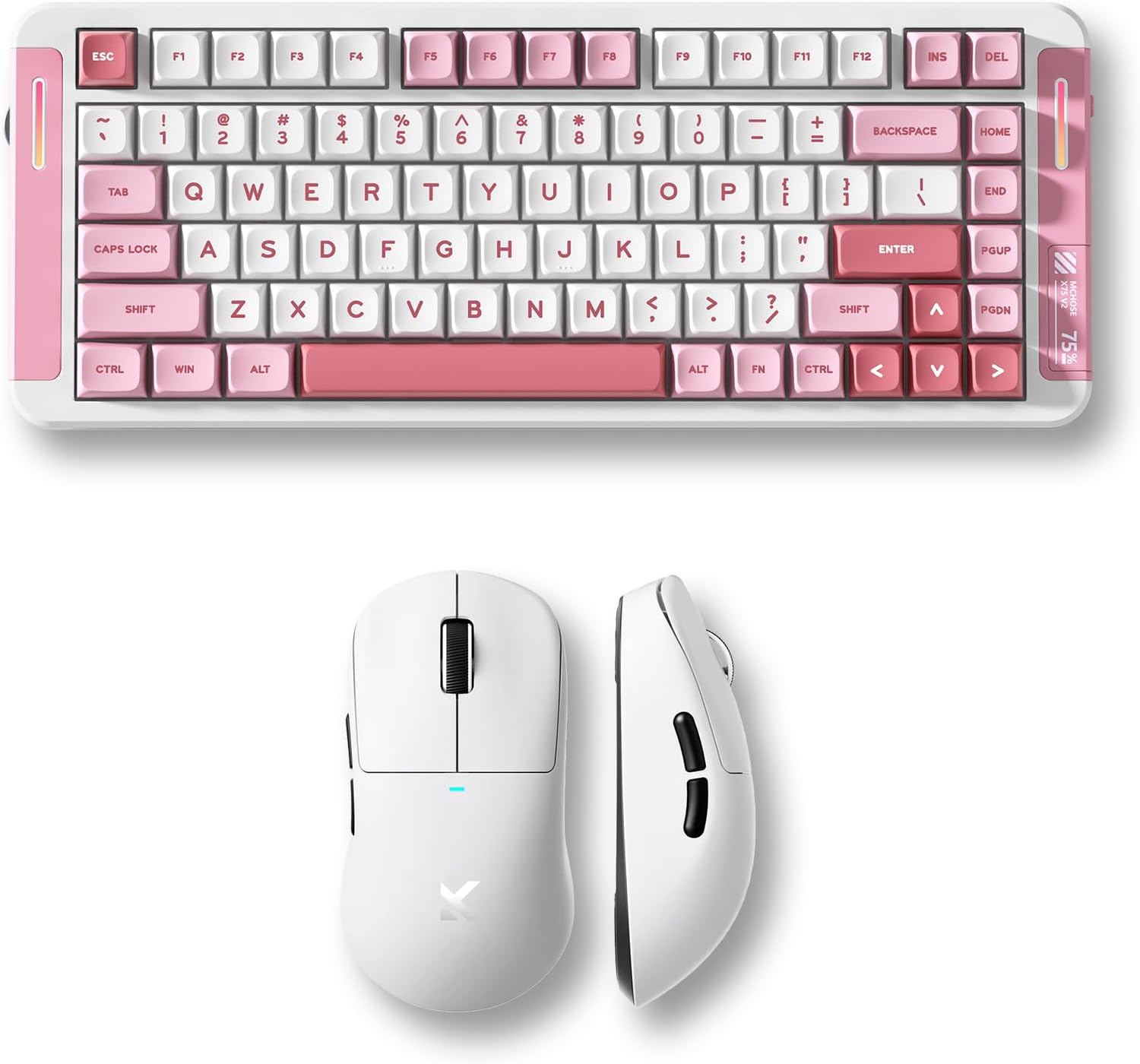
Image 1.1: MCHOSE X75 V2 Wireless Mechanical Keyboard (pink) and M7 Ultra Wireless Gaming Mouse (white) bundle.
2. สินค้าหมดview
2.1 MCHOSE X75 V2 Wireless Mechanical Keyboard
The MCHOSE X75 V2 is a 75% layout mechanical keyboard designed for both gaming and productivity. It features tri-mode connectivity, hot-swappable switches, and an ergonomic design.

ภาพที่ 2.1: จบแล้วview of MCHOSE X75 V2 Mechanical Keyboard features, including 75% layout, full RGB backlit, 3 modes, 8000mAh battery, hot-swappable switches, 5-layer gasket, ergonomic design, MCHOSE HUB compatibility, and a multi-media knob.
คุณสมบัติหลัก:
- 75% รูปแบบกะทัดรัด: 82 keys, saving desktop space while retaining essential keys.
- การเชื่อมต่อสามโหมด: Bluetooth 5.0, 2.4GHz wireless, and USB wired connection.
- Hot-Swappable PCBA: ช่วยให้เปลี่ยนสวิตช์ได้ง่ายโดยไม่ต้องบัดกรี
- แบตเตอรี่ 8000mAh: แบตเตอรี่ความจุสูง สำหรับการใช้งานไร้สายได้ยาวนานขึ้น
- Embedded Multimedia Knob: For convenient media control.
- การออกแบบตามหลักสรีรศาสตร์: Optimized typing angle for comfort.

ภาพที่ 2.2: รายละเอียด view of the MCHOSE X75 V2 Keyboard's ergonomic design, highlighting Type-C ports, embedded multimedia knob, USB receiver container, two-stage adjustable tilt legs, and 360-degree immersive lighting.

Image 2.3: Illustration of the MCHOSE X75 V2 Keyboard's hot-swappable PCBA, showing Hyacinth Linear Switches and compatibility with 3/5-pin switches and south-facing LEDs.
2.2 MCHOSE M7 Ultra Wireless Gaming Mouse
The MCHOSE M7 Ultra is a lightweight gaming mouse featuring TOPSPEED wireless technology and an 8K polling rate for precise and responsive control.

ภาพที่ 2.4: จบแล้วview of MCHOSE M7 Ultra Gaming Mouse features, including 8K Hz Hyperpolling, Realtek Premium Processor, 55g ultra-lightweight design, PAW 3950 Sensor, MCHOSE Pro Optical Switches, 500mAh battery, ergonomic design, tri-mode connectivity, and MCHOSE CUSTOM DRIVER compatibility.
คุณสมบัติหลัก:
- TOPSPEED Wireless Technology: Ensures low latency wireless transmission.
- อัตราการส่งข้อมูลแบบ Dual 8K: Wired 1K and wireless 8K polling for ultra-low latency (0.125ms).
- 55g Ultra Lightweight: Ergonomic design for comfortable extended use.
- เซ็นเซอร์ PAW 3950: High-precision optical sensor.
- MCHOSE Pro Optical Switches: Durable and responsive switches.
- แบตเตอรี่ 500mAh: Provides reliable power for gaming sessions.

Image 2.5: Diagram illustrating the MCHOSE M7 Ultra Mouse's six programmable buttons: Left, Right, Middle, Mode Switch, Forward, Back, along with the Indicator Light, DPI Switch, and USB Dongle storage location.

ภาพที่ 2.6: ระเบิด view of the MCHOSE M7 Ultra Mouse, showing internal components such as MCHOSE Pro Optical Switches, Realtek Premium Processor, PAW 3950 Sensor, and 500mAh battery.

Image 2.7: MCHOSE M7 Ultra Mouse highlighting its 8K Hz Hyperpolling Rate and TOPSPEED Wireless Technology, with the NANO Wireless 8K Receiver shown.
3. คำแนะนำในการตั้งค่า
Before first use, ensure both the keyboard and mouse are fully charged.

Image 3.1: Illustration of the tri-mode connection options (BT 5.0, Wireless 2.4G, Type-C) and wide compatibility with various devices including phones, tablets, Switch, Xbox, and PS5.
3.1 MCHOSE X75 V2 Keyboard Setup
- การชาร์จ: Connect the keyboard to a USB power source using the provided Type-C cable. The indicator light will show charging status.
- การเลือกโหมด: Use the switch on the keyboard to select your desired connection mode:
- สาย USB: Connect the Type-C cable directly to your computer.
- ไร้สาย 2.4GHz: Insert the 2.4GHz USB receiver (located in the keyboard's storage compartment) into your computer's USB port. Switch the keyboard to 2.4G mode.
- บลูทูธ: Switch the keyboard to BT mode. Press and hold FN+1/2/3 to enter pairing mode. The indicator light will flash. Select 'MCHOSE X75 V2' from your device's Bluetooth settings.
- การใช้งานเบื้องต้น: Once connected, the keyboard is ready for use.
3.2 MCHOSE M7 Ultra Mouse Setup
- การชาร์จ: Connect the mouse to a USB power source using the provided Type-C cable. The indicator light will show charging status.
- การเลือกโหมด: Use the switch on the bottom of the mouse to select your desired connection mode:
- สาย USB: Connect the Type-C cable directly to your computer.
- ไร้สาย 2.4GHz: Remove the 2.4GHz USB dongle from its storage compartment on the mouse's underside and insert it into your computer's USB port. Switch the mouse to 2.4G mode.
- บลูทูธ: Switch the mouse to BT mode. The indicator light will flash. Select 'MCHOSE M7 Ultra' from your device's Bluetooth settings.
- การปรับ DPI: Press the DPI switch button on the bottom of the mouse to cycle through preset DPI levels.
- โหมดการทำงาน: The M7 series offers two operating modes: Game-Enhancement Mode and Esports Mode. Refer to the operating instructions for switching between these modes.
4. คู่มือการใช้งาน
4.1 MCHOSE X75 V2 Keyboard Operation
- ปุ่มมัลติมีเดีย: Rotate to adjust volume. Press to play/pause media. Specific functions may vary based on operating system.
- ปุ่มฟังก์ชัน (ชุดปุ่ม FN):
- F1 + F1-F12: Access various multimedia and system functions. Refer to the keycap legends for specific actions.
- FN + Backlight Key: หมุนเวียนผ่านเอฟเฟกต์แสง RGB
- FN + ปุ่มลูกศร: Adjust backlight brightness and speed.
- FN + 1/2/3: สลับระหว่างอุปกรณ์บลูทูธที่จับคู่ไว้แล้ว
- การปรับแต่ง: Download the MCHOSE HUB software from the official MCHOSE website for advanced key remapping, macro creation, and RGB lighting customization.
4.2 MCHOSE M7 Ultra Mouse Operation
- การสลับ DPI: Press the dedicated DPI button on the underside of the mouse to cycle through predefined DPI settings. The indicator light may change color to reflect the current DPI level.
- โหมดการทำงาน: The M7 Ultra features Game-Enhancement Mode and Esports Mode. The mode switch button (if present, refer to Image 2.5) or specific software settings can be used to toggle between these modes for optimized performance.
- ปุ่มที่สามารถตั้งโปรแกรมได้: The six buttons (Left, Right, Middle, Mode Switch, Forward, Back) can be customized using the MCHOSE CUSTOM DRIVER software.
- การปรับแต่ง: Download the MCHOSE CUSTOM DRIVER software from the official MCHOSE website to customize button assignments, DPI levels, polling rate, and other performance settings.
5. การบำรุงรักษา
Proper maintenance ensures the longevity and performance of your MCHOSE devices.
- การทำความสะอาด: Use a soft, dry cloth to wipe the surfaces of the keyboard and mouse. For stubborn dirt, a slightly damp สามารถใช้ผ้าชุบสบู่เหลวอ่อนๆ เช็ดทำความสะอาดได้ โดยระวังอย่าให้ของเหลวเข้าไปในตัวเครื่อง หลีกเลี่ยงสารเคมีรุนแรงหรือวัสดุที่มีฤทธิ์กัดกร่อน
- Keycap Cleaning (Keyboard): Keycaps can be carefully removed for deeper cleaning. Use a keycap puller to avoid damage. Clean keycaps with water and mild soap, then dry thoroughly before reattaching.
- Sensor Cleaning (Mouse): ใช้สำลีเช็ดเบาๆampชุบด้วยไอโซโพรพิลแอลกอฮอล์เพื่อทำความสะอาดเซ็นเซอร์แสงที่อยู่ด้านล่างของเมาส์อย่างอ่อนโยน
- การดูแลแบตเตอรี่ Avoid fully discharging the battery frequently. For long-term storage, charge the devices to about 50% and store them in a cool, dry place.
- พื้นที่จัดเก็บ: Store devices in a clean, dust-free environment when not in use.
6 การแก้ไขปัญหา
If you encounter issues with your MCHOSE keyboard or mouse, refer to the following common solutions:
6.1 การแก้ไขปัญหาคีย์บอร์ด
- แป้นพิมพ์ไม่ตอบสนอง:
- ตรวจสอบให้แน่ใจว่าแป้นพิมพ์มีประจุไฟแล้ว
- Check the connection mode switch (USB, 2.4G, BT) and ensure it matches your connection method.
- สำหรับ 2.4GHz โปรดตรวจสอบให้แน่ใจว่าเสียบตัวรับสัญญาณ USB ไว้อย่างแน่นหนา
- สำหรับการเชื่อมต่อบลูทูธ ให้ทำการจับคู่อุปกรณ์ใหม่อีกครั้ง
- ลองเชื่อมต่อผ่านสาย USB เพื่อตัดปัญหาเรื่องการเชื่อมต่อไร้สายออกไป
- กุญแจไม่ลงทะเบียน:
- Check for physical obstructions under the keycap.
- If hot-swappable, ensure the switch is properly seated.
- Update keyboard firmware via MCHOSE HUB software.
- แสง RGB ไม่ทำงาน:
- Ensure lighting is enabled via FN combinations or MCHOSE HUB software.
- ตรวจสอบระดับแบตเตอรี่ แบตเตอรี่เหลือน้อยอาจทำให้ไฟดับได้
6.2 Mouse Troubleshooting
- Mouse not moving/responding:
- ตรวจสอบให้แน่ใจว่าเมาส์ได้รับการชาร์จแล้ว
- Check the connection mode switch (USB, 2.4G, BT) and ensure it matches your connection method.
- For 2.4GHz, ensure the USB dongle is securely plugged in.
- สำหรับการเชื่อมต่อบลูทูธ ให้ทำการจับคู่อุปกรณ์ใหม่อีกครั้ง
- ทำความสะอาดเซนเซอร์ออปติคอล
- ลองเชื่อมต่อผ่านสาย USB เพื่อตัดปัญหาเรื่องการเชื่อมต่อไร้สายออกไป
- การติดตามที่ไม่สม่ำเสมอ:
- ทำความสะอาดเซนเซอร์ออปติคอล
- Use on a clean, uniform mouse pad.
- ปรับการตั้งค่า DPI
- ปุ่มไม่ทำงาน:
- Check button assignments in MCHOSE CUSTOM DRIVER software.
- Ensure no physical obstruction.
7. ข้อมูลจำเพาะ
7.1 MCHOSE X75 V2 Wireless Mechanical Keyboard
| คุณสมบัติ | ข้อมูลจำเพาะ |
|---|---|
| เค้าโครง | 75% (82 คีย์) |
| การเชื่อมต่อ | Tri-Mode (USB-C, 2.4GHz Wireless, Bluetooth 5.0) |
| สวิตซ์ | Hot-Swappable (3/5-pin compatible) |
| ความจุของแบตเตอรี่ | 8000mAh |
| แสงไฟแบ็คไลท์ | ฟูล RGB |
| อัตราการสำรวจความคิดเห็น | Standard (wired/wireless) |
| คุณสมบัติพิเศษ | Multimedia Knob, 5-Layer Gasket Structure, Ergonomic Design |
7.2 MCHOSE M7 Ultra Wireless Gaming Mouse
| คุณสมบัติ | ข้อมูลจำเพาะ |
|---|---|
| น้ำหนัก | 55กรัม (ประมาณ) |
| เซ็นเซอร์ | เซ็นเซอร์ออปติคัล PAW 3950 |
| สวิตซ์ | MCHOSE Pro Optical Switches |
| การเชื่อมต่อ | Tri-Mode (USB-C, 2.4GHz Wireless, Bluetooth) |
| อัตราการสำรวจความคิดเห็น | Wired 1K, Wireless 8K Hz Hyperpolling |
| ความจุของแบตเตอรี่ | 500mAh |
| คุณสมบัติพิเศษ | TOPSPEED Wireless Technology, Ergonomic Design, Programmable Buttons |
8. การรับประกันและการสนับสนุน
MCHOSE products come with a limited warranty. For detailed warranty information, please refer to the warranty card included with your product or visit the official MCHOSE website. For technical support, driver downloads, or further assistance, please visit the MCHOSE official support page or contact customer service.
MCHOSE อย่างเป็นทางการ Webเว็บไซต์: ร้าน MCHOSE บน Amazon


