1. บทนำ
This manual provides essential information for the safe and efficient use of your KOORUI G2711P 27-inch IPS Full HD Gaming Monitor. Please read it thoroughly before operating the device and retain it for future reference.
The KOORUI G2711P monitor features a 27-inch IPS non-glare panel with Full HD (1920x1080) resolution, a 200Hz refresh rate, and a 1ms MPRT response time, designed for an immersive gaming and viewing experience. It includes multiple connectivity options and eye-care features.

ภาพที่ 1.1: ด้านหน้า view of the KOORUI G2711P 27-inch IPS Full HD Gaming Monitor.
2. ข้อมูลด้านความปลอดภัย
- อย่าวางจอภาพไว้ในที่ที่มีฝนหรือความชื้น เพื่อป้องกันไฟไหม้หรือไฟฟ้าช็อต
- อย่าเปิดจอภาพcasinก. ไม่มีชิ้นส่วนใดที่ผู้ใช้สามารถซ่อมบำรุงเองได้ภายใน แนะนำให้ช่างผู้ชำนาญการซ่อมบำรุงนำชิ้นส่วนทั้งหมดไปซ่อม
- วางจอภาพบนพื้นผิวที่มั่นคงและเรียบเพื่อป้องกันไม่ให้ตก
- ตรวจสอบให้แน่ใจว่ามีการระบายอากาศที่เหมาะสมรอบ ๆ จอภาพ อย่าปิดกั้นช่องระบายอากาศ
- ใช้เฉพาะอะแดปเตอร์ไฟฟ้าที่ให้มาพร้อมกับจอภาพเท่านั้น
- ถอดปลั๊กจอภาพออกจากเต้าเสียบไฟฟ้าในระหว่างที่มีพายุฝนฟ้าคะนองหรือเมื่อไม่ได้ใช้งานเป็นเวลานาน
3. การตั้งค่า
3.1 การแกะกล่อง
Carefully remove all components from the packaging. Ensure all parts listed in the packing list are present and undamaged. Keep packaging materials for future transport or return.
3.2 ชุดขาตั้ง
- ติดฐานขาตั้งเข้ากับคอตั้ง
- Secure the assembled stand to the back of the monitor panel. Refer to the product images for visual guidance on the attachment method.

Image 3.1: Monitor dimensions and side view, illustrating the stand attachment area.
3.3 การเชื่อมต่อกับอุปกรณ์
The monitor supports various input options:
- ช่องต่อ HDMI: Connect an HDMI cable from your computer or other device to one of the two HDMI 2.0 ports on the monitor.
- ดิสเพลย์พอร์ต (DP): เชื่อมต่อสาย DisplayPort จากคอมพิวเตอร์ของคุณเข้ากับพอร์ต DP 1.4 บนจอภาพ
- Audio Out (A/O): Connect external speakers or headphones to the audio output port if desired, as the monitor does not have built-in speakers.

ภาพที่ 3.2: ด้านหลัง view of the monitor showing HDMI, DisplayPort, and Audio Out connections, along with the 75x75mm VESA mount.
3.4 การเชื่อมต่อสายไฟ
Connect the power adapter to the monitor's power input, then plug the power cable into a wall outlet. The monitor is designed for 110V power input.
4. คู่มือการใช้งาน
4.1 เปิด/ปิดเครื่อง
Press the power button, typically located on the back or bottom of the monitor, to turn the monitor on or off. An indicator light will show the power status.
4.2 การนำทางเมนูการแสดงผลบนหน้าจอ (OSD)
The monitor features a 5-way joystick for intuitive OSD menu navigation. This joystick allows you to access and adjust various display settings.
- กดจอยสติ๊ก: ยืนยันการเลือก
- Move joystick up/down: Adjust or select options.
- Move joystick left/right: Adjust or select options.
- Move joystick back (usually left): Exit menu or go back.

Image 4.1: Illustration of the 5-way joystick control for OSD menu navigation.
4.3 การตั้งค่าการแสดงผล
- ปณิธาน: The native resolution is 1920x1080 Full HD. Ensure your device is set to this resolution for optimal display quality.
- อัตราการรีเฟรช: The monitor supports up to 200Hz. Adjust your graphics card settings to utilize the higher refresh rate for smoother visuals.
- เวลาตอบสนอง (MPRT): The monitor features 1ms MPRT (Moving Picture Response Time) for reduced motion blur. This setting can usually be enabled or adjusted in the OSD menu.
- การซิงโครไนซ์แบบปรับได้: This technology synchronizes the monitor's refresh rate with your graphics card's frame rate to eliminate screen tearing and stuttering. Enable it in the OSD menu and your graphics card control panel.
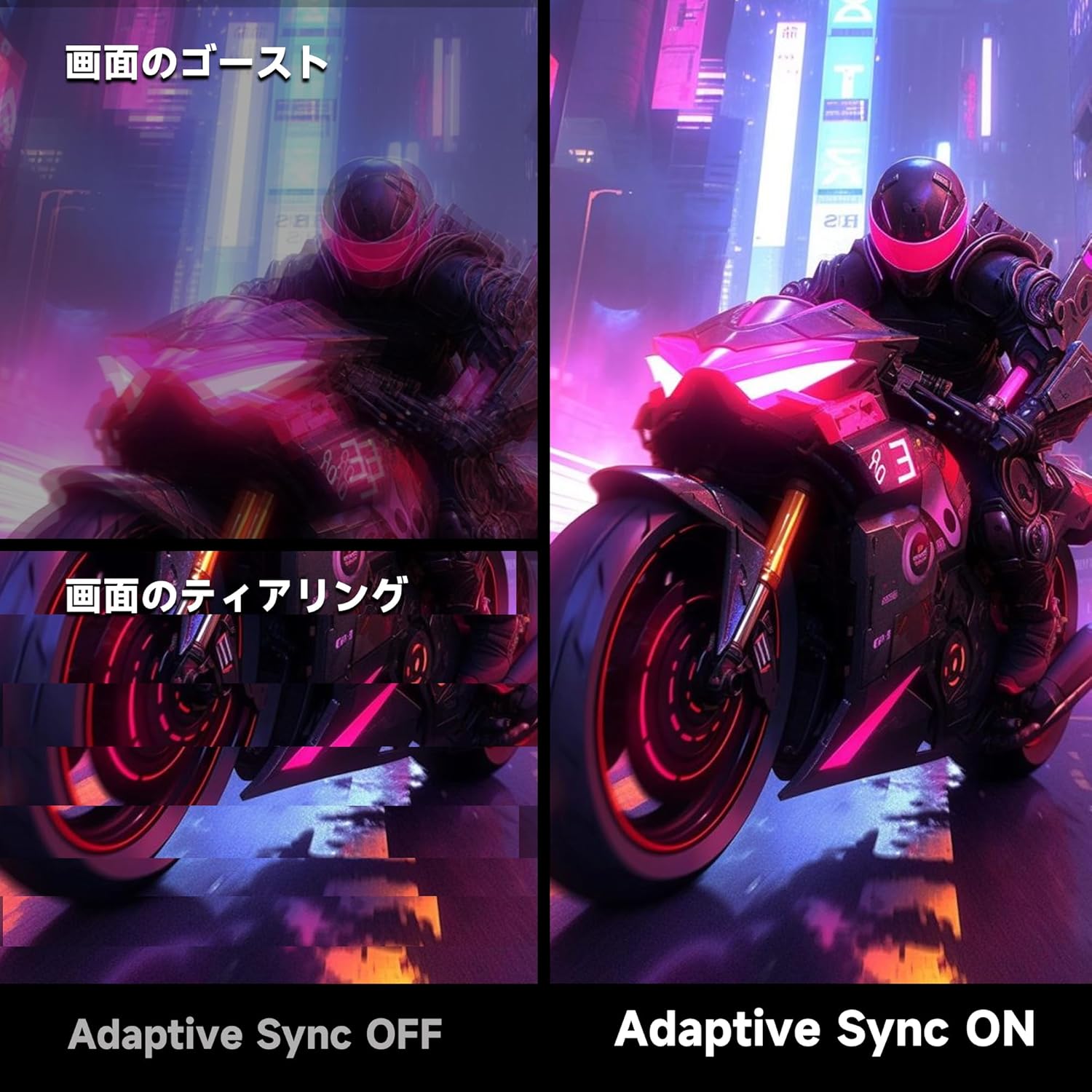
Image 4.2: Visual comparison demonstrating the effect of Adaptive Sync being OFF (showing ghosting and tearing) versus ON (smooth image).

Image 4.3: Comparison illustrating the difference in motion clarity between 200Hz 1ms MPRT and 75Hz 5ms settings.
- HDR400: The monitor supports HDR 400 for enhanced contrast and color depth. Enable HDR in your operating system settings for compatible content.

Image 4.4: Visual representation of HDR 400 providing more impressive and vibrant images compared to standard HDR 10.
- การตั้งค่าสี: The monitor offers 93% DCI-P3 color gamut for accurate and vibrant color reproduction. Adjust brightness, contrast, and color temperature via the OSD menu.

Image 4.5: Display showing a wide range of colors, indicating 93% DCI-P3 color gamut coverage for accurate and vivid visuals.
- คุณสมบัติการดูแลดวงตา: The monitor incorporates 'Blue Light Reduction' and 'Flicker-Free' technologies to minimize eye strain during prolonged use. These settings can be adjusted in the OSD menu.
- ฟังก์ชันเป้าเล็ง: For shooting games, a built-in crosshair overlay can be enabled via the OSD menu to assist with aiming.

Image 4.6: A gaming scene demonstrating the monitor's crosshair function, which can be toggled ON or OFF to assist players in shooting games.
5. การบำรุงรักษา
5.1 การทำความสะอาดหน้าจอ
เช็ดหน้าจอเบาๆ ด้วยผ้านุ่มที่ไม่เป็นขุย สำหรับรอยฝังแน่น ให้...ampชุบผ้าด้วยน้ำยาทำความสะอาดหน้าจอสำหรับจอภาพโดยเฉพาะในปริมาณเล็กน้อย ห้ามฉีดน้ำยาทำความสะอาดลงบนหน้าจอโดยตรง
5.2 การทำความสะอาด Casing
ใช้ผ้าแห้งนุ่มเช็ดจอภาพasing. หลีกเลี่ยงการใช้น้ำยาทำความสะอาดที่มีฤทธิ์กัดกร่อนหรือตัวทำละลายที่อาจทำให้พื้นผิวเสียหายได้
6 การแก้ไขปัญหา
- ไม่มีไฟฟ้า: ตรวจสอบให้แน่ใจว่าสายไฟเชื่อมต่อกับทั้งจอภาพและเต้ารับไฟฟ้าอย่างแน่นหนา ตรวจสอบว่าเต้ารับไฟฟ้าใช้งานได้หรือไม่
- ไม่มีสัญญาณ: Verify that the video cable (HDMI or DisplayPort) is correctly connected to both the monitor and your computer. Ensure the correct input source is selected in the monitor's OSD menu.
- หน้าจอกระพริบ: Check the video cable connection. Try a different cable or port. Ensure your graphics card drivers are up to date.
- Image Distortion/Tearing: Ensure Adaptive Sync is enabled in both the monitor's OSD and your graphics card settings. Check for correct resolution and refresh rate settings.
- Poor Color Quality: Adjust color settings (brightness, contrast, color temperature) in the OSD menu. Ensure HDR is enabled for HDR content.
7. ข้อมูลจำเพาะ
| คุณสมบัติ | ข้อมูลจำเพาะ |
|---|---|
| ยี่ห้อ | คูรุย |
| แบบอย่าง | G2711P |
| ขนาดหน้าจอ | 27 นิ้ว |
| ประเภทแผง | IPS, Non-Glare |
| ปณิธาน | 1920 x 1080 (ฟูลเอชดี) |
| อัตราส่วนภาพ | 16:9 น. |
| อัตราการรีเฟรช | 200เฮิรตซ์ |
| เวลาตอบสนอง | 1ms MPRT (GTG) |
| ความสว่าง | 300 ซีดี/ตรม. |
| อัตราส่วนคอนทราสต์ | 1000:1 น. |
| Viewอิงแองเกิล | 178° (แนวนอน/แนวตั้ง) |
| ช่วงสี | 93% DCI-P3 |
| รองรับ HDR | เอชดีอาร์ 400 |
| การเชื่อมต่อ | 2x HDMI 2.0, 1x DisplayPort 1.4, 1x ช่องต่อเสียงออก |
| ลำโพง | ไม่รวม |
| ความเข้ากันได้ของเมาท์ VESA | 75x75มม. |
| ขนาด (กว้าง x สูง x ลึก) | 61.34 x 47.23 x 21.49 ซม. (พร้อมขาตั้ง) |
| น้ำหนัก | 5.8 กก. |
| กำลังไฟเข้า | 110โวลต์ |
8. การรับประกัน
The KOORUI G2711P monitor screen is covered by a รับประกัน 1 ปี from the date of purchase. All other included accessories are covered by a รับประกัน 3 ปีโปรดเก็บหลักฐานการซื้อไว้เพื่อใช้ในการเคลมประกัน การรับประกันครอบคลุมถึงข้อบกพร่องจากการผลิตและการทำงานผิดปกติภายใต้สภาวะการใช้งานปกติ
9. การสนับสนุน
For technical assistance, troubleshooting, or warranty inquiries, please contact KOORUI customer support through the retailer where you purchased the product or visit the official KOORUI website for contact information. When contacting support, please have your monitor model number (G2711P) and proof of purchase readily available.


