1. บทนำ
This manual provides detailed instructions for the setup, operation, maintenance, and troubleshooting of your Protectli Vault Pro VP2430-4 Micro Appliance/Mini PC. The VP2430-4 is a compact, fanless device designed for network security applications, featuring an Intel N150 Quad Core CPU and four 2.5G network interfaces. This barebones unit requires the installation of RAM and an M.2 SATA SSD for full functionality.
2. เนื้อหาบรรจุภัณฑ์
Verify that all items are present in your package. If any components are missing or damaged, please contact Protectli support.
- Protectli Vault Pro VP2430-4 Micro Appliance
- อะแดปเตอร์ไฟฟ้าและสายไฟ
- USB Type-C Console Cable
- VESA Mounting Plate and Screws
- Thermal Pads for M.2 SSD
- SATA Power/Data Cable (for 2.5" drive, if applicable)

Image: All components included in the Protectli Vault Pro VP2430-4 package, including the appliance, power supply, cables, and mounting hardware.
3. การตั้งค่า
3.1. Internal Component Installation (RAM and SSD)
The VP2430-4 is a barebones unit and requires the installation of DDR5 RAM and an M.2 SATA SSD. Follow these steps carefully:
- หมดแรง: Ensure the device is completely powered off and disconnected from the power source.
- โครงตัวถังแบบเปิด: Carefully remove the screws securing the bottom cover of the appliance.
- ติดตั้ง RAM: Locate the DDR5 SODIMM slot(s) on the motherboard. Insert the RAM module(s) at a 45-degree angle and push down until the clips secure it in place.
- Install M.2 SATA SSD: Locate the M.2 slot. Insert the M.2 SATA SSD into the slot and secure it with the provided screw. Apply thermal pads if included and recommended by the manufacturer.
- ปิดแชสซี: Replace the bottom cover and secure it with the screws.
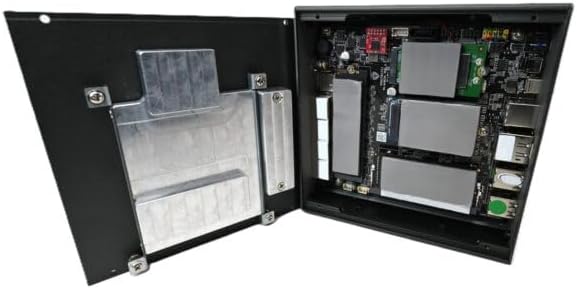
ภาพ: ภายใน view of the Protectli Vault Pro VP2430-4, showing the motherboard with slots for RAM and M.2 SSD.
3.2. การเชื่อมต่อภายนอก
Connect the necessary peripherals and power to the device.
- พลัง: Connect the DC 12V power adapter to the DC-in port on the rear panel and then plug the adapter into a power outlet.
- เครือข่าย: Connect your network cables to the 2.5G NIC ports (labeled 1-4) on the front panel.
- แสดง: If a display is required for initial setup, connect a monitor to the HDMI or DisplayPort (DP) output on the rear panel.
- อุปกรณ์ยูเอสบี: Connect any USB keyboards, mice, or other peripherals to the available USB 2.0 or USB 3.2 Type-C ports.
- คอนโซล: For serial console access, connect the USB Type-C console cable to the console port and to your computer.
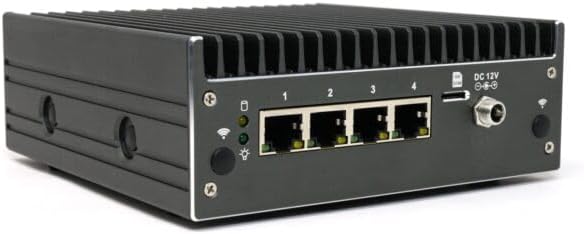
Image: Front panel of the Protectli Vault Pro VP2430-4, highlighting the four 2.5G network ports, power button, and status LEDs.

Image: Rear panel of the Protectli Vault Pro VP2430-4, showing USB 2.0, USB 3.2 Type-C, HDMI, DisplayPort, and console port.
4. คู่มือการใช้งาน
4.1. การเปิด/ปิดเครื่อง
- เปิดเครื่อง: Press the power button located on the front panel. The power LED will illuminate.
- หมดแรง: To safely power off, initiate a shutdown from your installed operating system. Alternatively, press and hold the power button for 5 seconds to force a shutdown.
4.2. BIOS Access and Configuration
The VP2430-4 ships with an AMI BIOS. To access the BIOS setup utility:
- Connect a keyboard and monitor to the device.
- เปิดเครื่องอุปกรณ์
- กดปุ่มซ้ำๆ เดล or F2 key during startup to enter the BIOS setup.
Within the BIOS, you can configure boot order, system time, and other hardware settings. Refer to the AMI BIOS documentation for detailed options.
4.3. การติดตั้งระบบปฏิบัติการ
The Protectli Vault Pro VP2430-4 does not come with a pre-installed operating system. It is compatible with various firewall software and open-source solutions, including OPNsense, pfSense, and VyOS. To install an operating system:
- Prepare a bootable USB drive with your desired operating system installer.
- Connect the USB drive to one of the USB ports.
- Access the BIOS and configure the boot order to prioritize the USB drive, or select it from the boot menu (usually by pressing เอฟ10 or เอฟ12 ระหว่างการบูตเครื่อง)
- Follow the on-screen instructions of your chosen operating system installer.
5. การบำรุงรักษา
5.1. การทำความสะอาด
As a fanless device, the VP2430-4 requires minimal cleaning. Periodically wipe the exterior with a soft, dry cloth. Ensure the heatsink fins are free from dust accumulation to maintain optimal thermal performance. Do not use liquid cleaners directly on the device.
5.2. การอัปเดตเฟิร์มแวร์
Protectli may release BIOS or firmware updates to improve performance, stability, or add new features. Check the official Protectli website for the latest firmware versions and update instructions. The device supports Coreboot, an open-source firmware, which may offer additional customization and security benefits.
5.3. Component Upgrades
RAM and M.2 SATA SSDs can be upgraded. Refer to section 3.1 for instructions on accessing the internal components. Ensure compatibility with the device's specifications (e.g., DDR5 SODIMM RAM).
6 การแก้ไขปัญหา
This section addresses common issues you might encounter with your Protectli Vault Pro VP2430-4.
- ไม่มีไฟฟ้า:
- ตรวจสอบให้แน่ใจว่าอะแดปเตอร์ไฟฟ้าเชื่อมต่อกับอุปกรณ์และเต้ารับไฟฟ้าที่ใช้งานได้แน่นหนา
- ตรวจสอบว่าเต้ารับไฟฟ้าใช้งานได้
- ตรวจสอบอะแดปเตอร์ไฟฟ้าเพื่อดูว่ามีร่องรอยความเสียหายที่มองเห็นได้หรือไม่
- ไม่มีการแสดงผล:
- Ensure the monitor is correctly connected to the HDMI or DisplayPort and is powered on.
- ลองใช้สายจอภาพหรือจอภาพอื่น
- If using a console cable, ensure the correct serial port settings are configured on your computer.
- ปัญหาการเชื่อมต่อเครือข่าย:
- Check that network cables are securely plugged into the 2.5G NIC ports and your network switch/router.
- Observe the LED indicators on the network ports; they should show activity.
- Verify network configuration within your installed operating system.
- Device Not Booting from USB:
- Ensure the USB drive is properly formatted and contains a bootable operating system image.
- Check the BIOS boot order settings to prioritize the USB drive.
- Try a different USB port or USB drive.
For further assistance, refer to the support section or contact Protectli technical support.
7. ข้อมูลจำเพาะ
Below are the technical specifications for the Protectli Vault Pro VP2430-4:
| คุณสมบัติ | ข้อมูลจำเพาะ |
|---|---|
| ชื่อรุ่น | VP2430 |
| โปรเซสเซอร์ | Intel N150 Quad Core CPU (up to 3.6GHz, 6MB Cache) |
| แพลตฟอร์มฮาร์ดแวร์ | PC |
| ประเภทหน่วยความจำ | DDR5 RAM (Barebones, user-installed) |
| ที่เก็บข้อมูลออนบอร์ด | 32GB อีเอ็มซี |
| พื้นที่จัดเก็บเพิ่มเติม | M.2 SATA SSD (Barebones, user-installed) |
| อินเทอร์เฟซเครือข่าย | 4x Intel I226-V 2.5G NICs |
| พอร์ต USB | 2x USB 3.2 Type-C (with DisplayPort), 4x USB 2.0 Type-A |
| เอาท์พุตวิดีโอ | 1x HDMI, 1x DisplayPort (DP) |
| พอร์ตคอนโซล | 1x USB Type-C Console |
| โคโปรเซสเซอร์กราฟิก | กราฟิกแบบบูรณาการ |
| ขนาด (กxยxส) | 5.67 x 5.63 x 2.17 นิ้ว |
| น้ำหนักสินค้า | 4.1 ปอนด์ |
| สี | สีเทา |
| แหล่งพลังงาน | กระแสตรง 12 โวลต์ |
| ไบออส | AMI BIOS (Coreboot supported) |
| AES-NI Support | ใช่ |
8. ข้อมูลการรับประกัน
Protectli products typically come with a manufacturer's warranty. For specific details regarding the warranty period and terms for your VP2430-4, please refer to the warranty documentation included with your purchase or visit the official Protectli webไซต์นี้ โปรดเก็บหลักฐานการซื้อไว้เพื่อใช้ยืนยันการรับประกัน
9. การสนับสนุน
For technical assistance, troubleshooting, or general inquiries, please contact Protectli's US-based support team. You can find contact information and additional resources, such as a knowledge base and FAQs, on the official Protectli webเว็บไซต์:
When contacting support, please have your product model (VP2430-4) and any relevant purchase information ready.


