สินค้าเกินview
The FREEWOLF M96 is a compact 94-key ANSI layout wireless gaming keyboard designed for productivity and a tactile typing experience. It features a creamy membrane switch, rainbow LED backlight, a functional LCD smart screen, and a media knob. The keyboard supports dual connection modes (2.4Ghz wireless and Bluetooth) and is compatible with various operating systems.

Image: FREEWOLF M96 Wireless Gaming Keyboard. This image displays the full keyboard with its purple keycaps, the integrated LCD screen, and the volume knob. A small USB receiver is shown separately at the top left.
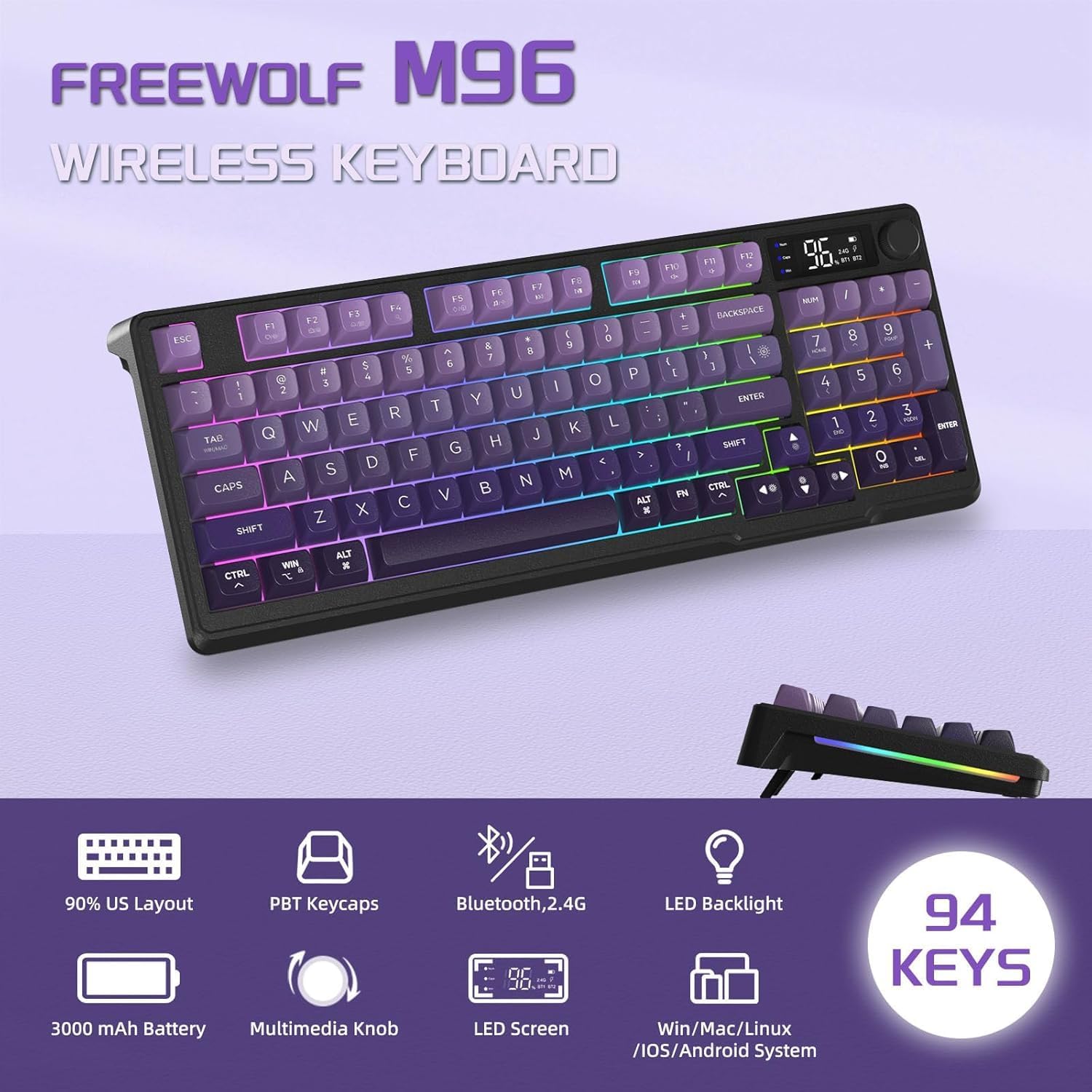
ภาพ: เหนือview of FREEWOLF M96 Wireless Keyboard features. This graphic highlights key features such as 90% US Layout, PBT Keycaps, Bluetooth/2.4G connectivity, LED Backlight, 3000mAh Battery, Multimedia Knob, LED Screen, and compatibility with Win/Mac/Linux/iOS/Android systems, along with a "94 KEYS" badge.
เนื้อหาแพ็คเกจ
เมื่อเปิดบรรจุภัณฑ์ โปรดตรวจสอบให้แน่ใจว่ามีสิ่งของต่อไปนี้ครบถ้วน:
- FREEWOLF M96 Wireless Gaming Keyboard
- USB 2.4Ghz Receiver (stored in the left foot stand of the keyboard)
- สายชาร์จ USB-C
- คู่มือการใช้งาน (เอกสารนี้)
การตั้งค่า
1. การชาร์จครั้งแรก
Before first use, it is recommended to fully charge the keyboard. Connect the provided USB-C charging cable to the keyboard's Type-C charging port and the other end to a USB power source (e.g., computer USB port, wall adapter). The LCD screen will indicate charging status.
Note: The USB-C port is for charging only; the keyboard cannot be used via wired connection.

Image: Dual Mode Wireless Keyboard. This image illustrates the two connection modes: Bluetooth (BT1, BT2) and 2.4GHz Wireless via a USB receiver. It also shows the location of the Type-C charging port, power switch, and 2.4G/BT1/BT2 switch on the keyboard.
2. การเชื่อมต่อคีย์บอร์ด
The M96 keyboard supports two wireless connection modes: 2.4Ghz and Bluetooth.
2.1. การเชื่อมต่อไร้สาย 2.4Ghz
- Locate the USB 2.4Ghz receiver, which is stored in the left foot stand of the keyboard.
- เสียบตัวรับสัญญาณ USB เข้ากับพอร์ต USB ที่ว่างอยู่บนคอมพิวเตอร์หรืออุปกรณ์ของคุณ
- On the keyboard, slide the connection switch (located on the side) to the "2.4G" position.
- The keyboard should automatically connect to your device. The LCD screen will indicate the 2.4G connection status.
2.2. การเชื่อมต่อบลูทู ธ
แป้นพิมพ์สามารถเชื่อมต่อกับอุปกรณ์ Bluetooth ได้สูงสุดสามเครื่อง (BT1, BT2, BT3)
- On the keyboard, slide the connection switch to either "BT1", "BT2", or "BT3" position.
- The corresponding Bluetooth indicator on the LCD screen will blink, indicating it's in pairing mode.
- บนอุปกรณ์ของคุณ (พีซี แล็ปท็อป แท็บเล็ต สมาร์ทโฟน) เปิดใช้งาน Bluetooth และค้นหาอุปกรณ์ใหม่
- Select "FREEWOLF M96" (or similar name) from the list of available devices to pair.
- Once paired, the Bluetooth indicator on the LCD screen will become solid.
- To switch between paired Bluetooth devices, simply slide the connection switch to the desired BT channel.
3. Adjustable Foot Stand
The keyboard features adjustable foot stands on the underside, allowing you to set an ergonomic typing angle that suits your preference. Simply flip out the stands to raise the keyboard's rear.
คำแนะนำการใช้งาน
1. LCD Smart Screen
The integrated LCD screen provides real-time information about the keyboard's status:
- จอแสดงผลพลังงาน: แสดงเปอร์เซ็นต์แบตเตอรี่ปัจจุบันtage.
- สถานะการเชื่อมต่อ: Indicates whether the keyboard is connected via 2.4Ghz, BT1, BT2, or BT3.
- ไฟแสดงสถานะการชาร์จ: Displays when the keyboard is charging.
- ไฟแสดงสถานะแบตเตอรี่ต่ำ: แจ้งเตือนเมื่อระดับแบตเตอรี่เหลือน้อย
- Caps Lock/Num Lock/Win Lock: Indicators for these key states.
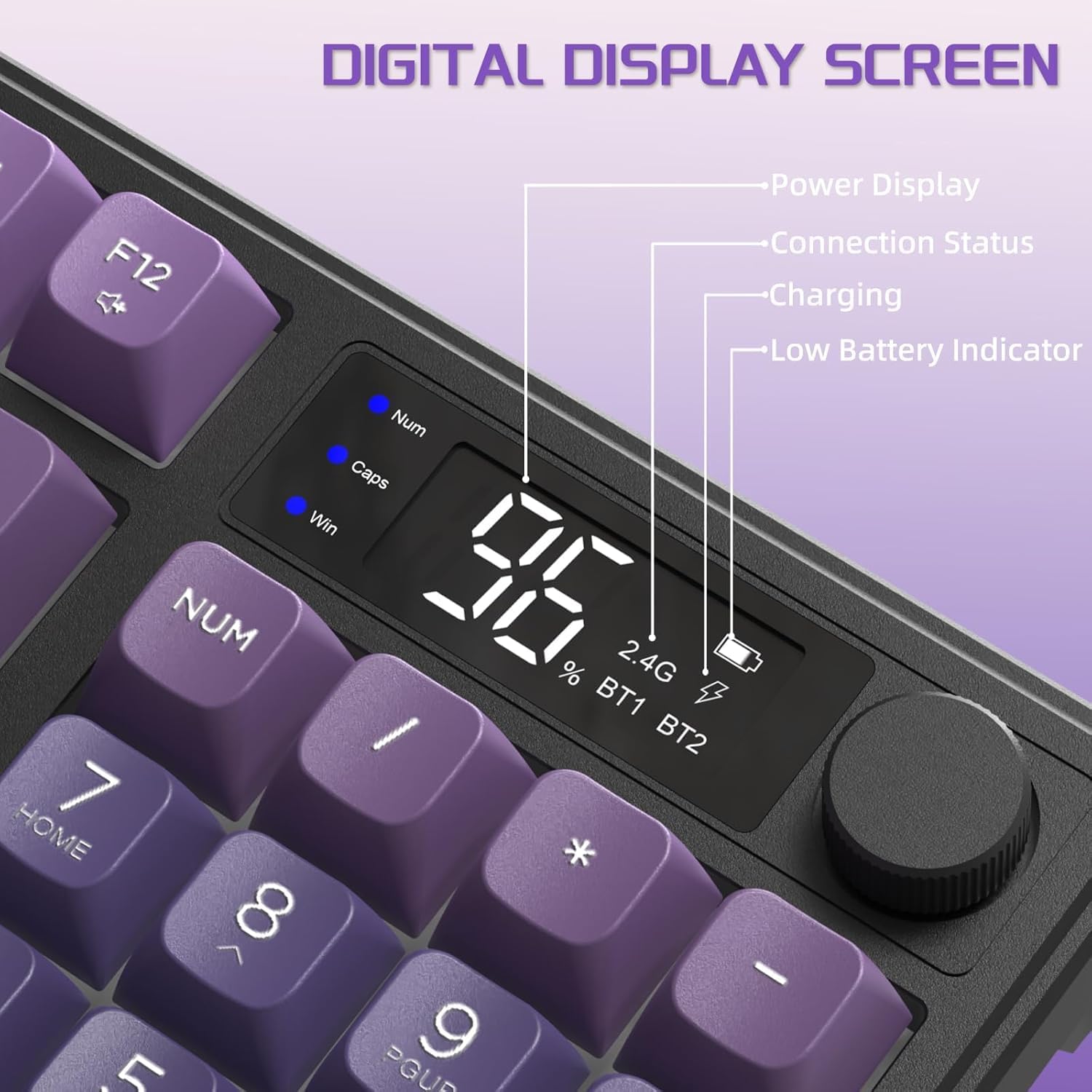
Image: Digital Display Screen. This image details the information displayed on the keyboard's LCD screen, including power display (battery percentage), connection status (2.4G, BT1, BT2), charging indicator, and low battery indicator. It also shows indicators for Num Lock, Caps Lock, and Win Lock.
2. Media Knob Functionality
The multi-functional knob allows for quick adjustments:
- Default Function (Short Press/Rotate):
- หมุนตามเข็มนาฬิกา: เพิ่มระดับเสียง
- Rotate counter-clockwise: Volume Down
- Short press: Mute/Unmute
- Light Control Function (Press and Hold for 5 Seconds):
Press and hold the knob for approximately 5 seconds to switch its function to backlight control. The LCD screen may indicate the change.
- Rotate clockwise: Backlight Brightness Increase
- Rotate counter-clockwise: Backlight Brightness Decrease
- Short press: Cycle through Light Effects (if applicable, though backlight color is fixed)
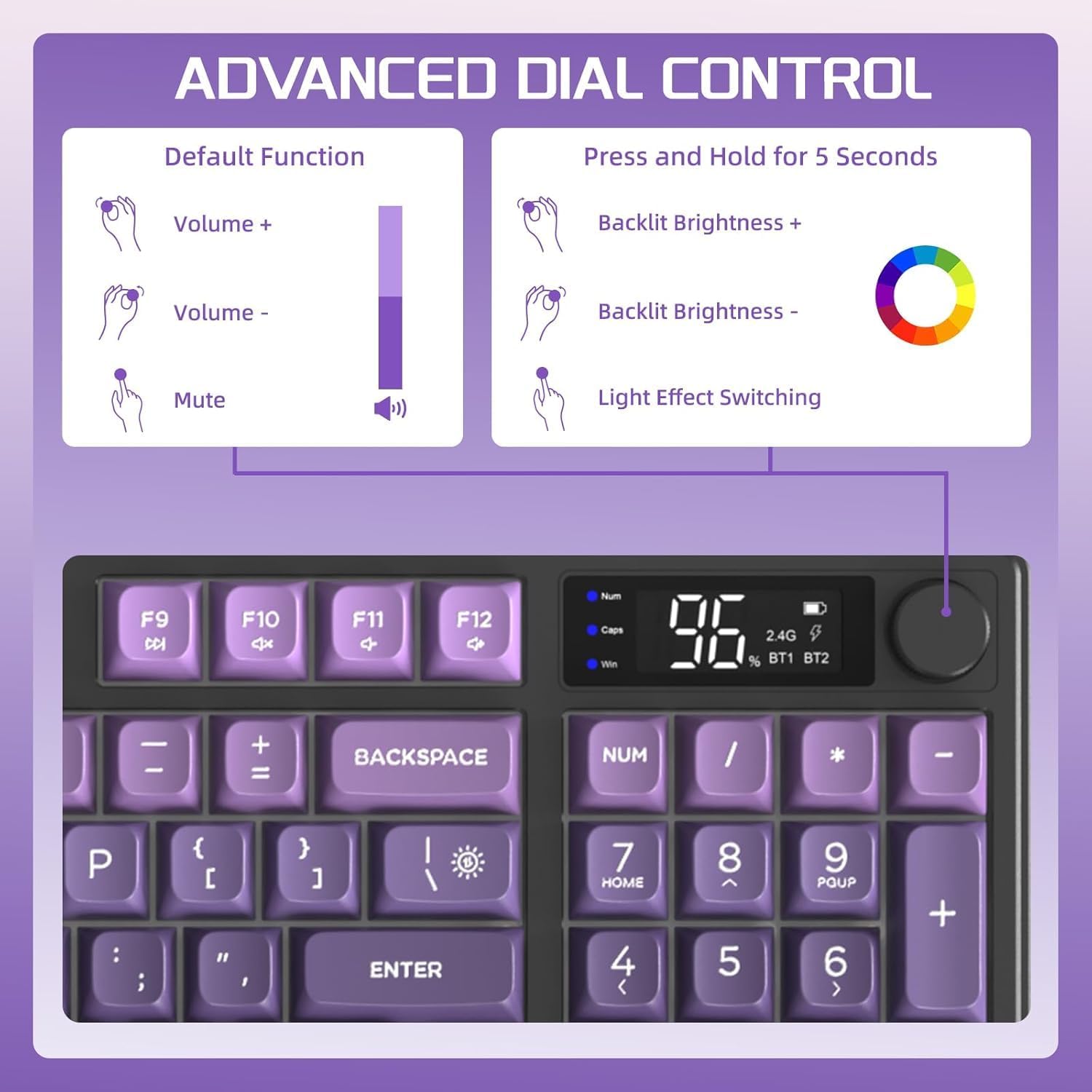
Image: Advanced Dial Control. This graphic explains the dual functionality of the media knob. Its default function is volume control (volume up, volume down, mute). Pressing and holding the knob for 5 seconds switches it to backlight control (backlit brightness increase, decrease, and light effect switching).
3. การควบคุมแบ็คไลท์
The keyboard features a rainbow LED backlight. While the color is fixed, you can adjust its brightness and mode using FN key combinations:
- เอฟเอ็น + เอ็น: Cycle through Backlight Modes (if multiple modes are available beyond fixed rainbow).
- FN + ↑ (ลูกศรขึ้น): Increase Backlight Brightness.
- FN + ↓ (ลูกศรลง): Decrease Backlight Brightness.
- FN + ← (ลูกศรซ้าย): Decrease Backlight Speed (for dynamic modes).
- FN + → (ลูกศรขวา): Increase Backlight Speed (for dynamic modes).
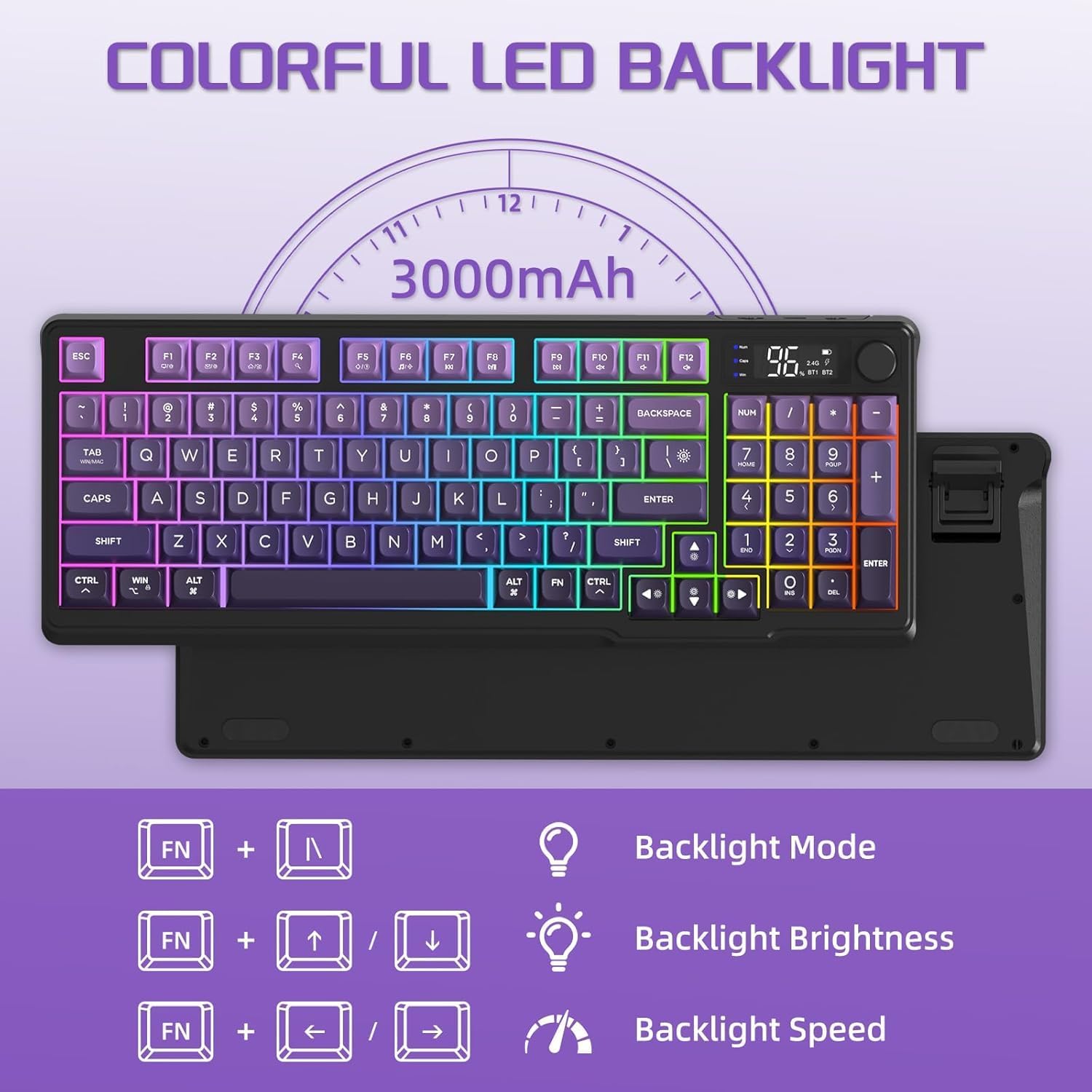
Image: Colorful LED Backlight. This image shows the keyboard with its rainbow backlight illuminated and illustrates the FN key combinations for controlling backlight mode, brightness, and speed.
4. Power Saving Features
To conserve battery life, the keyboard will automatically enter sleep mode if no activity is detected for 3 minutes. Press any key to wake it up.
5. ความเข้ากันได้
The FREEWOLF M96 keyboard is broadly compatible with the following operating systems and devices:
- Windows (PC, Laptop)
- Mac OS (Mac, Laptop)
- ระบบปฏิบัติการ iOS (iPad, iPhone)
- Android (Tablets, Smartphones)
- ลินุกซ์
For use with game consoles like PS4/PS5/Switch/Xbox, a corresponding adapter may be required (not included).
การซ่อมบำรุง
1. การทำความสะอาดคีย์บอร์ด
- Always power off the keyboard before cleaning.
- ใช้ผ้านุ่มไม่เป็นขุยเช็ดเล็กน้อยampened with water or a mild, non-abrasive cleaning solution to wipe the surface of the keyboard and keycaps.
- สำหรับฝุ่นละอองและเศษต่างๆ ระหว่างคีย์ ให้ใช้ลมอัดหรือแปรงขนาดเล็ก
- หลีกเลี่ยงการฉีดของเหลวลงบนแป้นพิมพ์โดยตรง
- Ensure the keyboard is completely dry before powering it on again.
2. การดูแลแบตเตอรี่
- ชาร์จแป้นพิมพ์เป็นประจำเพื่อรักษาสุขภาพแบตเตอรี่
- หลีกเลี่ยงการระบายแบตเตอรี่จนหมดบ่อยครั้ง
- If storing the keyboard for an extended period, charge it to about 50% to prevent battery degradation.
- Use only the provided or a certified USB-C cable for charging.
การแก้ไขปัญหา
| ปัญหา | สาเหตุที่เป็นไปได้ | สารละลาย |
|---|---|---|
| Keyboard not connecting (2.4Ghz) | USB receiver not properly inserted; keyboard not in 2.4G mode; low battery. | Ensure receiver is fully inserted. Slide switch to "2.4G". Charge the keyboard. Try a different USB port. |
| แป้นพิมพ์ไม่เชื่อมต่อ (บลูทูธ) | Keyboard not in pairing mode; device Bluetooth off; already connected to max devices; low battery. | Slide switch to desired BT channel (BT1/BT2/BT3) and ensure it's blinking. Enable Bluetooth on your device. Forget previous pairings and re-pair. Charge the keyboard. |
| Keys not responding or delayed input | Low battery; interference; keyboard in sleep mode. | Charge the keyboard. Move closer to the receiver/device. Press any key to wake from sleep. Restart the keyboard and device. |
| ไฟแบ็คไลท์ไม่ทำงานหรือหรี่ลง | Backlight turned off; brightness set too low; low battery. | Use FN + Up Arrow to increase brightness. Ensure keyboard is charged. Note: Backlight color is fixed rainbow. |
| หน้าจอ LCD ไม่แสดง | Keyboard is off; low battery; temporary glitch. | Ensure keyboard is powered on. Charge the keyboard. Restart the keyboard. |
| Media knob not adjusting volume/light | Knob function switched; temporary glitch. | Press and hold the knob for 5 seconds to toggle between volume and light control. Restart the keyboard. |
ข้อมูลจำเพาะ
| คุณสมบัติ | รายละเอียด |
|---|---|
| แบบอย่าง | M96 |
| ประเภทแป้นพิมพ์ | คีย์บอร์ดเมมเบรน |
| เค้าโครงคีย์ | 94 Key ANSI Layout |
| วัสดุปุ่มกด | PBT (Ball Shape) |
| การเชื่อมต่อ | Dual Mode: 2.4Ghz Wireless, Bluetooth (up to 3 devices) |
| ความจุของแบตเตอรี่ | 3000mAh (ในตัว) |
| แสงไฟแบ็คไลท์ | Rainbow LED (fixed color, adjustable brightness/speed) |
| คุณสมบัติพิเศษ | LCD Smart Screen, Media Knob, Adjustable Foot Stand, 26 Anti-ghosting Keys, Auto Sleep Mode |
| ระบบปฏิบัติการที่รองรับ | Windows, Mac OS, iOS, Android, ลินุกซ์ |
| ขนาด (กว้าง x ยาว x สูง) | Approx. 15.16 x 5.71 x 1.57 inches (385mm x 145mm x 40mm) |
| น้ำหนัก | 1.74 ปอนด์ (0.79 กก.) |

Image: Product Size. This image provides the dimensions of the FREEWOLF M96 keyboard: 385mm/15.16 inches in length, 145mm/5.71 inches in width, and 40mm/1.57 inches in height.
การรับประกันและการสนับสนุน
For warranty information, please refer to the documentation included with your purchase or visit the official FREEWOLF website. If you encounter any issues not covered in this manual or require further assistance, please contact FREEWOLF customer support or your retailer.
Keep your purchase receipt and product packaging for warranty claims.


