การแนะนำ
This manual provides essential instructions for setting up, operating, and maintaining your Epson EcoTank L1270 WiFi printer. Please read this guide thoroughly to ensure proper use and to maximize the performance and longevity of your device. The Epson EcoTank L1270 is an inkjet printer designed for efficient printing with a rechargeable ink tank system and Wi-Fi connectivity.
1. การตั้งค่า
1.1 การแกะกล่องเครื่องพิมพ์
Carefully remove the printer from its packaging. Ensure all protective tapes and materials are removed from the exterior and interior of the printer. Keep the packaging materials for future transport or storage.
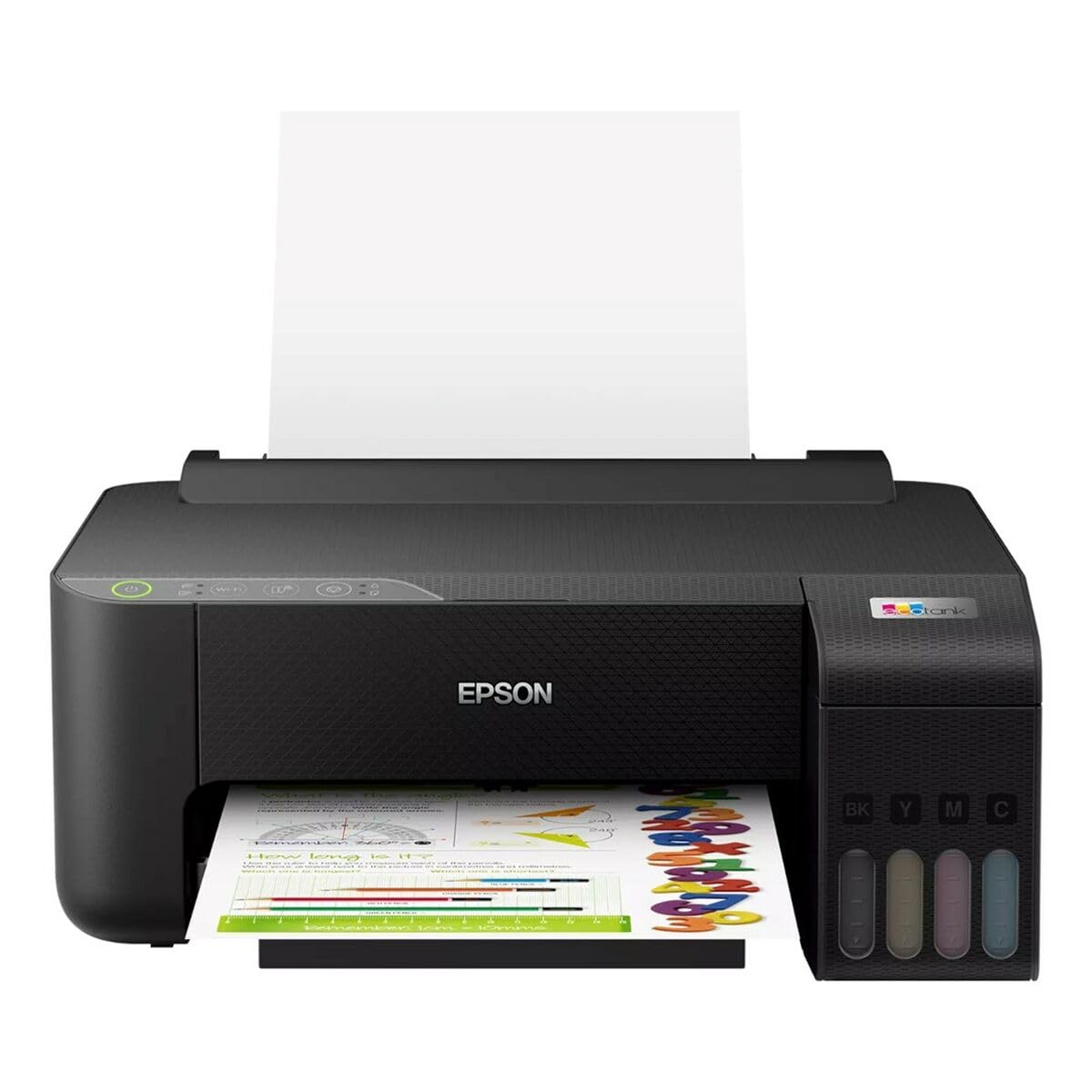
Image 1.1: Epson EcoTank L1270 WiFi Printer. This image shows the printer ready for initial setup after unpacking.
1.2 การเติมหมึกพิมพ์
The EcoTank L1270 uses a refillable ink tank system. Follow these steps to fill the ink tanks:
- Open the ink tank unit cover on the printer.
- Uncap the ink bottle for the corresponding color. Each bottle is keyed to fit only the correct tank.
- ใส่ขวดหมึกเข้าไปในช่องเติมหมึก หมึกจะเริ่มไหลเข้าแทงค์โดยอัตโนมัติ ห้ามบีบขวดหมึก
- เมื่อเติมหมึกเต็มแล้ว ให้นำขวดหมึกออกและปิดฝาให้สนิท จากนั้นปิดฝาครอบชุดแท็งก์หมึกให้เรียบร้อย
- ทำซ้ำขั้นตอนเดียวกันสำหรับทุกสี
บันทึก: Use only genuine Epson ink bottles to prevent damage and ensure optimal print quality.
1.3 การเชื่อมต่อสายไฟ
Connect the power cord to the printer and then to a wall outlet. Press the power button to turn on the printer. The printer will perform an initial setup process, which may take a few minutes.
1.4 การติดตั้งซอฟต์แวร์และไดรเวอร์
To use your printer, you need to install the necessary drivers and software on your computer. Visit the official Epson support website for the EcoTank L1270 model to download the latest drivers and utilities. Follow the on-screen instructions provided by the installer.
- ไปที่ การสนับสนุนเอปสัน.
- ค้นหา "EcoTank L1270".
- Download and run the recommended driver package.
1.5 การตั้งค่า Wi-Fi
The Epson EcoTank L1270 supports Wi-Fi connectivity. You can connect the printer to your wireless network using one of the following methods:
- Using the Printer's Control Panel: Navigate to the Wi-Fi settings on the printer's control panel, select your network, and enter the password.
- Using EpsonNet Setup: If installed, use the EpsonNet Setup utility on your computer to configure the wireless connection.
- WPS (การตั้งค่าป้องกัน Wi-Fi): If your router supports WPS, press the WPS button on your router, then follow the instructions on the printer's control panel to establish a connection.
2. การใช้งานเครื่องพิมพ์
2.1 กำลังโหลดกระดาษ
Load paper into the rear paper feeder. Ensure the paper guides are adjusted to the width of the paper. The printer supports various paper types and sizes, up to A4.
- Fan the paper stack before loading to prevent misfeeds.
- Do not overload the paper feeder; refer to the maximum capacity (100 sheets for plain paper).
2.2 การพิมพ์เอกสาร
To print a document from your computer:
- เปิดเอกสารที่คุณต้องการพิมพ์
- เลือก "พิมพ์" จากเมนูของแอปพลิเคชัน (เช่น File > พิมพ์).
- เลือก "Epson EcoTank L1270" เป็นเครื่องพิมพ์ของคุณ
- Adjust print settings such as paper size, print quality, and number of copies.
- คลิก "พิมพ์"
2.3 การพิมพ์สองด้าน (Duplex Printing)
The EcoTank L1270 supports manual duplex printing. To print on both sides of the paper:
- In your print settings, select the option for "Manual Duplex Printing" or "Print on Both Sides".
- พิมพ์หน้าเลขคี่ก่อน
- When prompted, reload the printed pages into the paper feeder according to the on-screen instructions to print the even-numbered pages on the reverse side.
3. การบำรุงรักษา
3.1 การตรวจสอบระดับหมึก
Visually inspect the ink tanks on the front of the printer to check current ink levels. The tanks are transparent, allowing for easy monitoring. Refill ink when levels are low to avoid running out during a print job.
3.2 การเติมหมึกในแท็งก์
When an ink tank is low, purchase genuine Epson replacement ink bottles. Follow the same procedure as described in Section 1.2 "Filling the Ink Tanks".
3.3 การทำความสะอาดหัวพิมพ์
If print quality declines (e.g., missing lines, faded colors), perform a print head cleaning. This can be done through the printer's utility software on your computer or via the printer's control panel. Refer to the software's help guide for detailed steps.
3.4 การทำความสะอาดทางเดินกระดาษ
If you experience paper jams or streaks on prints, the paper path may need cleaning. Consult the printer's software utility or the online manual for instructions on how to perform a paper path cleaning.
4 การแก้ไขปัญหา
ส่วนนี้จะกล่าวถึงปัญหาทั่วไปที่คุณอาจพบเจอขณะใช้งานเครื่องพิมพ์ Epson EcoTank L1270 ของคุณ
4.1 Printer Not Printing / Blank Pages
- ตรวจสอบระดับหมึก: Ensure all ink tanks have sufficient ink.
- Print Head Clogged: Perform a print head cleaning (see Section 3.3).
- Paper Loaded Correctly: Verify paper is loaded properly and not jammed.
- การติดตั้งไดร์เวอร์: Ensure printer drivers are correctly installed and up to date. Reinstall if necessary.
4.2 ปัญหาการเชื่อมต่อ Wi-Fi
- Router Range: ตรวจสอบให้แน่ใจว่าเครื่องพิมพ์อยู่ในระยะสัญญาณของเราเตอร์ Wi-Fi ของคุณ
- รหัสผ่านเครือข่าย: Double-check that the correct Wi-Fi password has been entered.
- รีสตาร์ทอุปกรณ์: Try restarting your printer, computer, and Wi-Fi router.
- Reconfigure Wi-Fi: Attempt to set up the Wi-Fi connection again (see Section 1.5).
4.3 คุณภาพการพิมพ์ไม่ดี
- การทำความสะอาดหัวพิมพ์: ทำการทำความสะอาดหัวพิมพ์และตรวจสอบหัวฉีด
- ชนิดกระดาษ : Ensure you are using the correct paper type for your print settings.
- Ink Quality: Use genuine Epson inks for best results.
For more complex issues, refer to the comprehensive online manual on the Epson support webเข้าชมเว็บไซต์หรือติดต่อฝ่ายบริการลูกค้าของ Epson
5. ข้อมูลจำเพาะ
| คุณสมบัติ | รายละเอียด |
|---|---|
| ยี่ห้อ | เอปสัน |
| ชื่อรุ่น | EcoTank L1270 WiFi |
| เทคโนโลยีการพิมพ์ | อิงค์เจ็ท |
| การเชื่อมต่อ | ไวไฟ |
| ความละเอียดการพิมพ์สูงสุด (สี) | 5760 x 1440 จุดต่อนิ้ว |
| ความละเอียดการพิมพ์สูงสุด (ขาวดำ) | 5760 จุดต่อนิ้ว |
| ความเร็วในการพิมพ์สูงสุด (ขาวดำ) | 15 หน้าต่อนาที |
| Max Paper Capacity | กระดาษเปล่า 100 แผ่น |
| การพิมพ์สองหน้า | ใช่ (ด้วยตนเอง) |
| คุณสมบัติพิเศษ | Rechargeable Ink Tank |
| ขนาด (กว้าง x ยาว x สูง) | 26P x 42,5l x 46H cm (approx.) |
6. ข้อมูลการรับประกัน
The Epson EcoTank L1270 WiFi printer comes with a limited warranty. For specific terms, conditions, and duration of your warranty, please refer to the warranty documentation included with your product or visit the official Epson support webไซต์นี้ โปรดเก็บหลักฐานการซื้อไว้เพื่อใช้ยืนยันการรับประกัน
7. การสนับสนุน
หากต้องการความช่วยเหลือเพิ่มเติม การสนับสนุนทางเทคนิค หรือดาวน์โหลดไดรเวอร์และคู่มือเวอร์ชั่นล่าสุด โปรดเยี่ยมชมเว็บไซต์สนับสนุนอย่างเป็นทางการของ Epson webเว็บไซต์:
ฝ่ายสนับสนุนอย่างเป็นทางการของ Epson Webเว็บไซต์
คุณอาจพบแหล่งข้อมูลที่เป็นประโยชน์และคำถามที่พบบ่อยได้ในเว็บไซต์ของพวกเขา webเว็บไซต์.


