1. บทนำ
This manual provides detailed instructions for the safe and efficient use of your Techkey MFi Certified 3-in-1 USB 3.0 Flash Drive. Please read this manual thoroughly before using the device to ensure optimal performance and to prevent damage.
The Techkey flash drive is designed for convenient data transfer and storage across various devices, including iPhones, iPads, Android phones, and personal computers. Its multi-interface design and MFi certification ensure broad compatibility and reliable performance.
2. คุณสมบัติของผลิตภัณฑ์
- ได้รับการรับรอง MFI: Ensures compatibility and reliable performance with Apple devices.
- 3-in-1 Interface Design: Equipped with USB, Lightning, and Type-C connectors for universal compatibility.
- พอร์ต USB 3.0 ความเร็วสูง: Offers fast read and write speeds for efficient data transfer.
- ความจุในการจัดเก็บข้อมูล 256GB: จัดเตรียมให้ ampพื้นที่สำหรับรูปภาพ วิดีโอ เอกสาร และอื่นๆ files.
- การเข้ารหัสข้อมูล: Supports Touch ID/Passcode encryption for enhanced data security.
- โครงสร้างทนทาน: Made from high-quality metal with dustproof, drop-proof, and anti-magnetic properties.
- ขนาดกะทัดรัดและพกพาสะดวก: Lightweight design with a keychain for easy carrying.
- การจัดเก็บข้อมูลอัตโนมัติ: In-app camera captures automatically save to the drive.
- On-the-Go Playback: Directly play stored movies and music from the drive.
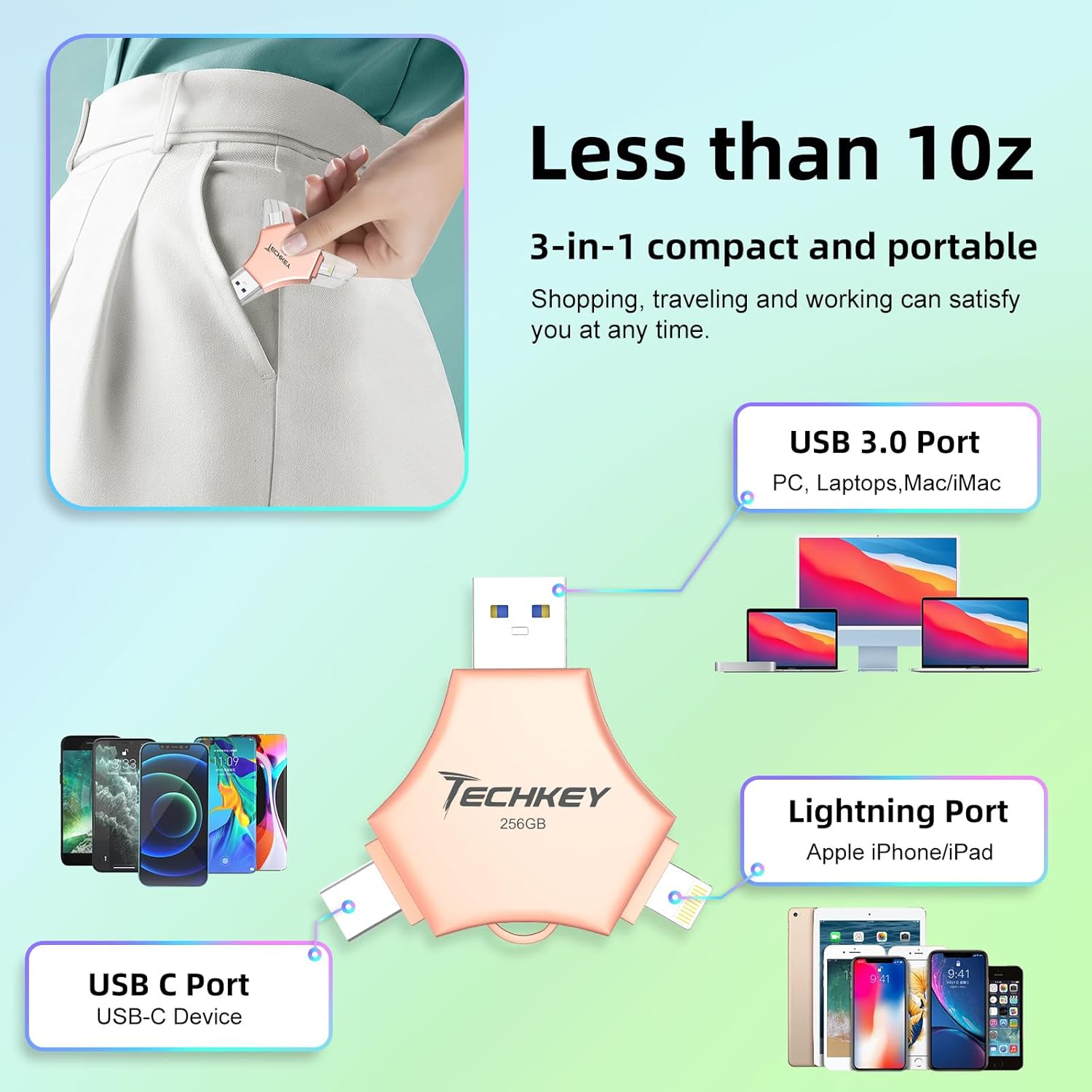
Image: The Techkey 3-in-1 USB Flash Drive showing its USB 3.0, Lightning, and USB-C ports, highlighting its compact and portable design.

Image: A diagram illustrating the three distinct connectors: Lightning for iPhone/iPad, Type-C for iPhone/iPad/Android, and USB for PC.

Image: An illustration of a high-tech chip, symbolizing the advanced technology and MFi certification integrated into the flash drive.

Image: Certificates of authority, indicating the product's compliance with industry standards and quality assurance.
3. เนื้อหาบรรจุภัณฑ์
ตรวจสอบว่ามีรายการทั้งหมดอยู่ในแพ็คเกจของคุณ:
- Techkey MFi Certified 3-in-1 USB 3.0 Flash Drive (256GB)
- Protective Caps (may include extra)
- Keychain/Lanyard
- คู่มือการใช้งาน (เอกสารนี้)
4. การตั้งค่า
4.1. การเชื่อมต่อเริ่มต้น
The Techkey flash drive features three types of connectors: USB, Lightning, and Type-C. Select the appropriate connector for your device.
- สำหรับอุปกรณ์ iOS (iPhone/iPad): Insert the Lightning connector into your device's Lightning port.
- สำหรับอุปกรณ์ Android: Insert the Type-C connector into your device's USB-C port. Ensure your Android device supports OTG (On-The-Go) functionality.
- สำหรับ PC/Mac: Insert the USB connector into an available USB port on your computer.
4.2. App Installation (iOS Devices Only)
For iOS devices (iPhone/iPad), the "U-Disk" application is required for full functionality. When you connect the flash drive to an iOS device for the first time, a prompt to download the "U-Disk" app from the App Store should appear. Follow the on-screen instructions to install it.
- If the prompt does not appear, manually search for "U-Disk" in the Apple App Store and install it.
- Android and PC devices do not require a dedicated app for basic file การจัดการ.
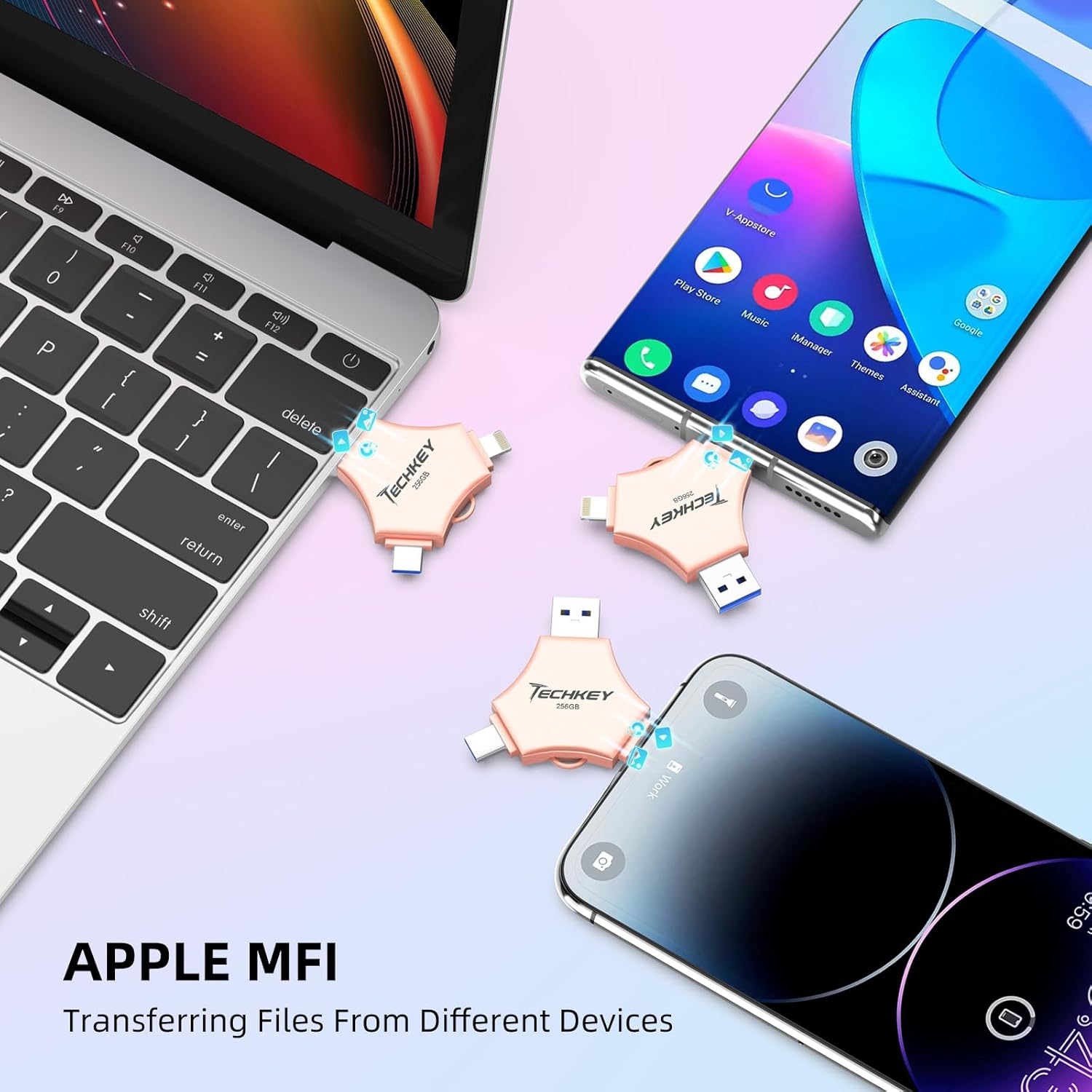
Image: The Techkey flash drive connected to an iPhone and iPad, illustrating its MFi compatibility and ease of use with Apple devices.
5. คู่มือการใช้งาน
5.1. การโอนข้อมูล
The flash drive supports high-speed data transfer. Actual speeds may vary based on device, file size, and system conditions.
- For iOS Devices (via U-Disk App):
- Connect the flash drive to your iPhone/iPad.
- Open the "U-Disk" app.
- นำทางไปยังที่ต้องการ files on your device or within the app.
- เลือก files and use the app's functions to copy or move them to the flash drive.
- To transfer from the flash drive to your device, select files on the drive and use the app's functions to copy them to your device.
- สำหรับอุปกรณ์ Android:
- Connect the flash drive to your Android device.
- Access the flash drive through your device's file manager (e.g., "Files," "My Files").
- คัดลอกหรือย้าย files between your device's internal storage/SD card and the flash drive.
- สำหรับ PC/Mac:
- Connect the flash drive to your computer's USB port.
- The drive will appear as a removable storage device (e.g., "USB Drive," "NO NAME").
- ลากและวาง files between your computer and the flash drive, or use copy/paste functions.
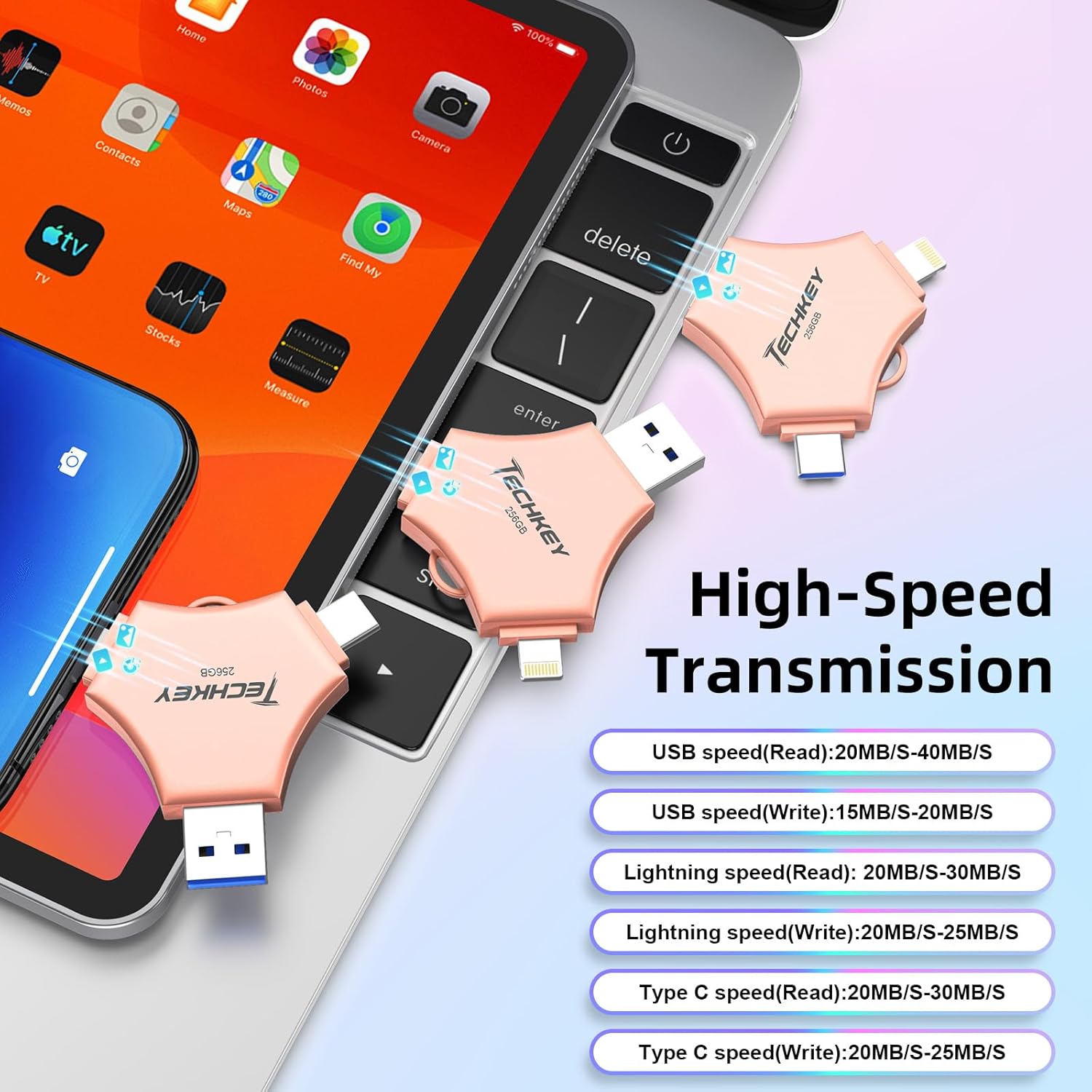
Image: A graphic detailing the high-speed transmission rates for the USB (Read: 20-40MB/s, Write: 15-20MB/s), Lightning (Read: 20-30MB/s, Write: 20-25MB/s), and Type-C (Read: 20-30MB/s, Write: 20-25MB/s) interfaces.
5.2. One-Click Backup (iOS Devices Only)
The "U-Disk" app allows for one-click backup of photos, videos, and contacts from your iOS device to the flash drive.
- Connect the flash drive and open the "U-Disk" app.
- Locate the "One-Click Backup" or similar function within the app.
- Follow the prompts to back up your selected data. This process copies files to the drive, freeing up space on your device. Remember to manually delete files from your device after confirming they are safely backed up on the flash drive.
5.3 การเข้ารหัสข้อมูล
To protect your sensitive data, the "U-Disk" app (for iOS) offers encryption features.
- Open the "U-Disk" app with the flash drive connected.
- Navigate to the security or settings section within the app.
- You can choose to enable Touch ID/Passcode to encrypt the entire flash drive or select specific files for encryption.
- Follow the on-screen instructions to set up and manage your encryption preferences.
5.4. On-the-Go Playback
You can directly play media files stored on the flash drive without transferring them to your device's internal storage.
- Store your favorite movies, music, or documents on the flash drive.
- Connect the drive to your device (using the "U-Disk" app for iOS).
- เรียกดู files on the flash drive through the app or file ผู้จัดการ.
- เลือกสื่อ file to play it directly.

Image: A visual representation of the flash drive supporting various file formats, including MP4, MOV, RM, RMVB for videos; MP3, AIF, WAV, WMA, AAC for music; BMP, JPG, GIF, ICO, TIFF, PNG for pictures; and PDF, WORD, EXCEL, PPT, HTML, TXT for office documents.
6. การบำรุงรักษา
- การจัดการที่เหมาะสม: Always hold the flash drive by its body, not by the connectors.
- ป้องกันขั้วต่อ: Use the provided protective caps to cover the connectors when not in use to prevent dust and damage.
- การกำจัดอย่างปลอดภัย: Always safely eject the flash drive from your computer (PC/Mac) before physically removing it to prevent data corruption. For mobile devices, ensure no data transfer is active before disconnecting.
- การทำความสะอาด: ใช้ผ้านุ่มและแห้งเช็ดทำความสะอาดภายนอกไดรฟ์ หลีกเลี่ยงการใช้น้ำยาทำความสะอาดหรือวัสดุที่มีฤทธิ์กัดกร่อน
- พื้นที่จัดเก็บ: Store the flash drive in a cool, dry place away from extreme temperatures, direct sunlight, and strong magnetic fields.
7 การแก้ไขปัญหา
7.1. อุปกรณ์ไม่ได้รับการรู้จัก
- ตรวจสอบการเชื่อมต่อ: Ensure the flash drive is fully and correctly inserted into the port.
- ลองใช้พอร์ต/อุปกรณ์อื่นดู: Test the flash drive on a different USB port, or a different compatible device (e.g., another computer, phone) to determine if the issue is with the drive or the port.
- รีสตาร์ทอุปกรณ์: Sometimes, restarting your phone or computer can resolve connection issues.
- แอป iOS: For iOS devices, confirm the "U-Disk" app is installed and updated.
- Android OTG: For Android, verify your device supports OTG and that OTG functionality is enabled in settings if required.
7.2. ความเร็วในการถ่ายโอนข้อมูลช้า
- ประเภทพอร์ต USB: Ensure you are using a USB 3.0 port on your computer for optimal speeds. Connecting to a USB 2.0 port will result in slower transfer rates.
- File ขนาด/ประเภท: การโอนย้ายขนาดเล็กจำนวนมาก fileอาจช้ากว่าการถ่ายโอนข้อมูลขนาดใหญ่เพียงครั้งเดียว file ซึ่งมีขนาดรวมเท่ากัน
- ประสิทธิภาพของอุปกรณ์: The speed of your host device (phone, computer) can affect transfer rates.
- กระบวนการเบื้องหลัง: Close unnecessary applications on your device during transfer.
7.3. Data Corruption/Loss
- การดีดตัวออกอย่างปลอดภัย: Always safely eject the drive from computers. Avoid disconnecting during active data transfer.
- ความผันผวนของพลังงาน: Ensure stable power supply to your computer during transfers.
- ความเสียหายทางกายภาพ: Inspect the drive for any visible physical damage.
7.4. App Issues (U-Disk)
- อัปเดตแอป: Ensure the "U-Disk" app is updated to the latest version.
- ติดตั้งแอปใหม่อีกครั้ง: หากปัญหายังคงอยู่ ให้ลองถอนการติดตั้งแล้วติดตั้งแอปใหม่อีกครั้ง
- เวอร์ชัน iOS: ตรวจสอบให้แน่ใจว่าอุปกรณ์ iOS ของคุณใช้ iOS 12.1 ขึ้นไป
8. ข้อมูลจำเพาะ
| ยี่ห้อ | เทคกี้ |
| หมายเลขรุ่น | 641837950528 |
| ความจุของหน่วยความจำ | 256GB |
| เทคโนโลยีการเชื่อมต่อ | USB, Lightning, USB Type C |
| ความเร็วในการอ่าน | สูงถึง 40 MB/วินาที |
| ความเร็วในการเขียน | สูงถึง 80 MB/วินาที |
| ขนาดสินค้า (กxยxส) | 5.43 x 3.94 x 0.04 นิ้ว |
| น้ำหนักสินค้า | 2.39 ออนซ์ |
| คุณสมบัติพิเศษ | Wear Resistant, MFi Certified, Data Encryption |
| ระบบปฏิบัติการที่รองรับ | iOS 12.1 and above, OTG Android, Windows 7 and above, macOS 10.6 and above |
9. การรับประกันและการสนับสนุน
This Techkey product comes with a standard manufacturer's warranty. Please refer to the packaging or the official Techkey webเว็บไซต์สำหรับข้อกำหนดและเงื่อนไขการรับประกันโดยเฉพาะ
For technical support, troubleshooting assistance, or warranty claims, please contact Techkey customer service through their official channels. Contact information can typically be found on the product packaging or the manufacturer's webเว็บไซต์.
หมายเหตุ: เก็บใบเสร็จรับเงินไว้เป็นหลักฐานการซื้อเพื่อวัตถุประสงค์การรับประกัน

