การแนะนำ
This manual provides detailed instructions for the 8Bitdo Ultimate 2 Bluetooth Controller. It covers setup, operation, maintenance, and troubleshooting to ensure optimal performance and longevity of your device. Please read this manual thoroughly before using the controller.

ด้านหน้า view of the 8Bitdo Ultimate 2 Bluetooth Controller in white, resting on its integrated charging dock. The controller features illuminated joysticks and standard button layout.
เนื้อหาแพ็คเกจ
- ตัวควบคุมบลูทูธ 8Bitdo Ultimate 2
- แท่นชาร์จในตัว
- 2.4G USB Adapter (stored in dock)
- สายชาร์จ USB-C
- คู่มือการใช้งาน (เอกสารนี้)
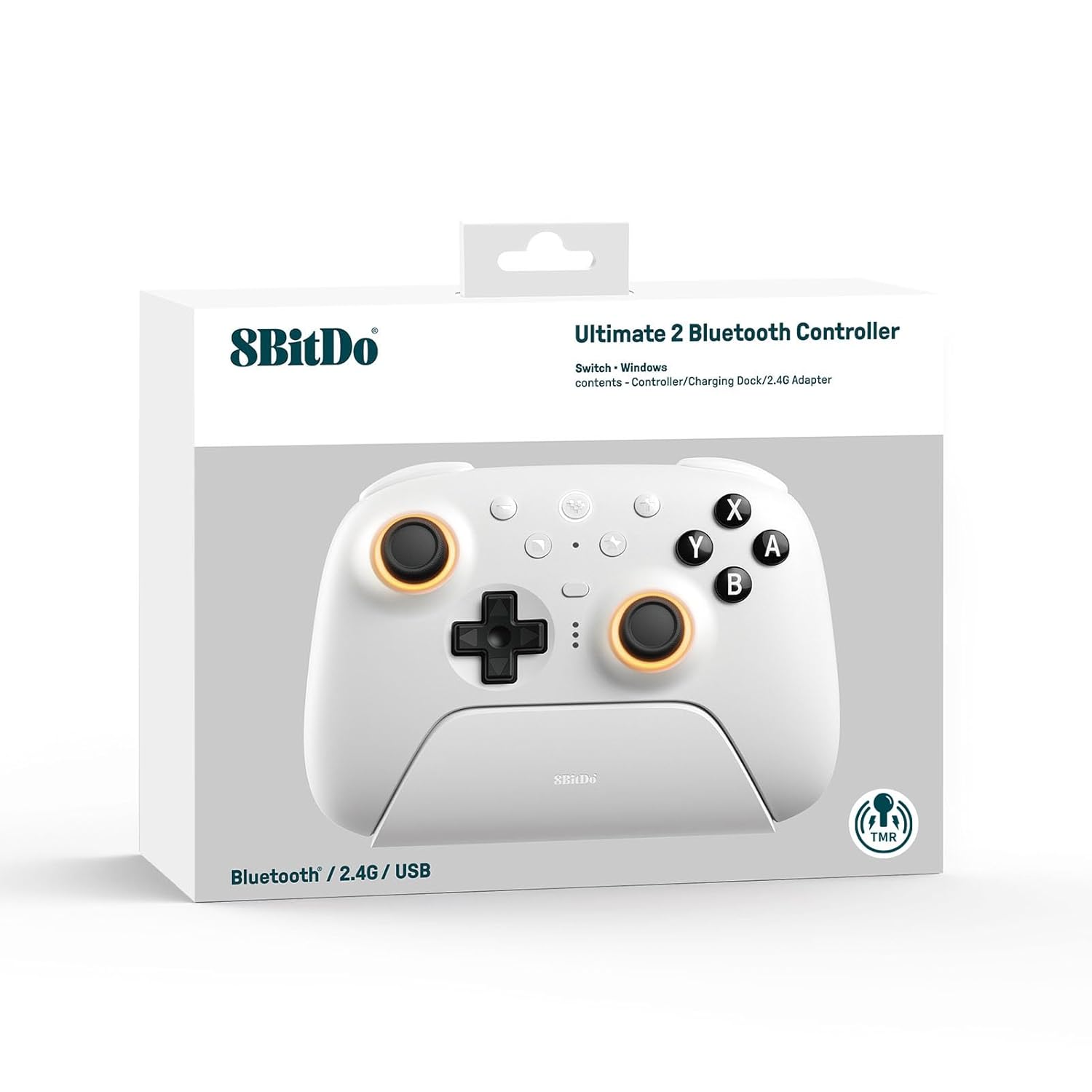
The retail packaging for the 8Bitdo Ultimate 2 Bluetooth Controller, showing the controller and its charging dock. The box highlights compatibility with Switch and Windows.
การตั้งค่า
1. การชาร์จครั้งแรก
Before first use, fully charge the controller using the integrated charging dock or a USB-C cable. The LED indicators on the controller will show charging status.

มุมเอียง view of the 8Bitdo Ultimate 2 Bluetooth Controller securely placed on its charging dock, ready for charging or display.
2. การอัปเดตเฟิร์มแวร์ (แนะนำ)
For optimal performance and compatibility, especially with Switch 2, it is highly recommended to update the controller's firmware using the 8Bitdo Ultimate Software V2. This software is available for download from the official 8Bitdo webเว็บไซต์.
- Download and install 8Bitdo Ultimate Software V2 on your PC.
- Connect the controller to your PC via USB-C cable or the 2.4G USB adapter.
- Follow the on-screen instructions in the software to update the firmware.

A visual representation of the 8Bitdo Ultimate Software V2 interface, showing customization options for the controller's buttons, triggers, and RGB lighting.
3. การเชื่อมต่อกับอุปกรณ์
The 8Bitdo Ultimate 2 Bluetooth Controller supports multiple connection modes:
A. Nintendo Switch / Switch 2 (Bluetooth)
- On your Switch, go to System Settings > Controllers and Sensors > Disconnect Controllers (if any are connected).
- เลือก "เปลี่ยนกริป/สั่งซื้อ"
- On the 8Bitdo controller, press and hold the คู่ button (located on the top edge) until the LEDs start flashing rapidly.
- The Switch will detect the controller. Once connected, the player indicator LEDs on the bottom of the controller will light up solid.
Note: Ensure your Switch firmware is up to date. For Switch 2 compatibility, the controller firmware must also be updated.

A user holding the 8Bitdo Ultimate 2 Bluetooth Controller while playing on a Nintendo Switch console, demonstrating its compatibility.
B. Windows PC (2.4G Wireless via USB Adapter)
- Locate the 2.4G USB adapter stored in the bottom of the charging dock.
- Plug the 2.4G USB adapter into an available USB port on your Windows PC.
- On the 8Bitdo controller, slide the mode switch on the back to the "2.4G" position.
- The controller will automatically connect to the adapter. The player indicator LEDs will light up solid.

A user playing on a laptop with the 8Bitdo Ultimate 2 Bluetooth Controller, with the 2.4G USB adapter visible next to the charging dock, illustrating the wireless PC connection.
For direct USB-C wired connection to PC, simply connect the controller to your PC using a USB-C cable. The controller will be recognized as a standard gamepad.
การใช้งานคอนโทรลเลอร์
คุณสมบัติและฟังก์ชั่นหลัก
- จอยสติ๊ก TMR: High sensitivity, precision, and durability with RGB Fire Ring and wear-resistant joystick rings.
- สวิตช์โหมดทริกเกอร์: Easily switch between linear Hall Effect triggers and non-linear tactile triggers.
- ปุ่มด้านหลังระดับมืออาชีพ: Two customizable back buttons (P1, P2) for advanced gameplay.
- กันชน R4/L4 เพิ่มเติม: Additional shoulder buttons for more control options.
- Tactile Bumpers and D-pad: Responsive and satisfying button presses.
- Vibration and Motion Control: Supported on Switch (motion control not supported on Switch 2).
- ฟังก์ชั่นเทอร์โบ: Assign rapid fire to any button.
- ปลุกพลังด้วยการเขย่า: Not supported on Switch 2.
- โปรที่กำหนดเองfiles: จัดเก็บโปรไฟล์แบบกำหนดเองได้สูงสุด 3 รายการfiles using 8Bitdo Ultimate Software V2.

ภาพระยะใกล้ view of the controller's TMR joysticks, highlighting the vibrant RGB lighting around the base of the sticks.

Detail shot of the controller's back buttons (P1, P2) and the tactile D-pad, showcasing their ergonomic placement.
Using the 8Bitdo Ultimate Software V2
The Ultimate Software V2 allows for extensive customization of your controller:
- การทำแผนที่ปุ่ม: ตั้งค่าปุ่มใดก็ได้ตามความต้องการของคุณ
- การปรับตั้งไกปืน: Fine-tune trigger sensitivity and dead zones.
- การควบคุมการสั่นสะเทือน: ปรับความเข้มของการสั่นสะเทือน
- การสร้างมาโคร: ตั้งโปรแกรมลำดับการกดปุ่มที่ซับซ้อน
- แสงไฟ RGB: Customize joystick RGB effects (Fire Ring, Light-tracing, Rainbow Ring).

A composite image displaying various customization screens within the 8Bitdo Ultimate Software V2, including button remapping, trigger sensitivity, and RGB effects.
การซ่อมบำรุง
การทำความสะอาดคอนโทรลเลอร์
- ใช้ผ้าแห้งนุ่มเช็ดตัวควบคุมเป็นประจำ
- สำหรับสิ่งสกปรกฝังแน่น ให้เช็ดออกเล็กน้อยampชุบผ้าด้วยน้ำหรือน้ำยาทำความสะอาดอ่อนๆ ที่ไม่กัดกร่อน หลีกเลี่ยงความชื้นที่มากเกินไป
- ห้ามใช้สารเคมีรุนแรง ตัวทำละลาย หรือวัสดุที่มีฤทธิ์กัดกร่อน เนื่องจากอาจทำให้พื้นผิวของตัวควบคุมเสียหายได้
- Pay special attention to the textured grips and button crevices.
พื้นที่จัดเก็บ
- เก็บตัวควบคุมไว้ในที่แห้งและเย็น ห่างจากแสงแดดโดยตรงและอุณหภูมิที่สูงหรือต่ำมาก
- When not in use, placing the controller on its charging dock helps keep it charged and protected.
การแก้ไขปัญหา
| ปัญหา | สาเหตุที่เป็นไปได้ | สารละลาย |
|---|---|---|
| Controller not connecting to Switch/PC. | Incorrect mode selected, low battery, interference, outdated firmware. | Ensure correct mode (Bluetooth for Switch, 2.4G for PC) is selected on the back switch. Charge the controller. Move closer to the console/PC. Update controller firmware via Ultimate Software V2. |
| ตัวควบคุมไม่ชาร์จ | Charging dock not powered, faulty cable, dirty charging contacts. | Ensure the charging dock is properly connected to power. Try a different USB-C cable. Clean the charging contacts on both the controller and the dock. |
| Input lag or dropped connections. | Wireless interference, distance from receiver, low battery. | Reduce distance between controller and console/PC. Minimize other wireless devices. Ensure controller is fully charged. |
| จอยสติ๊กเลื่อนเองหรือไม่ตอบสนอง | Calibration issue, physical debris, software glitch. | Recalibrate joysticks using 8Bitdo Ultimate Software V2. Check for debris around the joystick base. Perform a factory reset (refer to 8Bitdo support for specific steps). |
ข้อมูลจำเพาะ
- หมายเลขรุ่น: 6922621507079
- ความเข้ากันได้: Nintendo Switch, Switch 2, พีซี Windows
- การเชื่อมต่อ: Bluetooth, 2.4G Wireless (via USB adapter), USB-C Wired
- จอยสติ๊ก: TMR Joysticks with RGB lighting
- ทริกเกอร์: เอฟเฟกต์ฮอลล์แบบสลับได้ / ทริกเกอร์แบบสัมผัส
- ปุ่ม: Standard face buttons (A, B, X, Y), D-pad, L1/R1, L2/R2, L3/R3, P1/P2 (back buttons), R4/L4 (extra bumpers), Home, Capture, Plus, Minus, Star.
- คุณสมบัติพิเศษ: Vibration, Motion Control (Switch only), Turbo Function, 3 Custom Profiles via Ultimate Software V2.
- แบตเตอรี่: แบตเตอรี่ลิเธียมโพลิเมอร์ 1 ก้อน (รวมอยู่ด้วย)
- ขนาด : 3.94 x 3.94 x 0.79 นิ้ว
- น้ำหนัก: 1.76 ออนซ์
- ผู้ผลิต: 8 บิต
- ประเทศต้นกำเนิด: จีน
การรับประกันและการสนับสนุน
สำหรับข้อมูลการรับประกันและการสนับสนุนทางเทคนิค โปรดเยี่ยมชมเว็บไซต์อย่างเป็นทางการของ 8Bitdo webหรือติดต่อฝ่ายบริการลูกค้า เก็บใบเสร็จรับเงินไว้เป็นหลักฐานการซื้อสำหรับการเรียกร้องการรับประกัน
8Bitdo อย่างเป็นทางการ Webเว็บไซต์: www.8bitdo.com
หน้าสนับสนุน: support.8bitdo.com


