1. บทนำ
Welcome to the user manual for your new DigiLand 10.1 Inch HD Octa-Core Android Tablet. This device is designed to provide a versatile and powerful experience for both productivity and entertainment. Featuring an Octa-Core processor, ample RAM and storage, and a vibrant HD display, your tablet is equipped for a wide range of tasks, from browsing and streaming to gaming and office work.
This manual will guide you through the initial setup, operation, maintenance, and troubleshooting of your tablet to ensure you get the most out of its capabilities.
2. อะไรอยู่ในกล่อง
โปรดตรวจสอบว่าสินค้าทั้งหมดมีอยู่ในบรรจุภัณฑ์ผลิตภัณฑ์ของคุณ:
- DigiLand 10.1 Inch Android Tablet
- เคสป้องกัน
- สายชาร์จแบบ USB Type-C
- อะแดปเตอร์แปลงไฟ (5V/2A)
- คู่มือเริ่มต้นอย่างรวดเร็ว

รูปที่ 2.1: สิ่งของในบรรจุภัณฑ์
3. สินค้าหมดview
The DigiLand R10 Pro+ tablet combines powerful hardware with a user-friendly Android 14 operating system. Below are the key features and components of your device.
3.1 คุณสมบัติหลัก
- โปรเซสเซอร์: MediaTek Helio G80 Octa-Core CPU (2x A75 2.0GHz + 6x A55 1.8GHz) for robust performance.
- แสดง: 10.1-inch HD (800x1280) In-cell touchscreen with IPS clarity and 350cd/m² brightness.
- หน่วยความจำและการจัดเก็บ: 12GB RAM and 128GB ROM, expandable up to 256GB via TF card.
- แบตเตอรี่: 6000mAh battery providing over 12 hours of runtime, with 10W fast-charging support.
- กล้องถ่ายรูป: 13MP rear camera and 8MP front camera for photography and video calls.
- เสียง: Dual 8Ω/1W speakers for clear sound.
- การเชื่อมต่อ: Bluetooth 5.0, 802.11n Wi-Fi, Type-C port, and headphone jack.
- ระบบปฏิบัติการ: Android 14.
- ฝ่ายสนับสนุน Widevine L1: Enables high-definition streaming from platforms like Netflix, Hulu, and Amazon Prime Video.
3.2 ภาพรวมview
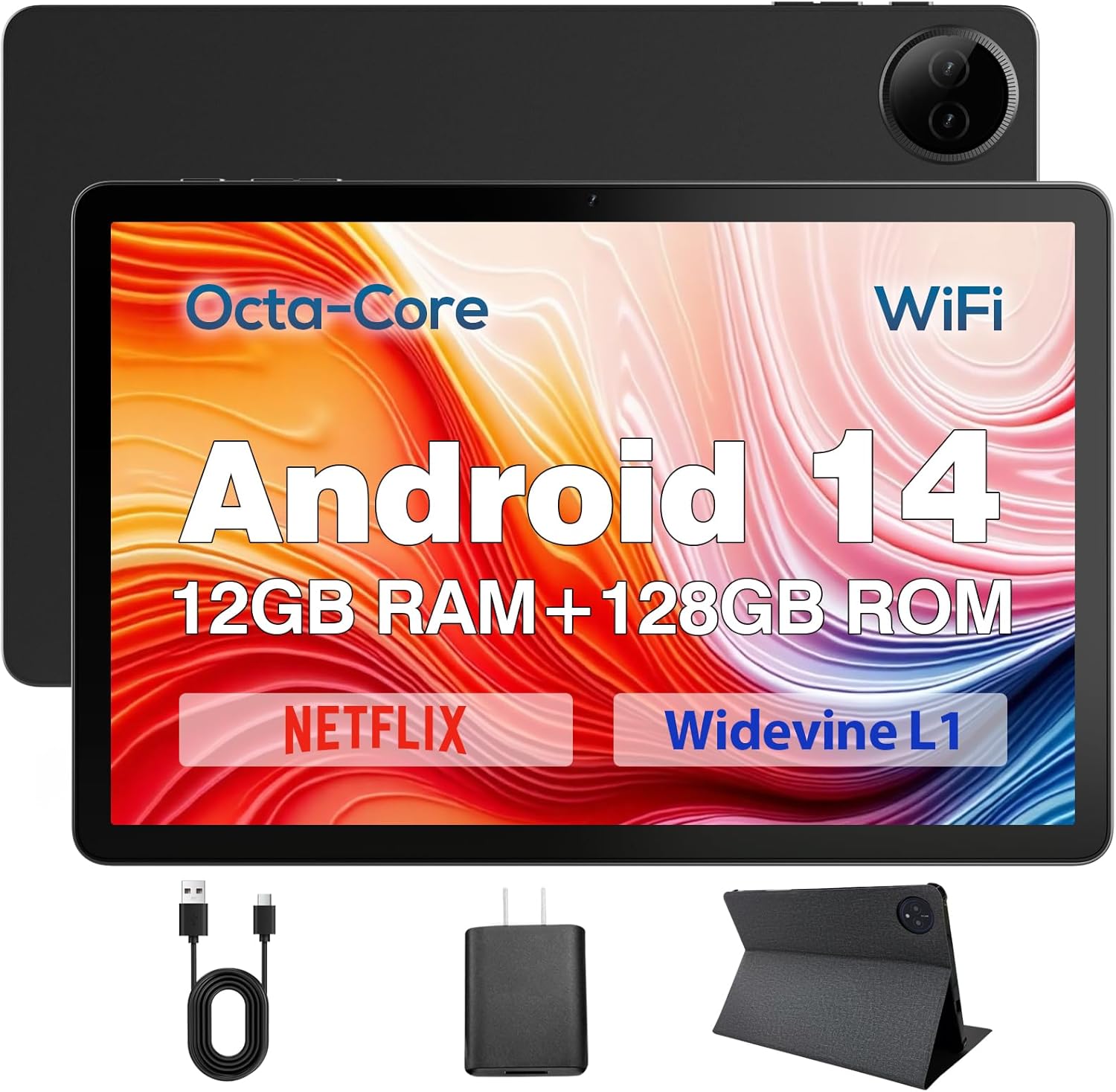
Figure 3.1: DigiLand Tablet Front and Rear View
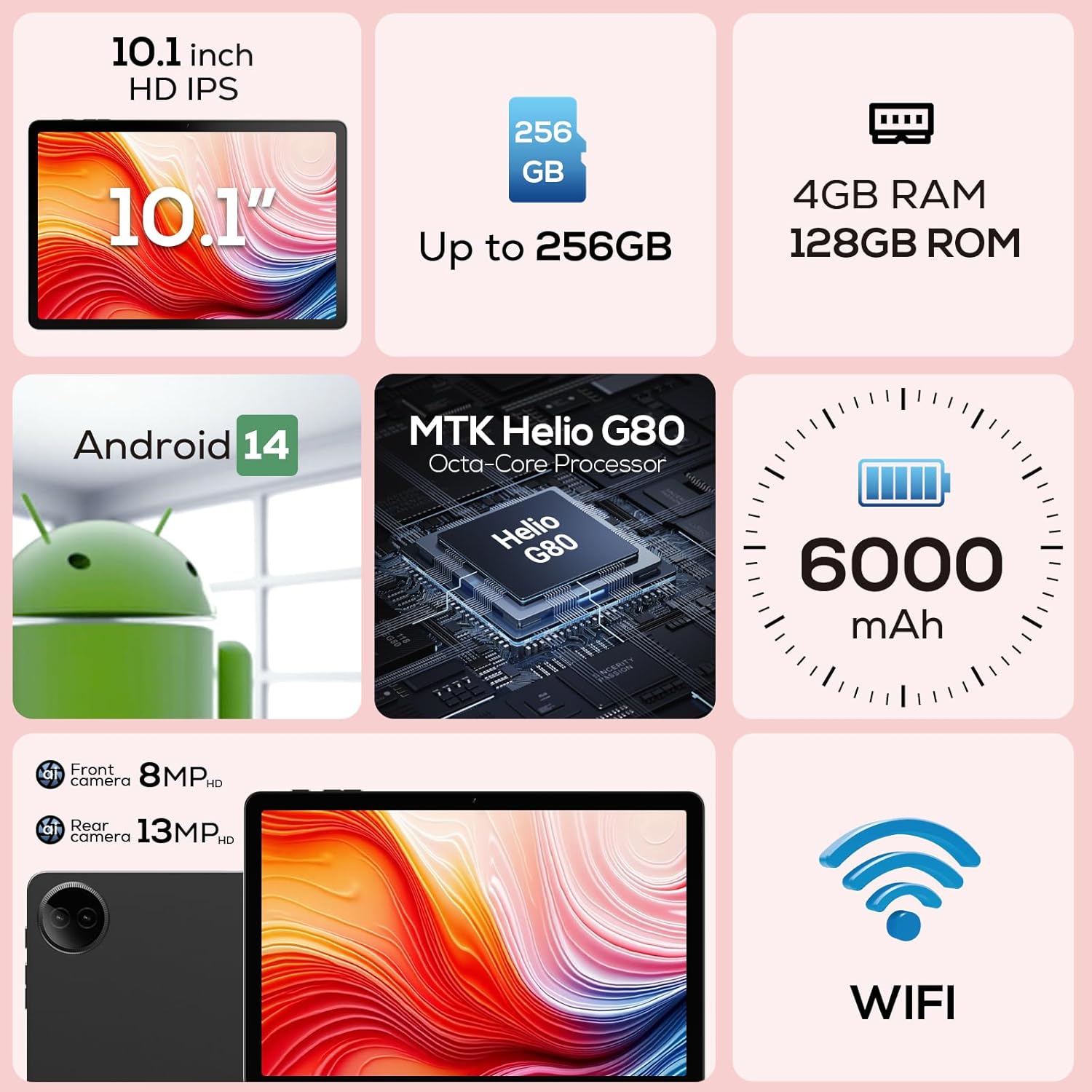
รูปที่ 3.2: แผนภาพแสดงคุณสมบัติหลัก

Figure 3.3: Widevine L1 Support for HD Streaming

รูปที่ 3.4: การออกแบบที่บางเฉียบและน้ำหนักเบา
4. การตั้งค่า
4.1 การชาร์จเริ่มต้น
Before first use, fully charge your tablet. Connect the USB Type-C cable to the tablet's charging port and the power adapter to a wall outlet. The charging indicator will show the charging status. A full charge typically takes several hours.
4.2 การเปิด/ปิดเครื่อง
- การเปิดเครื่อง: กดปุ่มเปิด/ปิดที่อยู่ด้านข้างของแท็บเล็ตค้างไว้จนกว่าโลโก้ DigiLand จะปรากฏบนหน้าจอ
- วิธีปิดเครื่อง: กดปุ่มเปิด/ปิดค้างไว้จนกว่าเมนูตัวเลือกการเปิด/ปิดจะปรากฏขึ้น เลือก 'ปิดเครื่อง' และยืนยัน
- ในการรีสตาร์ท: จากเมนูตัวเลือกพลังงาน ให้เลือก 'รีสตาร์ท'
4.3 ตัวช่วยการตั้งค่าครั้งแรก
Upon first power-on, the tablet will guide you through a setup wizard. Follow the on-screen prompts to:
- เลือกภาษาของคุณ
- เชื่อมต่อกับเครือข่าย Wi-Fi
- ลงชื่อเข้าใช้ด้วยบัญชี Google ของคุณหรือสร้างบัญชีใหม่
- ตั้งค่าล็อคหน้าจอ (PIN, รูปแบบ, รหัสผ่าน)
- Review และยอมรับข้อกำหนดและเงื่อนไข
5. คู่มือการใช้งาน
5.1 การนำทางแบบหน้าจอสัมผัส
Your tablet features a responsive multi-touch display. Common gestures include:
- แตะ: To select an item, open an app, or press a button.
- แตะค้างไว้: To open contextual menus or drag items.
- ปัด: To scroll through lists, move between home screens, or dismiss notifications.
- บีบเพื่อซูม: เพื่อซูมเข้าหรือซูมออกบนภาพ แผนที่ หรือ web หน้า
5.2 การเชื่อมต่อ Wi-Fi
หากต้องการเชื่อมต่อกับเครือข่าย Wi-Fi:
- ไปที่ การตั้งค่า > เครือข่ายและอินเตอร์เน็ต > ไวไฟ.
- สลับ Wi-Fi On.
- เลือกเครือข่ายที่คุณต้องการจากรายการ
- ป้อนรหัสผ่านหากได้รับแจ้งและแตะ เชื่อมต่อ.

Figure 5.1: High-Speed Wi-Fi Connectivity
5.3 การจับคู่บลูทูธ
ในการจับคู่กับอุปกรณ์บลูทูธ (เช่น หูฟัง ลำโพง):
- ไปที่ การตั้งค่า > อุปกรณ์ที่เชื่อมต่อ > การตั้งค่าการเชื่อมต่อ > บลูทูธ.
- สลับบลูทูธ On.
- ตรวจสอบให้แน่ใจว่าอุปกรณ์ Bluetooth ของคุณอยู่ในโหมดจับคู่
- Select your device from the 'Available devices' list and follow any on-screen prompts to complete pairing.
5.4 การใช้กล้อง
Your tablet is equipped with a 13MP rear camera and an 8MP front camera.
- เปิด กล้อง แอปจากหน้าจอหลักหรือลิ้นชักแอปของคุณ
- แตะไอคอนสลับกล้องเพื่อสลับระหว่างกล้องหน้าและกล้องหลัง
- Tap the shutter button to take a photo or the video icon to record a video.
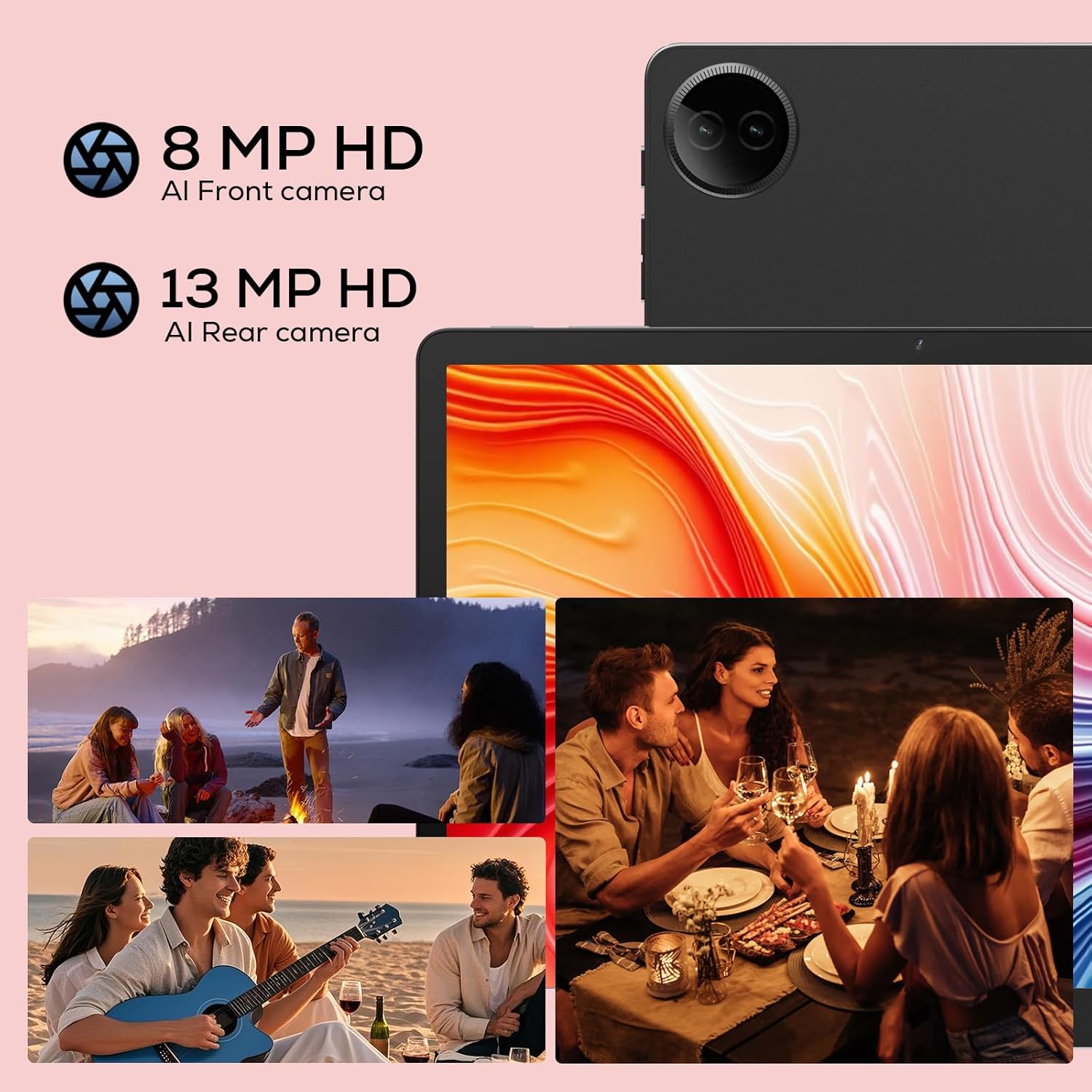
Figure 5.2: Tablet Cameras and Sampเลอ ภาพถ่าย
5.5 การจัดการแอปพลิเคชัน
การติดตั้งแอพ: Download and install apps from the Google Play Store. Open the Play Store app, search for your desired app, and tap 'Install'.
การถอนการติดตั้งแอป: Touch and hold the app icon on the home screen or app drawer, then drag it to 'Uninstall' or select 'App info' and tap 'Uninstall'. Alternatively, go to การตั้งค่า > แอปพลิเคชั่น > ดูแอพทั้งหมดเลือกแอป แล้วแตะ 'ถอนการติดตั้ง'
6. การบำรุงรักษา
6.1 การทำความสะอาดแท็บเล็ตของคุณ
ใช้ผ้าเนื้อนุ่มที่ไม่เป็นขุยเช็ดทำความสะอาดหน้าจอและตัวเครื่องแท็บเล็ต สำหรับคราบสกปรกที่ล้างออกยาก ให้ใช้ผ้าชุบน้ำหมาดๆ เช็ดเบาๆampชุบผ้าด้วยน้ำหรือน้ำยาทำความสะอาดหน้าจอที่ออกแบบมาสำหรับอุปกรณ์อิเล็กทรอนิกส์ หลีกเลี่ยงการใช้สารเคมีรุนแรงหรือวัสดุที่มีฤทธิ์กัดกร่อน
6.2 การดูแลแบตเตอรี่
เพื่อยืดอายุแบตเตอรี่:
- หลีกเลี่ยงอุณหภูมิที่สูงหรือต่ำเกินไป
- อย่าปล่อยให้แบตเตอรี่หมดจนหมดบ่อยๆ
- ใช้เครื่องชาร์จและสายเคเบิลที่ให้มา
- Adjust screen brightness and disable unused features (Wi-Fi, Bluetooth) to conserve power.

Figure 6.1: Extended Battery Life Features
6.3 การอัปเดตซอฟต์แวร์
ตรวจสอบและติดตั้งการอัปเดตซอฟต์แวร์เป็นประจำเพื่อให้มั่นใจถึงประสิทธิภาพ ความปลอดภัย และการเข้าถึงฟีเจอร์ใหม่ๆ ที่ดีที่สุด ไปที่ การตั้งค่า > ระบบ > การอัพเดทระบบ.
6.4 การจัดการการจัดเก็บข้อมูล
วิธีจัดการพื้นที่จัดเก็บข้อมูลของแท็บเล็ต:
- ไปที่ การตั้งค่า > พื้นที่จัดเก็บ ถึง view การใช้พื้นที่จัดเก็บข้อมูล
- ถอนการติดตั้งแอปที่ไม่ได้ใช้งาน
- Clear cache data for apps.
- โอนย้ายขนาดใหญ่ files (photos, videos) to cloud storage or an external TF card.
7 การแก้ไขปัญหา
If you encounter issues with your tablet, refer to the following common problems and solutions:
| ปัญหา | วิธีแก้ปัญหาที่เป็นไปได้ |
|---|---|
| แท็บเล็ตไม่สามารถเปิดได้ | Ensure the battery is charged. Connect to charger for at least 30 minutes. If still unresponsive, perform a forced restart by holding the Power button for 10-15 seconds. |
| ปัญหาการเชื่อมต่อ Wi-Fi | Restart your Wi-Fi router. Forget the network on your tablet and reconnect. Ensure you are within range of the Wi-Fi signal. |
| แอปทำงานช้าหรือขัดข้อง | Close background apps. Clear app cache (Settings > Apps > [App Name] > Storage & cache > Clear cache). Ensure sufficient storage space. Restart the tablet. |
| แบตเตอรี่หมดเร็ว | Reduce screen brightness. Disable Wi-Fi/Bluetooth when not in use. Close unused apps. Check battery usage in Settings to identify power-hungry apps. |
| หน้าจอไม่ตอบสนอง | Restart the tablet. Ensure the screen is clean and dry. Remove any screen protectors that might be interfering. |
หากปัญหายังคงมีอยู่หลังจากลองวิธีแก้ไขเหล่านี้แล้ว โปรดติดต่อฝ่ายสนับสนุนลูกค้า
8. ข้อมูลจำเพาะ
Detailed technical specifications for your DigiLand R10 Pro+ Tablet:
| คุณสมบัติ | ข้อมูลจำเพาะ |
|---|---|
| ยี่ห้อ | ดิจิแลนด์ |
| ชื่อรุ่น | R10 Pro+ |
| ระบบปฏิบัติการ | แอนดรอยด์ 14 |
| ขนาดการแสดงผลหน้าจอยืน | 10.1 นิ้ว |
| ความละเอียดหน้าจอ | 1280 x 800 พิกเซล |
| ยี่ห้อโปรเซสเซอร์ | มีเดียเทค |
| รุ่นโปรเซสเซอร์ | Helio G80 Octa-Core CPU |
| แรม | 12GB |
| ขนาดหน่วยความจำแฟลช (ROM) | 128GB |
| พื้นที่เก็บข้อมูลแบบขยายได้ | Up to 256GB (TF card slot) |
| ประเภทไร้สาย | 802.11n |
| บลูทูธ | 5.0 |
| อายุการใช้งานแบตเตอรี่โดยเฉลี่ย | 12 ชั่วโมง |
| น้ำหนักสินค้า | 1.32 ปอนด์ (ประมาณ 600 กรัม) |
| ขนาดสินค้า | 10.17 x 6.41 x 0.31 นิ้ว |
| สี | สีเทา |
9. การรับประกันและการสนับสนุน
9.1 นโยบายการรับประกัน
Your DigiLand Tablet comes with a นโยบายการรับประกัน 1 ปี นับจากวันที่ซื้อ การรับประกันนี้ครอบคลุมข้อบกพร่องจากการผลิตและปัญหาต่างๆ ที่เกิดขึ้นจากการใช้งานตามปกติ โปรดเก็บหลักฐานการซื้อไว้เพื่อขอรับสิทธิ์การรับประกัน
9.2 การสนับสนุนลูกค้า
For any questions regarding the use, setup, or troubleshooting of your DigiLand Tablet, our customer service team is available to assist you.
- การสนับสนุนทางออนไลน์: We offer 24/7 online call support.
- Repair Support: 1-Year Repair Support is provided.
You can contact us directly through the channels provided on our official website or through your purchase platform. We are committed to providing prompt and helpful service.

รูปที่ 9.1: ฝ่ายสนับสนุนลูกค้าโดยเฉพาะ
For more information and product updates, visit the official DigiLand Store: DigiLand Store on Amazon


