การแนะนำ
The PRISMXR Vega T1 Wireless Gaming Earbuds are designed to provide a low-latency audio experience for gaming across various platforms, including Meta Quest, PlayStation, Steam Deck, and PC. Featuring dual connectivity (2.4GHz wireless via USB-C dongle and Bluetooth), these earbuds offer high-fidelity sound and clear communication capabilities. This manual provides detailed instructions for setup, operation, maintenance, and troubleshooting to ensure optimal performance.
มีอะไรอยู่ในกล่อง
ตรวจสอบว่ามีส่วนประกอบทั้งหมดอยู่ครบเมื่อแกะกล่อง:
- PRISMXR Vega T1 Wireless Gaming Earbuds (Left and Right)
- เคสชาร์จไฟ
- ดองเกิล USB-C
- อะแดปเตอร์ USB-C ถึง USB-A
- สายชาร์จ USB-C
- Eartips (3 pairs: S, M, L)
- คู่มือการใช้งาน (เอกสารนี้)

Image: All components included in the PRISMXR Vega T1 package.
สินค้าเกินview
The Vega T1 earbuds are engineered for immersive audio and seamless connectivity. Key features include:
- VegaBlast Tech: Utilizes PU+bionic fiber layers and high-purity copper coils for enhanced bass and a wide soundstage.
- ZeroDrag Tech: Achieves ultra-low latency of 25ms for synchronized audio during gaming and media consumption.
- การเชื่อมต่อแบบคู่: Supports 2.4GHz wireless via USB-C dongle for gaming and Bluetooth for mobile devices.
- Super Passthrough Charge: Allows 27W fast charging through the dongle, keeping your device powered while in use.
- Clear Microphone Sound: Equipped with two microphones per earbud and beamforming technology for noise-cancelling calls.
- Universal Plug and Play: Compatible with a wide range of devices including Meta Quest, PS4/PS5, Steam Deck, PC, and mobile phones.

Image: The PRISMXR Vega T1 earbuds and their accompanying USB-C dongle.

ภาพ: ระเบิด view diagram highlighting the internal audio components of the Vega T1 earbuds, showcasing VegaBlast Tech.
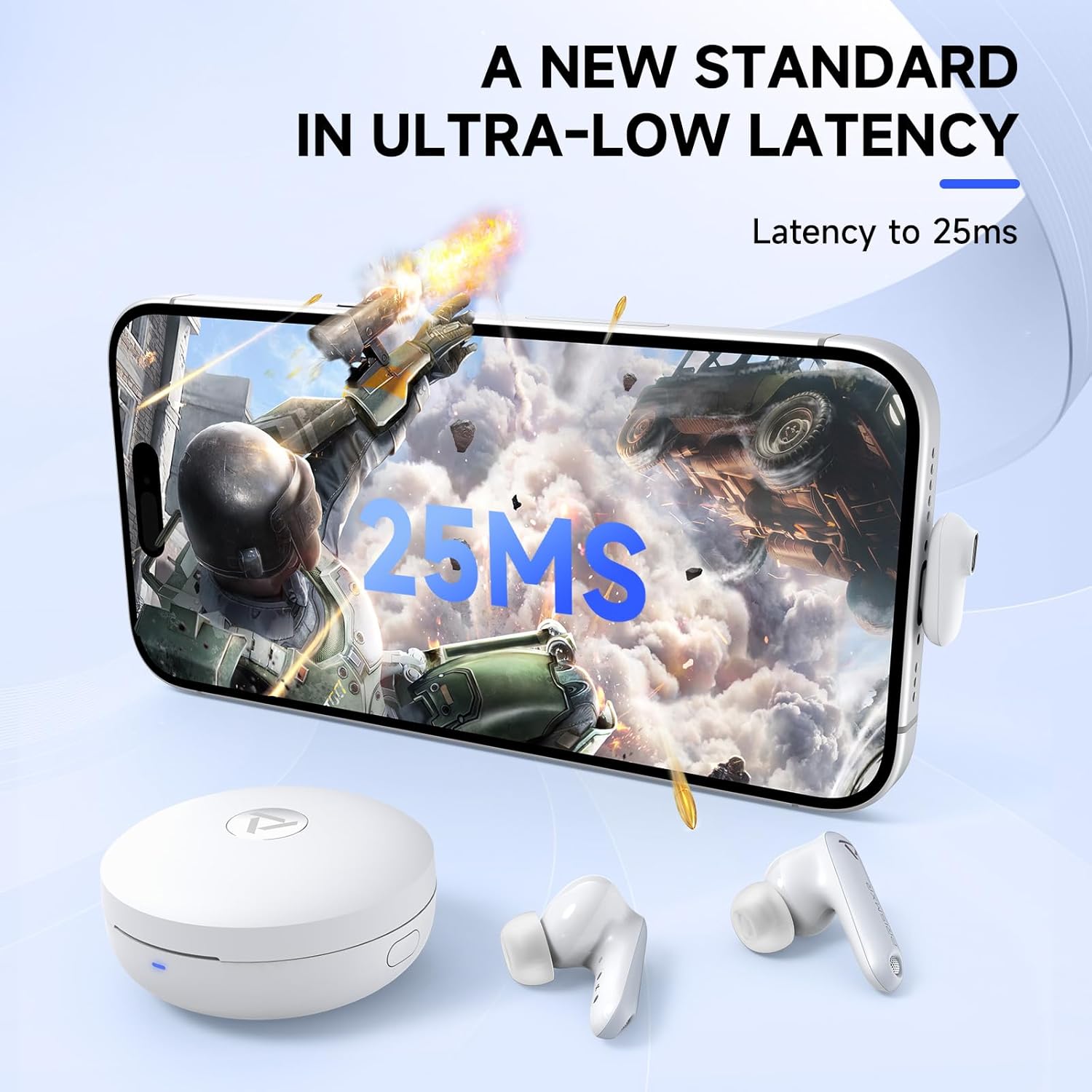
Image: A smartphone screen showing a game with "25ms" latency displayed, indicating the low-latency performance of the earbuds.
การตั้งค่า
1. การชาร์จครั้งแรก
Before first use, fully charge the earbuds and the charging case. Place the earbuds into the charging case and connect the USB-C charging cable to the case and a power source. The indicator lights on the case will show charging status.
2. Connecting via 2.4GHz Wireless (Dongle)
- Insert the USB-C dongle into a compatible port on your gaming device (e.g., Meta Quest, PS5, Steam Deck, PC). If your device only has a USB-A port, use the provided USB-C to USB-A adapter.
- Ensure the earbuds are in the charging case and the case is open, or the earbuds are out of the case and powered on.
- The earbuds will automatically attempt to connect to the dongle. A successful connection is indicated by a stable light on the dongle.
- On your device, select the Vega T1 as the audio output device if it does not switch automatically.
Important Note for PS4/PS5: Do not plug the dongle into the controller or into the back of the PS4/PS5 console. Use a front USB port. Do not attempt to connect to PS4/PS5 via Bluetooth, as this is not supported for gaming audio.

Image: Illustration demonstrating the correct method for connecting the Vega T1 dongle to a PS4 or PS5 console.
3. การเชื่อมต่อผ่าน Bluetooth
- ตรวจสอบให้แน่ใจว่าหูฟังถูกนำออกจากกล่องชาร์จแล้ว
- On your mobile device, open Bluetooth settings.
- Select "PRISMXR Vega T1" from the list of available devices to pair.
- จะมีเสียงแจ้งเตือนเพื่อยืนยันว่าการจับคู่สำเร็จแล้ว
Bluetooth connection is primarily for mobile devices and voice chat (e.g., Discord on smartphone) while simultaneously using the dongle for game audio.
คำแนะนำการใช้งาน
การควบคุมหูฟัง
The Vega T1 earbuds feature touch controls for various functions:
| การกระทำ | การทำงาน |
|---|---|
| แตะครั้งเดียว (ซ้าย/ขวา) | เล่น/หยุดชั่วคราว, รับสาย/วางสาย |
| แตะสองครั้ง (ซ้าย) | ลดระดับเสียง |
| แตะสองครั้ง (ขวา) | เพิ่มระดับเสียง |
| แตะสามครั้ง (ซ้าย) | เพลงก่อนหน้า |
| แตะสามครั้ง (ขวา) | เพลงถัดไป |
| กดแบบยาว (2 วินาที) | ปฏิเสธสาย เปิดใช้งานผู้ช่วยเสียง |
Simultaneous Play and Chat
The Vega T1 allows you to receive game audio via the 2.4GHz dongle and simultaneously connect to your smartphone via Bluetooth for voice chat applications like Discord. This enables uninterrupted communication during gameplay.

Image: A user playing a VR game while simultaneously engaging in a voice chat, demonstrating the dual connectivity feature.
Using the PrismXR App
Download the PrismXR app from your device's app store to personalize your listening experience. The app allows for custom equalizer settings, control remapping, and firmware updates.

Image: Screenshots of the PrismXR mobile application, illustrating options for custom equalizer adjustments and earbud control settings.
การซ่อมบำรุง
- การทำความสะอาด: Regularly clean the earbuds, eartips, and charging contacts with a soft, dry, lint-free cloth. Do not use abrasive cleaners or solvents.
- จุกหูฟัง: Ensure eartips are properly seated on the earbuds. Use only original or compatible eartips to ensure proper charging and sound quality.
- พื้นที่จัดเก็บ: เมื่อไม่ได้ใช้งาน ให้เก็บหูฟังไว้ในกล่องชาร์จเพื่อปกป้องหูฟังและชาร์จไฟให้หูฟังอยู่เสมอ
- ความต้านทานน้ำ: The earbuds are rated IPX4 water-resistant, meaning they are protected against splashing water from any direction. They are not designed for submersion.
การแก้ไขปัญหา
| ปัญหา | สาเหตุที่เป็นไปได้ | สารละลาย |
|---|---|---|
| ไม่มีเสียงออกจากหูฟัง | Earbuds not charged, not connected, or incorrect audio output selected. | Ensure earbuds are charged. Re-pair with dongle/Bluetooth. Check device's audio output settings. |
| High latency/Audio delay | Interference, dongle placement, or simultaneous VR connections. | Ensure dongle is not obstructed and is at least 8 inches from metal. Avoid simultaneous VR connections if experiencing issues. |
| ไมโครโฟนไม่ทำงาน | Microphone muted, incorrect input device selected, or obstruction. | Check device's microphone input settings. Ensure earbuds are clean and not obstructed. |
| หูฟังเอียร์บัดไม่ชาร์จ | Charging contacts dirty, cable faulty, or case battery low. | ทำความสะอาดจุดสัมผัสการชาร์จบนหูฟังและเคส ลองใช้สาย USB-C เส้นอื่น ชาร์จเคสดู |
| Cannot connect to PS4/PS5 | Incorrect dongle port used or attempting Bluetooth connection. | Plug dongle into a front USB port on the console. Do not use Bluetooth for PS4/PS5 gaming audio. |
ข้อมูลจำเพาะ
| คุณสมบัติ | รายละเอียด |
|---|---|
| ชื่อรุ่น | P1201022 |
| เทคโนโลยีการเชื่อมต่อ | 2.4GHz Wireless (Dongle), Bluetooth |
| ความหน่วงเวลา | 25ms (via 2.4GHz dongle) |
| การควบคุมเสียงรบกวน | การยกเลิกเสียงรบกวนแบบพาสซีฟ |
| ไมโครโฟน | 2 per earbud, Beamforming technology |
| ระดับความต้านทานต่อน้ำ | IPX4 |
| อิมพีแดนซ์ | 16 โอห์ม |
| ความจุแบตเตอรี่ของกระเป๋าใส่ | 570 มิลลิแอมป์ |
| Power Input (Passthrough) | 27W (charging only, no data transfer) |
| ความเข้ากันได้ | Meta Quest 3S/3/2, PS4, PS5, Steam Deck, PC, Laptops, Phones (via USB-C dongle or Bluetooth). Not compatible with Switch 2 or Xbox series. |
| ส่วนประกอบที่รวมอยู่ | Earbuds, Charging Case, USB-C Dongle, USB-C to A Adapter, USB-C Charging Cable, Eartips (3 pairs), User Manual |
การรับประกันและการสนับสนุน
For warranty information and technical support, please refer to the official PRISMXR website or contact their customer service. Details can typically be found on the product packaging or the brand's online store.
PRISMXR Store: Visit the PRISMXR Store on Amazon


