1. บทนำ
This user manual provides comprehensive instructions for the Huidun Mini PC, Model H30 N150. This compact and powerful mini PC is equipped with the Intel Twin Lake N150 processor, 16GB DDR4 RAM, and a 512GB M.2 SSD, designed for efficient daily work, office tasks, and home entertainment. It supports 4K dual display output, features 5G WiFi and Bluetooth connectivity, and comes with Windows 11 Pro pre-installed. Please read this manual thoroughly before operating your device to ensure optimal performance and longevity.

ภาพ: ด้านหน้า view of the Huidun Mini PC H30 N150, showcasing its compact design and Intel Inside branding.
2. อะไรอยู่ในกล่อง
เมื่อเปิดบรรจุภัณฑ์ โปรดตรวจสอบว่ามีส่วนประกอบทั้งหมดอยู่ครบ:
- 1 x Huidun Mini PC H30
- อะแดปเตอร์ไฟฟ้า 1 ตัว
- สาย HDMI 1 เส้น
- 1 x คู่มือผู้ใช้ (เอกสารนี้)
- 1 x ขาตั้ง VESA พร้อมสกรู
3. คู่มือการติดตั้ง
3.1 การเชื่อมต่อมินิพีซีของคุณ
- การเชื่อมต่อไฟฟ้า: Connect the power adapter to the DC-in port on the mini PC and then plug it into a power outlet.
- การเชื่อมต่อจอภาพ: Connect your monitor(s) to the HDMI ports on the mini PC using the provided HDMI cable. The mini PC supports dual 4K displays.
- การเชื่อมต่ออุปกรณ์ต่อพ่วง: เชื่อมต่อคีย์บอร์ด เมาส์ และอุปกรณ์ USB อื่นๆ ของคุณเข้ากับพอร์ต USB 2.0 หรือ USB 3.0 ที่ว่างอยู่
- การเชื่อมต่อเครือข่าย: For wired internet, connect an Ethernet cable to the RJ45 LAN port. For wireless internet, the mini PC supports 5G WiFi.
- การเชื่อมต่อเสียง: Connect speakers or headphones to the 3.5mm audio jack if desired.

ภาพ: รายละเอียด view of the Huidun Mini PC's versatile ports, including USB, HDMI, LAN, and audio jack.
3.2 การบูตเครื่องครั้งแรก
After connecting all necessary peripherals, press the power button located on the front of the mini PC. The system will boot into Windows 11 Pro. Follow the on-screen instructions to complete the initial Windows setup, including language, region, and network settings.

Image: The Huidun Mini PC connected to dual monitors, displaying the Windows 11 Pro interface, highlighting its pre-installed operating system.
3.3 การติดตั้ง VESA Mount
The included VESA bracket allows you to mount the mini PC to the back of a compatible monitor or to a wall, saving desk space. Secure the VESA bracket to the mini PC using the provided screws, then attach the bracket to your monitor's VESA mounting holes or a wall mount.
4. คู่มือการใช้งาน
4.1 การใช้งานทั่วไป
The Huidun Mini PC is designed for a wide range of applications, from everyday computing and office tasks to educational and entertainment purposes. Its Intel Twin Lake N150 processor ensures smooth performance for multitasking, web การท่องเว็บ การแก้ไขเอกสาร และการบริโภคสื่อ

Image: A desktop setup showing the Huidun Mini PC facilitating multiple open applications on a single monitor, demonstrating its multitasking capabilities.
4.2 การตั้งค่าจอแสดงผลคู่
Utilize the two HDMI ports to connect two monitors simultaneously. This feature enhances productivity by allowing for extended desktop space or mirrored displays. To configure dual displays in Windows 11, right-click on the desktop, select "Display settings," and adjust the display arrangement and resolution as needed.
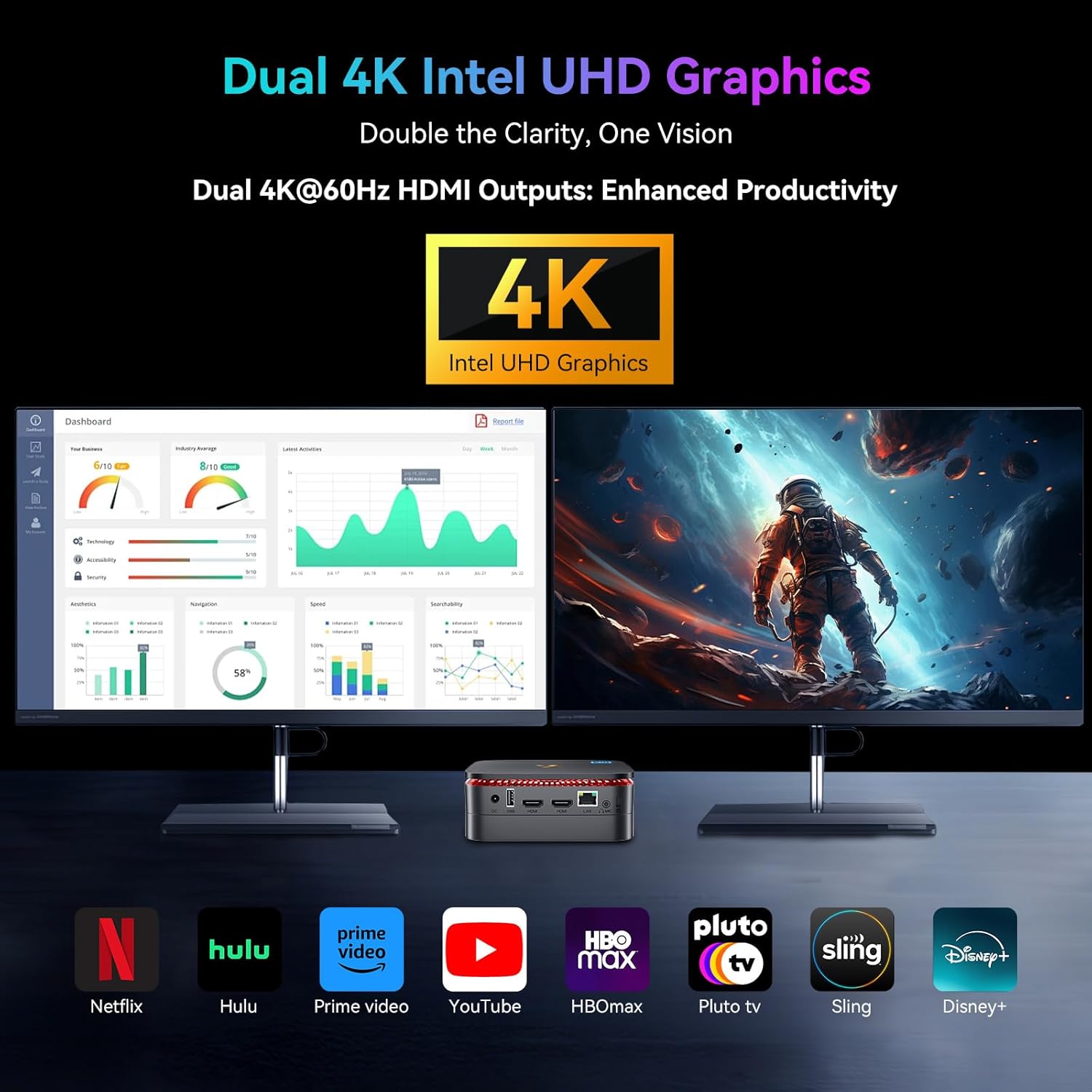
Image: The Huidun Mini PC connected to two 4K monitors, illustrating its dual display capability for enhanced productivity and visual clarity.
4.3 การขยายพื้นที่เก็บข้อมูล
The mini PC comes with a 512GB M.2 SSD. For additional storage, it supports an expandable 2.5" SATA HDD/SSD up to 2TB. To install an additional drive, refer to the detailed instructions in the "Maintenance" section or consult the online support resources.

ภาพ: ระเบิด view of the Huidun Mini PC showing the compartment for an additional 2.5" SATA HDD/SSD, demonstrating its storage expansion capability.
4.4 การเชื่อมต่อ
The mini PC offers robust connectivity options:
- ไวไฟ: Supports dual-band 5G WiFi for fast and stable wireless internet.
- Bluetooth 4.2: Connect wireless peripherals such as keyboards, mice, and headphones.
- อีเธอร์เน็ตกิกะบิต RJ45: Provides a reliable wired network connection for high-speed data transfer.
5. การบำรุงรักษา
5.1 การทำความสะอาด
To maintain optimal performance, regularly clean the exterior of the mini PC with a soft, dry cloth. Ensure the ventilation grilles are free from dust and debris to prevent overheating. Do not use liquid cleaners or aerosols directly on the device.
5.2 การอัปเดตซอฟต์แวร์
Keep your Windows 11 Pro operating system and drivers updated to ensure security, stability, and optimal performance. Windows updates can be managed through the "Settings" app under "Windows Update."
5.3 ระบบระบายความร้อนที่มีประสิทธิภาพ
The Huidun Mini PC features an optimized cooling solution with a copper tube, aluminum heat sink, and a fan operating at 4,500 RPM. This system is designed to dissipate heat quickly, ensuring stable operation and extending the CPU's lifespan. Avoid blocking the ventilation openings to allow for proper airflow.

ภาพ: ภายใน view of the Huidun Mini PC highlighting its efficient cooling system components, including the copper tube, aluminum heat sink, and fan.
6 การแก้ไขปัญหา
| ปัญหา | สาเหตุที่เป็นไปได้ | สารละลาย |
|---|---|---|
| ไม่มีไฟ/ไม่เปิด | ไม่ได้เชื่อมต่ออะแดปเตอร์ไฟอย่างถูกต้อง ปัญหาเต้าเสียบไฟ | Ensure power adapter is securely connected to the mini PC and a working power outlet. Try a different outlet. |
| ไม่มีการแสดงผลบนจอภาพ | HDMI cable loose or faulty; Incorrect input source on monitor. | Check HDMI cable connections. Ensure monitor is set to the correct HDMI input. Try a different HDMI port or cable. |
| ประสิทธิภาพการทำงานช้า | Too many applications running; Insufficient storage space; Outdated drivers. | ปิดแอปพลิเคชันที่ไม่จำเป็น เพิ่มพื้นที่ว่างในดิสก์ อัปเดต Windows และไดรเวอร์ |
| ไม่มีการเชื่อมต่อ Wi-Fi | Wi-Fi adapter disabled; Router issue; Driver problem. | Check Wi-Fi settings in Windows. Restart your router. Update Wi-Fi drivers. |
| ไม่มีเสียง | Incorrect audio output selected; Volume too low; Driver issue. | Check audio output settings in Windows. Increase volume. Update audio drivers. |
7. ข้อมูลจำเพาะ
| คุณสมบัติ | รายละเอียด |
|---|---|
| แบบอย่าง | Huidun H30 N150 mini computer |
| โปรเซสเซอร์ | Intel Twin Lake N150 (up to 3.6GHz, 6W) |
| แรม | แรม DDR16 4GB |
| พื้นที่จัดเก็บ | 512GB M.2 2280 SSD (Expandable up to 2TB 2.5" SATA HDD/SSD) |
| กราฟฟิก | Integrated Intel Graphics (up to 1000MHz), supports 4K dual display |
| ระบบปฏิบัติการ | Windows 11 Pro, Linux compatible |
| การเชื่อมต่อแบบไร้สาย | 5G WiFi (802.11a/b/g/n/ac), Bluetooth 4.2 |
| พอร์ต | 2x USB 3.0, 2x USB 2.0, 2x HDMI (4K@60Hz), 1x RJ45 LAN, 1x 3.5mm Audio Jack, 1x DC-in |
| ระบบระบายความร้อน | Optimized solution with copper tube, aluminum heat sink, and 4,500 RPM fan |
| ขนาด | 9.37 x 7.28 x 2.48 นิ้ว |
| น้ำหนัก | 1.63 ปอนด์ |
| สี | สีดำ |
8. วิดีโอผลิตภัณฑ์อย่างเป็นทางการ
วิดีโอ: วิดีโอแสดงผลิตภัณฑ์อย่างเป็นทางการasing the Huidun Mini PC N150, highlighting its features and compact design.
9. การรับประกันและการสนับสนุน
Huidun provides a รับประกันจำกัด 24 เดือน for the Mini PC H30 N150. Additionally, lifetime technical support is available for all microcomputers.
For any inquiries, technical assistance, or warranty claims, please contact our dedicated customer service team. You can find contact information on the Huidun official website or through your purchase platform. Our computer specialists are ready to provide professional and free services.

Image: Visual representation of Huidun's commitment to customer satisfaction, including 24-month warranty and lifetime technical support.


