1. บทนำ
This user manual provides comprehensive instructions for the TABWEE T20 Android Tablet. It covers setup, operation, maintenance, and troubleshooting to help you maximize your device's performance and ensure a smooth user experience. Please read this manual thoroughly before using your tablet.
2. เนื้อหาบรรจุภัณฑ์
ตรวจสอบว่ามีสินค้าทั้งหมดที่ระบุไว้ด้านล่างอยู่ในแพ็คเกจของคุณ:
- TABWEE T20 Android Tablet
- แป้นพิมพ์ที่ถอดออกได้
- ปากกาสไตลัส
- หนู
- เคสป้องกัน
- แท่นวางแท็บเล็ต
- ฟิล์มกันรอยหน้าจอ (ติดมาแล้วหรือแยกชิ้น)
- สายชาร์จแบบ USB Type-C
- อะแดปเตอร์แปลงไฟ (5V/2A)
- คู่มือการใช้งาน (เอกสารนี้)
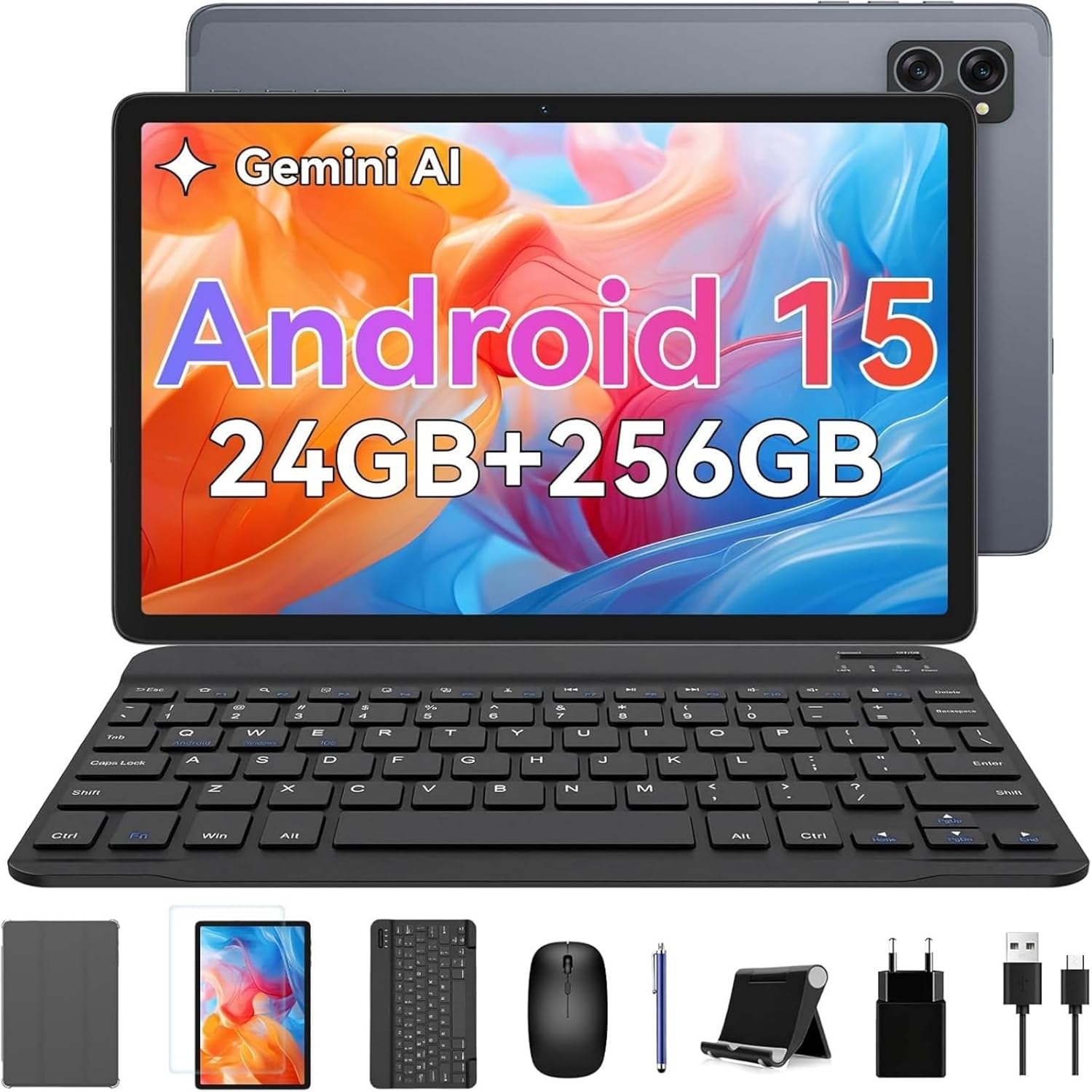
Image: The TABWEE T20 tablet displayed with its full set of accessories, including the detachable keyboard, mouse, stylus, protective case, tablet stand, charging cable, and power adapter.
3. สินค้าหมดview
3.1 คุณสมบัติหลัก
- ระบบปฏิบัติการ: Android 15 with Gemini AI 2.0
- โปรเซสเซอร์: Octa-Core Unisoc T606, 1.6 GHz
- หน่วยความจำ (RAM): 24 GB (8GB built-in + up to 16GB expansion)
- ที่เก็บข้อมูล (ROM): 256 GB internal, expandable up to 2 TB via TF card
- แสดง: 10.1-inch HD+ IPS (1280 x 800 pixels), Widevine L1 support, 350 nits brightness
- กล้องถ่ายรูป: 5 MP Front Camera, 8 MP Rear Camera
- แบตเตอรี่: 5000 mAh, providing extended usage times
- การเชื่อมต่อ: Dual-band 2.4G/5G Wi-Fi (802.11ac/b/g/n), Bluetooth 5, GPS
- เสียง: Dual smart speakers for stereo sound, 3.5mm headphone jack
- ความปลอดภัย: การระบุใบหน้า
- ขนาด : 24.64 x 15.49 x 0.76 ซม. (กว้าง x ยาว x สูง)
- น้ำหนัก: น้ำหนักประมาณ 412 กรัม
3.2 เค้าโครงแท็บเล็ต
Familiarize yourself with the physical components of your TABWEE T20 Tablet.


Image: Left: Rear view of the TABWEE T20 tablet, highlighting its camera array and slim profile. Right: Front view of the tablet in use, demonstrating the vibrant display.
- กล้องหน้า: Located at the top center when held vertically, used for video calls and selfies.
- กล้องหลัง: Located on the back, used for taking photos and videos.
- ปุ่มเปิด/ปิด: Typically on the side, used to turn the tablet on/off or wake/sleep the screen.
- ปุ่มปรับระดับเสียง: อยู่ติดกับปุ่มเปิด/ปิด ใช้สำหรับปรับระดับเสียง
- พอร์ต USB Type-C: สำหรับการชาร์จและถ่ายโอนข้อมูล
- แจ็คหูฟัง 3.5 มม.: สำหรับการเชื่อมต่อหูฟังแบบมีสาย
- ตะแกรงลำโพง: Dual speakers for enhanced audio output.
- ช่องเสียบการ์ด MicroSD: For expanding storage with a TF card.
4. การตั้งค่า
4.1 การชาร์จเริ่มต้น
Before first use, fully charge your tablet. Connect the USB Type-C cable to the tablet's charging port and the other end to the power adapter. Plug the adapter into a wall outlet. The charging indicator will show the charging status. A full charge typically takes a few hours.
4.2 เปิด/ปิดเครื่อง
- การเปิดเครื่อง: Press and hold the Power button until the TABWEE logo appears on the screen.
- วิธีปิดเครื่อง: กดปุ่มเปิด/ปิดค้างไว้จนกว่าเมนูเปิด/ปิดจะปรากฏขึ้น เลือก "ปิดเครื่อง" และยืนยัน
- วิธีเข้า/ออกการนอนหลับ: Briefly press the Power button to turn the screen off/on without powering down the tablet.
4.3 ตัวช่วยการตั้งค่าเริ่มต้น
Upon first power-on, the tablet will guide you through an initial setup process:
- เลือกที่ต้องการ ภาษา.
- เชื่อมต่อกับ เครือข่ายไวไฟ to enable internet access.
- ลงชื่อเข้าใช้ด้วยของคุณ บัญชี Google or create a new one. This is essential for downloading apps from the Google Play Store and syncing data.
- ตั้งค่า การระบุใบหน้า for convenient and secure unlocking.
- Review และยอมรับข้อกำหนดและเงื่อนไข
- Complete the setup to access the Android home screen.
4.4 การใส่การ์ด TF (MicroSD)
To expand the tablet's storage up to 2TB:
- หาช่องเสียบการ์ด TF ที่ด้านข้างของแท็บเล็ต
- ค่อยๆ เสียบการ์ด TF เข้าไปในช่องเสียบ โดยให้ด้านที่เป็นขั้วสีทองหันลง จนกระทั่งได้ยินเสียงคลิกเข้าที่
- The tablet will detect the new storage. You may be prompted to format it for internal or portable storage.
4.5 การเชื่อมต่ออุปกรณ์เสริม (คีย์บอร์ด, เมาส์, ปากกาสไตลัส)
The included keyboard and mouse connect via Bluetooth. The stylus may connect via Bluetooth or be passive, depending on its type.
Bluetooth Keyboard and Mouse:
- Ensure the keyboard/mouse are charged and powered on.
- บนแท็บเล็ตของคุณ ให้ไปที่ การตั้งค่า > อุปกรณ์ที่เชื่อมต่อ > บลูทูธ.
- Turn on Bluetooth. The tablet will scan for available devices.
- Select the keyboard or mouse from the list of available devices (e.g., "Bluetooth Keyboard", "Bluetooth Mouse").
- ปฏิบัติตามคำแนะนำบนหน้าจอเพื่อทำการจับคู่ให้เสร็จสิ้น
ปากกาสไตลัส:
If your stylus is Bluetooth-enabled, follow the same Bluetooth pairing steps as for the keyboard/mouse. If it's a passive stylus, no pairing is required; simply use it directly on the screen.
5. การใช้งานแท็บเล็ตของคุณ
5.1 การนำทางพื้นฐาน
- แตะ: เลือกรายการหรือเปิดแอป
- แตะค้างไว้: เข้าถึงเมนูบริบทหรือย้ายไอคอน
- ปัด: เลื่อนดูหน้าต่างๆ หน้าจอหลัก หรือเมนู
- บีบเพื่อซูม: Zoom in or out on photos, maps, or web หน้า
5.2 คุณสมบัติของ Android 15
Your TABWEE T20 runs on Android 15, offering enhanced performance and features:
- Gemini AI 2.0: Utilize the integrated AI for smart suggestions, personalized settings, and intelligent automation.
- โหมดแยกหน้าจอ: Run two apps simultaneously side-by-side for improved multitasking. To activate, open an app, swipe up from the bottom to view recent apps, tap the app icon at the top of its card, and select "Split screen".
- Multi-User Modes: สร้างผู้ใช้แยกกันfiles for different family members or work/personal use, ensuring data privacy and customized experiences. Access via การตั้งค่า > ระบบ > ผู้ใช้หลายราย.
- ความเป็นส่วนตัวและความปลอดภัยที่ได้รับการปรับปรุง: Benefit from advanced encryption, granular permission management, and private notification modes.
5.3 การเชื่อมต่อ Wi-Fi
หากต้องการเชื่อมต่อกับเครือข่าย Wi-Fi:
- ไปที่ การตั้งค่า > เครือข่ายและอินเตอร์เน็ต > อินเทอร์เน็ต.
- โปรดตรวจสอบให้แน่ใจว่าได้เปิดใช้งาน Wi-Fi แล้ว
- เลือกเครือข่ายที่คุณต้องการจากรายการ
- ป้อนรหัสผ่านหากได้รับแจ้งและแตะ เชื่อมต่อ.
5.4 การใช้งานกล้อง
แท็บเล็ตนี้มีกล้องหน้า 5 ล้านพิกเซลและกล้องหลัง 8 ล้านพิกเซล
- เปิด กล้อง แอป.
- แตะไอคอนสวิตช์กล้องเพื่อสลับระหว่างกล้องหน้าและกล้องหลัง
- แตะปุ่มชัตเตอร์เพื่อถ่ายภาพหรือเริ่ม/หยุดการบันทึกวิดีโอ
- Access settings within the camera app to adjust modes, resolution, and other parameters.
5.5 Media Playback and Widevine L1
The TABWEE T20 supports Widevine L1, allowing you to stream high-definition content from popular streaming services like Netflix, Amazon Prime Video, and Disney+ in full HD resolution.
- Download your preferred streaming apps from the Google Play Store.
- โปรดตรวจสอบให้แน่ใจว่าการเชื่อมต่ออินเทอร์เน็ตมีความเสถียร เพื่อคุณภาพการสตรีมที่ดีที่สุด
- Utilize the dual smart speakers for an immersive audio experience, or connect headphones via the 3.5mm jack or Bluetooth.
6. การบำรุงรักษา
6.1 การทำความสะอาดแท็บเล็ตของคุณ
- Use a soft, lint-free cloth (e.g., microfiber) to clean the screen and body.
- สำหรับรอยเปื้อนฝังแน่น ให้เช็ดออกเล็กน้อยampเทน้ำหรือน้ำยาทำความสะอาดหน้าจอที่ออกแบบมาสำหรับอุปกรณ์อิเล็กทรอนิกส์ลงบนผ้า
- หลีกเลี่ยงการใช้สารเคมีรุนแรง วัสดุที่มีฤทธิ์กัดกร่อน หรือความชื้นที่มากเกินไป
6.2 การอัปเดตซอฟต์แวร์
ตรวจสอบและติดตั้งการอัปเดตซอฟต์แวร์เป็นประจำเพื่อให้มั่นใจถึงประสิทธิภาพ ความปลอดภัย และการเข้าถึงฟีเจอร์ใหม่ๆ ที่เหมาะสมที่สุด
- ไปที่ การตั้งค่า > ระบบ > การอัพเดทระบบ.
- แตะ ตรวจสอบการอัปเดต.
- If an update is available, follow the on-screen instructions to download and install it. Ensure your tablet has sufficient battery life or is connected to power during updates.
6.3 การจัดการการจัดเก็บข้อมูล
To maintain smooth operation, periodically manage your tablet's storage:
- ไปที่ การตั้งค่า > พื้นที่จัดเก็บ ถึง view การใช้พื้นที่จัดเก็บข้อมูล
- ถอนการติดตั้งแอปที่ไม่ได้ใช้งาน
- ล้างข้อมูลแคชของแอปพลิเคชัน
- เคลื่อนย้ายขนาดใหญ่ files (photos, videos) to the TF card or cloud storage.
6.4 การดูแลแบตเตอรี่
- หลีกเลี่ยงอุณหภูมิที่สูงเกินไป เพราะอาจทำให้แบตเตอรี่มีอายุการใช้งานลดลง
- อย่าปล่อยให้แบตเตอรี่หมดจนหมดบ่อยๆ
- ใช้เครื่องชาร์จและสายเคเบิลดั้งเดิมที่ให้มา
7 การแก้ไขปัญหา
| ปัญหา | วิธีแก้ปัญหาที่เป็นไปได้ |
|---|---|
| แท็บเล็ตไม่สามารถเปิดเครื่องได้ | Ensure the tablet is charged. Connect to the charger and wait a few minutes before attempting to power on again. If unresponsive, press and hold the Power button for 10-15 seconds to force a restart. |
| ปัญหาการเชื่อมต่อ Wi-Fi | รีสตาร์ทแท็บเล็ตและเราเตอร์ Wi-Fi ของคุณ ลืมเครือข่ายในการตั้งค่า Wi-Fi แล้วเชื่อมต่อใหม่ ตรวจสอบให้แน่ใจว่าคุณอยู่ในระยะสัญญาณ Wi-Fi |
| ประสิทธิภาพการทำงานช้าหรือแอพพลิเคชั่นขัดข้อง | Close unused apps running in the background. Clear app cache (Settings > Apps > [App Name] > Storage & cache > Clear cache). Ensure sufficient free storage space. Restart the tablet. |
| หน้าจอสัมผัสไม่ตอบสนอง | รีสตาร์ทแท็บเล็ต หากปัญหายังคงอยู่ โปรดตรวจสอบให้แน่ใจว่าหน้าจอสะอาดและไม่มีเศษฝุ่น |
| แบตเตอรี่หมดเร็วมาก | Reduce screen brightness. Close background apps. Disable Wi-Fi/Bluetooth/GPS when not in use. Check battery usage in Settings to identify power-hungry apps. |
| Cannot connect Bluetooth accessories. | Ensure the accessory is in pairing mode and charged. Turn Bluetooth off and on again on the tablet. Restart both devices. |
| Tablet freezes or crashes frequently. | Perform a factory reset as a last resort. คำเตือน: การดำเนินการนี้จะลบข้อมูลทั้งหมดบนแท็บเล็ตของคุณ โปรดสำรองข้อมูลสำคัญก่อนดำเนินการต่อ ไปที่ การตั้งค่า > ระบบ > ตัวเลือกการรีเซ็ต > ลบข้อมูลทั้งหมด (รีเซ็ตเป็นค่าโรงงาน). |
8. ข้อมูลจำเพาะ
| คุณสมบัติ | รายละเอียด |
|---|---|
| ยี่ห้อ | แทบวี |
| ชื่อรุ่น | Tabwee Tablet T20 2025 |
| หมายเลขรุ่น | TABWEE T20 Tablette |
| ระบบปฏิบัติการ | Android 15 & Gemini AI 2.0 |
| โปรเซสเซอร์ | Unisoc Octa-Core, 1.6 GHz |
| แรม | 24 GB (8GB built-in + 16GB virtual) |
| การจัดเก็บข้อมูลภายใน | 256GB |
| พื้นที่เก็บข้อมูลแบบขยายได้ | Up to 2 TB via Micro SD (TF) card |
| ขนาดหน้าจอ | 10.1 นิ้ว |
| ความละเอียดการแสดงผล | 1280 x 800 Pixels (HD+ IPS) |
| ชิปเซ็ตกราฟิก | Unisoc T606 (Integrated) |
| กล้องหน้า | 5 MP |
| กล้องหลัง | 8 MP |
| ความจุของแบตเตอรี่ | 5000 mAh (ลิเธียมโพลิเมอร์) |
| การเชื่อมต่อ | Wi-Fi (802.11a/b/g/n/ac, 2.4G/5G), Bluetooth 5, GPS |
| พอร์ต | USB Type-C, 3.5mm Audio Jack, Micro SD Slot |
| ขนาด (กว้าง x ยาว x สูง) | 24.64 x 15.49 x 0.76 ซม. |
| น้ำหนัก | 412 กรัม |
| คุณสมบัติพิเศษ | Stereo Speakers, Expandable Storage, USB OTG Support, Detachable Keyboard Support, Stylus Support |
9. การรับประกันและการสนับสนุน
9.1 การรับประกันสินค้า
The TABWEE T20 Tablet comes with a รับประกัน 24 เดือน นับจากวันที่ซื้อ การรับประกันนี้ครอบคลุมข้อบกพร่องจากการผลิตและการทำงานผิดปกติภายใต้การใช้งานปกติ โปรดเก็บหลักฐานการซื้อไว้เพื่อขอรับสิทธิ์การรับประกัน
การรับประกันไม่ครอบคลุมความเสียหายอันเกิดจาก:
- อุบัติเหตุ การใช้ผิดวิธี หรือการใช้ในทางที่ผิด
- การซ่อมแซมหรือดัดแปลงโดยไม่ได้รับอนุญาต
- Operating the device outside the specified environmental conditions.
- การสึกหรอตามปกติ
9.2 การสนับสนุนลูกค้า
For technical assistance, troubleshooting, or warranty inquiries, please contact TABWEE customer support:
- อีเมล: Refer to the contact information provided on the official TABWEE website or your purchase platform (e.g., Amazon seller contact).
- การสนับสนุนทางออนไลน์: Visit the official TABWEE webไซต์สำหรับคำถามที่พบบ่อย บทความสนับสนุน และแบบฟอร์มติดต่อ
TABWEE is committed to providing professional technical support and excellent customer service to resolve any issues you may encounter.