1. บทนำ
1.1 ผลิตภัณฑ์เกินview
The Truman TM-I VISION PRO is a Full HD digital satellite receiver designed to provide a comprehensive entertainment experience. It features a powerful Sunplus 1506HV processor, ensuring smooth performance and high-quality video output. With multiple connectivity options including USB, HDMI, and Ethernet, it offers versatility for various home entertainment setups. The device supports Full HD resolution, multi-language interfaces, and includes parental control features for a family-friendly viewing environment. It also comes with a one-year activated IPTV service.

รูปที่ 1.1 : ด้านหน้า view of the Truman TM-I VISION PRO Satellite Receiver, showing its compact design and front-facing USB ports.
1.2 เนื้อหาบรรจุภัณฑ์
โปรดตรวจสอบว่ารายการทั้งหมดที่ระบุไว้ด้านล่างมีอยู่ในแพ็คเกจของคุณหรือไม่:
- Truman TM-I VISION PRO Satellite Receiver
- อะแดปเตอร์แปลงไฟ
- รีโมทคอนโทรลมาตรฐาน
- Digital LED Lens
- สาย HDMI
- คู่มือการใช้งาน

Figure 1.2: Marketing image highlighting key features such as Wi-Fi, Ultra HD support, ISO 9001 certification, and 5G compatibility.
2. ข้อมูลด้านความปลอดภัย
เพื่อให้มั่นใจถึงการทำงานที่ปลอดภัยและป้องกันความเสียหาย โปรดอ่านและปฏิบัติตามแนวทางด้านความปลอดภัยต่อไปนี้:
- อย่าให้เครื่องโดนน้ำหรือความชื้น
- Avoid placing the receiver in direct sunlight or near heat sources.
- ตรวจสอบให้แน่ใจว่ามีการระบายอากาศที่เหมาะสมรอบๆ อุปกรณ์เพื่อป้องกันความร้อนสูงเกินไป
- ใช้เฉพาะอะแดปเตอร์ที่ให้มาเท่านั้น
- อย่าพยายามเปิดหรือซ่อมแซมอุปกรณ์ด้วยตนเอง โปรดติดต่อเจ้าหน้าที่บริการที่มีคุณสมบัติเหมาะสม
- เก็บอุปกรณ์และอุปกรณ์เสริมให้พ้นมือเด็ก
- ถอดปลั๊กไฟออกในระหว่างที่มีพายุฝนฟ้าคะนองหรือเมื่อไม่ได้ใช้งานเป็นเวลานาน
3. การตั้งค่า
3.1 การเชื่อมต่อเครื่องรับ
- Connect the Satellite Antenna: Connect your satellite dish cable to the "LNB IN" port on the back of the receiver.
- เชื่อมต่อกับทีวี (HDMI): Use the provided HDMI cable to connect the receiver's HDMI OUT port to an available HDMI IN port on your television.

Figure 3.1: The included HDMI cable for connecting the receiver to your television.
- เชื่อมต่อพลังงาน: Connect the power adapter to the DC IN port on the receiver, then plug the adapter into a wall outlet.
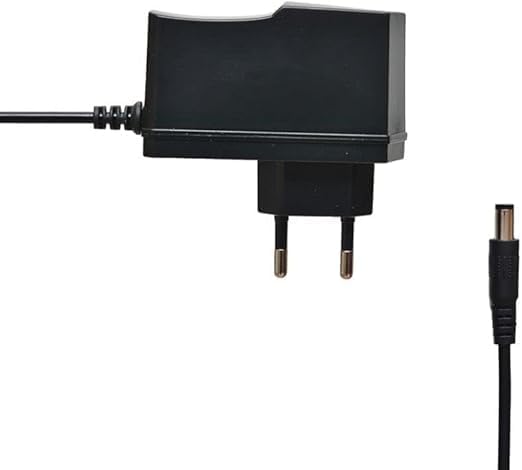
Figure 3.2: The power adapter supplied with the receiver.
- Connect Digital LED Lens: Plug the digital LED lens into its dedicated port on the receiver. This lens displays channel numbers and receives remote control signals.
- Optional: Connect Ethernet/USB: If you plan to use wired internet or external storage, connect an Ethernet cable to the LAN port or a USB drive to one of the USB ports.

รูปที่ 3.3: ด้านหลัง view of the receiver showing the LNB IN, HDMI OUT, USB, Ethernet, and DC IN ports.
3.2 ตัวช่วยการตั้งค่าเริ่มต้น
Upon first power-on, the receiver will guide you through an initial setup wizard:
- เลือกภาษา: เลือกภาษาที่คุณต้องการให้แสดงผลบนหน้าจอ
- การตั้งค่าโซนเวลา: Set the correct time zone for your region.
- การตั้งค่าเสาอากาศ: Select your satellite (e.g., Nilesat, Hotbird) and configure LNB settings if necessary.
- การสแกนช่อง: Perform an automatic or manual channel scan to find available TV and radio channels.
- Network Setup (Optional): Configure Wi-Fi or Ethernet connection for internet-based features like IPTV.
4. คู่มือการใช้งาน
4.1 ฟังก์ชั่นพื้นฐาน
- เปิด/ปิดเครื่อง: กดปุ่ม พลัง ปุ่มบนรีโมทคอนโทรล
- การนำทางช่อง: ใช้ CH+/CH- ปุ่มสำหรับเปลี่ยนช่องตามลำดับหรือป้อนหมายเลขช่องโดยตรงโดยใช้แป้นตัวเลข
- การควบคุมระดับเสียง: ใช้ ฉบับ+/ฉบับ- ปุ่มปรับระดับเสียง
- ปิดเสียง: กดปุ่ม MUTE ปุ่มสำหรับปิดเสียง
- การเข้าถึงเมนู: กดปุ่ม เมนู ปุ่มสำหรับเข้าถึงเมนูหลักเพื่อตั้งค่าและดูฟีเจอร์ต่างๆ
- ปุ่มตกลง: Confirms selections in menus or displays channel information during viewการไอเอ็นจี
- ทางออก: กดปุ่ม EXIT button to return to the previous screen or live TV.
คุณสมบัติขั้นสูง 4.2 ประการ
- การควบคุมโดยผู้ปกครอง: Access the Parental Control menu to set age restrictions for channels or lock specific programs. A default PIN (usually 0000 or 1234) may be required.
- รองรับหลายภาษา: Change audio languages (if available) or subtitle languages via the audio/subtitle options in the menu.
- ไอพีทีวี: The receiver includes a pre-activated IPTV service for one year. Access this feature through the main menu. Ensure your receiver is connected to the internet for IPTV functionality.
- การเล่นสื่อ USB: Insert a USB drive into one of the USB ports to play media files (videos, music, photos) or record TV programs.
- อัพเดตซอฟต์แวร์: Regularly check for software updates via USB or network to ensure optimal performance and access to new features. (Refer to Section 5.2 for details).
5. การบำรุงรักษา
5.1 การทำความสะอาด
To clean the receiver, disconnect it from the power supply. Use a soft, dry cloth to wipe the exterior. Do not use liquid cleaners or abrasive materials.
5.2 การอัปเดตซอฟต์แวร์
Keeping your receiver's software updated is crucial for performance and security. Updates can be performed via USB or over the network (if connected to the internet).
- อัพเดต USB: ดาวน์โหลดเฟิร์มแวร์เวอร์ชั่นล่าสุด (.bin) file) from the official Truman website to a USB flash drive. Insert the USB drive into the receiver and navigate to the "System Update" or "Software Upgrade" option in the menu. Follow the on-screen instructions.
- อัปเดตเครือข่าย: If your receiver is connected to the internet, navigate to the "Network Upgrade" or "Online Update" option in the system settings. The receiver will check for available updates and prompt you to install them.
คำเตือน: Do not power off the receiver during a software update, as this may cause permanent damage.
6 การแก้ไขปัญหา
If you encounter issues with your Truman TM-I VISION PRO, refer to the following common problems and solutions:
| ปัญหา | สาเหตุที่เป็นไปได้ | สารละลาย |
|---|---|---|
| ไม่มีไฟฟ้า | ไม่ได้เสียบอะแดปเตอร์แปลงไฟ; ปลั๊กไฟมีปัญหา | Ensure power adapter is securely connected to the receiver and a working power outlet. |
| ไม่มีสัญญาณ / หน้าจอสีดำ | Antenna cable loose; Incorrect satellite selected; TV input not set to HDMI. | Check antenna cable connection. Verify satellite settings in menu. Ensure TV input is set to the correct HDMI port. |
| รีโมตคอนโทรลไม่ทำงาน | Batteries low/dead; Obstruction between remote and receiver's LED lens. | Replace remote control batteries. Ensure clear line of sight to the digital LED lens. |
| Frozen Picture / Lagging | Weak signal; Overheating; Software issue. | Check signal strength in menu. Ensure proper ventilation. Try a software update or factory reset (last resort). |
| IPTV Not Working | No internet connection; IPTV service expired. | Verify internet connection (Ethernet or Wi-Fi). Contact support if service is within the one-year period and still not working. |
7. ข้อมูลจำเพาะ
| คุณสมบัติ | รายละเอียด |
|---|---|
| แบบอย่าง | TM-I VISION PRO |
| โปรเซสเซอร์ | Sunplus 1506HV |
| ประเภทกล่อง | Full HD Digital |
| หน่วยความจำแฟลช | 4 MB (SPI SOP8/SOIC8) |
| เอาท์พุตวิดีโอ | HDMI (Full HD Resolution Support) |
| โหมดเอาต์พุตเสียง | Stereo (Dolby Digital, DTS, PCM supported) |
| การเชื่อมต่อ | USB, HDMI, อีเทอร์เน็ต |
| อุปกรณ์ที่รองรับ | โทรทัศน์, คอมพิวเตอร์ส่วนบุคคล |
| คุณสมบัติพิเศษ | User-friendly display, Remote Control, Multi-language support, Parental Control, 1-year IPTV activation. |
| น้ำหนักสินค้า | 10 กรัม |
| ผู้ผลิต | ทรูแมน |
8. การรับประกันและการสนับสนุน
For warranty information, please refer to the warranty card included with your product or contact your point of purchase. The receiver includes a 1-year activated IPTV service.
For technical support or further assistance, please contact Truman customer service or visit their official website. Contact details are typically provided in the product packaging or on the manufacturer's webเว็บไซต์.


