1. สูงกว่าview
The ZEBRONICS Sheer Plus is a versatile wireless mouse designed for various computing environments. It features dual-mode connectivity (2.4GHz and Bluetooth), dual Bluetooth connections, and dual nano-receivers (USB-A and USB-C) for broad compatibility. The mouse offers adjustable DPI settings up to 3200, silent operation, and an ergonomic design with RGB LED lighting.

ภาพ: จากบนลงล่าง view of the ZEBRONICS Sheer Plus Wireless Mouse, highlighting its transparent design, internal circuitry, and RGB LED illumination.
2. เนื้อหาบรรจุภัณฑ์
ตรวจสอบว่ามีรายการทั้งหมดอยู่ในแพ็คเกจ:
- Mouse - 1 unit
- Nano receiver (USB-A) - 1 unit
- Nano receiver (USB-C) - 1 unit
- Charging cable (Type-C) - 1 unit
- Quick user guide - 1 unit
3. การตั้งค่า
3.1 การชาร์จเมาส์
Before initial use, fully charge the mouse. Connect the provided Type-C charging cable to the mouse's charging port and to a USB power source (e.g., computer USB port, USB wall adapter). The LED indicator will show charging status and turn off when fully charged.

Image: The ZEBRONICS Sheer Plus Wireless Mouse being charged via its Type-C port, with the charging cable connected.
3.2 ตัวเลือกการเชื่อมต่อ
The mouse supports two primary connection modes: 2.4GHz wireless via USB dongle and Bluetooth.
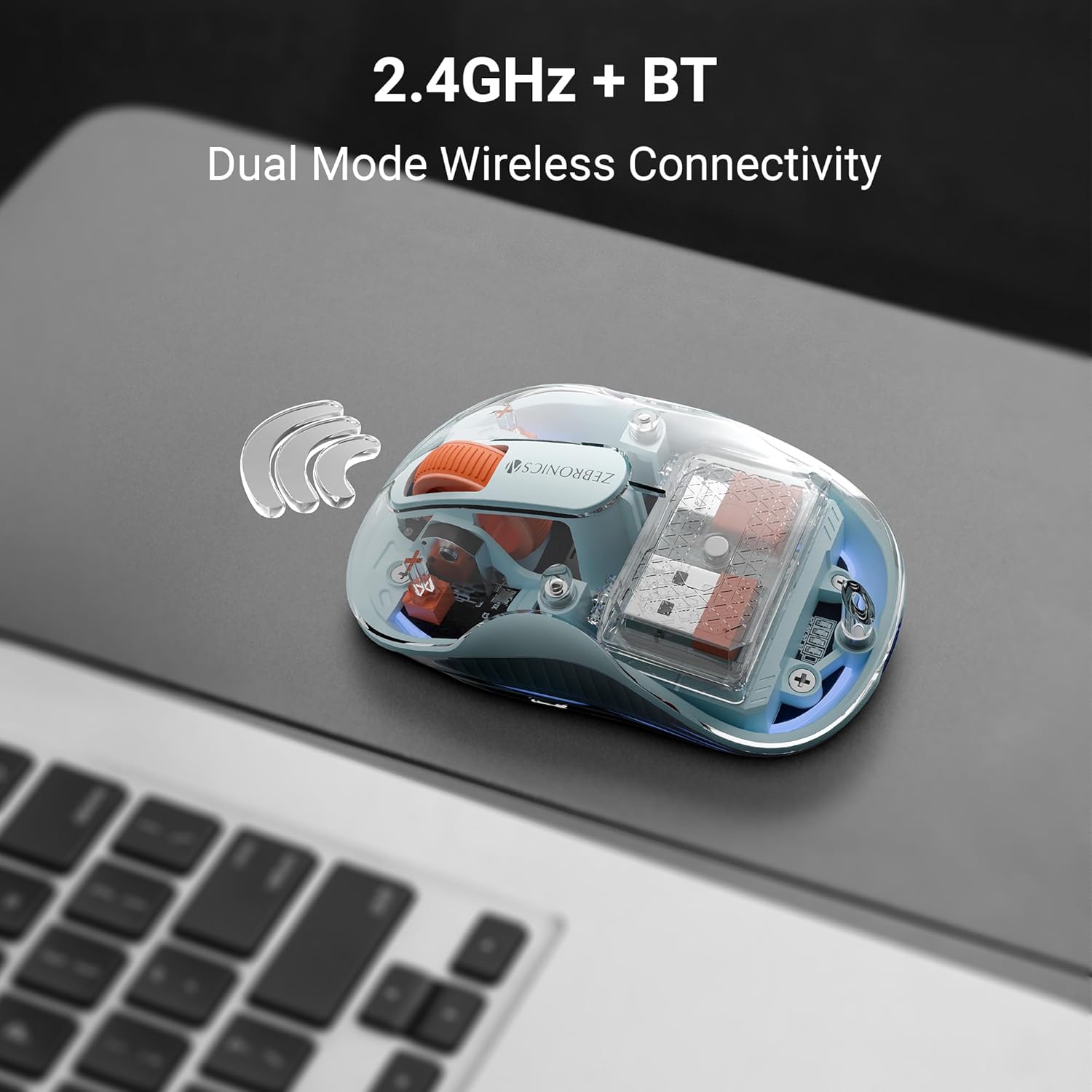
Image: The ZEBRONICS Sheer Plus Wireless Mouse on a surface, indicating its dual-mode wireless capabilities (2.4GHz and Bluetooth).
3.2.1 การเชื่อมต่อไร้สาย 2.4GHz
- Locate the USB-A or USB-C nano receiver from the mouse's storage compartment (usually at the bottom).
- Insert the appropriate nano receiver into an available USB port on your computer or device.
- เปิดเมาส์โดยใช้สวิตช์เปิด/ปิดที่อยู่ด้านล่าง
- Switch the mode selector on the bottom of the mouse to the '2.4G' position. The mouse should connect automatically.

Image: The ZEBRONICS Sheer Plus Wireless Mouse demonstrating its dual nano receivers (USB-A and USB-C) for connectivity with different devices like a laptop and a smartphone.
3.2.2 การเชื่อมต่อบลูทูธ (BT1 / BT2)
The mouse supports two independent Bluetooth connections (BT1 and BT2).
- เปิดเมาส์โดยใช้สวิตช์เปิดปิด
- Switch the mode selector on the bottom of the mouse to either 'BT1' or 'BT2' position.
- Press and hold the mode switch button (often combined with DPI button or a dedicated button) for 3-5 seconds until the LED indicator starts blinking rapidly, indicating pairing mode.
- On your device (computer, laptop, tablet), open Bluetooth settings and search for new devices.
- Select "ZEB-SHEER PLUS" or a similar name from the list of available devices to pair.
- Once paired, the LED indicator on the mouse will stop blinking and remain solid for a few seconds, then turn off.
- Repeat these steps for the second Bluetooth connection (BT2) with another device if desired.
4. คู่มือการใช้งาน
4.1 เปิด/ปิดเครื่อง
Use the ON/OFF switch located on the bottom of the mouse to power it on or off. Turning off the mouse when not in use conserves battery life.
4.2 การสลับโหมด
The mode selector switch on the bottom of the mouse allows you to switch between 2.4GHz wireless, Bluetooth 1 (BT1), and Bluetooth 2 (BT2) connections. Simply slide the switch to your desired mode.
4.3 การปรับ DPI
The mouse features a dedicated DPI/LED mode switch button, typically located near the scroll wheel. Press this button to cycle through the available DPI settings (e.g., 1200, 1600, 2400, 3200 DPI). Each press changes the cursor sensitivity, allowing you to select the speed that best suits your task.

ภาพ: จากบนลงล่าง view of the mouse illustrating the four adjustable DPI levels for precise cursor control.
4.4 การควบคุมไฟ LED RGB
The DPI/LED mode switch button may also control the RGB lighting effects. Press and hold or repeatedly press this button (depending on the specific model's firmware) to cycle through different lighting modes or to turn the RGB lighting on/off.

Image: The ZEBRONICS Sheer Plus Wireless Mouse with its transparent top shell detached, showcasing the internal components and the RGB LED strips that provide illumination.
4.5 ฟังก์ชันปุ่ม
เมาส์ตัวนี้มีปุ่มทั้งหมด 4 ปุ่ม:
- คลิกซ้าย: การเลือกและการเปิดใช้งานตามมาตรฐาน
- คลิกขวา: Context menu access.
- Scroll Wheel/Middle Click: Scrolling and middle-click function.
- DPI/LED Mode Switch: Adjusts cursor sensitivity and controls RGB lighting.

ภาพ: รายละเอียด view of the ZEBRONICS Sheer Plus Wireless Mouse, highlighting the four buttons and their underlying mechanical switches.
4.6 การทำงานเงียบ
The mouse is designed for silent clicks, minimizing noise during use. This feature is beneficial in quiet environments such as libraries, offices, or late-night work sessions.

Image: A hand positioned on the ZEBRONICS Sheer Plus Wireless Mouse, demonstrating its quiet click functionality.
5. การบำรุงรักษา
- การทำความสะอาด: ใช้ผ้านุ่มและแห้งเช็ดทำความสะอาดเมาส์ สำหรับคราบฝังแน่น ให้เช็ดเบาๆamp สามารถใช้ผ้าเช็ดทำความสะอาดได้ เพื่อไม่ให้ความชื้นเข้าไปในชิ้นส่วนภายใน หลีกเลี่ยงสารเคมีรุนแรงหรือน้ำยาทำความสะอาดที่มีฤทธิ์กัดกร่อน
- การดูแลแบตเตอรี่ To prolong battery life, avoid fully discharging the mouse frequently. Charge it when the low battery indicator appears. Do not expose the mouse to extreme temperatures.
- พื้นที่จัดเก็บ: When not in use for extended periods, turn off the mouse and store it in a cool, dry place.
6 การแก้ไขปัญหา
- เมาส์ไม่ตอบสนอง: Ensure the mouse is powered on. Check the battery level and charge if necessary. Verify the correct connection mode (2.4GHz, BT1, or BT2) is selected. For 2.4GHz, ensure the nano receiver is securely plugged in. For Bluetooth, re-pair the device.
- การเคลื่อนไหวของเคอร์เซอร์ที่ไม่แน่นอน: ทำความสะอาดเซ็นเซอร์รับภาพที่ด้านล่างของเมาส์ ตรวจสอบให้แน่ใจว่าคุณใช้เมาส์บนพื้นผิวที่เหมาะสม (แนะนำให้ใช้แผ่นรองเมาส์)
- ปัญหาการเชื่อมต่อ: Move the mouse closer to the receiver/device. Avoid using the mouse near strong interference sources (e.g., other wireless devices, large metal objects). Try connecting to a different USB port or re-pairing the Bluetooth connection.
- ปัญหาการชาร์จ: Ensure the Type-C cable is properly connected to both the mouse and the power source. Try a different charging cable or USB port.
7. ข้อมูลจำเพาะ
| คุณสมบัติ | ข้อมูลจำเพาะ |
|---|---|
| ยี่ห้อ | ม้าลาย |
| หมายเลขรุ่น | เซ็บ |
| เทคโนโลยีการเชื่อมต่อ | ไร้สาย (2.4GHz, บลูทูธ) |
| เทคโนโลยีตรวจจับการเคลื่อนไหว | ออฟติคอล |
| ระดับ DPI | Up to 3200 (4-level adjustable) |
| ปุ่ม | 4 |
| คุณสมบัติพิเศษ | Adjustable DPI, RGB LED, Silent Operation, Dual Nano Receivers (USB-A & USB-C), Dual Bluetooth |
| แหล่งพลังงาน | ใช้พลังงานจากแบตเตอรี่ (แบบชาร์จไฟได้ในตัว) |
| พอร์ตชาร์จ | ประเภทซี |
| ความเข้ากันได้ของระบบปฏิบัติการ | Mac OS, Windows |
| น้ำหนักสินค้า | 72 กรัม |
| ขนาดสินค้า | 16.9 x 11 x 0.1 ซม. |
| ประเทศต้นกำเนิด | จีน |
8. การรับประกันและการสนับสนุน
For warranty information and technical support, please refer to the warranty card included in your product packaging or visit the official ZEBRONICS webไซต์ โปรดเก็บใบเสร็จรับเงินไว้เป็นหลักฐานการซื้อสำหรับการเรียกร้องการรับประกัน


