1. บทนำ
Thank you for choosing the RAPIQUE R110 Bluetooth Wireless Mouse. This manual provides detailed instructions for setting up, operating, and maintaining your new mouse. The R110 features Bluetooth 5.1 and 2.4G dual connectivity, a rechargeable USB-C battery, silent click buttons, and an ergonomic 6-button design for enhanced productivity and comfort across various operating systems.
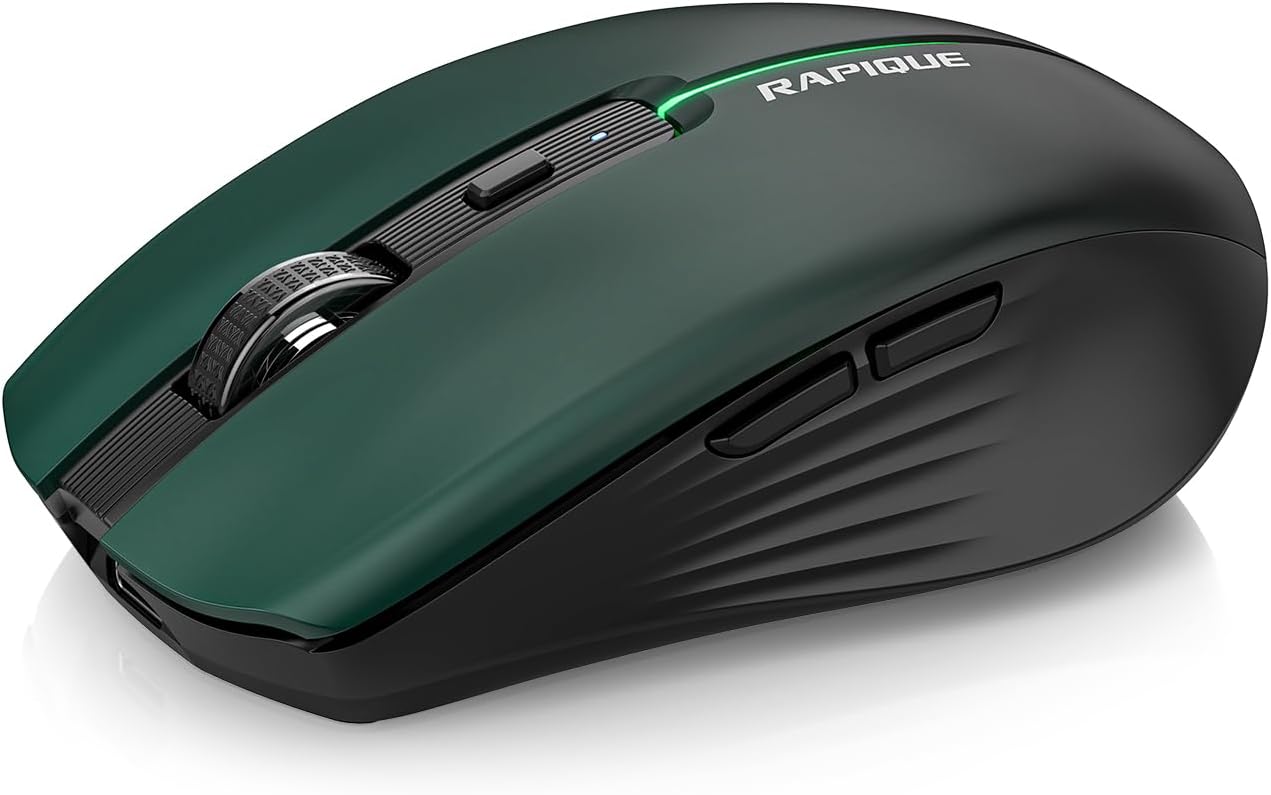
Image 1.1: The RAPIQUE R110 Bluetooth Wireless Mouse, showcasing its green gradient design.
2. อะไรอยู่ในกล่อง
โปรดตรวจสอบว่าสินค้าทั้งหมดมีอยู่ในแพ็คเกจของคุณ:
- Bluetooth Wireless Mouse (R110) x 1
- สายชาร์จ USB-C x 1
- คู่มือการใช้งาน x 1
3. สินค้าหมดview
3.1 คุณสมบัติหลัก
- Premium Deep Green-to-Black Design: Features a gradient finish with a sleek black middle and bottom shell.
- Triple-Mode Wireless Connectivity: Supports Bluetooth 5.1 (BT1 & BT2) and 2.4GHz USB receiver for seamless switching between up to three devices.
- Fast USB-C Charging & Auto Sleep: Equipped with a 650mAh rechargeable battery, charges via USB-C, and enters auto-sleep after 90 seconds of inactivity to conserve power.
- Silent Clicks & Adjustable DPI: Reduces clicking and scrolling noise by up to 90% and offers adjustable DPI settings (800/1200/1600) for precise control.
- Ergonomic & Durable Build: Contoured shape with six responsive buttons, including forward/back side keys, designed for comfort and tested for over 5 million clicks.
- ความเข้ากันได้กว้าง: Compatible with Windows 8/10/11, Android, and macOS via Bluetooth 5.1, and non-Bluetooth devices via 2.4G USB receiver. Supports iOS 14 or later for iPhones and iPads.
3.2 การระบุส่วนประกอบ

ภาพที่ 3.1: ระเบิด view illustrating the gradient coating, primers, and ABS material of the mouse shell.
The R110 mouse features a gradient coating and UV coating for enhanced comfort. Its construction includes durable ABS material.

ภาพที่ 3.2: รายละเอียด view of the mouse highlighting anti-slip texture, colorful breathing light, DPI adjustment button, and the mode indicator on the underside.
- ปุ่มคลิกซ้าย/ขวา: Silent click design.
- ล้อเลื่อน: สำหรับการเลื่อนหน้าจอในแนวตั้ง
- ปุ่ม DPI: Adjusts mouse sensitivity (800/1200/1600 DPI). Long-press to toggle decorative LED light.
- ปุ่มเดินหน้า/ถอยหลัง: ตั้งอยู่ด้านข้างเพื่อใช้เป็นตำแหน่งนำทาง
- พอร์ตชาร์จ USB-C: Located at the front of the mouse.
- ปุ่มสลับโหมด: Located on the bottom, cycles between 2.4G, BT1, and BT2 modes.
- Mode Indicators (LEDs): Lights on the bottom indicate current connection mode (Red for 2.4G, Green for BT1, Blue for BT2).
- ที่เก็บข้อมูลตัวรับ USB: Compartment on the bottom for the 2.4G USB receiver.
4. การตั้งค่า
4.1 การชาร์จเมาส์
Before first use, fully charge the mouse. Connect the supplied USB-C cable to the mouse's charging port and the other end to a USB power source (e.g., computer USB port, USB wall adapter). The charging indicator light will illuminate during charging and automatically extinguish when fully charged.

Image 4.1: The USB-C charging port and the charging indicator light on the RAPIQUE R110 mouse.
4.2 การเชื่อมต่อเมาส์
The R110 mouse offers three connection modes: 2.4G USB and two Bluetooth 5.1 channels (BT1, BT2). You can connect to up to three different devices simultaneously and switch between them.

Image 4.2: Visual guide for connecting the mouse in 2.4G, BT1, and BT2 modes.
4.2.1 2.4G USB Connection (Plug & Play)
- ค้นหาตัวรับสัญญาณ USB ที่เก็บไว้ในช่องด้านล่างของเมาส์
- เสียบตัวรับสัญญาณ USB เข้ากับพอร์ต USB ที่ว่างอยู่บนคอมพิวเตอร์หรืออุปกรณ์ของคุณ
- Slide the mode switch on the bottom of the mouse to the "2.4G" position (indicated by a red LED).
- เมาส์จะเชื่อมต่อกับอุปกรณ์ของคุณโดยอัตโนมัติ
4.2.2 การเชื่อมต่อบลูทูธ (BT1 / BT2)
- Slide the mode switch on the bottom of the mouse to either the "BT1" (green LED) or "BT2" (blue LED) position.
- Press and hold the mode button on the bottom of the mouse for 3-5 seconds until the corresponding LED (green for BT1, blue for BT2) flashes rapidly. This indicates the mouse is in pairing mode.
- บนอุปกรณ์ของคุณ (คอมพิวเตอร์ แท็บเล็ต โทรศัพท์) เปิดการตั้งค่าบลูทูธ
- ค้นหา new devices and select "RAPIQUE R110" (or similar name) from the list.
- Once paired, the LED will stop flashing and remain solid, indicating a successful connection.
Note: For iOS devices, Bluetooth 5.1 support requires iOS 14 or later.
5. คู่มือการใช้งาน
5.1 การสลับระหว่างอุปกรณ์ที่เชื่อมต่อ
To switch between devices connected via 2.4G, BT1, or BT2, simply slide the mode switch on the bottom of the mouse to the desired connection mode. The corresponding LED will light up.
5.2 การปรับความไวของ DPI
The mouse has three adjustable DPI settings: 800, 1200, and 1600. Press the DPI button located behind the scroll wheel to cycle through these settings. Each press will change the sensitivity, allowing you to find your preferred cursor speed.

Image 5.1: Illustration of DPI adjustment and the silent click mechanism.
5.3 การควบคุมไฟ LED
The R110 mouse features a decorative LED light. To toggle this light on or off, long-press the DPI button.
5.4 ฟังก์ชันปิดเครื่องอัตโนมัติ
To conserve battery life, the mouse will automatically enter sleep mode after 90 seconds of inactivity. To wake the mouse, simply click any button or move the mouse.
6. การบำรุงรักษา
- การทำความสะอาด: ใช้ผ้าแห้งนุ่มๆ เช็ดทำความสะอาดเมาส์ สำหรับคราบสกปรกฝังแน่น ให้ใช้ผ้าชุบน้ำหมาดๆ เช็ดเบาๆampชุบผ้าด้วยน้ำ หลีกเลี่ยงการใช้สารเคมีรุนแรงหรือวัสดุที่มีฤทธิ์กัดกร่อน
- พื้นที่จัดเก็บ: When not in use for extended periods, store the mouse in a cool, dry place. Ensure the mouse is turned off to preserve battery life.
- การดูแลแบตเตอรี่ Recharge the mouse when the battery is low. Avoid fully discharging the battery frequently to prolong its lifespan.
- ตัวรับสัญญาณ USB: When transporting the mouse, store the 2.4G USB receiver in its dedicated compartment on the bottom of the mouse to prevent loss.
7 การแก้ไขปัญหา
| ปัญหา | สาเหตุที่เป็นไปได้ | สารละลาย |
|---|---|---|
| เมาส์ไม่ตอบสนอง | Low battery; Incorrect connection mode; USB receiver not properly inserted (2.4G mode); Bluetooth not paired. | Charge the mouse. Ensure the mode switch is set correctly (2.4G, BT1, or BT2). For 2.4G, re-insert the USB receiver. For Bluetooth, re-pair the mouse with your device. |
| การเคลื่อนไหวของเคอร์เซอร์ไม่แน่นอนหรือช้า | Low DPI setting; Dirty optical sensor; Uneven surface. | Press the DPI button to increase sensitivity. Clean the optical sensor on the bottom of the mouse. Use the mouse on a clean, flat surface or mouse pad. |
| ไม่สามารถเชื่อมต่อผ่านบลูทูธได้ | เมาส์ไม่ได้อยู่ในโหมดจับคู่; บลูทูธของอุปกรณ์ปิดอยู่; มีสัญญาณรบกวน | Ensure the mouse is in BT1 or BT2 mode and the LED is flashing rapidly (pairing mode). Turn on Bluetooth on your device. Move closer to the device or away from other wireless devices. |
| Mouse frequently disconnects. | Low battery; Too far from receiver/device; Interference. | Charge the mouse. Ensure the mouse is within the effective range (up to 10m/33ft). Reduce interference from other wireless devices. |
8. ข้อมูลจำเพาะ
| คุณสมบัติ | รายละเอียด |
|---|---|
| หมายเลขรุ่น | R110 |
| การเชื่อมต่อ | Bluetooth 5.1 (BT1, BT2), 2.4G Wireless (USB Receiver) |
| การตั้งค่า DPI | 800 / 1200 / 1600 จุดต่อนิ้ว |
| ประเภทแบตเตอรี่ | แบตเตอรี่ลิเธียมโพลิเมอร์แบบชาร์จได้ (650 mAh) |
| พอร์ตชาร์จ | ยูเอสบี-ซี |
| คลิกอายุการใช้งาน | ยอดคลิกมากกว่า 5 ล้านครั้ง |
| คลิกเงียบ | ใช่ (ลดเสียงรบกวนได้ 90%) |
| สลีปอัตโนมัติ | หลังจากไม่มีการใช้งาน 90 วินาที |
| ความเข้ากันได้ | Windows 8/10/11, Android, macOS, iOS 14+ (for iPhones/iPads) |
| ขนาด | 102 มม. (4.17 นิ้ว) x 64 มม. (2.51 นิ้ว) x 35 มม. (1.37 นิ้ว) |
| น้ำหนักสินค้า | 3.84 ออนซ์ |

Image 8.1: Dimensions of the RAPIQUE R110 mouse and its compact size when held in hand.
9. การรับประกันและการสนับสนุน
RAPIQUE products are designed for reliability and performance. For warranty information and technical support, please refer to the official RAPIQUE webหรือติดต่อฝ่ายบริการลูกค้าโดยตรง โปรดเก็บใบเสร็จรับเงินไว้เป็นหลักฐานการซื้อสำหรับการเรียกร้องการรับประกัน
หากต้องการความช่วยเหลือเพิ่มเติม คุณสามารถไปที่ RAPIQUE Store on Amazon.


