1. บทนำ
This manual provides detailed instructions for the safe and efficient use of your DOOGEE Tab G6 Android 15 Tablet. Please read this manual thoroughly before operating your device to ensure proper functionality and to prevent damage. Keep this manual for future reference.
2. เนื้อหาบรรจุภัณฑ์
ตรวจสอบว่าสินค้าทั้งหมดที่ระบุไว้ด้านล่างนี้รวมอยู่ในบรรจุภัณฑ์ของคุณแล้ว หากมีสินค้าใดสูญหายหรือเสียหาย โปรดติดต่อผู้ค้าปลีกของคุณ
- DOOGEE Tab G6 Tablet
- สายเคเบิล Type-C
- เครื่องชาร์จ
- Stylus (VIP Edition)
- Pre-applied Screen Protector Film
- Bluetooth Mouse (VIP Edition)
- Protective Leather Case (VIP Edition)
- Bluetooth Keyboard (VIP Edition)
- เครื่องมือถอดซิม
- คู่มือการใช้งาน

Image: The DOOGEE Tab G6 tablet shown with its full set of accessories, including a Bluetooth keyboard, mouse, stylus, charger, and protective case.

Image: A visual representation of the complete package contents for the DOOGEE Tab G6, detailing each accessory.
3. เค้าโครงอุปกรณ์
The DOOGEE Tab G6 features a sleek design with a metallic body. It is designed to be thin and lightweight for portability.
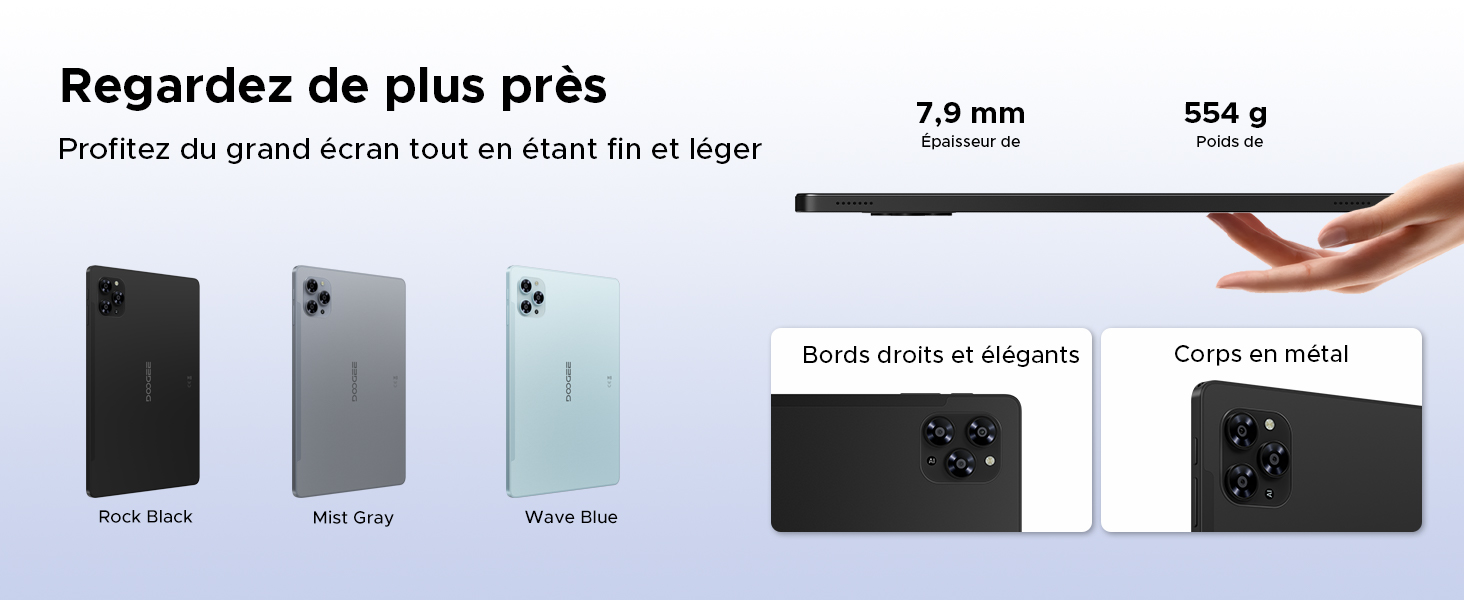
Image: A visual emphasizing the tablet's slim profile (7.9 mm thickness) and light weight (554 g), alongside details of its metal construction and design.
4. การตั้งค่าเริ่มต้น
4.1 การชาร์จแท็บเล็ต
Before first use, fully charge your DOOGEE Tab G6 using the provided charger and Type-C cable. Connect the Type-C cable to the tablet's charging port and the charger to a power outlet. The battery indicator on the screen will show the charging status.
4.2 การเปิด/ปิดเครื่อง
- การเปิดเครื่อง: Press and hold the Power button until the DOOGEE logo appears on the screen.
- วิธีปิดเครื่อง: Press and hold the Power button until the power options appear. Select 'Power off' and confirm.
4.3 การติดตั้งซิมการ์ดและการ์ด MicroSD
The DOOGEE Tab G6 supports dual SIM cards and a MicroSD card for expanded storage.
- หาช่องใส่ซิมการ์ดที่ด้านข้างของแท็บเล็ต
- ใส่เครื่องมือถอดซิมเข้าไปในรูเล็ก ๆ ข้างถาดแล้วกดเบา ๆ จนกว่าถาดจะดีดออกมา
- ใส่ซิมการ์ดนาโนและ/หรือการ์ด MicroSD ลงในช่องที่กำหนดบนถาด โดยตรวจสอบให้แน่ใจว่าวางในทิศทางที่ถูกต้อง
- ค่อยๆ ดันถาดกลับเข้าไปในแท็บเล็ตจนกระทั่งได้ยินเสียงคลิกเข้าที่

ภาพ: รายละเอียด view of the tablet's dual SIM and MicroSD card tray, illustrating how to insert the cards.
4.4 การเชื่อมต่ออุปกรณ์เสริมบลูทูธ
Your DOOGEE Tab G6 comes with a Bluetooth keyboard and mouse. To connect them:
- Ensure the accessories are charged and in pairing mode (refer to their individual manuals if needed).
- บนแท็บเล็ตของคุณ ให้ไปที่ การตั้งค่า > อุปกรณ์ที่เชื่อมต่อ > บลูทูธ.
- เปิดใช้งานบลูทูธและค้นหาอุปกรณ์ที่ใช้งานได้
- เลือกแป้นพิมพ์หรือเมาส์จากรายการเพื่อจับคู่ จากนั้นทำตามคำแนะนำที่ปรากฏบนหน้าจอ
5. การใช้งานแท็บเล็ตของคุณ
ระบบปฏิบัติการ Android 15 5.1
The DOOGEE Tab G6 runs on the latest Android 15 operating system, offering an intuitive interface and enhanced features.
- Multi-User System: สร้างผู้ใช้แยกกันfiles for different individuals, each with their own apps, settings, and data.
- การควบคุมโดยผู้ปกครอง: Manage and restrict content, screen time, and app usage for children's profiles.
- โหมดก่อนนอน: Schedule the tablet to automatically switch to grayscale and silence notifications for a better night's sleep.
- Enhanced Security and Privacy: Benefit from improved app permission management, data encryption, and regular security updates.

Image: An illustration of the Android 15 operating system and its key features for user management and well-being.
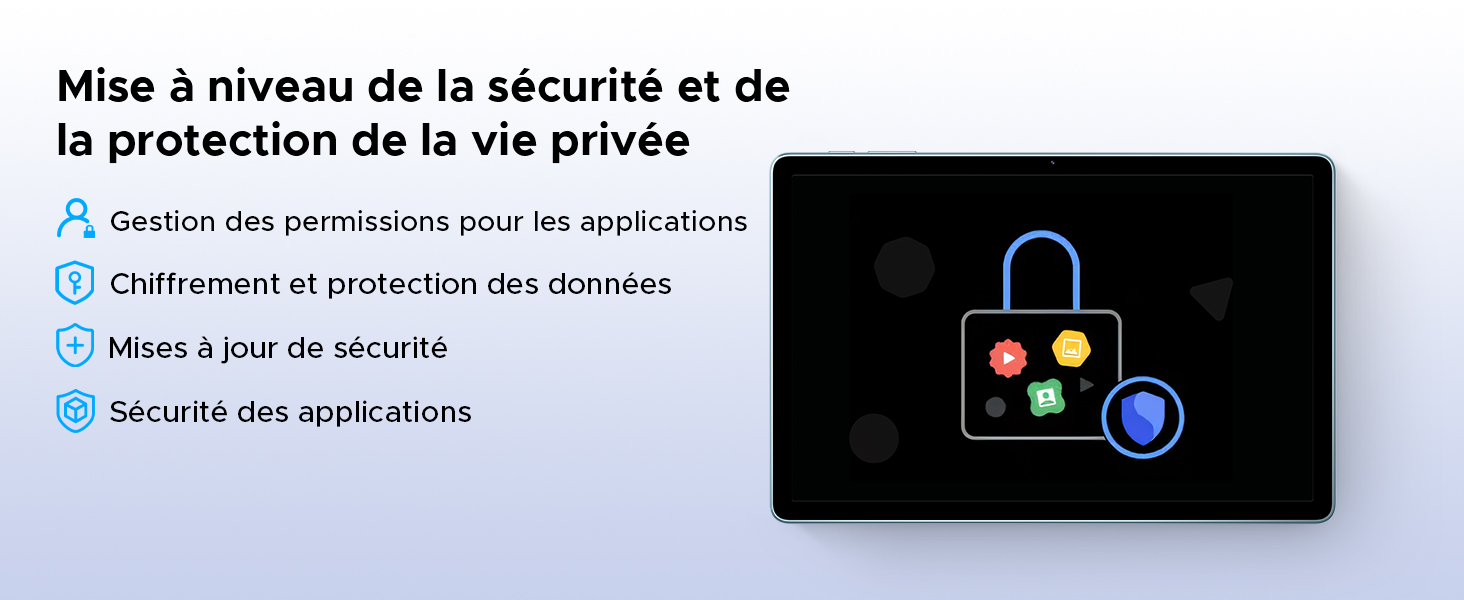
Image: A visual representation of the security and privacy enhancements in Android 15.
5.2 การแสดงผลและภาพ
The tablet features an 11-inch HD IPS display with a 90Hz refresh rate for smooth visuals.
- อัตราการรีเฟรช 90Hz: Provides a smoother scrolling and gaming experience.
- โหมดสบายตา: Reduces blue light emission to minimize eye strain, especially during prolonged use.
- โหมดมืด: Changes the system's color scheme to a darker palette, which can be more comfortable for eyes in low-light conditions and save battery.
- ฝ่ายสนับสนุน Widevine L1: Allows for streaming high-definition content from supported platforms like Netflix, Amazon Prime Video, and YouTube.

Image: The tablet's 11-inch HD 90Hz IPS display, showcasing its visual clarity and smooth performance.
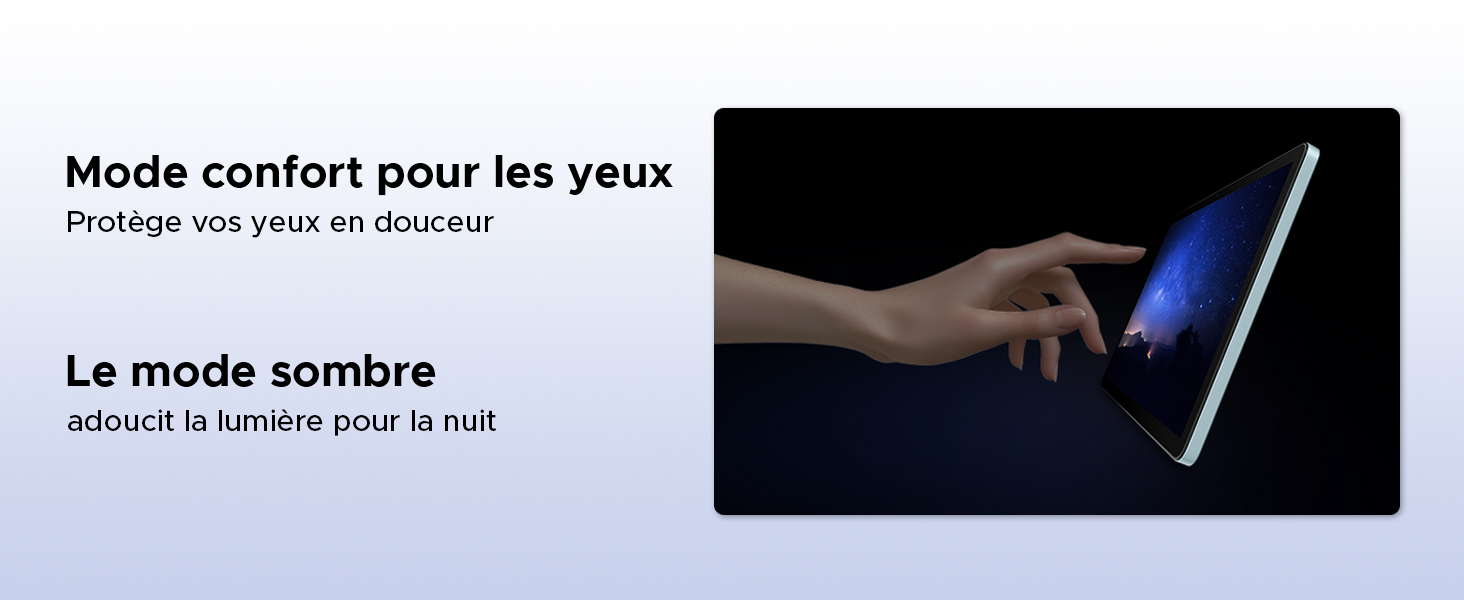
Image: Demonstrating the eye comfort and dark mode features for improved viewการสร้างประสบการณ์
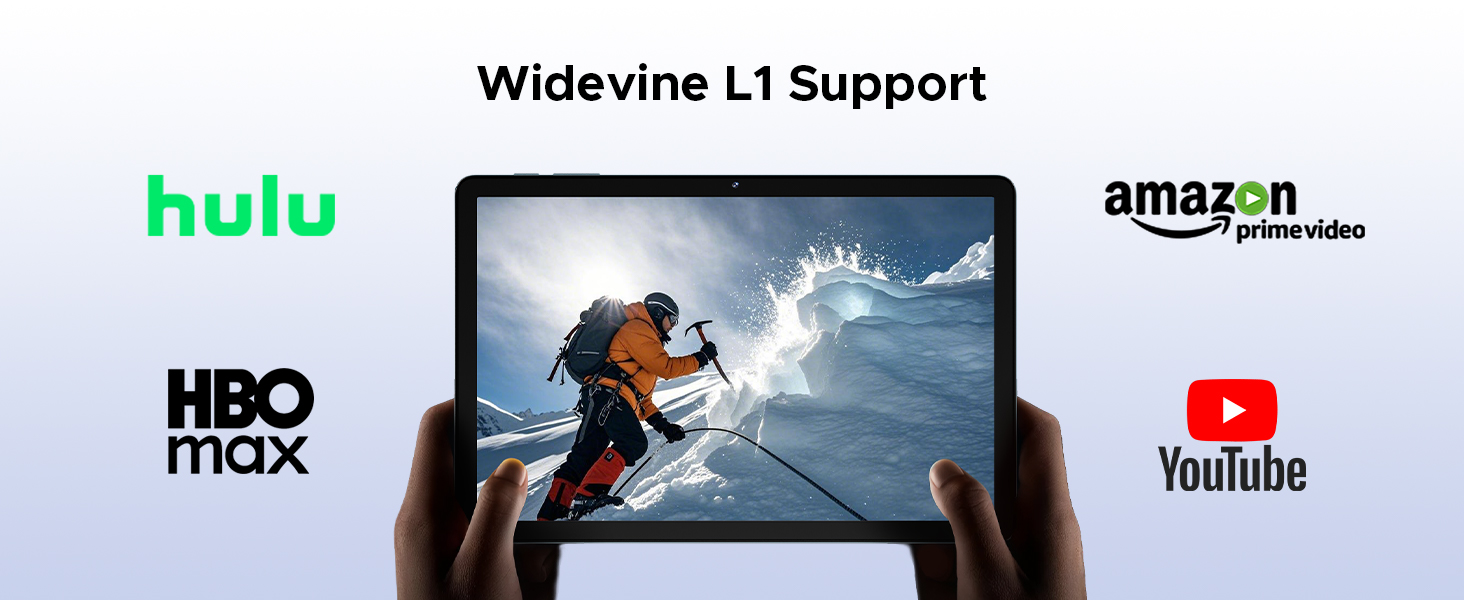
Image: Highlighting the tablet's Widevine L1 support for streaming HD content from popular platforms.
5.3 ประสิทธิภาพและการจัดเก็บ
The DOOGEE Tab G6 is powered by an Octa-Core Unisoc T7250 processor and offers ampที่เก็บของ
- Unisoc T7250 Octa-Core Processor: Provides efficient performance for multitasking, gaming, and media consumption.
- 30GB RAM (6GB Physical + 24GB Virtual): Ensures smooth operation and quick app switching.
- 256GB Internal Storage (ROM): Sufficient space for applications, photos, and videos.
- Expandable Storage up to 2TB (TF Card): Allows for significant expansion of storage capacity for large media libraries.

ภาพ: รายละเอียด view of the Unisoc T7250 octa-core processor, emphasizing its role in the tablet's performance.
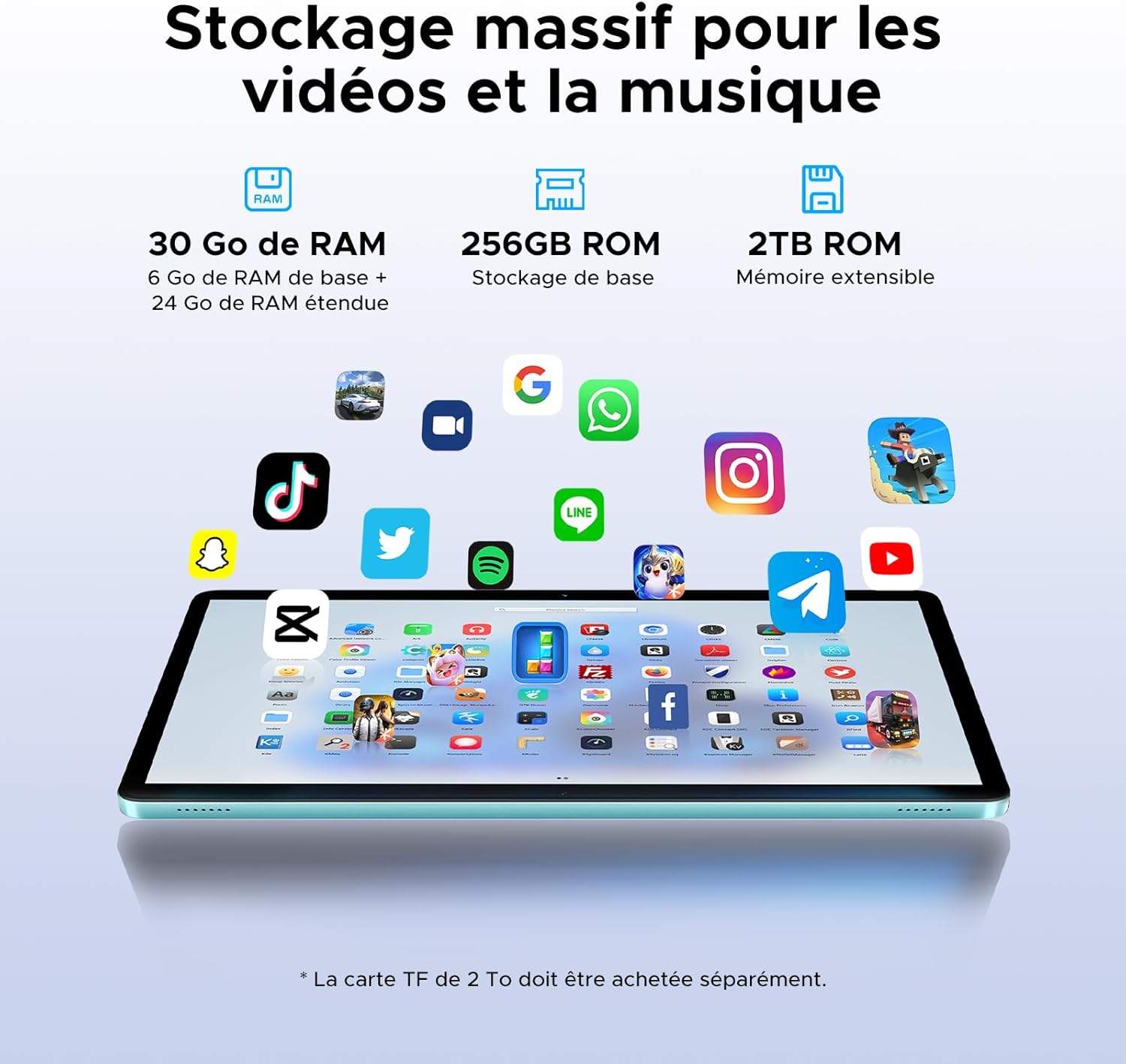
Image: Illustrating the tablet's substantial storage capabilities for apps, videos, and music.
5.4 การเชื่อมต่อ
Stay connected with versatile network options.
- Dual SIM 4G LTE: Supports mobile data and calls, providing connectivity even without Wi-Fi.
- Wi-Fi 5 (802.11ac): Offers fast and stable wireless internet connection.
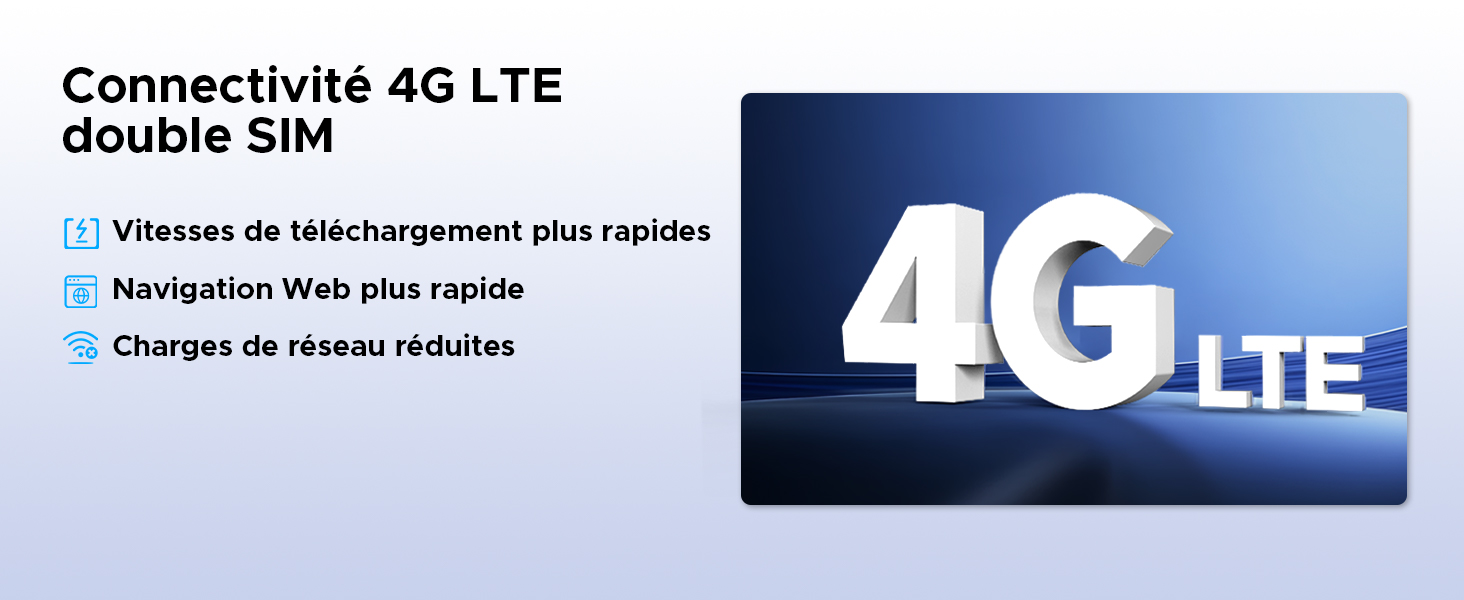
Image: Highlighting the benefits of 4G LTE dual SIM connectivity for mobile internet and calls.
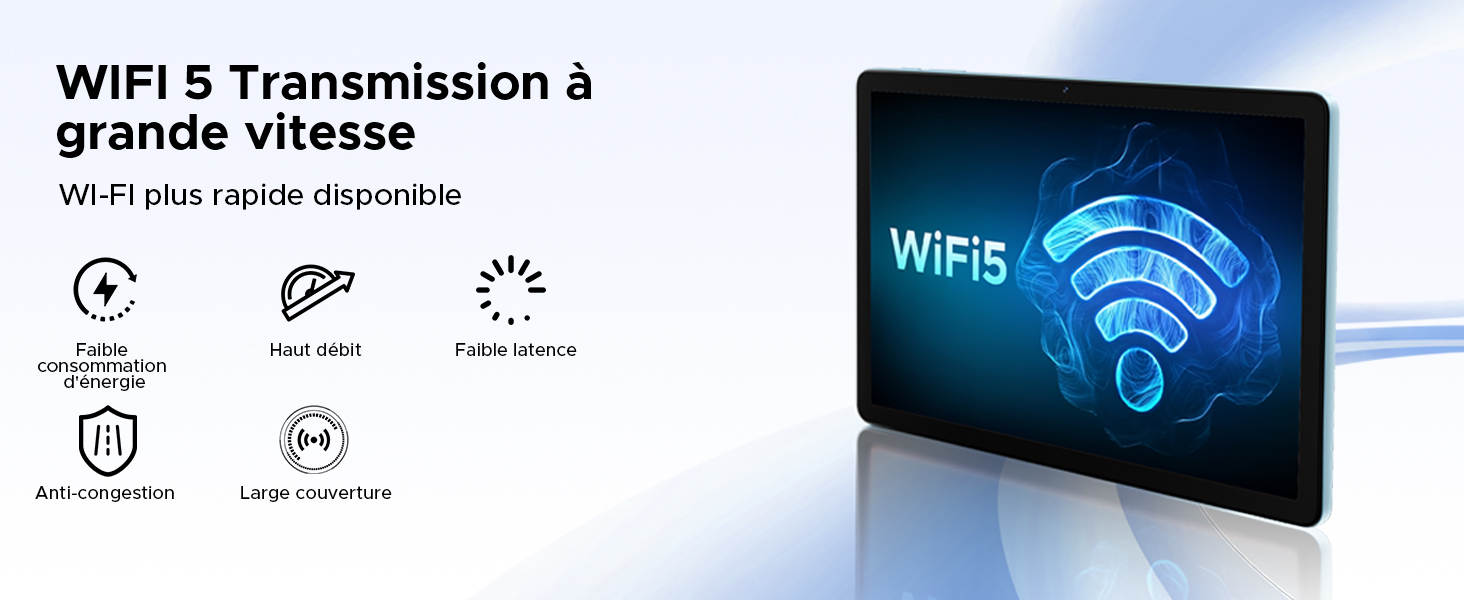
Image: Detailing the advantages of WiFi 5 for fast and reliable internet access.
5.5 ฟังก์ชันกล้อง
Capture moments and unlock your device with the integrated cameras.
- กล้องหลัก 13MP: For clear photos and videos.
- กล้องหน้า 5MP: เหมาะอย่างยิ่งสำหรับการสนทนาทางวิดีโอและการถ่ายเซลฟี่
- การระบุใบหน้า: ปลดล็อกแท็บเล็ตของคุณอย่างปลอดภัยโดยใช้การจดจำใบหน้า
- โหมดกล้อง: Includes filter and beauty modes for enhanced photography.

ภาพ: Showcasing the tablet's 13MP main and 5MP front cameras, along with sampไฟล์ภาพ
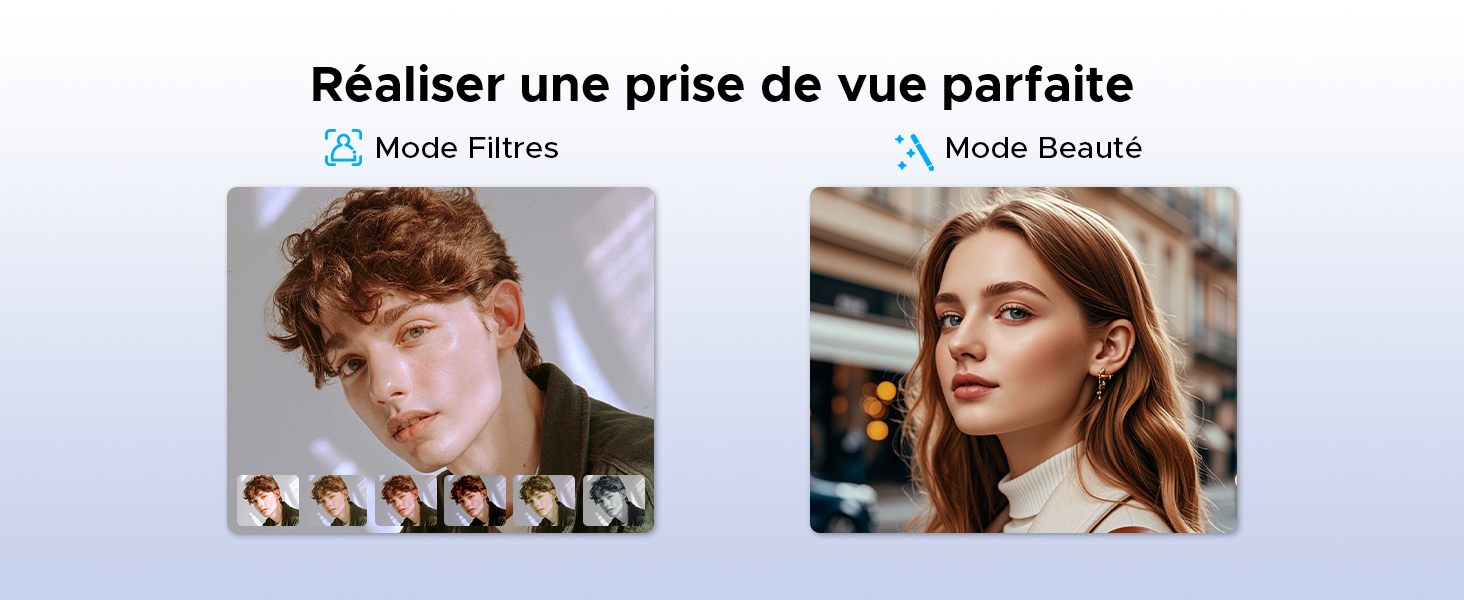
ภาพ: อดีตamples of filter and beauty modes available in the camera application.
5.6 เสียงและความบันเทิง
Enjoy immersive sound and radio on your tablet.
- Premium 1217 BOX Dual Speakers: ให้เสียงสเตอริโอที่คมชัดและสมจริง
- วิทยุ FM: Connect wired earphones to use the built-in FM radio function.

Image: The tablet's dual speakers providing an immersive audio experience during gaming.
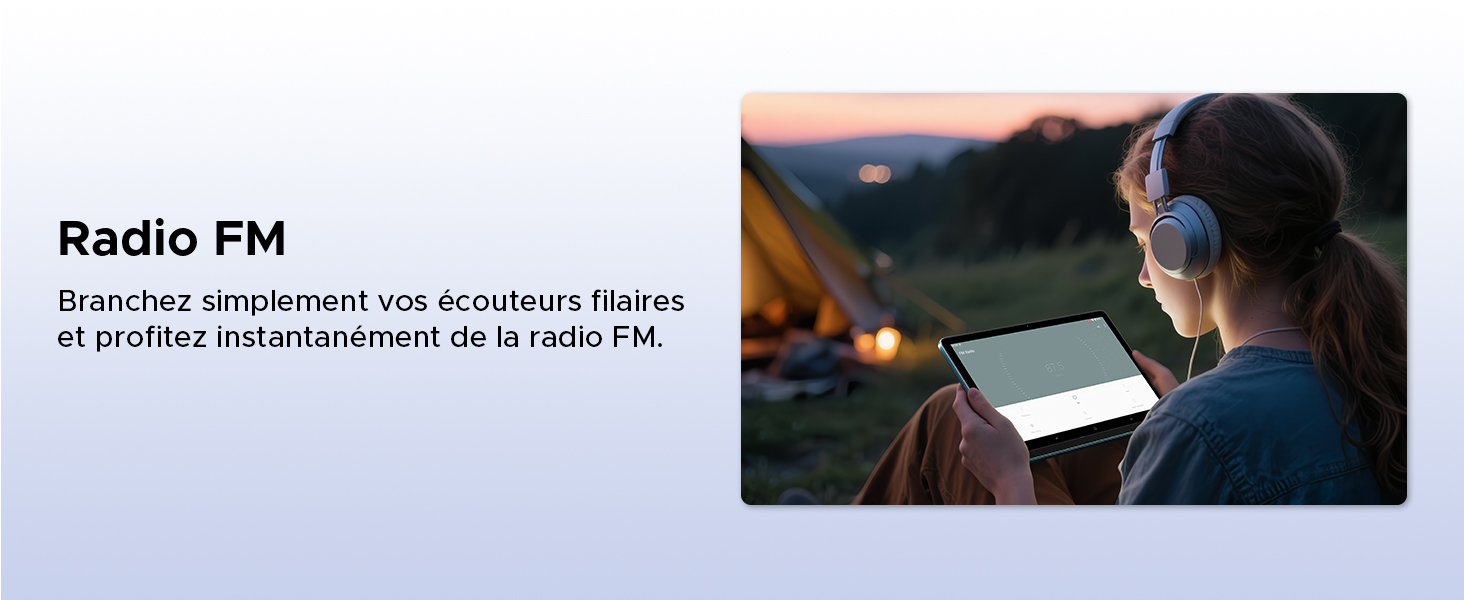
Image: Demonstrating the FM radio functionality, accessible by plugging in wired earphones.
5.7 Productivity
Enhance your work and multitasking capabilities.
- WPS Office Integration: Pre-installed WPS Office allows for easy document editing and file viewการไอเอ็นจี
- การแบ่งหน้าจอการทำงานหลายอย่างพร้อมกัน: Use two applications simultaneously side-by-side for increased productivity.
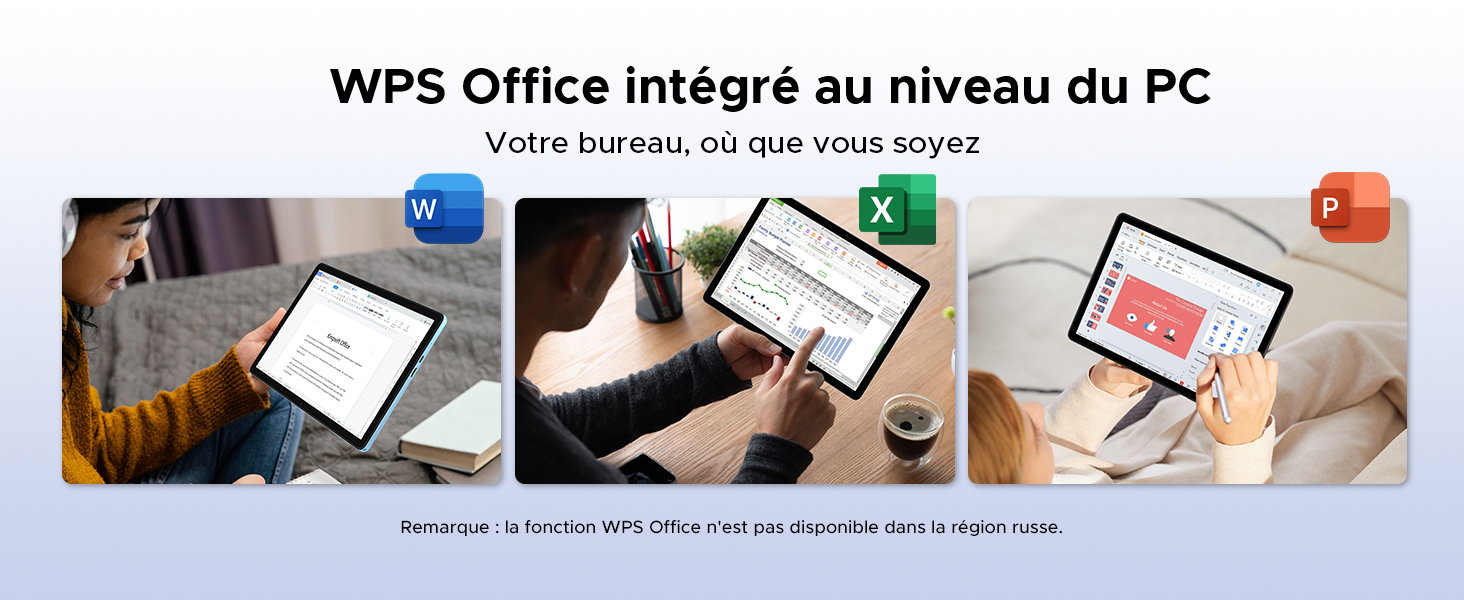
Image: Illustrating the tablet's capability for office tasks using WPS Office, anytime and anywhere.
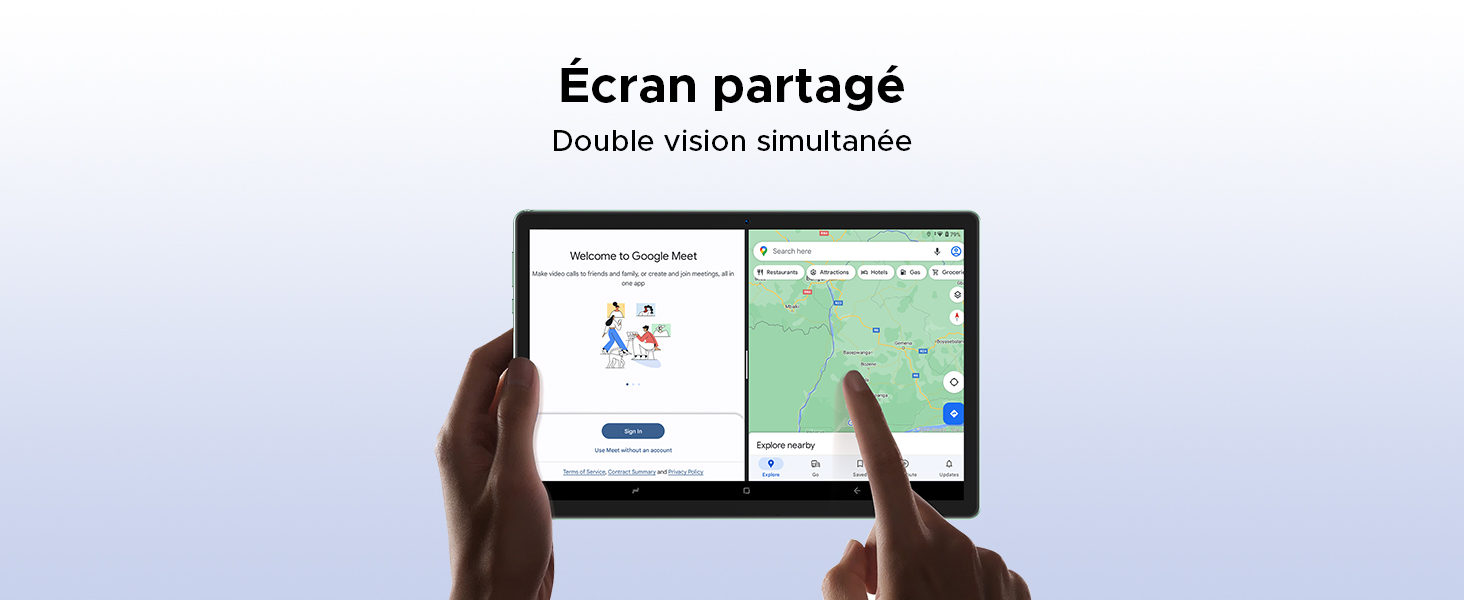
Image: Demonstrating the split-screen feature for simultaneous dual-app viewการไอเอ็นจี
5.8 การนำทาง
The DOOGEE Tab G6 supports multiple global navigation satellite systems for precise positioning.
- GPS, Glonass, Galileo, Beidou: Ensures accurate and reliable navigation services.
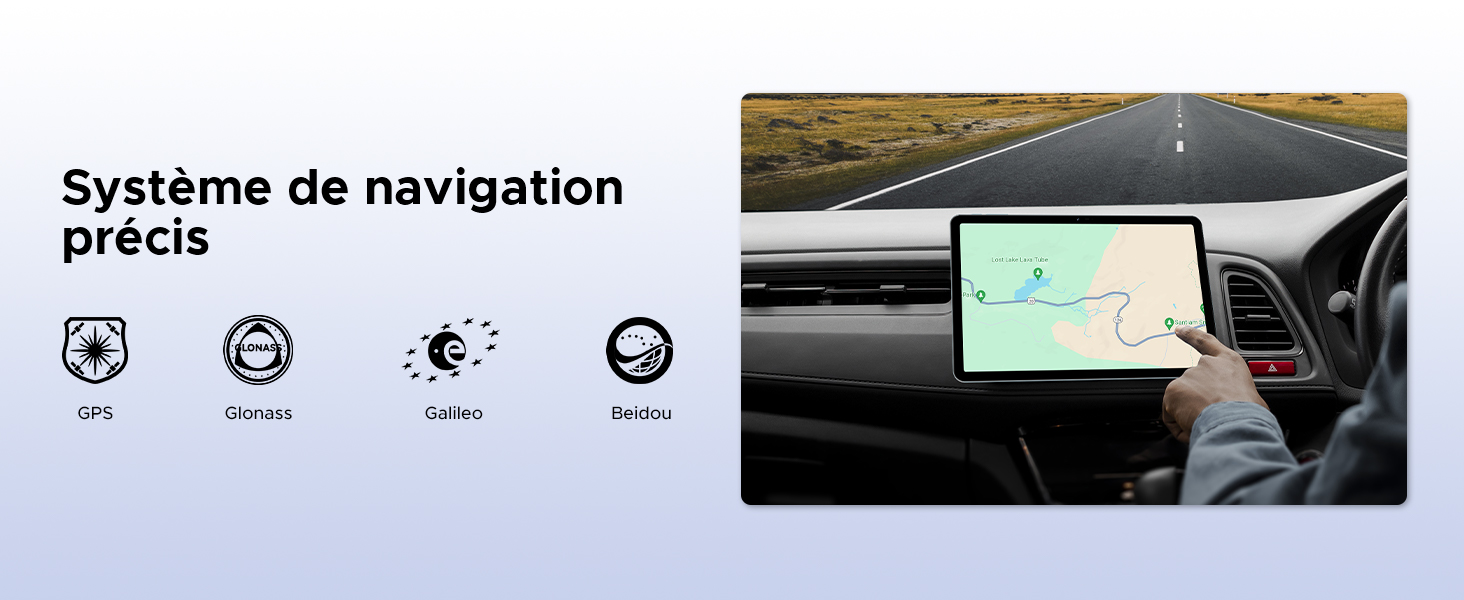
Image: The tablet being used for precise navigation in a vehicle, supported by multiple satellite systems.
6. การบำรุงรักษาและการดูแล
6.1 การทำความสะอาดแท็บเล็ตของคุณ
ในการทำความสะอาดแท็บเล็ต ให้ใช้ผ้านุ่มที่ไม่เป็นขุย สำหรับคราบฝังแน่น ให้เช็ดเบาๆampชุบผ้าด้วยน้ำหรือน้ำยาทำความสะอาดหน้าจอที่ออกแบบมาสำหรับอุปกรณ์อิเล็กทรอนิกส์ หลีกเลี่ยงการใช้สารเคมีรุนแรง วัสดุที่มีฤทธิ์กัดกร่อน หรือความชื้นมากเกินไป
6.2 อายุการใช้งานแบตเตอรี่
The DOOGEE Tab G6 is equipped with an 8000mAh battery. To maximize its lifespan:
- หลีกเลี่ยงอุณหภูมิที่สูงหรือต่ำเกินไป
- อย่าปล่อยให้แบตเตอรี่หมดจนหมดบ่อยๆ
- ใช้ที่ชาร์จและสายชาร์จเดิม
- หากต้องการเก็บรักษาในระยะยาว ให้ชาร์จแท็บเล็ตจนมีแบตเตอรี่เหลือประมาณ 50% แล้วปิดเครื่อง

ภาพ: ภายใน view of the tablet highlighting its 8000mAh battery, along with its charging capabilities.
6.3 การอัปเดตซอฟต์แวร์
Regularly check for and install software updates to ensure your tablet has the latest features, security patches, and performance improvements. You can usually find this option in การตั้งค่า > ระบบ > อัปเดตระบบ.
7 การแก้ไขปัญหา
If you encounter issues with your DOOGEE Tab G6, try the following common solutions:
- อุปกรณ์ไม่เปิด: ตรวจสอบให้แน่ใจว่าแบตเตอรี่ชาร์จเต็มแล้ว เสียบที่ชาร์จและรอสักครู่ก่อนลองเปิดเครื่องอีกครั้ง
- แอปขัดข้องหรือค้าง: Close and restart the app. If the issue persists, clear the app's cache (Settings > Apps > [App Name] > Storage > Clear cache) or reinstall the app.
- ปัญหาการเชื่อมต่อ (Wi-Fi/4G): Toggle Wi-Fi or mobile data off and on. Restart your router for Wi-Fi issues. Ensure your SIM card is correctly inserted and active for 4G issues.
- ประสิทธิภาพช้า: ปิดแอปพื้นหลังที่ไม่จำเป็น ล้างแคชและแอปชั่วคราว files. พิจารณาทำการรีเซ็ตเป็นค่าโรงงานเป็นทางเลือกสุดท้าย (สำรองข้อมูลของคุณไว้ก่อน)
- หน้าจอสัมผัสไม่ตอบสนอง: Restart the tablet. If the issue continues, contact support.
For more complex issues, refer to the online support resources or contact DOOGEE customer service.
8. ข้อมูลจำเพาะ
| คุณสมบัติ | ข้อมูลจำเพาะ |
|---|---|
| ยี่ห้อ | ดูจี้ |
| หมายเลขรุ่น | TAB G6-V |
| ชุด | TAB G6 VIP |
| ระบบปฏิบัติการ | แอนดรอยด์ 15 |
| ยี่ห้อโปรเซสเซอร์ | ยูนิโซค |
| ขนาดหน้าจอ | 11 Inches (10.1 Inches in some specs) |
| ความละเอียดหน้าจอ | 1200 x 1920 pixels (1280x800 in some images) |
| แรม | หน่วยความจำ 30 GB (6 GB แบบกายภาพ + 24 GB แบบเสมือน) |
| ความจุในการเก็บข้อมูล | 256GB |
| พื้นที่เก็บข้อมูลแบบขยายได้ | Up to 2 TB (TF card) |
| ประเภทการเชื่อมต่อ | เซลลูล่าร์, Wi-Fi |
| ฮาร์ดแวร์อินเตอร์เฟซ | บลูทูธ, ยูเอสบี |
| อุปกรณ์ต่อพ่วงที่ใช้งานร่วมกันได้ | คีย์บอร์ด, เมาส์ |
| อายุการใช้งานแบตเตอรี่ (เฉลี่ย) | 24 hours (8000 mAh) |
| ขนาดรายการ (ยาว x กว้าง x สูง) | 24.5 x 16.3 x 1 เซนติเมตร |
| น้ำหนักสินค้า | 514 กรัม |
| กล้องหลัก | 13 MP |
| กล้องหน้า | 5 MP |
| ปีของรุ่น | 2025 |
9. ข้อมูลการรับประกันและการสนับสนุน
For warranty details, please refer to the warranty card included in your product packaging or visit the official DOOGEE website. If you require technical assistance or have questions not covered in this manual, please contact DOOGEE customer support through their official channels.


