1. บทนำ
Welcome to the CyberpowerPC Gamer Xtreme GXi3200BSTV10 Gaming Desktop PC. This manual provides essential information for setting up, operating, maintaining, and troubleshooting your new gaming system. Designed for high-performance gaming and demanding applications, this PC features an Intel Core i5-14400F processor, NVIDIA GeForce RTX 5060 graphics, 16GB DDR5 RAM, and a 1TB PCIe SSD, all running on Windows 11 Home.
For optimal performance and longevity, please read this manual thoroughly before using your computer.
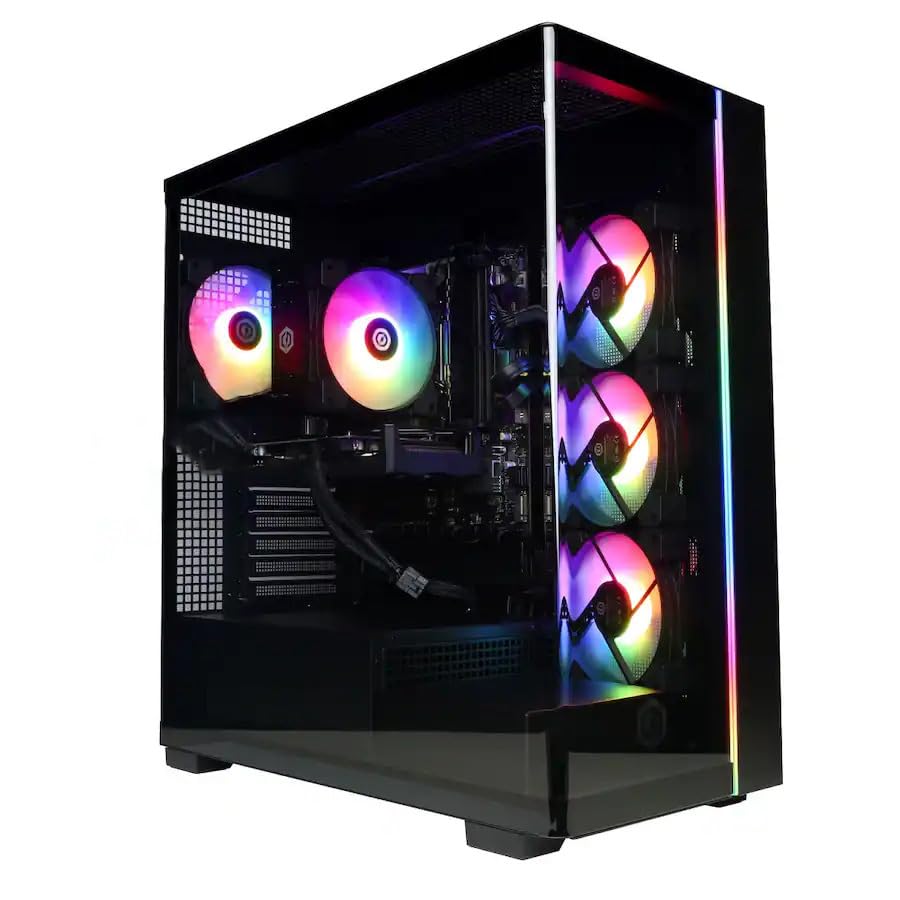
ภาพ: ด้านหน้า view of the CyberpowerPC Gamer Xtreme GXi3200BSTV10 Gaming Desktop PC, showcasing its sleek design and RGB lighting elements.
2. อะไรอยู่ในกล่อง
Upon unpacking your CyberpowerPC Gamer Xtreme GXi3200BSTV10, please ensure all the following items are present:
- CyberpowerPC Gamer Xtreme GXi3200BSTV10 Desktop PC
- สายไฟ
- คีย์บอร์ดเกม RGB
- เมาส์เล่นเกม RGB
- เอกสารประกอบ (รวมถึงคู่มือนี้)

Image: The included CyberpowerPC NOHI 2 Black Wired RGB 104-Key Keyboard and CyberPowerPC Elite M2 Black Wired RGB 4-Button Mouse.
3. คู่มือการติดตั้ง
Follow these steps to set up your new CyberpowerPC Gamer Xtreme desktop:
3.1 การแกะและการจัดวาง
- Carefully remove the PC and all accessories from the packaging. Retain the packaging for future transport or warranty claims.
- Place the PC on a stable, flat surface with adequate ventilation. Ensure there is clear space around the air intake and exhaust vents.
- Remove any protective films or internal packing materials from the PC case.
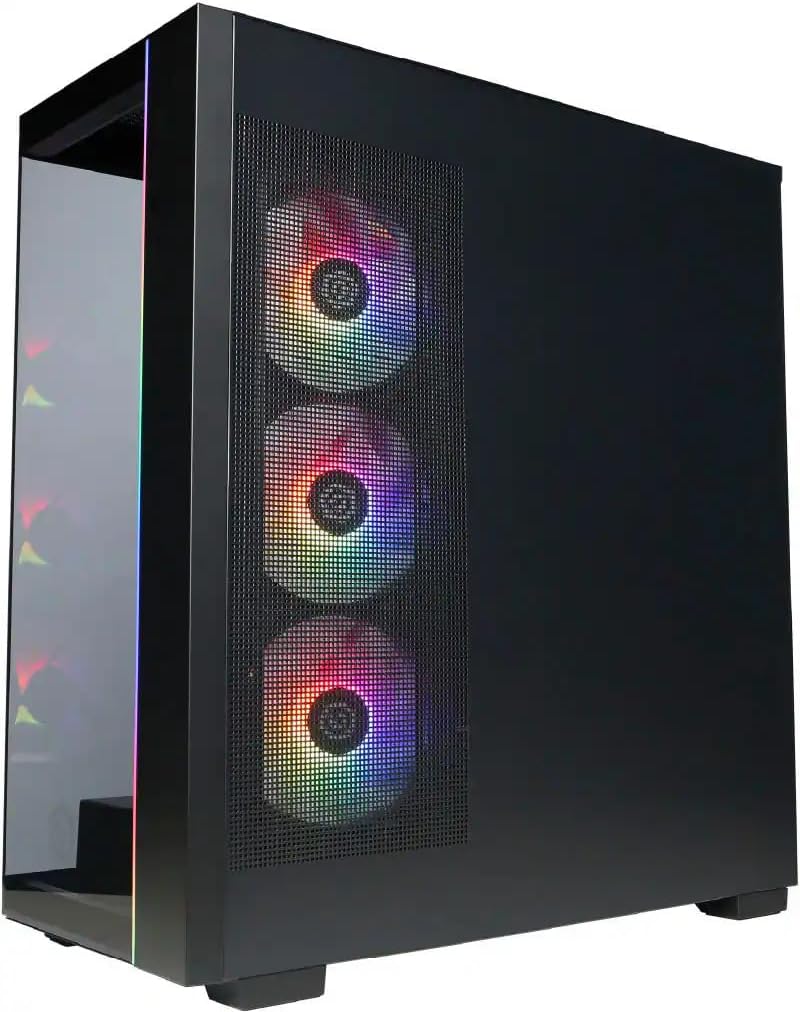
ภาพ: ด้านข้าง view of the PC case, highlighting the mesh panel for airflow and the RGB fans visible through it.
3.2 การเชื่อมต่ออุปกรณ์ต่อพ่วง
Connect your monitor, keyboard, mouse, and other devices to the appropriate ports on the back of the PC.
- เฝ้าสังเกต: Connect your monitor to one of the graphics card's display outputs (DisplayPort or HDMI). Ensure it's connected to the dedicated graphics card (NVIDIA GeForce RTX 5060), not the motherboard's integrated graphics ports.
- คีย์บอร์ดและเมาส์: Connect the included RGB keyboard and mouse to any available USB ports.
- เครือข่าย: For wired internet, connect an Ethernet cable to the RJ-45 port. For wireless internet, ensure the Wi-Fi antennas (if provided) are attached.
- เสียง: เชื่อมต่อลำโพงหรือหูฟังเข้ากับช่องเสียบเอาต์พุตเสียง
3.3 การเชื่อมต่อพลังงานและการบูตครั้งแรก
- เชื่อมต่อสายไฟเข้ากับหน่วยจ่ายไฟ (PSU) ของคอมพิวเตอร์ แล้วจึงเสียบเข้ากับเต้ารับไฟฟ้าที่มีสายดิน
- กดปุ่มเปิด/ปิดเครื่องที่อยู่ด้านหน้าหรือด้านบนของพีซี
- Follow the on-screen instructions to complete the Windows 11 Home setup process. This may include setting up your user account, network connection, and privacy settings.
4. การใช้งานพีซีของคุณ
This section covers basic operation of your CyberpowerPC Gamer Xtreme.
4.1 เปิด/ปิดและรีสตาร์ท
- เปิดเครื่อง: กดปุ่มเปิด/ปิดหนึ่งครั้ง
- ปิดระบบ: คลิกปุ่มเริ่มใน Windows จากนั้นเลือกเปิด/ปิดเครื่อง > ปิดเครื่อง
- เริ่มต้นใหม่อีกครั้ง: คลิกปุ่มเริ่มใน Windows จากนั้นเลือกเปิด/ปิดเครื่อง > เริ่มระบบใหม่
- บังคับปิดระบบ: If the system is unresponsive, press and hold the power button for 5-10 seconds until the PC turns off. Use this only as a last resort.
4.2 การเชื่อมต่อเครือข่าย
- แบบมีสาย (อีเธอร์เน็ต): Once the Ethernet cable is connected, Windows 11 should automatically detect and connect to the network.
- ไร้สาย (Wi-Fi): Click the Wi-Fi icon in the taskbar, select your desired network, enter the password, and click Connect.
4.3 การควบคุมแสง RGB
Your system features customizable RGB lighting for fans, case, and CPU cooler. Control software for RGB lighting may be pre-installed or available for download from the CyberpowerPC website. Refer to the specific software's instructions for detailed customization options.

ภาพ: รายละเอียด view of the RGB fans, illustrating the vibrant lighting effects within the PC case.

Image: Close-up of the CPU cooler, showing its design and integrated RGB lighting.
5. การบำรุงรักษา
การบำรุงรักษาอย่างสม่ำเสมอจะช่วยให้พีซีของคุณมีอายุการใช้งานยาวนานและทำงานได้อย่างมีประสิทธิภาพสูงสุด
5.1 การทำความสะอาด
- ภายนอก: ใช้แบบนุ่มๆamp cloth to clean the exterior of the case. Avoid harsh chemicals.
- ฝุ่น: Periodically clean dust from the internal components, especially fans and heatsinks, using compressed air. Ensure the PC is powered off and unplugged before opening the case.
- ตัวกรองอากาศ: If your case has removable air filters, clean them regularly to maintain optimal airflow.
5.2 การอัปเดตซอฟต์แวร์
- การอัปเดต Windows: Regularly check for and install Windows updates to ensure security and performance improvements. Go to Settings > Windows Update.
- การอัปเดตไดรเวอร์: Keep your graphics card drivers (NVIDIA GeForce) and other component drivers updated for best performance and compatibility. Visit the respective manufacturer's webเว็บไซต์สำหรับดาวน์โหลดไดร์เวอร์เวอร์ชั่นล่าสุด
5.3 การสำรองข้อมูล
Regularly back up your important data to an external drive or cloud storage to prevent data loss in case of hardware failure or other issues.
6 การแก้ไขปัญหา
หัวข้อนี้ให้แนวทางแก้ไขปัญหาทั่วไปที่คุณอาจพบเจอ
6.1 ไม่มีไฟฟ้า
- ตรวจสอบให้แน่ใจว่าสายไฟเชื่อมต่อกับคอมพิวเตอร์และเต้ารับที่ผนังอย่างแน่นหนาแล้ว
- Check if the power switch on the PSU (located at the back of the PC) is in the 'ON' position.
- ทดสอบเต้ารับด้วยอุปกรณ์อื่นเพื่อยืนยันว่ามีไฟอยู่
6.2 ไม่มีการแสดงผลบนจอภาพ
- Verify that the monitor is powered on and its video cable is securely connected to the graphics card (NVIDIA GeForce RTX 5060) on the PC.
- ตรวจสอบให้แน่ใจว่าได้ตั้งค่าแหล่งสัญญาณเข้าของจอภาพอย่างถูกต้องแล้ว (เช่น HDMI 1, DisplayPort)
- ลองเชื่อมต่อจอภาพกับพอร์ตเอาท์พุตจอแสดงผลอื่นบนการ์ดกราฟิก
6.3 System Running Slowly
- Check Task Manager (Ctrl+Shift+Esc) for applications consuming excessive CPU, RAM, or disk resources.
- ตรวจสอบให้แน่ใจว่า Windows และไดรเวอร์ได้รับการอัปเดตแล้ว
- สแกนระบบทั้งหมดเพื่อหามัลแวร์หรือไวรัส
- Verify that the PC has adequate ventilation and is not overheating.
7. ข้อมูลจำเพาะ
Detailed technical specifications for your CyberpowerPC Gamer Xtreme GXi3200BSTV10:

Image: Infographic summarizing key specifications including Intel Core i5-14400F, NVIDIA GeForce RTX 5060, 16GB DDR5 RAM, and 1TB PCIe NVMe M.2 SSD.
| ส่วนประกอบ | ข้อมูลจำเพาะ |
|---|---|
| โปรเซสเซอร์ | Intel Core i5-14400F (10-Core, 2.5 GHz base, up to 4.7 GHz Turbo Boost) |
| การ์ดจอ | การ์ดจอ NVIDIA GeForce RTX 5060 8GB GDDR7 |
| แรม | 16GB DDR5 6000 เมกะเฮิรตซ์ |
| พื้นที่จัดเก็บ | SSD PCIe NVMe M.2 ความจุ 1TB |
| ระบบปฏิบัติการ | วินโดวส์ 11 โฮม |
| การเชื่อมต่อแบบไร้สาย | Wi-Fi (802.11ax), บลูทูธ |
| เสียง | ระบบเสียงความคมชัดสูง 7.1 ช่อง |
| การแสดงผลเอาท์พุต | 3x DisplayPort, 1x HDMI |
| พอร์ต USB | 1x USB-C 3.2, 3x USB-A 3.2, 4x USB-A 2.0 |
| ขนาด (กxยxส) | 18.1 x 9.2 x 20 นิ้ว |
| น้ำหนักสินค้า | 40 ปอนด์ |
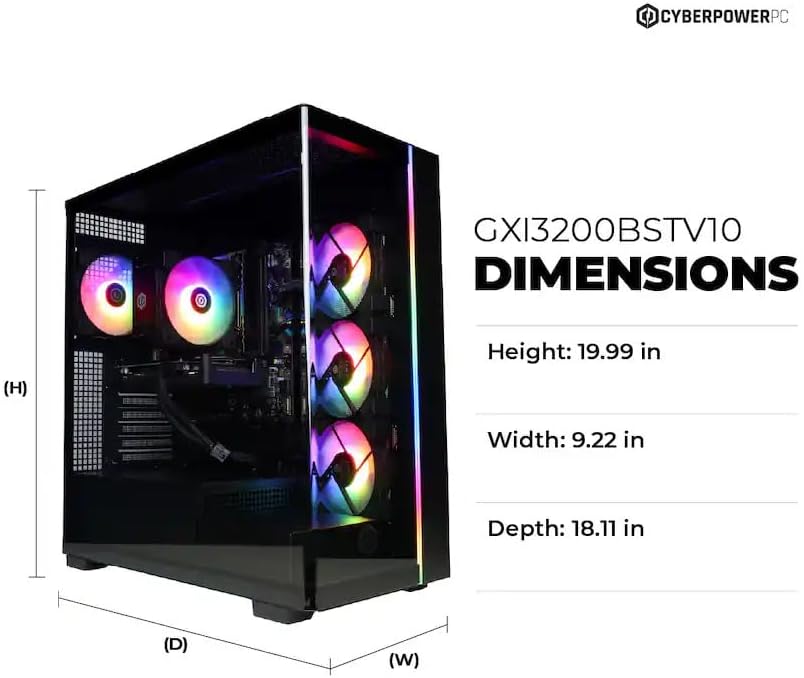
Image: Diagram illustrating the dimensions of the CyberpowerPC Gamer Xtreme GXi3200BSTV10: Height 19.99 in, Width 9.22 in, Depth 18.11 in.
8. การรับประกันและการสนับสนุน
8.1 การรับประกันของผู้ผลิต
Your CyberpowerPC Gamer Xtreme GXi3200BSTV10 comes with a การรับประกันจากผู้ผลิต 1 ปีการรับประกันนี้ครอบคลุมข้อบกพร่องด้านวัสดุและฝีมือการผลิตภายใต้การใช้งานปกติ โปรดเก็บหลักฐานการซื้อไว้เพื่อขอรับสิทธิ์การรับประกัน
For specific terms and conditions of the warranty, please refer to the documentation included with your PC or visit the official CyberpowerPC webเว็บไซต์.
8.2 การสนับสนุนด้านเทคนิค
If you encounter issues that cannot be resolved using the troubleshooting steps in this manual, please contact CyberpowerPC technical support. Have your model number (GXi3200BSTV10) and serial number ready when contacting support.
You can typically find support contact information on the CyberpowerPC webดูได้จากเว็บไซต์หรือเอกสารประกอบที่มาพร้อมกับระบบของคุณ


