1. บทนำ
This manual provides essential information for the safe and efficient use of your DigiLand 11-inch Android 14 Tablet. Please read this manual thoroughly before operating the device and retain it for future reference.
2. ข้อมูลด้านความปลอดภัย
- อย่าให้แท็บเล็ตถูกอุณหภูมิที่สูงหรือต่ำเกินไป แสงแดดโดยตรง หรือความชื้นสูง
- ควรหลีกเลี่ยงการทำแท็บเล็ตตกหรือกระแทกอย่างรุนแรง
- Use only the charger and charging cable provided by the manufacturer.
- อย่าพยายามถอดประกอบหรือซ่อมแซมแท็บเล็ตด้วยตนเอง โปรดติดต่อช่างผู้ชำนาญการ
- เก็บแท็บเล็ตให้ห่างจากน้ำและของเหลวอื่นๆ
3. เนื้อหาบรรจุภัณฑ์
ตรวจสอบว่ามีรายการทั้งหมดอยู่ในแพ็คเกจของคุณ:
- DigiLand R11 Tablet
- R11 Stand Case
- เครื่องชาร์จ (อะแดปเตอร์ไฟ)
- สายชาร์จ
- คู่มือการใช้งาน

Image: Contents of the DigiLand R11 Tablet package, showing the tablet, stand case, charger, charging cable, and user manual.
4. เค้าโครงอุปกรณ์
Familiarize yourself with the physical components of your DigiLand 11-inch Android Tablet.

ภาพ: ด้านหน้าและด้านหลัง view of the DigiLand 11-inch Android Tablet, showcasing its design and key features like the screen and rear camera module.
ส่วนประกอบหลัก:
- จอแสดงผล IPS HD ขนาด 11 นิ้ว: Main screen for interaction and content viewการไอเอ็นจี
- กล้องหน้า (8MP): อยู่บริเวณขอบด้านหน้า ใช้สำหรับวิดีโอคอลและถ่ายเซลฟี่
- กล้องหลัง (13MP): Located on the back of the tablet, for capturing photos and videos.
- ปุ่มเปิด/ปิด: Used to turn the tablet on/off or put it to sleep/wake it up.
- ปุ่มปรับระดับเสียง: ปรับระดับเสียง
- พอร์ต USB Type-C: สำหรับการชาร์จและถ่ายโอนข้อมูล
- ตะแกรงลำโพง: สำหรับเอาต์พุตเสียง
- ช่องเสียบการ์ด MicroSD: For expanding storage.
5. การตั้งค่า
5.1 การชาร์จแท็บเล็ต
Before first use, fully charge your tablet. Connect the provided USB Type-C cable to the tablet's charging port and the other end to the power adapter. Plug the adapter into a wall outlet. The battery indicator on the screen will show charging status.

Image: The DigiLand tablet connected to a charger, showing the battery charging icon and indicating its 7000mAh capacity.
5.2 การเปิด/ปิดเครื่อง
- การเปิดเครื่อง: Press and hold the Power button until the DigiLand logo appears.
- วิธีปิดเครื่อง: Press and hold the Power button until the power options appear on the screen. Select "Power off."
- ในการรีสตาร์ท: Press and hold the Power button until the power options appear. Select "Restart."
5.3 การตั้งค่าเริ่มต้น
เมื่อเปิดเครื่องครั้งแรก แท็บเล็ตจะแนะนำคุณตลอดกระบวนการตั้งค่าเริ่มต้น:
- เลือกภาษาที่คุณต้องการ
- เชื่อมต่อกับเครือข่าย Wi-Fi
- ลงชื่อเข้าใช้ด้วยบัญชี Google ของคุณ หรือสร้างบัญชีใหม่ ขั้นตอนนี้จำเป็นสำหรับการดาวน์โหลดแอปจาก Google Play Store
- Review และยอมรับข้อกำหนดและเงื่อนไข
- ตั้งค่าการล็อกหน้าจอ (รหัส PIN รูปแบบ หรือรหัสผ่าน) เพื่อความปลอดภัย
5.4 การใส่การ์ด MicroSD
To expand storage, insert a MicroSD card (up to 256GB, not included) into the designated slot. Ensure the tablet is powered off before inserting or removing the card.

Image: A visual representation of the tablet's memory capabilities, including RAM, internal storage, and MicroSD card expansion.
6. การใช้งานแท็บเล็ต
6.1 การนำทางพื้นฐาน
แท็บเล็ตใช้ท่าทางสัมผัสเพื่อการนำทาง:
- แตะ: เลือกรายการหรือเปิดแอป
- ปัด: เลื่อนดูหน้าต่างๆ หรือเมนู
- หยิก: ซูมเข้าหรือออกจากรูปภาพและ web หน้า
- กดแบบยาว: เข้าถึงเมนูบริบทหรือย้ายไอคอนแอป
6.2 การเชื่อมต่อ Wi-Fi
- ไปที่ การตั้งค่า > เครือข่ายและอินเตอร์เน็ต > ไวไฟ.
- สลับ Wi-Fi On.
- เลือกเครือข่ายที่คุณต้องการจากรายการและป้อนรหัสผ่านหากได้รับแจ้ง
6.3 การจับคู่บลูทูธ
- ไปที่ การตั้งค่า > อุปกรณ์ที่เชื่อมต่อ > บลูทูธ.
- สลับบลูทูธ On.
- The tablet will scan for available devices. Select the device you wish to pair with and follow any on-screen prompts.
6.4 การใช้กล้อง
แท็บเล็ตนี้มีกล้องหน้า 8MP และกล้องหลัง 13MP

Image: Demonstrates the tablet's dual camera functionality, with examples of a landscape photo taken by the 13MP rear camera and a video call using the 8MP front camera.
- เปิด กล้อง แอป.
- แตะไอคอนกล้องเพื่อสลับระหว่างกล้องหน้าและกล้องหลัง
- แตะปุ่มชัตเตอร์เพื่อถ่ายภาพหรือเริ่ม/หยุดการบันทึกวิดีโอ
6.5 Split Screen & Screen Mirroring
- หน้าจอแยก: To use two apps simultaneously, open an app, then swipe up from the bottom of the screen and hold to access recent apps. Long-press the app icon at the top of the app window and select "Split screen." Choose a second app to open in the other half of the screen.
- มิเรอร์หน้าจอ: To cast your tablet's screen to a compatible display (e.g., smart TV), go to การตั้งค่า > อุปกรณ์ที่เชื่อมต่อ > การตั้งค่าการเชื่อมต่อ > หล่อ. Select your desired display device.
6.6 การจัดการแอปพลิเคชัน
Your tablet comes with Google Mobile Services (GMS) certified, allowing full access to the Google Play Store.
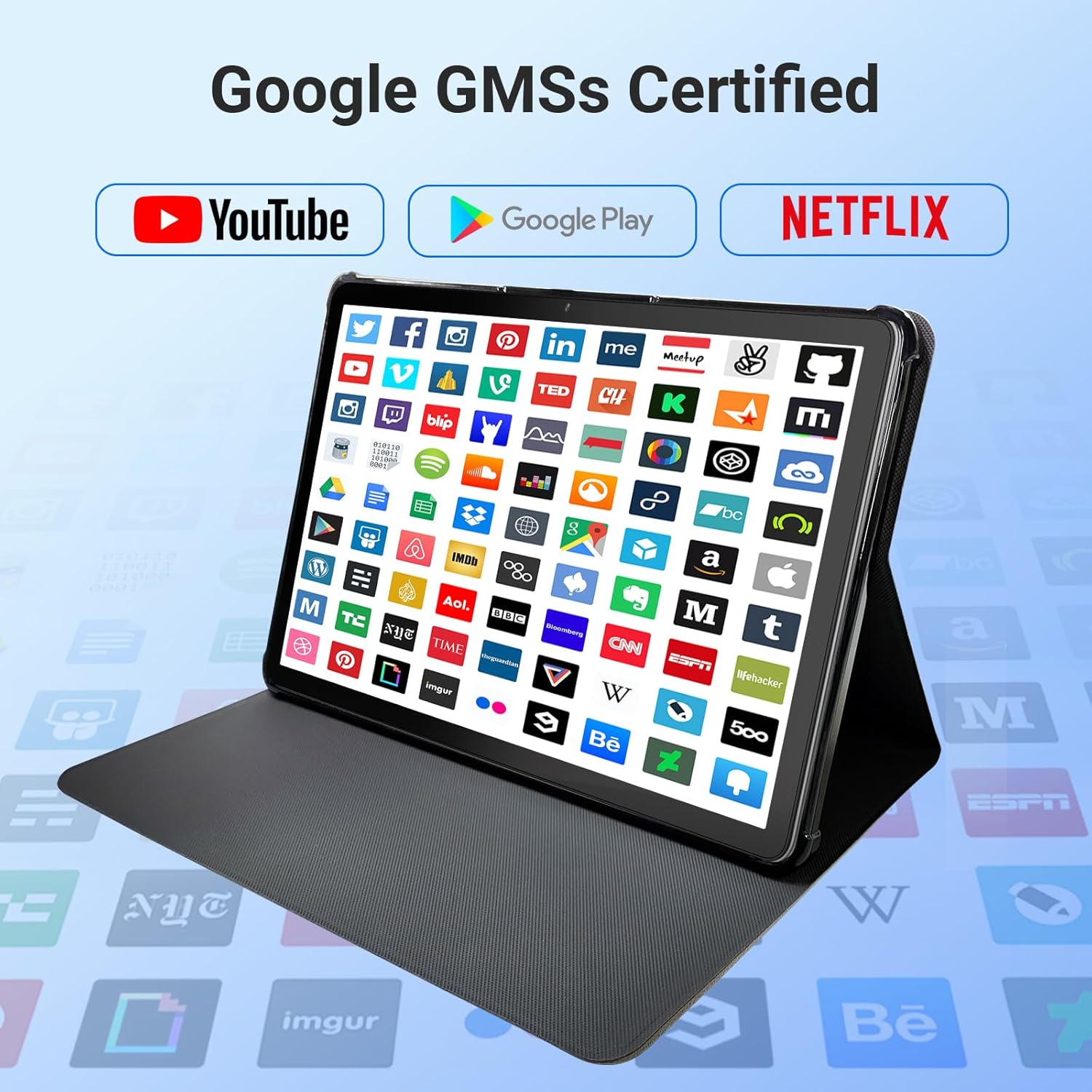
Image: The tablet screen showing numerous app icons, confirming Google GMS certification and access to popular services like YouTube and Netflix.
- ติดตั้งแอพ: เปิด ร้านค้า Google Play แอป ค้นหาแอปที่คุณต้องการ และแตะ "ติดตั้ง"
- ถอนการติดตั้งแอป: Long-press the app icon on the home screen or app drawer, then drag it to "Uninstall" or select "App info" and choose "Uninstall."
7. การบำรุงรักษา
7.1 การทำความสะอาดเครื่อง
Use a soft, lint-free cloth to clean the screen and body of the tablet. Do not use abrasive cleaners or solvents.
7.2 การอัปเดตซอฟต์แวร์
Periodically check for system updates to ensure optimal performance and security:
- ไปที่ การตั้งค่า > ระบบ > การอัพเดทระบบ.
- ปฏิบัติตามคำแนะนำบนหน้าจอเพื่อดาวน์โหลดและติดตั้งการอัพเดตที่มีอยู่
7.3 การจัดการการจัดเก็บข้อมูล
วิธีจัดการพื้นที่จัดเก็บข้อมูลของแท็บเล็ต:
- ไปที่ การตั้งค่า > พื้นที่จัดเก็บ.
- Here you can see storage usage and free up space by uninstalling apps, deleting files, or clearing cache data.
8 การแก้ไขปัญหา
หากคุณประสบปัญหาเกี่ยวกับแท็บเล็ตของคุณ โปรดดูวิธีแก้ไขทั่วไปต่อไปนี้:
| ปัญหา | สารละลาย |
|---|---|
| แท็บเล็ตเปิดไม่ติด | ตรวจสอบให้แน่ใจว่าแบตเตอรี่ชาร์จเต็มแล้ว เสียบที่ชาร์จและรอสักครู่ก่อนลองเปิดเครื่องอีกครั้ง หากเครื่องไม่ตอบสนอง ให้ทำการรีสตาร์ทแบบบังคับโดยกดปุ่มเปิด/ปิดค้างไว้ 10-15 วินาที |
| ปัญหาการเชื่อมต่อ Wi-Fi | ตรวจสอบว่าเปิดใช้งาน Wi-Fi อยู่ในการตั้งค่าหรือไม่ รีสตาร์ทเราเตอร์และแท็บเล็ต ลืมเครือข่ายแล้วเชื่อมต่อใหม่ |
| ประสิทธิภาพการทำงานช้า | ปิดแอปที่ไม่ได้ใช้งาน ล้างแคชของแอป (การตั้งค่า > แอป > [ชื่อแอป] > พื้นที่จัดเก็บ > ล้างแคช) เพิ่มพื้นที่ว่างในหน่วยความจำ รีสตาร์ทแท็บเล็ต |
| แอปขัดข้องหรือค้าง | Update the app to the latest version. Clear the app's cache and data (Settings > Apps > [App Name] > Storage). Uninstall and reinstall the app. |
| หน้าจอไม่ตอบสนอง | รีสตาร์ทแท็บเล็ต หากปัญหายังคงอยู่ โปรดติดต่อฝ่ายสนับสนุนลูกค้า |
9. ข้อมูลจำเพาะ
Detailed technical specifications for the DigiLand 11-inch Android 14 Tablet (Model MID1109-MX):
| คุณสมบัติ | ข้อมูลจำเพาะ |
|---|---|
| ยี่ห้อ | ดิจิแลนด์ |
| ชื่อรุ่น | R11 |
| หมายเลขรุ่นสินค้า | MID1109-MX |
| ระบบปฏิบัติการ | แอนดรอยด์ 14 |
| ขนาดหน้าจอ | 11 นิ้ว |
| ความละเอียดหน้าจอ | 1280x800 Pixels (HD IPS) |
| โปรเซสเซอร์ | 8-Core, 2 GHz (MediaTek) |
| แรม | 12GB LPDDR4X ความจุ |
| หน่วยความจำภายใน (ROM) | 128GB |
| พื้นที่เก็บข้อมูลแบบขยายได้ | รองรับหน่วยความจำสูงสุด 256GB ผ่าน MicroSD (TF Card) |
| โคโปรเซสเซอร์กราฟิก | มะลิ-G52 |
| หลัง Webความละเอียดของกล้อง | 13 MP |
| ด้านหน้า Webความละเอียดของกล้อง | 8 MP |
| ประเภทไร้สาย | 802.11a/b/g/n/ac (Dual-band 2.4G/5G Wi-Fi) |
| บลูทูธ | บลูทูธ 5.0 |
| แบตเตอรี่ | 7000mAh ลิเธียมโพลิเมอร์ |
| อายุการใช้งานแบตเตอรี่โดยเฉลี่ย | Up to 15 Hours (8 hours HD video playback) |
| น้ำหนักสินค้า | 1.32 ปอนด์ |
| ขนาดสินค้า | 10.16 x 6.69 x 0.32 นิ้ว |
| สี | สีเทา |
10. การรับประกันและการสนับสนุน
Your DigiLand tablet is covered by a manufacturer's warranty. Please refer to the warranty card included in your package for specific terms and conditions. For technical support, product inquiries, or warranty claims, please visit the official DigiLand webเว็บไซต์หรือติดต่อฝ่ายบริการลูกค้าของพวกเขา
DigiLand Official Webเว็บไซต์: Visit DigiLand Store on Amazon


