1. บทนำ
The DigiLand R10 PRO is a 10.1-inch Android 14 tablet designed for versatile use, from entertainment to productivity. It features an MTK Helio G80 Octa-Core processor, 12GB RAM, and 128GB internal storage, expandable via TF card. This manual provides essential information to help you get started and make the most of your tablet.
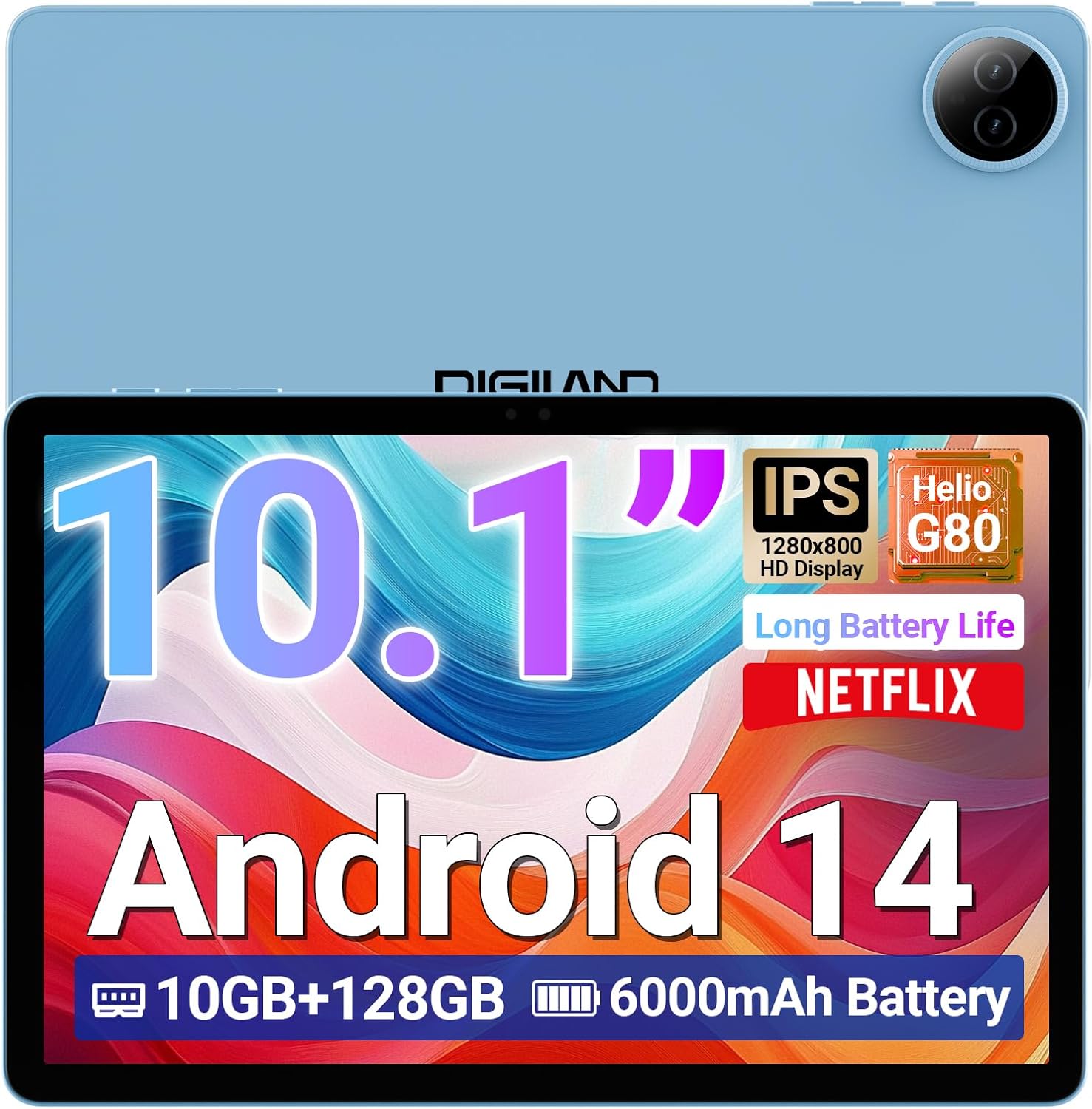
Image 1.1: DigiLand R10 PRO Tablet. This image displays the tablet's front screen, highlighting its 10.1-inch display, Android 14 operating system, 10GB RAM, 128GB ROM, and 6000mAh battery capacity.
2. อะไรอยู่ในกล่อง
Upon unpacking your DigiLand R10 PRO tablet, please verify that all the following items are included:
- R10 PRO Tablet
- R10 PRO Stand Case
- เครื่องชาร์จ
- สายชาร์จ (USB Type-C)
- คู่มือการใช้งาน (เอกสารนี้)

Image 2.1: Box Contents. This image illustrates the tablet, charger, charging cable, stand case, and user manual included in the product packaging.
3. สินค้าหมดview
Familiarize yourself with the physical components of your DigiLand R10 PRO tablet.
3.1 ด้านหน้า View
- หน้าจอสัมผัส HD IPS ขนาด 10.1 นิ้ว: หน้าจอหลักสำหรับการโต้ตอบ
- กล้องหน้า (8MP): Located above the screen, used for video calls and selfies.
3.2 ด้านหลัง View
- กล้องหลัง (13MP): Located on the back, used for capturing photos and videos.
3.3 ด้านข้าง Views (General Layout)
- ปุ่มเปิด/ปิด: Used to turn the tablet on/off or put it to sleep/wake it up.
- ปุ่มปรับระดับเสียง: ปรับระดับเสียง
- พอร์ต USB Type-C: สำหรับการชาร์จและถ่ายโอนข้อมูล
- ตะแกรงลำโพง: สำหรับเอาต์พุตเสียง
- ช่องเสียบการ์ด MicroSD: For expanding storage (supports up to 256GB).

Image 3.1: Tablet Features Overview. This infographic highlights key specifications including screen size, resolution, RAM, ROM, processor, battery, and camera details.
4. การตั้งค่า
4.1 การชาร์จเริ่มต้น
Before first use, fully charge your tablet. Connect the provided USB Type-C cable to the tablet's charging port and the other end to the power adapter. Plug the adapter into a wall outlet. The charging indicator will show the charging status.
4.2 เปิด/ปิดเครื่อง
- การเปิดเครื่อง: Press and hold the Power button until the DigiLand logo appears on the screen.
- วิธีปิดเครื่อง: กดปุ่มเปิด/ปิดค้างไว้จนกว่าเมนูเปิด/ปิดจะปรากฏขึ้น เลือก "ปิดเครื่อง" และยืนยัน
- วิธีเข้า/ออกการนอนหลับ: กดปุ่มเปิดปิดสั้นๆ
4.3 ตัวช่วยการตั้งค่าเริ่มต้น
The first time you power on the tablet, you will be guided through an initial setup process. Follow the on-screen prompts to:
- เลือกภาษาของคุณ
- เชื่อมต่อกับเครือข่าย Wi-Fi
- Set up your Google account (optional, but recommended for app downloads and services).
- ตั้งค่าการล็อคหน้าจอ (PIN, รูปแบบ หรือรหัสผ่าน)
- Review และยอมรับข้อกำหนดและเงื่อนไข
4.4 การเชื่อมต่อ Wi-Fi
หากต้องการเชื่อมต่อกับเครือข่าย Wi-Fi:
- ไปที่ การตั้งค่า > เครือข่ายและอินเตอร์เน็ต > อินเทอร์เน็ต.
- สลับ Wi-Fi On.
- เลือกเครือข่ายที่คุณต้องการจากรายการ
- ป้อนรหัสผ่านหากได้รับแจ้งและแตะ เชื่อมต่อ.
5. การใช้งานแท็บเล็ต
5.1 การนำทางพื้นฐาน
- แตะ: เลือกรายการหรือเปิดแอป
- แตะค้างไว้: เข้าถึงเมนูบริบทหรือย้ายรายการ
- ปัด: เลื่อนดูหน้าจอหรือรายการ
- หยิก: ซูมเข้าหรือออกจากรูปภาพและ web หน้า
หน้าจอหลัก 5.2
The home screen provides quick access to your favorite apps, widgets, and notifications. You can customize it by adding or removing app icons and widgets.
5.3 การแจ้งเตือนและการตั้งค่าด่วน
ปัดลงจากด้านบนของหน้าจอเพื่อเข้าถึงการแจ้งเตือนและตัวเลือกการตั้งค่าด่วน (Wi-Fi, Bluetooth, ความสว่าง ฯลฯ)
5.4 การใช้งานกล้อง
The tablet features an 8MP front camera and a 13MP rear camera. To use the camera:
- เปิด กล้อง แอป.
- แตะปุ่มชัตเตอร์เพื่อถ่ายภาพ
- สลับระหว่างกล้องด้านหน้าและด้านหลังโดยใช้ไอคอนสลับกล้อง
- เลือกโหมดวิดีโอเพื่อบันทึกวิดีโอ

Image 5.1: Camera Functionality. This image highlights the 8MP front and 13MP rear cameras, showing examples of photos taken with the tablet.
5.5 การจัดการการจัดเก็บข้อมูล
Your tablet comes with 128GB of internal storage. You can expand this by inserting a MicroSD card (up to 256GB) into the dedicated slot. To manage storage, go to การตั้งค่า > พื้นที่จัดเก็บ.

Image 5.2: Memory and Storage. This image details the 12GB RAM, 128GB ROM, and the option for 256GB expansion via MicroSD card.
5.6 การเชื่อมต่อบลูทูธ
การเชื่อมต่ออุปกรณ์บลูทูธ:
- ไปที่ การตั้งค่า > อุปกรณ์ที่เชื่อมต่อ > การตั้งค่าการเชื่อมต่อ > บลูทูธ.
- สลับบลูทูธ On.
- เลือก จับคู่อุปกรณ์ใหม่ และเลือกอุปกรณ์ของคุณจากรายการ
- Follow any on-screen pairing instructions.
6. การบำรุงรักษา
6.1 การดูแลแบตเตอรี่
- หลีกเลี่ยงอุณหภูมิที่สูงเกินไปซึ่งอาจทำให้แบตเตอรี่มีอายุการใช้งานลดลง
- อย่าปล่อยให้แบตเตอรี่หมดเกลี้ยงเป็นเวลานาน
- ใช้เครื่องชาร์จและสายเคเบิลที่ให้มาเพื่อการชาร์จที่ดีที่สุด

Image 6.1: Battery Performance. This image illustrates the 6000mAh battery's estimated usage times for video playback, e-books, music, and gaming.
6.2 การทำความสะอาด
ใช้ผ้านุ่มไม่เป็นขุยทำความสะอาดหน้าจอและตัวเครื่องแท็บเล็ต หลีกเลี่ยงวัสดุที่มีฤทธิ์กัดกร่อนหรือสารเคมีรุนแรง
6.3 การอัปเดตซอฟต์แวร์
ตรวจสอบและติดตั้งการอัปเดตซอฟต์แวร์เป็นประจำเพื่อให้แน่ใจว่าแท็บเล็ตของคุณมีคุณสมบัติล่าสุดและแพทช์ความปลอดภัย ไปที่ การตั้งค่า > ระบบ > การอัพเดทระบบ.
6.4 การสำรองข้อมูล
Periodically back up important data to a cloud service or external storage device to prevent data loss.
7 การแก้ไขปัญหา
แท็บเล็ต 7.1 ไม่สามารถเปิดเครื่องได้
- ตรวจสอบให้แน่ใจว่าแบตเตอรี่ชาร์จเต็มแล้ว เสียบที่ชาร์จและรอสักครู่ก่อนลองเปิดเครื่อง
- กดปุ่มเปิด/ปิดค้างไว้ 10-15 วินาทีเพื่อรีสตาร์ทอัตโนมัติ
7.2 ปัญหาการเชื่อมต่อ Wi-Fi
- รีสตาร์ทเราเตอร์ Wi-Fi และแท็บเล็ตของคุณ
- ตรวจสอบให้แน่ใจว่าคุณอยู่ในระยะสัญญาณ Wi-Fi
- ตรวจสอบว่ารหัสผ่าน Wi-Fi ถูกต้อง
- ลืมเครือข่ายในการตั้งค่า Wi-Fi และเชื่อมต่อใหม่อีกครั้ง
7.3 ประสิทธิภาพช้า
- ปิดแอปพลิเคชันที่ไม่ได้ใช้งานซึ่งทำงานอยู่เบื้องหลัง
- Clear cache data for apps.
- ให้แน่ใจว่ามีพื้นที่เก็บข้อมูลเพียงพอ
- รีสตาร์ทแท็บเล็ต
7.4 รีเซ็ตเป็นค่าโรงงาน
หากปัญหาเกิดขึ้นอย่างต่อเนื่อง การรีเซ็ตเป็นค่าโรงงานอาจแก้ไขปัญหาได้ คำเตือน: การดำเนินการนี้จะลบข้อมูลทั้งหมดบนแท็บเล็ตของคุณ โปรดสำรองข้อมูลสำคัญก่อนดำเนินการต่อ
- ไปที่ การตั้งค่า > ระบบ > ตัวเลือกการรีเซ็ต.
- เลือก ลบข้อมูลทั้งหมด (รีเซ็ตเป็นค่าโรงงาน).
- ยืนยันการตัดสินใจของคุณและป้อน PIN/รูปแบบ/รหัสผ่านของคุณหากได้รับแจ้ง
8. ข้อมูลจำเพาะ
Detailed technical specifications for the DigiLand R10 PRO Tablet:
| คุณสมบัติ | ข้อมูลจำเพาะ |
|---|---|
| หมายเลขรุ่น | R10 โปร |
| ระบบปฏิบัติการ | แอนดรอยด์ 14 |
| โปรเซสเซอร์ | MediaTek Helio G80 Octa-Core (2.0GHz A75 + 1.8GHz A55) |
| แรม | 12GB |
| การจัดเก็บข้อมูลภายใน | 128GB |
| พื้นที่เก็บข้อมูลแบบขยายได้ | รองรับความจุสูงสุด 256GB ผ่านการ์ด microSD |
| ขนาดหน้าจอ | 10.1 นิ้ว |
| ความละเอียดหน้าจอ | 1280x800 HD IPS |
| กล้องหลัง | 13 MP |
| กล้องหน้า | 8 MP |
| ความจุของแบตเตอรี่ | 6000mAh (Average 12 hours usage) |
| การเชื่อมต่อแบบไร้สาย | Wi-Fi 5 (802.11a/b/g/n/ac), Bluetooth 5.0 |
| พอร์ต | ยูเอสบี ไทป์ ซี |
| ขนาด (กxยxส) | 9.54 x 6.35 x 0.31 นิ้ว |
| น้ำหนักสินค้า | 1.07 ปอนด์ |

Image 8.1: Detailed Specifications. This image provides a visual summary of the tablet's core features, including Android 14, RAM, ROM, screen size, resolution, cameras, processor, and battery.
9. การรับประกันและการสนับสนุน
DigiLand is committed to providing quality products and customer satisfaction. For any issues or inquiries regarding your R10 PRO tablet, please contact DigiLand customer support.
9.1 การสนับสนุนลูกค้า
If you encounter any problems or have questions not covered in this manual, please reach out to our support team. Contact information can typically be found on the DigiLand official webเว็บไซต์หรือผ่านแพลตฟอร์มการซื้อของคุณ

Image 9.1: After-Sales Support. This image represents DigiLand's commitment to customer service and support.


