1. บทนำ
This manual provides comprehensive instructions for the installation, operation, and maintenance of your Sapphire Nitro+ AMD Radeon RX 9070 Gaming OC Graphics Card. Please read this manual thoroughly before installation and retain it for future reference. Proper installation and usage ensure optimal performance and longevity of your product.

Figure 1: Sapphire Nitro+ AMD Radeon RX 9070 Gaming OC Graphics Card and Packaging
2. ข้อมูลด้านความปลอดภัย
โปรดปฏิบัติตามข้อควรระวังด้านความปลอดภัยต่อไปนี้เพื่อป้องกันความเสียหายต่อการ์ดจอหรือการบาดเจ็บส่วนบุคคล:
- ควรตัดการเชื่อมต่อพลังงานจากคอมพิวเตอร์ของคุณทุกครั้งก่อนติดตั้งหรือถอดส่วนประกอบใดๆ
- ควรสวมสายรัดข้อมือป้องกันไฟฟ้าสถิต หรือสัมผัสวัตถุโลหะที่มีการต่อสายดินบ่อยๆ เพื่อระบายไฟฟ้าสถิตก่อนที่จะจับต้องการ์ดจอ
- จับการ์ดจอโดยจับที่ขอบเพื่อหลีกเลี่ยงการสัมผัสส่วนประกอบที่อ่อนไหว
- ตรวจสอบให้แน่ใจว่ามีการระบายอากาศที่เพียงพอภายในเคสคอมพิวเตอร์ของคุณเพื่อป้องกันความร้อนสูงเกินไป
- เก็บการ์ดจอให้ห่างจากความชื้นและอุณหภูมิที่สูงหรือต่ำเกินไป
3. เนื้อหาบรรจุภัณฑ์
ตรวจสอบว่ามีรายการทั้งหมดอยู่ในบรรจุภัณฑ์ผลิตภัณฑ์ของคุณ:
- Sapphire Nitro+ AMD Radeon RX 9070 Gaming OC Graphics Card
- คู่มือการใช้งาน (เอกสารนี้)
- Additional accessories may vary by region or retailer.
4. ข้อกำหนดของระบบ
ก่อนติดตั้งการ์ดจอ โปรดตรวจสอบให้แน่ใจว่าระบบของคุณตรงตามข้อกำหนดขั้นต่ำต่อไปนี้:
- เมนบอร์ดที่รองรับ PCI Express พร้อมสล็อตกราฟิก x16 หนึ่งช่อง
- Minimum 750W power supply with appropriate PCIe power connectors (e.g., 8-pin + 8-pin).
- หน่วยความจำระบบ (RAM) ขั้นต่ำ 16GB
- ระบบปฏิบัติการ: Windows 10/11 64 บิต หรือ Linux 64 บิต
- ต้องใช้การเชื่อมต่ออินเทอร์เน็ตในการติดตั้งไดรเวอร์
- Sufficient space within the PC case for a card with dimensions of approximately 13.02 x 5.06 x 0.04 inches.
5. การตั้งค่าและการติดตั้ง
ปฏิบัติตามขั้นตอนเหล่านี้เพื่อติดตั้งการ์ดกราฟิกของคุณ:
- เตรียมระบบของคุณ: ปิดคอมพิวเตอร์และถอดสายไฟออก เปิดเคสคอมพิวเตอร์
- ค้นหาสล็อต PCIe: Identify an available PCI Express x16 slot on your motherboard. Remove any expansion slot covers that obstruct the slot.
- ติดตั้งการ์ดจอ: Carefully align the graphics card with the PCIe x16 slot. Press down firmly and evenly until the card is securely seated. A click may be heard.
- รักษาความปลอดภัยของการ์ด: Use the screw or latch mechanism on your case to secure the graphics card to the chassis.
- เชื่อมต่อสายไฟ: Connect the required PCIe power cables from your power supply to the graphics card. This model typically requires two 8-pin PCIe power connectors. Ensure connections are firm.
- ปิดเคสและเชื่อมต่ออุปกรณ์ต่อพ่วง: ปิดเคสคอมพิวเตอร์ ต่อสายไฟกลับเข้าไป และต่อสายจอแสดงผล (HDMI หรือ DisplayPort) เข้ากับการ์ดจอ
- เปิดเครื่องและติดตั้งไดรเวอร์: Turn on your computer. Once the operating system loads, download and install the latest AMD Radeon drivers from the official AMD webงาน (www.amd.com/th/support).

Figure 2: Graphics Card Seated in PCIe Slot

Figure 3: STEALTH Hidden Power Cable Routing
6. คู่มือการใช้งาน
After successful installation and driver setup, your graphics card is ready for use. The AMD Radeon software provides various settings for optimizing performance, display, and other features.
- การอัปเดตไดรเวอร์: Regularly check for and install the latest graphics drivers from AMD to ensure optimal performance and compatibility with new games and applications.
- การกำหนดค่าการแสดงผล: Use the AMD Radeon software or your operating system's display settings to configure resolution (up to 3840x2160), refresh rate, and multiple monitors.
- การปรับแต่งประสิทธิภาพ: The AMD Radeon software allows for performance tuning, including fan speed control and power limit adjustments. Exercise caution when modifying these settings.
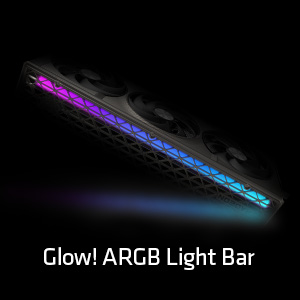
Figure 4: Customizable ARGB Light Bar
7. การบำรุงรักษา
Proper maintenance helps extend the lifespan and maintain the performance of your graphics card.
- การกำจัดฝุ่น: Periodically clean dust from the heatsink fins and fan blades using compressed air. Ensure the fans are held stationary during cleaning to prevent damage.
- การดูแลพัดลม: The Sapphire Nitro+ series features Quick Connect Fans, allowing for easy removal and cleaning. Refer to the manufacturer's guidelines for specific fan removal instructions.
- น้ำยาระบายความร้อน: Replacing thermal paste is generally not recommended for end-users and should only be performed by qualified technicians if necessary.

Figure 5: Graphics Card Cooling Fans
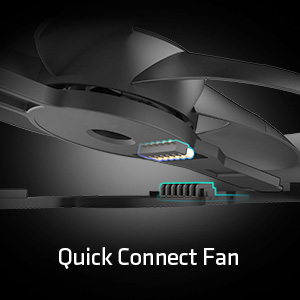
Figure 6: Quick Connect Fan Feature
8 การแก้ไขปัญหา
หากคุณพบปัญหาเกี่ยวกับกราฟิกการ์ด โปรดพิจารณาแนวทางแก้ไขทั่วไปต่อไปนี้:
- ไม่มีการแสดงผล:
- ตรวจสอบให้แน่ใจว่าสายเคเบิลจอแสดงผลเชื่อมต่อกับการ์ดกราฟิกและจอภาพอย่างแน่นหนาแล้ว
- Verify that the PCIe power cables are correctly connected to the graphics card.
- ตรวจสอบว่าการ์ดแสดงผลอยู่ในสล็อต PCIe อย่างสมบูรณ์หรือไม่
- ทดสอบด้วยสายจอแสดงผลหรือจอภาพอื่นหากเป็นไปได้
- ความไม่เสถียรของระบบ/การขัดข้อง:
- ตรวจสอบให้แน่ใจว่าไดร์เวอร์กราฟิกของคุณเป็นเวอร์ชันล่าสุด
- Check your power supply unit (PSU) to ensure it meets the recommended wattage.
- Monitor GPU temperatures using software like AMD Radeon software. Excessive heat can cause instability.
- ประสิทธิภาพต่ำในเกม/แอปพลิเคชัน:
- ตรวจสอบให้แน่ใจว่าไดร์เวอร์กราฟิกของคุณเป็นเวอร์ชันล่าสุด
- ตรวจสอบการตั้งค่าในเกม ลดความละเอียดหรือคุณภาพกราฟิกหากจำเป็น
- Verify that your system meets the recommended specifications for the application.
9. ข้อมูลจำเพาะ
| คุณสมบัติ | ข้อมูลจำเพาะ |
|---|---|
| หมายเลขรุ่น | 11349-01-20 ก |
| โคโปรเซสเซอร์กราฟิก | การ์ดจอ AMD Radeon RX 9070 |
| ยี่ห้อชิปเซ็ต | เอเอ็มดี |
| ขนาดแรมการ์ดจอ | แรม 16GB GDDR6 |
| อินเทอร์เฟซหน่วยความจำ | 256 บิต |
| ความเร็วหน่วยความจำ | 20 กิกะเฮิรตซ์ |
| ความเร็วสัญญาณนาฬิกา GPU | 2700 เมกะเฮิร์ตซ์ (บูสต์) |
| ความละเอียดหน้าจอสูงสุด | ขนาด 3840x2160 |
| อินเทอร์เฟซเอาท์พุตวิดีโอ | พอร์ต HDMI 2 ช่อง, DisplayPort 2 ช่อง |
| ขนาดสินค้า (กxยxส) | 13.02 x 5.06 x 0.04 นิ้ว |
| น้ำหนักสินค้า | 5.99 ปอนด์ |
10. การรับประกันและการสนับสนุน
For warranty information and technical support, please refer to the documentation included with your product or visit the official Sapphire webไซต์ เงื่อนไขการรับประกันอาจแตกต่างกันไปตามภูมิภาคและผู้ค้าปลีก
แหล่งข้อมูลออนไลน์:
- แซฟไฟร์ ออร์ลอรี Webเว็บไซต์: www.sapphiretech.com
- AMD Support: www.amd.com/th/support


