การแนะนำ
The MCHOSE V9 PRO Wireless Gaming Headset delivers an immersive audio experience with 7.1 surround sound, low-latency wireless connectivity, and an AI noise-canceling microphone. This manual provides detailed instructions for setup, operation, and maintenance to ensure optimal performance.
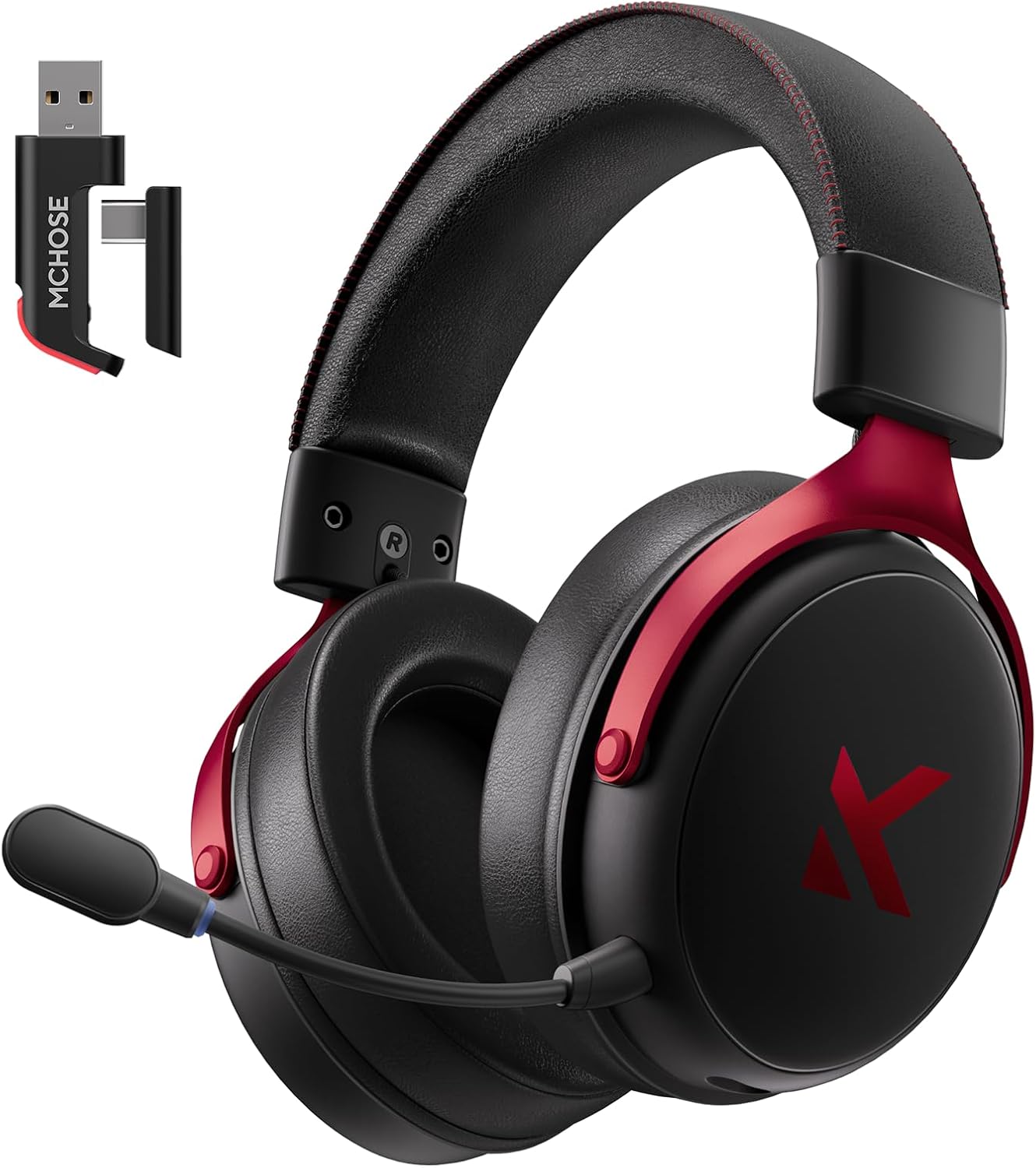
Image: MCHOSE V9 PRO Wireless Gaming Headset with its 2.4GHz USB receiver.
เนื้อหาแพ็คเกจ
ตรวจสอบว่ารายการทั้งหมดที่ระบุไว้ด้านล่างนี้รวมอยู่ในแพ็คเกจของคุณ:
- ชุดหูฟังเกมมิ่งไร้สาย MCHOSE V9 PRO
- 2.5GHz Receiver (USB-A & Type-C compatible)
- สายชาร์จ USB-C
- ไมโครโฟนแบบถอดออกได้
- Foam Windscreen (pre-installed on microphone)
- คู่มือการใช้งาน

Image: Diagram illustrating the headset, receiver, cables, microphone, and user manual.
สินค้าเกินview
การควบคุมและตัวบ่งชี้

Image: Handy guide showing the location and function of buttons and indicator lights on the headset.
- ปุ่มเปิด/ปิด: Long press for approximately 3 seconds to power on/off.
- สวิตช์โหมดการเชื่อมต่อ: Double-click the power button to switch between 2.4GHz wireless, Bluetooth, and wired modes.
- สวิตช์โหมดเกม/เพลง: Triple-click the power button to switch between Game Mode 1, Game Mode 2, and Music Mode.
- เล่น/หยุดชั่วคราว: คลิกปุ่มเปิด/ปิดเพียงครั้งเดียว
- รับ/วางสาย: คลิกปุ่มเปิด/ปิดเพียงครั้งเดียว
- ปฏิเสธสาย: Long press the power button for approximately 1.5 seconds.
- ปุ่มไมโครโฟน: คลิกเพียงครั้งเดียวเพื่อเปิด/ปิดไมโครโฟน
- ล้อระดับเสียง: Slide upwards to increase volume, slide downwards to decrease volume.
ไฟแสดงสถานะ
- Bluetooth (BT) Waiting for Connection: ไฟสีแดงและสีน้ำเงินกะพริบสลับกัน
- 2.4G Waiting for Connection: Red and green lights flash alternately.
- การชาร์จ: ไฟสีแดงค้าง
- ชาร์จเต็มแล้ว: ไฟสีฟ้ายังคงติดอยู่
- 2.4G Mode Active: ไฟเขียว.
- Bluetooth Mode Active: แสงสีฟ้า.
- Microphone Active: Blue light on microphone tip.
การตั้งค่าและการเชื่อมต่อ
2.4GHz Wireless Connection (PC, PS5, PS4, Switch)
- Remove the 2.4GHz USB receiver from its storage slot on the headset.
- Plug the 2.4GHz receiver into an available USB-A port on your computer or gaming console. For devices with only USB-C ports, detach the USB-A adapter from the receiver and plug in the USB-C end.
- Press and hold the power button on the headset for approximately 3 seconds to power it on.
- Double-click the power button to ensure the headset is in 2.4GHz wireless mode (indicated by a green light). The headset should automatically connect to the receiver.
Bluetooth Wireless Connection (Mobile Phone, Tablet, PC, Switch)
- Press and hold the power button on the headset for approximately 3 seconds to power it on.
- Double-click the power button to switch the headset to Bluetooth mode (indicated by a blue light flashing alternately with red).
- On your device (phone, tablet, PC, Switch), navigate to Bluetooth settings and search for "MCHOSE V9 PRO".
- Select the headset to pair. Once connected, the blue light will remain steady.
Wired Connection (PC, PS5, PS4, Switch, Mobile Phone, Tablet)
The headset supports a wired connection via the included USB-C cable. This mode is primarily for charging and can also be used for audio if wireless options are not preferred or available.
- Connect the USB-C cable to the headset's charging port.
- เชื่อมต่อปลายอีกด้านหนึ่งของสาย USB-C เข้ากับอุปกรณ์ของคุณ
- The headset will function as a wired device.
การตั้งค่าไมโครโฟน
- Plug the detachable microphone into the designated port on the left earcup of the headset. Ensure it is securely inserted.
- ปรับตำแหน่งไมโครโฟนเพื่อให้รับเสียงได้ดีที่สุด
- Single-click the microphone button on the headset to toggle the microphone on or off. A blue light on the microphone tip indicates it is active.
Video: This video demonstrates the initial setup of the MCHOSE V9 PRO Wireless Gaming Headset, including connecting the 2.4GHz receiver, powering on, switching modes, and attaching the microphone.
Software Installation and Customization (MCHOSE HUB)
The MCHOSE HUB software allows for advanced customization of your headset's audio settings. It is compatible with Windows 10 and above.
ขั้นตอนการติดตั้ง
- Visit the official MCHOSE webงาน (mchose.store).
- Navigate to the 'Support' section and click on 'Drivers & Firmwares'.
- Locate the 'V9 / V9 Pro Driver' and download the desktop driver.
- Before installing the driver, ensure the 2.4GHz receiver is plugged into your computer.
- Install the downloaded driver and follow the on-screen instructions.
- Once installed, open the MCHOSE HUB application. You can switch the application language to English from the settings.
Video: This video guides you through the process of connecting and installing the MCHOSE desktop driver for your headset.
Audio Equalizer Customization
The MCHOSE HUB features a customizable equalizer to fine-tune your audio output.
- In the MCHOSE HUB, right-click on 'Speakers' and select 'Equalizer'.
- Enable the equalizer.
- Adjust the frequency bands as needed to create your desired sound profile.
- You can save your custom settings as a preset or choose from official presets like Dance, Rap, Metal, Jazz, etc.
- You can also restore the default equalizer settings.

Image: Screenshot of the MCHOSE HUB software interface displaying the audio equalizer settings.
ระบบเสียงรอบทิศทาง 7.1
Enable 7.1 surround sound for enhanced spatial awareness in games and movies.
- In the MCHOSE HUB, right-click on 'Speakers' and select 'Xear Surround Headphone'.
- Enable Xear Surround.
- Choose between 'Music/Gaming mode' or 'Movie mode' based on your content.
- Adjust the 'Room Size' for optimal effect.

Image: Visual representation of 7.1 surround sound technology with the MCHOSE V9 PRO headset.
Voice Effects (Magic Voice)
The software includes various voice effects for fun or specific communication needs.
- In the MCHOSE HUB, right-click on 'Mic' and select 'Xear Magic Voice'.
- Enable 'Magic Voice' and choose from different voice effects.
AI Noise Reduction for Microphone
Enhance microphone clarity by enabling AI noise reduction.
- In the MCHOSE HUB, right-click on 'Mic' and select 'AI NoiseReduction'.
- Enable 'AI NoiseReduction' to filter out background noise.
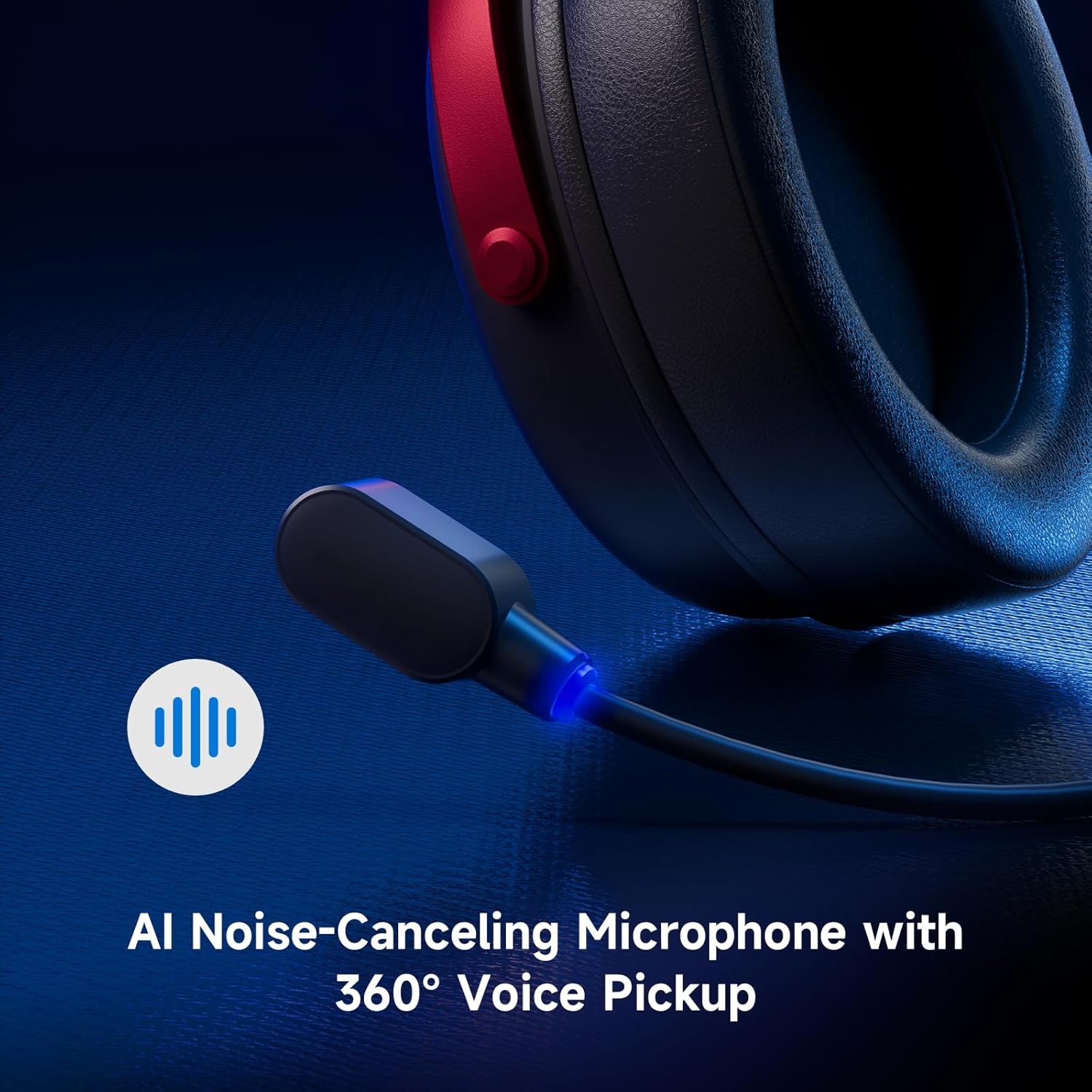
Image: Close-up of the AI Noise-Canceling Microphone on the MCHOSE V9 PRO headset.
คำแนะนำการใช้งาน
เปิด/ปิดเครื่อง
To power on the headset, press and hold the power button for approximately 3 seconds. To power off, repeat the action.
โหมดการสลับ
Double-click the power button to cycle through 2.4GHz wireless, Bluetooth, and wired connection modes. The indicator light color will change accordingly (Green for 2.4GHz, Blue for Bluetooth).
Triple-click the power button to switch between Game Mode 1, Game Mode 2, and Music Mode, optimizing audio profiles for different content.
การควบคุมระดับเสียง
Use the volume wheel located on the earcup to adjust the audio output level. Slide up to increase volume, slide down to decrease volume.
ปิดเสียงไมโครโฟน
Single-click the microphone button to mute or unmute the microphone. The blue light on the microphone tip indicates its active status.
การซ่อมบำรุง
- การทำความสะอาด: ใช้ผ้าแห้งนุ่มๆ เช็ดทำความสะอาดหูฟัง หลีกเลี่ยงการใช้สารเคมีรุนแรงหรือวัสดุที่มีฤทธิ์กัดกร่อน
- พื้นที่จัดเก็บ: เก็บหูฟังไว้ในที่แห้งและเย็น หลีกเลี่ยงแสงแดดโดยตรงและอุณหภูมิที่สูงหรือต่ำเกินไป
- การดูแลแบตเตอรี่ เพื่อให้แบตเตอรี่ใช้งานได้นานที่สุด ควรหลีกเลี่ยงการปล่อยให้แบตเตอรี่หมดจนเกลี้ยงบ่อยๆ ควรชาร์จแบตเตอรี่เป็นประจำ
- ไมโครโฟน: Handle the detachable microphone carefully. Ensure the foam windscreen is properly seated.
การแก้ไขปัญหา
- ไม่มีเสียง/ระดับเสียงต่ำ:
- Check headset volume wheel and device volume settings.
- Ensure the headset is correctly connected (2.4GHz receiver, Bluetooth, or wired).
- ตรวจสอบให้แน่ใจว่าได้เลือกอุปกรณ์เอาต์พุตเสียงที่ถูกต้องในการตั้งค่าเสียงของคอมพิวเตอร์แล้ว
- ไมโครโฟนไม่ทำงาน:
- Ensure the microphone is securely plugged into the headset.
- Check if the microphone is muted (blue light on tip should be on).
- ตรวจสอบว่าได้เลือกอุปกรณ์อินพุตไมโครโฟนที่ถูกต้องในการตั้งค่าเสียงของอุปกรณ์ของคุณ
- If using MCHOSE HUB, check AI Noise Reduction settings.
- ปัญหาการเชื่อมต่อ (2.4GHz/บลูทูธ):
- Ensure the headset is in the correct connection mode (green light for 2.4GHz, blue for Bluetooth).
- For 2.4GHz, try plugging the receiver into a different USB port.
- สำหรับบลูทูธ ให้ลองยกเลิกการจับคู่และจับคู่หูฟังกับอุปกรณ์ของคุณอีกครั้ง
- ตรวจสอบให้แน่ใจว่าชุดหูฟังมีการชาร์จแล้ว
- Software Not Detecting Headset:
- Ensure the 2.4GHz receiver is plugged into the computer before launching the MCHOSE HUB.
- Restart the MCHOSE HUB application and/or your computer.
ข้อมูลจำเพาะ
| ชื่อรุ่น | วี9โปร |
| ยี่ห้อ | เอ็มโชส |
| เทคโนโลยีการเชื่อมต่อ | 2.4GHz Wireless, Bluetooth (BT 5.1), Wired |
| ไดร์เวอร์เสียง | 53mm Neodymium Drivers with Bio-cellulose Diaphragm |
| ระบบเสียงรอบทิศทาง | ระบบเสียงรอบทิศทาง 7.1 |
| ไมโครโฟน | AI Noise-Canceling Microphone with 360° Voice Pickup |
| ความหน่วงของสัญญาณไร้สาย | 15ms (TOPSPEED 2.4GHz) |
| อายุการใช้งานแบตเตอรี่ | เล่นได้นานถึง 250 ชั่วโมง |
| เวอร์ชันบลูทูธ | 5.1 |
| ช่วงบลูทูธ | สูงสุด 40 เมตร |
| อุปกรณ์ที่รองรับ | PC, Laptop, Switch, PS5, PS4, Mobile Phone, Tablet |
| น้ำหนัก | 0.60 ปอนด์ (ประมาณ 275 กรัม) |
| วัสดุ | โลหะ พลาสติก โพลียูรีเทน (PU) |
| การวางตำแหน่งหู | ครอบหู |
การรับประกันและการสนับสนุน
MCHOSE products are designed for quality and reliability. For warranty information, technical support, or to contact customer service, please visit the official MCHOSE webไซต์ที่ mchose.store. You can find detailed warranty policies and support contact information in the 'Support' section of the webเว็บไซต์.


