1. บทนำ
The DETONGER DP26 is a portable thermal label printer designed for various labeling needs in home, office, kitchen, school, and small business environments. It utilizes direct thermal technology, eliminating the need for ink or toner, and connects via Bluetooth to Android, iOS, and PC devices for convenient label creation and printing.
2. ข้อมูลด้านความปลอดภัย
- Do not disassemble or modify the printer.
- Keep the printer away from water and high temperatures.
- Use only recommended label paper to ensure optimal performance and prevent damage.
- หลีกเลี่ยงการสัมผัสหัวพิมพ์ทันทีหลังจากพิมพ์เสร็จ เนื่องจากอาจร้อนได้
- Store the printer and labels in a cool, dry place.
3. เนื้อหาบรรจุภัณฑ์
เมื่อเปิดบรรจุภัณฑ์ ตรวจสอบว่ามีสิ่งของครบทั้งหมด:
- DETONGER DP26 Label Printer
- Label Roll (included)
- สายชาร์จ USB
- คู่มือการใช้งาน
4. สินค้าหมดview
Familiarize yourself with the components of your DP26 label printer.
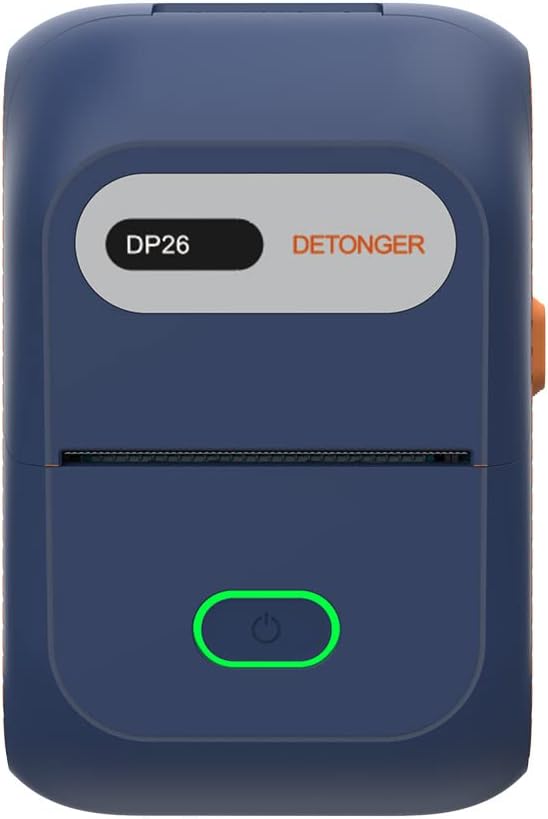
รูปที่ 4.1 : ด้านหน้า view of the DP26 printer.

รูปที่ 4.2: มุม view highlighting the USB-C port and lid release button.
- ปุ่มเปิด/ปิด: Press and hold to turn on/off. Short press to feed labels.
- ช่องเสียบฉลากออก: บริเวณที่มีฉลากพิมพ์อยู่
- พอร์ต USB-C: สำหรับการชาร์จอุปกรณ์
- ปุ่มปลดฝา: Press to open the printer cover for label installation.
5. การตั้งค่า
5.1 การชาร์จเครื่องพิมพ์
Before initial use, fully charge the printer using the provided USB-C cable. Connect the cable to the printer's USB-C port and a compatible power adapter (not included). The indicator light will show charging status.
5.2 การใส่กระดาษฉลาก
Proper label loading is crucial for clear printing.
Video 5.1: Demonstrates how to open the printer, install the label roll, and close the lid. It also shows the power and feed button functions.
- Press the lid release button to open the printer cover.
- Insert the label roll into the compartment, ensuring the labels face upwards and the leading edge extends slightly out of the print head area.
- Adjust the sliding baffles to secure the label roll in place.
- Close the printer cover firmly until it clicks.
- Press the power button briefly to feed a label and ensure it is correctly positioned.
5.3 การติดตั้งแอพ
The DETONGER DP26 printer operates with the "WePrint" application, available for Android and iOS devices.

Figure 5.3: Visual guide for app download and initial setup steps.
- Scan the QR code in the printer's packaging or search for "WePrint" in your device's app store (Google Play Store for Android, Apple App Store for iOS).
- Download and install the "WePrint" application.
- No login, registration, or subscription is required to use the app's features.
5.4 การเชื่อมต่อบลูทูธ
Connect your printer to the "WePrint" app via Bluetooth.
- Ensure the DP26 printer is powered on.
- เปิดใช้งานบลูทูธบนอุปกรณ์เคลื่อนที่ของคุณ
- Open the "WePrint" app. The app will automatically search for nearby DETONGER printers.
- Select your printer from the list within the app to establish a connection. บันทึก: Do not connect via your phone's general Bluetooth settings; connect directly through the "WePrint" app.
6. คู่มือการใช้งาน
6.1 Creating Labels
The "WePrint" app offers extensive customization options for your labels.

รูปที่ 6.1: เกินview of the "WePrint" app's features for label design.
- เทมเพลต: Access a vast array of built-in templates for various scenarios (industrial, home, retail, jewelry, etc.).
- ข้อความ: Add text with support for multiple fonts (e.g., Arial, Verdana, Tahoma), sizes, and styles.
- บาร์โค้ด/คิวอาร์โค้ด: Generate and print barcodes (e.g., UPC 6901234567892) and QR codes for product information or inventory management.
- สัญลักษณ์และไอคอน: Incorporate various symbols and icons to enhance your labels.
- รูปภาพ: Add simple images or logos to your labels.
6.2 การพิมพ์ฉลาก
Once your label design is complete, you can print it directly from the app.
Video 6.2: Demonstrates the unboxing, paper loading, Bluetooth connection, and printing process for the DP26 printer.
- Review your label design in the "WePrint" app.
- Tap the "Print" button.
- Adjust print settings such as number of copies, print darkness, and print speed if necessary.
- Confirm printing. The printer will rapidly produce your labels.
6.3 Label Quality
The DP26 printer uses direct thermal technology to produce durable labels.
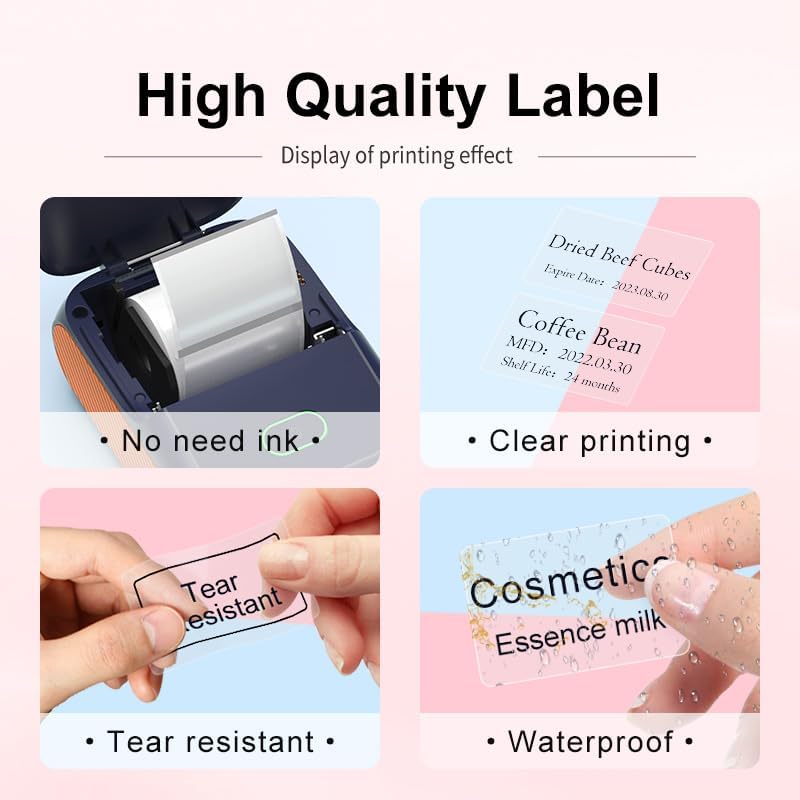
Figure 6.3: Features of the thermal labels, including inkless printing, clarity, tear resistance, and waterproofing.
- การพิมพ์แบบไร้หมึก: No ink or toner cartridges are required, reducing operational costs.
- Clear Printing: Provides 203 DPI print quality for sharp text and graphics.
- ทนทาน: Labels are designed to be scratch-resistant, tear-resistant, and waterproof, suitable for various applications.
7. การบำรุงรักษา
7.1 การทำความสะอาดหัวพิมพ์
เพื่อรักษาคุณภาพการพิมพ์ ควรทำความสะอาดหัวพิมพ์เป็นประจำ
- ปิดเครื่องพิมพ์และถอดสายไฟออก
- เปิดฝาครอบเครื่องพิมพ์
- ค่อยๆ เช็ดหัวพิมพ์ด้วยสำลีเบาๆampเคลือบด้วยแอลกอฮอล์ไอโซโพรพิล
- รอให้หัวพิมพ์แห้งสนิทก่อนปิดฝาและเปิดเครื่องพิมพ์
7.2 พื้นที่จัดเก็บ
Store the printer in a clean, dry environment away from direct sunlight and extreme temperatures. Remove the label roll if the printer will not be used for an extended period.
8 การแก้ไขปัญหา
- เครื่องพิมพ์ไม่เชื่อมต่อผ่านบลูทูธ: Ensure the printer is powered on and fully charged. Connect through the "WePrint" app, not your device's general Bluetooth settings. Restart both the printer and your device.
- คุณภาพการพิมพ์ไม่ดี: Check if the label roll is loaded correctly and the labels are facing the right direction. Clean the print head as described in the maintenance section. Ensure the label paper is compatible.
- ฉลากไม่ป้อน: Open the cover and re-seat the label roll. Ensure no obstructions are in the label path. Press the feed button to advance a label.
- เครื่องพิมพ์ไม่เปิด: โปรดตรวจสอบให้แน่ใจว่าเครื่องพิมพ์ชาร์จแบตเตอรี่เต็มแล้ว หากปัญหายังคงอยู่ โปรดติดต่อฝ่ายบริการลูกค้า
9. ข้อมูลจำเพาะ
| คุณสมบัติ | ข้อมูลจำเพาะ |
|---|---|
| ชื่อรุ่น | DP26 |
| ยี่ห้อ | ดีทงเงอร์ |
| เทคโนโลยีการพิมพ์ | เทอร์มอล |
| เทคโนโลยีการเชื่อมต่อ | บลูทูธ, ยูเอสบี |
| ขนาดสื่อสูงสุด | 1.97 x 3.94 นิ้ว (50 มม. x 100 มม.) |
| การรองรับความกว้างของฉลาก | 20-50 มม. (0.78-1.97 นิ้ว) |
| เอาท์พุตเครื่องพิมพ์ | เอกรงค์ |
| น้ำหนักสินค้า | 10.6 ออนซ์ (0.3 กิโลกรัม) |
| ขนาดสินค้า | ลึก 5.12 นิ้ว x กว้าง 3.23 นิ้ว x สูง 2.36 นิ้ว |
| แบตเตอรี่ | 1500 mAh*7.4V rechargeable battery (1 AA battery included for internal component, not user replaceable) |
| วัดtage | 11.1 วัตต์-ชั่วโมง |
10. ข้อมูลการรับประกัน
The DETONGER DP26 Portable Thermal Label Printer comes with a standard manufacturer's warranty. Please refer to the warranty card included in your package or contact DETONGER customer support for specific details regarding warranty coverage and duration.
11. การสนับสนุน
For further assistance, technical support, or inquiries regarding your DETONGER DP26 printer, please visit the official DETONGER website or contact their customer service department. Contact information can typically be found on the product packaging or the brand's Amazon store page.
คุณสามารถเยี่ยมชม DETONGER Store on Amazon สำหรับข้อมูลเพิ่มเติมและทรัพยากรสนับสนุน


