1. บทนำ
xTool M1 Ultra เป็นเครื่องมืออเนกประสงค์ 4-in-1 สำหรับงานฝีมือ ออกแบบมาเพื่อการใช้งานสร้างสรรค์ที่หลากหลาย โดยรวมฟังก์ชั่นการแกะสลักด้วยเลเซอร์ การตัดด้วยใบมีด การพิมพ์อิงค์เจ็ท และการวาดภาพด้วยปากกาไว้ในเครื่องเดียว คู่มือนี้ให้ข้อมูลสำคัญสำหรับการใช้งานเครื่อง xTool M1 Ultra อย่างปลอดภัยและมีประสิทธิภาพ
คุณสมบัติที่สำคัญ ได้แก่:
- ฟังก์ชั่น 4-in-1: เป็นการผสมผสานระหว่างการแกะสลักด้วยเลเซอร์ การตัดไวนิล การพิมพ์อิงค์เจ็ท และการวาดภาพด้วยปากกา
- ดีไซน์แบบถอดเปลี่ยนได้ง่าย: ช่วยให้สามารถสลับไปมาระหว่างโมดูลต่างๆ สำหรับกระบวนการที่หลากหลายได้อย่างรวดเร็ว
- เหมาะสำหรับผู้เริ่มต้น: ดีไซน์ประกอบสำเร็จรูปพร้อมคุณสมบัติต่างๆ เช่น การเตรียมภาพถ่ายไว้ล่วงหน้าview และระบุตำแหน่งได้อย่างแม่นยำ
- ความเข้ากันได้ของวัสดุ: สามารถใช้งานได้กับวัสดุมากกว่า 1000 ชนิด รวมถึงพื้นผิวที่อ่อนนุ่ม แข็ง บาง หนา เรียบ และพื้นผิวโค้งสามมิติ
- การรวมซอฟต์แวร์: ใช้ซอฟต์แวร์ XCS พร้อม AI Artimind ในตัวสำหรับการออกแบบและการตั้งค่าพารามิเตอร์

ภาพที่ 1.1: เครื่อง xTool M1 Ultra 20W แสดงพร้อมอุปกรณ์เสริมสำหรับงานฝีมือต่างๆ และตัวอย่างampตัวอย่างเช่น งานฝีมืออย่างแก้วน้ำสลักลาย ต่างหู และจิ๊กซอว์ไม้
2. ข้อมูลด้านความปลอดภัย
คำเตือน: โปรดอ่านคำเตือนและคำแนะนำด้านความปลอดภัยทั้งหมดก่อนใช้ผลิตภัณฑ์นี้ การไม่ปฏิบัติตามคำเตือนและคำแนะนำอาจส่งผลให้เกิดไฟฟ้าช็อต ไฟไหม้ การบาดเจ็บร้ายแรง หรือความเสียหายต่อทรัพย์สิน
- ความปลอดภัยของเลเซอร์: นี่คือเครื่องแกะสลักเลเซอร์ระดับ 1 ห้ามมองเข้าไปในลำแสงเลเซอร์โดยตรง หรืออนุญาตให้ผู้อื่นมองเข้าไปใกล้ลำแสงเลเซอร์ ควรใช้งานเครื่องโดยปิดฝาครอบป้องกันไว้เสมอ
- การระบายอากาศ : ควรจัดให้มีการระบายอากาศที่เพียงพอในระหว่างการใช้งานเพื่อระบายควันและไอระเหย โดยเฉพาะอย่างยิ่งเมื่อทำการแกะสลักหรือตัดวัสดุที่ก่อให้เกิดกลิ่นแรงหรือสารอันตราย ควรพิจารณาใช้ระบบดูดอากาศภายนอกหรือเครื่องฟอกอากาศ
- ความเข้ากันได้ของวัสดุ: ควรใช้วัสดุที่ได้รับการรับรองสำหรับการประมวลผลด้วยเลเซอร์เท่านั้น วัสดุบางชนิดอาจก่อให้เกิดควันพิษหรือติดไฟได้เมื่อสัมผัสกับแสงเลเซอร์ หลีกเลี่ยง PVC ไวนิลที่มีคลอรีน และวัสดุอันตรายอื่นๆ
- อันตรายจากไฟไหม้: ห้ามปล่อยเครื่องทิ้งไว้โดยไม่มีคนดูแลขณะใช้งาน ควรเตรียมถังดับเพลิงไว้ใกล้ๆ และตรวจสอบให้แน่ใจว่าบริเวณที่ทำงานปราศจากวัสดุไวไฟ
- ความปลอดภัยทางไฟฟ้า: เชื่อมต่อเครื่องเข้ากับเต้ารับไฟฟ้าที่มีระบบสายดินที่ถูกต้อง ห้ามใช้งานกับสายไฟหรือปลั๊กที่ชำรุด เก็บของเหลวให้ห่างจากเครื่อง
- เด็กและสัตว์เลี้ยง: เก็บเด็กและสัตว์เลี้ยงให้ห่างจากเครื่องระหว่างการใช้งาน
- การซ่อมบำรุง: ตัดการเชื่อมต่อไฟฟ้าก่อนดำเนินการบำรุงรักษาหรือทำความสะอาดใดๆ
3. การตั้งค่า
3.1 การแกะกล่องและการจัดวาง
- นำเครื่องมือ xTool M1 Ultra ออกจากบรรจุภัณฑ์อย่างระมัดระวัง เก็บวัสดุบรรจุภัณฑ์ทั้งหมดไว้สำหรับการขนส่งหรือจัดเก็บในอนาคต
- วางเครื่องบนพื้นผิวที่มั่นคงและเรียบ ในบริเวณที่มีอากาศถ่ายเทสะดวก ตรวจสอบให้แน่ใจว่ามีพื้นที่รอบเครื่องเพียงพอสำหรับการใช้งานและการระบายความร้อน
3.2 การเชื่อมต่อแหล่งจ่ายไฟและอุปกรณ์เสริม
- เชื่อมต่ออะแดปเตอร์แปลงไฟเข้ากับเครื่อง แล้วจึงเสียบเข้ากับเต้ารับไฟฟ้าที่มีสายดิน
- หากใช้อุปกรณ์เสริม เช่น อุปกรณ์หมุน RA2 Pro หรือเครื่องกรองควัน ให้เชื่อมต่อตามคู่มือการใช้งานของอุปกรณ์นั้นๆ
3.3 การติดตั้งซอฟต์แวร์
xTool M1 Ultra ทำงานร่วมกับซอฟต์แวร์ xTool Creative Space (XCS) ดาวน์โหลด XCS เวอร์ชันล่าสุดได้จากเว็บไซต์ทางการของ xTool webงาน (www.xtool.com) และทำตามคำแนะนำบนหน้าจอเพื่อทำการติดตั้ง
3.4 การสอบเทียบเบื้องต้น
ในการใช้งานครั้งแรก หรือหากพบปัญหาเกี่ยวกับการจัดแนว ให้ทำการปรับเทียบภายในซอฟต์แวร์ XCS เพื่อให้มั่นใจได้ว่าการวางตำแหน่งมีความแม่นยำสำหรับการใช้งานทั้งหมด
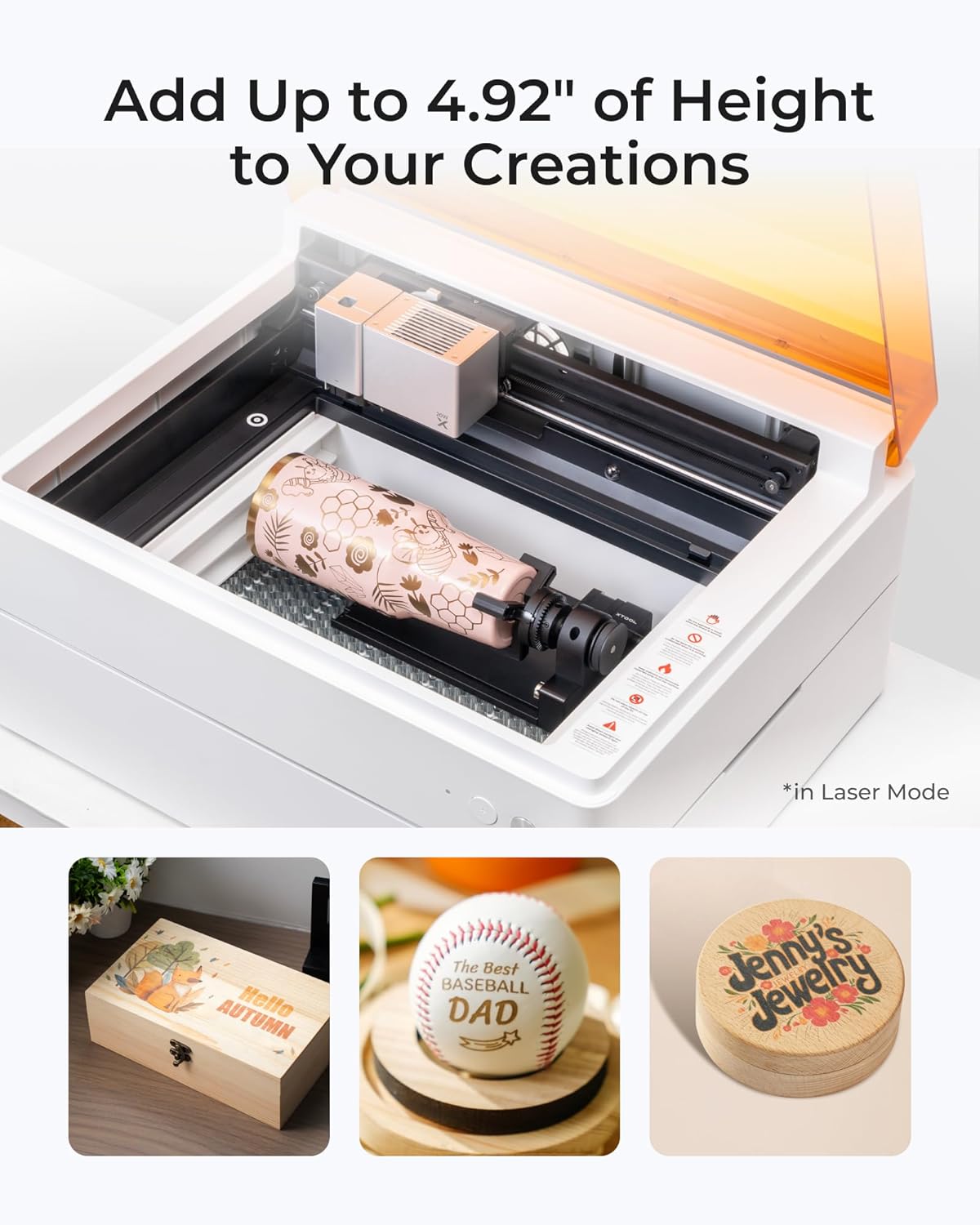
ภาพที่ 3.1: เครื่อง xTool M1 Ultra สาธิตการแกะสลักแบบหมุนบนเครื่องขัดเงา โดยเน้นให้เห็นถึงความสามารถของเครื่องในการจัดการกับวัตถุทรงกระบอกด้วยอุปกรณ์เสริม (เลือกซื้อเพิ่มเติมได้)
4. คู่มือการใช้งาน
4.1 เกินview ของโหมดการทำงาน
xTool M1 Ultra รองรับโหมดการสร้างหลักสี่โหมด:
- โหมดเลเซอร์: สำหรับงานแกะสลักและตัดวัสดุต่างๆ เช่น ไม้ อะคริลิก และหนัง
- โหมดอิงค์เจ็ท: สำหรับการพิมพ์สีโดยตรงบนพื้นผิวที่เหมาะสม
- โหมดใบมีด: เหมาะสำหรับการตัดและติดฟอยล์วัสดุต่างๆ เช่น ไวนิลและกระดาษอย่างแม่นยำ
- โหมดปากกา: สำหรับวาดและเขียนอัตโนมัติบนวัสดุต่างๆ

ภาพที่ 4.1: ภาพแสดงโหมดการทำงานทั้งสี่แบบ: เลเซอร์สำหรับแกะสลัก/ตัด, อิงค์เจ็ทสำหรับพิมพ์โดยตรง, ใบมีดสำหรับตัด/เคลือบฟอยล์ และปากกาสำหรับวาด/เขียน
4.2 การเตรียมโครงการของคุณ
- การเลือกใช้วัสดุ: เลือกวัสดุที่เหมาะสมกับโหมดที่คุณต้องการ
- การจัดวางวัสดุ: วางวัสดุลงบนแท่นทำงานให้มั่นคง สำหรับการแกะสลักแบบหมุน ให้ใช้อุปกรณ์เสริม RA2 Pro ตามคำแนะนำที่ให้มา
- การติดตั้งโมดูล: ติดตั้งโมดูลที่เหมาะสม (เลเซอร์ อิงค์เจ็ท ใบพาย หรือปากกา) ลงในเครื่อง การออกแบบ Easy Swap ช่วยให้เปลี่ยนโมดูลได้อย่างรวดเร็ว
4.3 การใช้งานซอฟต์แวร์ xTool Creative Space (XCS)
- การนำเข้า/สร้างงานออกแบบ: นำเข้าดีไซน์ของคุณ หรือสร้างดีไซน์ใหม่โดยตรงภายใน XCS ก็ได้
- การตั้งค่าพารามิเตอร์: เลือกประเภทวัสดุ XCS มีค่าพารามิเตอร์ที่ตั้งไว้ล่วงหน้าสำหรับวัสดุทั่วไป ปรับกำลังไฟ ความเร็ว และจำนวนรอบตามต้องการเพื่อให้ได้ผลลัพธ์ที่ดีที่สุด
- การวางตำแหน่ง: ใช้ภาพสแนปช็อตก่อนหน้าview และมีคุณสมบัติการกำหนดตำแหน่งที่แม่นยำเพื่อวางการออกแบบของคุณลงบนวัสดุได้อย่างถูกต้อง
- เริ่มดำเนินการ: เมื่อยืนยันการตั้งค่าเรียบร้อยแล้ว ให้เริ่มกระบวนการจากซอฟต์แวร์

ภาพที่ 4.2: อินเทอร์เฟซของซอฟต์แวร์ xTool Creative Space ซึ่งแสดงคุณสมบัติต่างๆ รวมถึงบทแนะนำ พารามิเตอร์ที่ตั้งไว้ล่วงหน้า การแก้ไขที่ง่าย และความสามารถในการวาดภาพด้วย AI
4.4 ความเข้ากันได้ของวัสดุและการใช้งาน
เครื่อง M1 Ultra สามารถใช้งานร่วมกับวัสดุได้มากกว่า 1000 ชนิด ตัวอย่างเช่นampแอปพลิเคชันต่างๆ รวมถึง:
- การแกะสลัก/ตัดด้วยเลเซอร์: ไม้, อะคริลิก, หนัง, กระดาษ, กระดาษแข็ง, หิน, โลหะ (เฉพาะการแกะสลัก), ซิลิโคน, สักหลาด, ผ้า
- การตัดด้วยใบมีด: ไวนิล กระดาษ กระดาษแข็ง สักหลาด
- การพิมพ์อิงค์เจ็ท: ไม้ กระดาษ ผ้า
- ภาพวาดด้วยปากกา: กระดาษ, กระดาษแข็ง.

ภาพที่ 4.3: คู่มือภาพประกอบแสดงความเข้ากันได้ของวัสดุหลากหลายชนิดของเครื่องมือ xTool M1 Ultraasinจี เอ็กซ์ampวัสดุต่างๆ เช่น ไม้ อะคริลิก หนัง และงานฝีมือสำเร็จรูปหลากหลายชนิด
5. การบำรุงรักษา
การบำรุงรักษาอย่างสม่ำเสมอเป็นสิ่งสำคัญอย่างยิ่งต่อประสิทธิภาพสูงสุดและอายุการใช้งานที่ยาวนานของเครื่อง xTool M1 Ultra ของคุณ ควรตัดกระแสไฟก่อนทำการบำรุงรักษาทุกครั้ง
5.1 การทำความสะอาดเลนส์เลเซอร์และฝาครอบป้องกัน
- ค่อยๆ เช็ดเลนส์เลเซอร์ด้วยผ้าที่ไม่เป็นขุยและแอลกอฮอล์ไอโซโพรพิลปริมาณเล็กน้อย
- ทำความสะอาดภายในเครื่องและฝาครอบป้องกันอย่างสม่ำเสมอเพื่อกำจัดฝุ่นและสิ่งสกปรก
5.2 การบำรุงรักษาพัดลม
ใบพัดภายในพัดลมอาจสะสมเศษฝุ่นหรือสิ่งสกปรก ทำให้การระบายอากาศมีประสิทธิภาพลดลง จึงอาจจำเป็นต้องถอดฝาครอบออกเป็นระยะเพื่อเข้าถึงและทำความสะอาดใบพัดภายใน โปรดดูคู่มือการทำความสะอาดโดยละเอียดในเว็บไซต์สนับสนุนของ xTool webไซต์สำหรับคำแนะนำเฉพาะ
5.3 การทำความสะอาดทั่วไป
รักษาพื้นที่ทำงานและภายนอกเครื่องจักรให้สะอาด ใช้ผ้าแห้งนุ่มเช็ดทำความสะอาดพื้นผิว หลีกเลี่ยงการใช้สารทำความสะอาดที่มีฤทธิ์กัดกร่อนหรือตัวทำละลาย
6 การแก้ไขปัญหา
ส่วนนี้จะกล่าวถึงปัญหาทั่วไปที่คุณอาจพบเจอขณะใช้งาน xTool M1 Ultra
6.1 ปัญหาการจัดแนว
หากลวดลายไม่ตรงกับวัสดุอย่างสมบูรณ์ โดยเฉพาะอย่างยิ่งเมื่อพยายามตัดอย่างแม่นยำหรือตัดซ้ำหลายครั้ง:
- ทำการปรับเทียบซอฟต์แวร์ภายใน XCS
- ตรวจสอบให้แน่ใจว่าวางวัสดุลงบนแท่นทำงานอย่างเรียบและมั่นคง
- ตรวจสอบให้แน่ใจว่าเครื่องตั้งอยู่บนพื้นผิวที่มั่นคงและเรียบเสมอกัน
6.2 คุณภาพการแกะสลัก/ตัดที่ไม่ดี
หากผลลัพธ์ไม่เป็นไปตามที่คาดหวัง (เช่น การตัดไม่สมบูรณ์ การแกะสลักจาง):
- ตรวจสอบและปรับค่ากำลังไฟ ความเร็ว และจำนวนรอบการพิมพ์ในโปรแกรม XCS ให้เหมาะสมกับวัสดุที่คุณใช้
- ตรวจสอบให้แน่ใจว่าเลนส์เลเซอร์สะอาด (ดูหัวข้อ 5.1)
- ตรวจสอบให้แน่ใจว่าวัสดุมีความหนาและประเภทตามที่แนะนำสำหรับการใช้งานที่เลือก
6.3 เครื่องไม่ตอบสนอง
หากเครื่องไม่เปิดเครื่องหรือไม่ตอบสนองต่อคำสั่ง:
- ตรวจสอบการเชื่อมต่อพลังงานทั้งหมด
- โปรดตรวจสอบให้แน่ใจว่าเครื่องเชื่อมต่อกับคอมพิวเตอร์หรืออุปกรณ์มือถือของคุณอย่างถูกต้องแล้ว
- รีสตาร์ทเครื่องและโปรแกรม XCS
6.4 ควัน/ไอระเหยมากเกินไป
หากคุณสังเกตเห็นควันหรือไอระเหยในปริมาณที่ผิดปกติ:
- ตรวจสอบให้แน่ใจว่าพื้นที่ทำงานมีการระบายอากาศที่ดี
- ตรวจสอบว่าพัดลมภายในสะอาดและทำงานได้อย่างถูกต้องหรือไม่ (โปรดดูหัวข้อ 5.2)
- ลองพิจารณาใช้เครื่องกรองควันภายนอกหรือปรับปรุงระบบระบายอากาศของคุณ
หากต้องการความช่วยเหลือเพิ่มเติม โปรดดูแหล่งข้อมูลสนับสนุนของ xTool ที่กล่าวถึงในหัวข้อที่ 8
7. ข้อมูลจำเพาะ
| คุณสมบัติ | ข้อมูลจำเพาะ |
|---|---|
| ยี่ห้อ | xเครื่องมือ |
| หมายเลขรุ่น | เอ็ม1 อัลตร้า (MLM-K501-001) |
| กำลังขับเลเซอร์ | 20วัตต์ |
| คลาสเลเซอร์ | ชั้นประถมศึกษาปีที่ 1 |
| ขนาดสินค้า | 19.61 x 11.91 x 24.41 นิ้ว |
| น้ำหนักสินค้า | 73.8 ปอนด์ |
| พื้นที่ผิวใช้งาน | 140 (ไม่ระบุหน่วย โดยทั่วไปจะเป็นมิลลิเมตรหรือเซนติเมตร) |
| โหมดการทำงาน | คู่มือ |
| สื่อสิ่งพิมพ์ (อิงค์เจ็ท) | กระดาษแข็ง (และวัสดุอื่นๆ ที่ใช้ได้) |
8. การรับประกันและการสนับสนุน
8.1 ข้อมูลการรับประกัน
โปรดดูรายละเอียดในบัตรรับประกันที่แนบมากับบรรจุภัณฑ์ของผลิตภัณฑ์ หรือเยี่ยมชมเว็บไซต์อย่างเป็นทางการของ xTool webดูรายละเอียดข้อกำหนดและเงื่อนไขการรับประกันได้ที่เว็บไซต์ การรับประกันโดยทั่วไปจะครอบคลุมถึงข้อบกพร่องจากการผลิตในช่วงระยะเวลาที่กำหนด
8.2 การสนับสนุนลูกค้า
สำหรับการให้ความช่วยเหลือทางเทคนิค การแก้ไขปัญหา หรือข้อสงสัยทั่วไป xTool มีบริการสนับสนุนหลายช่องทาง:
- การสนับสนุนทางอีเมล์: โปรดติดต่อทางอีเมลเพื่อสอบถามรายละเอียดเพิ่มเติม
- แชทสด: สามารถดาวน์โหลดได้จากเว็บไซต์ xTool อย่างเป็นทางการ webเว็บไซต์สำหรับให้ความช่วยเหลือแบบเรียลไทม์
- การสนับสนุนทางโทรศัพท์: ติดต่อทางโทรศัพท์เพื่อขอความช่วยเหลือโดยตรง
- ชุมชนออนไลน์: เข้าร่วมกลุ่ม xTool บน Facebook เพื่อรับการสนับสนุนและแบ่งปันความรู้จากเพื่อนร่วมงาน
เมื่อติดต่อฝ่ายสนับสนุน โปรดเตรียมหมายเลขรุ่นผลิตภัณฑ์ (M1 Ultra) และข้อมูลการซื้อให้พร้อม


