การแนะนำ
This manual provides detailed instructions for the installation, operation, maintenance, and troubleshooting of your Inefala 4G 128G Car Stereo. This unit is designed for Mitsubishi Mirage models from 2012 to 2022, featuring a 9-inch Incell Touchscreen with Android 15, CarPlay, Android Auto, Bluetooth 5.0, GPS, and WiFi connectivity. Please read this manual thoroughly before use to ensure proper functionality and safety.
มีอะไรอยู่ในกล่อง
ตรวจสอบว่าส่วนประกอบทั้งหมดที่ระบุไว้ด้านล่างนี้รวมอยู่ในแพ็คเกจของคุณ:
- 1 x Inefala Android Radio for Mitsubishi Mirage
- สายไฟ 1 เส้น
- 1 x สายต่อ RCA
- เสาอากาศ GPS 1 เส้น
- กล้องสำรอง AHD 1 ตัว
- 1 x สายอินพุตกล้องด้านหลัง
- 1 x ไมโครโฟนภายนอก
- สายเคเบิล 2 x USB
- 1 x เครื่องมือติดตั้ง

Image: The package contents, showing the main head unit, power cable, RCA harness, GPS antenna, AHD backup camera, rear camera input cable, external microphone, two USB cables, and an installation tool.
การติดตั้งและการตั้งค่า
This section outlines the general steps for installing your Inefala car stereo. Professional installation is recommended if you are unfamiliar with car audio systems.
การตรวจสอบความเข้ากันได้
Ensure your vehicle is a Mitsubishi Mirage model manufactured between 2012 and 2022. Before purchasing, verify that the power cable port on the product detail page matches your original car's power cable port.
การทดสอบก่อนการติดตั้ง
- Combine the red and yellow wires of the car stereo and connect them to the positive pole of the 12V battery. Connect the black wire to the negative pole of the battery.
- After approximately 2 seconds, check the car stereo. If the screen lights up, it indicates that the car stereo is functioning correctly. If the car player turns on but the device does not work after installation, recheck the installation procedure.
การเดินสายไฟและการเชื่อมต่อ
- สายไฟ: Connect the main power harness to your vehicle's wiring.
- สายต่อ RCA: ใช้สำหรับเชื่อมต่อสัญญาณเสียง/วิดีโอภายนอก
- เสาอากาศ GPS: Install in a location with a clear view ของท้องฟ้าเพื่อการรับสัญญาณที่ดีที่สุด
- สาย USB: Connect for data transfer or charging.
- ไมโครโฟนภายนอก: Connect for improved call quality and voice commands.
การเดินสายไฟกล้องถอยหลัง
The reversing input must be plugged in even if the reversing camera is not used. Failure to do so may affect your WiFi and Bluetooth signals.
- Cable 1 and Cable 5: Connect the positive pole of the car reversing light cable.
- Cable 2: Connect the negative pole of the car reversing light cable.
- Cable 3 and Cable 4: Connect to the reverse trigger wire of the power cable (labeled "Reverse/Back"). No need to connect if without this wire. Pull it out and connect it if the last step doesn't work.

Image: A detailed diagram illustrating the wiring connections for the AHD backup camera, including power and signal cables.
ระบบควบคุมพวงมาลัย
The unit supports steering wheel button functions for easy audio system control while driving.
- หากไม่มีกล่อง CANBUS: การเปิดใช้งานปุ่มควบคุมบนพวงมาลัยจำเป็นต้องเรียนรู้การตั้งค่าที่สำคัญบางส่วน
- พร้อมกล่อง CANBUS:
- Connect the 20-pin white port in the power cable to the Canbus itself.
- Connect the remaining 8-pin white port to the corresponding port on the back of the radio.
- Match the car model: CANBUS Matching Path: Settings > Factory Setup (Password 1234) > Can Settings.

Image: A visual guide to connecting and configuring steering wheel controls, showing the physical buttons and the on-screen settings interface.
รายละเอียดพอร์ต

Image: A diagram detailing the rear ports of the head unit, including Power Cable, RCA Cable, USB Cable, Camera Input, and GPS Antenna connections.
ผลการติดตั้ง
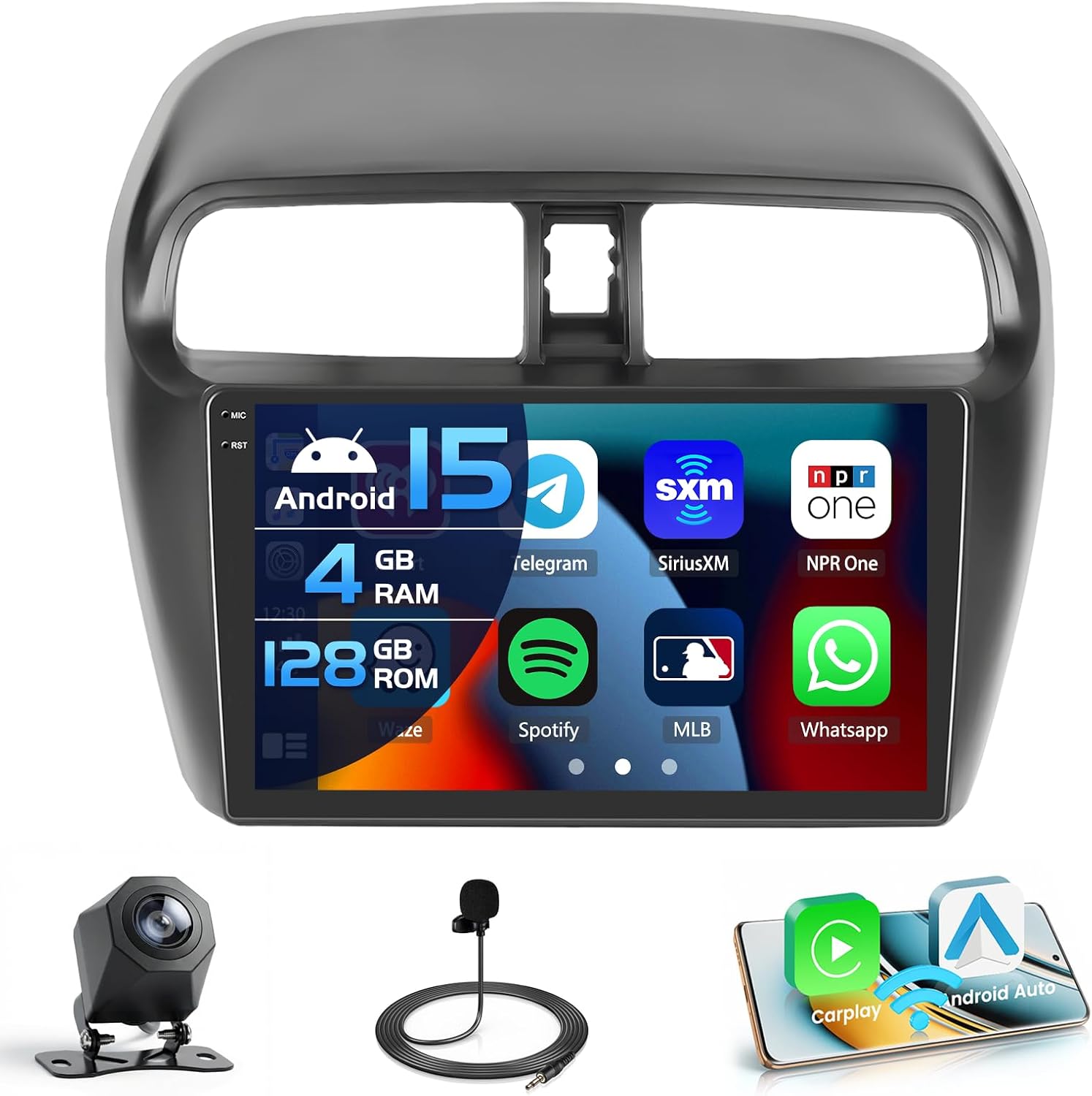
Image: The Inefala car stereo seamlessly integrated into the dashboard of a Mitsubishi Mirage, showcasing its 9-inch display with various application icons.

ภาพ: การเปรียบเทียบ view of the Mitsubishi Mirage dashboard, showing the factory radio and the upgraded Inefala car stereo installed, highlighting the fit and finish.
คำแนะนำการใช้งาน
In-Cell Touch Screen
The 9-inch Incell screen features a 1280 x 720 ultra-high resolution, improving light transmission and color contrast by approximately 20%. It offers a wide viewing angle of 178° and supports 1080P video playback and split-screen functionality. You can switch between 15 different desktop themes.

Image: An illustration demonstrating the advanced features of the In-Cell Touch Screen, such as enhanced color accuracy, contrast, brightness, and wide viewing angles, along with split-screen capability.
CarPlay & Android Auto & Mirror Link
Connect your smartphone wirelessly for voice-assisted controls and easy access to music, navigation, calls, and messages. The system supports both Wireless CarPlay and Android Auto. Mirror Link functionality allows syncing your phone's screen via WiFi hotspot or USB cable. Note: Some Samsung and Huawei phones may have limited compatibility with Android Auto and Mirror Link.

Image: A visual representation of Wireless CarPlay and Android Auto in action, displaying phone applications like music, navigation, and messaging on the car stereo screen, alongside a mirrored smartphone display.
บลูทูธ 5.0
Bluetooth 5.0 enables hands-free calling, phone book download, and music playback, enhancing safety and convenience while driving.

Image: A depiction of the Bluetooth 5.0 interface on the car stereo, showing a dial pad for hands-free calls and music controls, with a woman interacting with the system.
ระบบนำทาง GPS
The system supports both online and offline navigation using GPS, BeiDou, Galileo, and Glonass for wide coverage. Real-time road conditions help avoid traffic, and accurate satellite positioning prevents you from getting lost.

Image: The GPS navigation screen displaying a detailed map with routes, landmarks, and satellite icons, indicating global positioning capabilities.
วิทยุ FM/RDS
The stable FM/RDS radio allows you to preset up to 54 stations, providing channel broadcasts, weather forecasts, and real-time road conditions.
การเชื่อมต่อ WiFi
Connect to a WiFi hotspot to download various applications like YouTube and TikTok, enriching your in-car experience.

Image: The WiFi function display, showing a variety of application icons and an online interface, demonstrating internet access and app download capabilities.
EQ Options (32-band DSP)
The system supports EQ options with a 32-band DSP (Digital Signal Processor) for fine-tuning your audio experience.
Official Product Video: Interface and Features Overview
Video Description: This video demonstrates the various functions and user interface of the Inefala Android car stereo, including desktop themes, CarPlay/Android Auto music and navigation, hands-free calls, voice control, dual screen mode, FM/RDS radio, weather forecast, network radio, 32-band EQ DSP, GPS navigation, and rear view จอแสดงผลกล้อง
การซ่อมบำรุง
เพื่อให้มั่นใจว่าเครื่องเสียงรถยนต์ Inefala ของคุณจะมีอายุการใช้งานยาวนานและทำงานได้อย่างมีประสิทธิภาพสูงสุด โปรดปฏิบัติตามคำแนะนำในการบำรุงรักษาทั่วไปดังต่อไปนี้:
- การทำความสะอาด: ใช้ผ้านุ่มและแห้งเช็ดทำความสะอาดหน้าจอและภายนอก หลีกเลี่ยงน้ำยาทำความสะอาดที่มีฤทธิ์กัดกร่อนหรือตัวทำละลายที่อาจทำลายพื้นผิว
- การอัปเดตซอฟต์แวร์: Periodically check for software updates to ensure you have the latest features and performance enhancements.
- สภาพแวดล้อม : หลีกเลี่ยงการวางเครื่องไว้ในที่ที่มีอุณหภูมิสูงหรือแสงแดดโดยตรงเป็นเวลานาน
- การเชื่อมต่อสายเคเบิล: ตรวจสอบให้แน่ใจว่าสายเคเบิลทั้งหมดเชื่อมต่ออย่างแน่นหนาเพื่อป้องกันปัญหาที่เกิดจากการขาดตอน
การแก้ไขปัญหา
If you encounter issues with your Inefala car stereo, refer to the following common troubleshooting tips:
- ไม่มีไฟฟ้า: Double-check all power connections. Ensure the red and yellow wires are correctly connected to the 12V battery positive, and the black wire to the negative.
- ไม่มีเสียง: Verify speaker connections and audio settings. Check if the volume is muted or set too low.
- หน้าจอสัมผัสไม่ตอบสนอง: If the touchscreen is not responding, try restarting the unit. Ensure all cables are properly seated, as loose connections can sometimes affect functionality.
- กล้องสำรองไม่แสดง: Confirm the rear camera input cable is correctly connected and the reverse trigger wire is properly wired. Remember, the reversing input must be plugged in even if the camera is not used to avoid WiFi/Bluetooth signal issues.
- ปัญหาเกี่ยวกับ CarPlay/Android Auto: Ensure your phone is compatible and has the necessary apps installed (e.g., Android Auto app for Android devices). Check your phone's settings for wireless projection.
- สัญญาณ GPS อ่อน: ตรวจสอบให้แน่ใจว่าได้ติดตั้งเสาอากาศ GPS ในตำแหน่งที่โล่ง view ของท้องฟ้า ปราศจากสิ่งกีดขวาง
If the issue persists, please refer to the support section for contact information.

Image: A visual guide providing quick installation tips and instructions on how to reach customer support for further assistance.
ข้อมูลจำเพาะ
| ระบบ | ระบบ Android ล่าสุด |
| ความละเอียดหน้าจอ | 1280*720 Incell Screen |
| กำลังขับ | 4*45วัตต์ |
| เวอร์ชันบลูทูธ | 5.0 |
| ฟังก์ชั่นการควบคุมพวงมาลัย | สนับสนุน |
| วงวิทยุ | เอฟเอ็ม/RDS |
| มาตรฐานกล้องหลัง | AHD และ CVBS |
| ไมโครโฟนภายนอก | สนับสนุน |
| หน้าจอแยก | สนับสนุน |
| ไวไฟ | สนับสนุน |
| Carplay / Android Auto | การเชื่อมต่อแบบไร้สายเท่านั้น |
| ลิงค์มิเรอร์ | ไร้สาย / มีสาย |
| ยูเอสบี | อินเทอร์เฟซ USB คู่ |
| รูปแบบเสียง | APE / FLAC / WAV / MP3 / WMA etc |
| รูปแบบวิดีโอ | MKV / RMVB / AVI / MP4 / MDV etc |
| รูปแบบภาพ | PNG / JPEG / JPG / GIF / WBMP / BNP etc |
| คีย์เวิร์ดการตั้งค่าโรงงาน | 1234 |
| แผนที่ | Built-in online & offline maps (requires internet to download data) |
| ภาษา | English / Spanish / Chinese / French / Italian / Korean / Japanese / Arabic / Portuguese / Russian / Turkish / Vietnamese / Hebrew / Polish / German |

Image: A comprehensive table listing the technical specifications of the Inefala car stereo, including system details, screen resolution, power output, Bluetooth version, and supported features.
การรับประกันและการสนับสนุน
เครื่องเสียงรถยนต์ Inefala ของคุณมาพร้อมกับ... รับประกัน 1 ปี. For any technical assistance, troubleshooting, or warranty claims, please contact Inefala customer support.
วิธีติดต่อเรา:
- Click on the seller name "Inefala Direct" on the product page.
- Click "Ask a question".
- Please send us questions you met, and attach relevant pictures or videos will help to solve the problem faster!
All messages will be replied within 24 hours, regardless of holidays.

Image: An image displaying the Inefala customer service email address for support inquiries.