1. บทนำ
ขอขอบคุณที่เลือกใช้ชุดคีย์บอร์ดและเมาส์เกมมิ่งไร้สายแบบกลไก Taiahiro Bk6301 คู่มือนี้ให้คำแนะนำโดยละเอียดเกี่ยวกับการตั้งค่า การใช้งาน และการบำรุงรักษาอุปกรณ์ต่อพ่วงใหม่ของคุณ ชุดนี้มีตัวเลือกการเชื่อมต่อที่หลากหลาย รวมถึงการเชื่อมต่อไร้สาย 2.4G, Bluetooth 5.0 และ USB-C แบบมีสาย เพื่อให้มั่นใจได้ว่าสามารถใช้งานร่วมกับอุปกรณ์ต่างๆ ได้
2. เนื้อหาบรรจุภัณฑ์
โปรดตรวจสอบว่าสินค้าทั้งหมดมีอยู่ในแพ็คเกจของคุณ:
- คีย์บอร์ดเกมมิ่งเชิงกลไร้สาย Taiahiro BK6301
- เมาส์เกมมิ่งไร้สาย Taiahiro
- ตัวรับสัญญาณ USB 2.4G (เก็บไว้ในช่องใส่แบตเตอรี่ของเมาส์)
- สายชาร์จ/ข้อมูล USB-C ถึง USB-A
- คู่มือการใช้งาน
- แบตเตอรี่ AA 1 ก้อน (สำหรับเมาส์ อาจติดตั้งมาแล้วหรืออาจมีให้แยกต่างหาก)

ภาพที่ 2.1: สิ่งของภายในกล่องชุดคีย์บอร์ดและเมาส์ Taiahiro Bk6301 ประกอบด้วย คีย์บอร์ด เมาส์ ตัวรับสัญญาณ USB และสาย USB-C
3. สินค้าหมดview
3.1 คุณสมบัติของแป้นพิมพ์
- รูปแบบ 98 คีย์: ดีไซน์กะทัดรัด พร้อมแป้นพิมพ์ตัวเลขครบชุด
- สวิตช์สีน้ำเงินแบบกลไก: ให้การตอบสนองทั้งทางสัมผัสและเสียงขณะพิมพ์
- ไฟแบ็คไลท์ RGB: สามารถปรับแต่งเอฟเฟกต์แสงได้ตามต้องการ
- ขาตั้งคีย์บอร์ดแบบปรับได้: ช่วยให้สามารถจัดท่าทางได้อย่างถูกต้องตามหลักสรีรศาสตร์
- การเชื่อมต่อหลายโหมด: รองรับการเชื่อมต่อไร้สาย 2.4G, Bluetooth 5.0 และ USB-C แบบมีสาย
- แบตเตอรี่แบบชาร์จไฟได้: แบตเตอรี่ในตัวขนาด 2000mAh สำหรับการใช้งานแบบไร้สาย
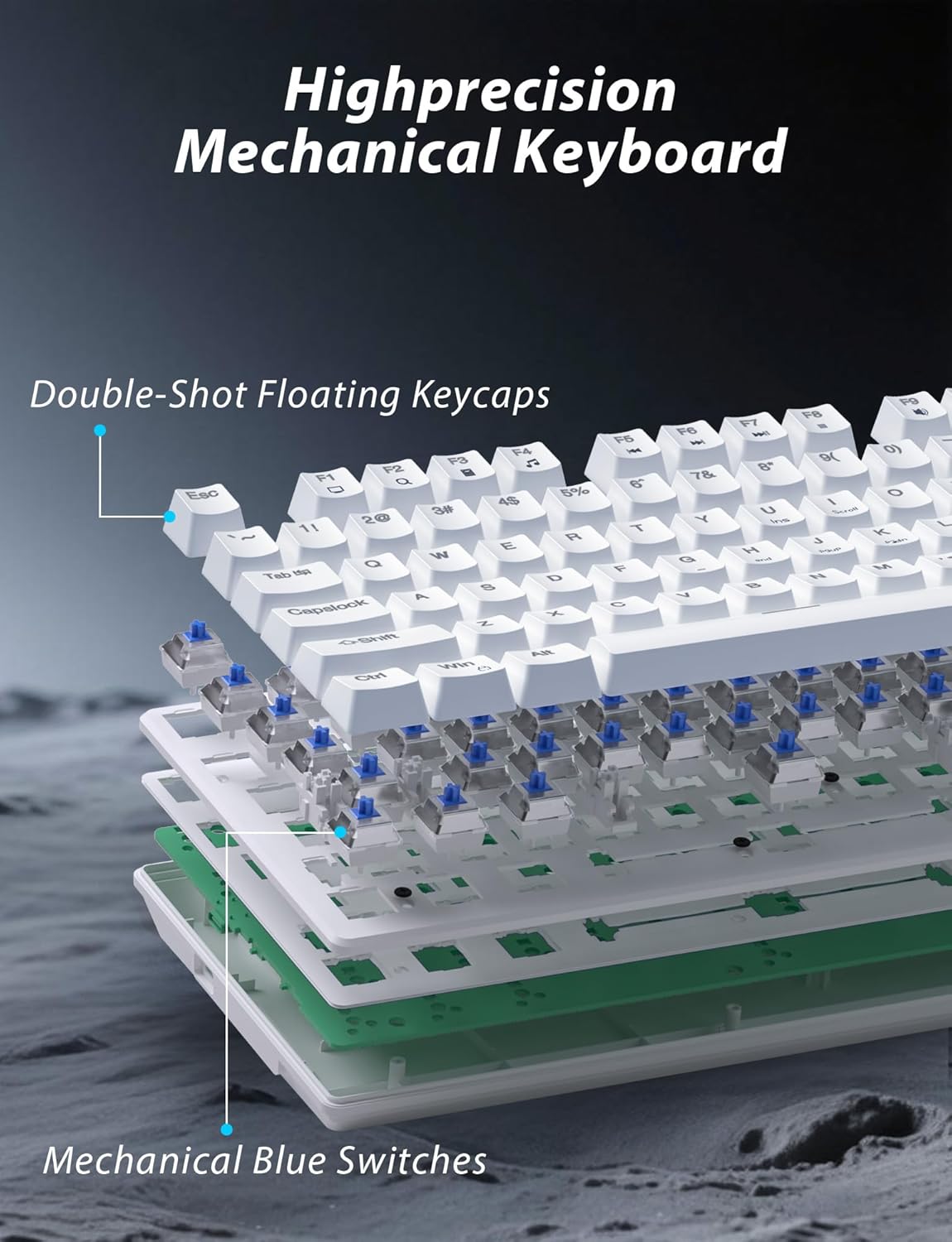
ภาพที่ 3.1: ระเบิด view ภาพประกอบแสดงโครงสร้างภายในของคีย์บอร์ดเชิงกล โดยเน้นที่ปุ่มกดแบบลอยตัว (double-shot floating keycaps) และสวิตช์เชิงกลสีน้ำเงิน (mechanical blue switches)

ภาพที่ 3.2: ด้านข้าง view แสดงให้เห็นถึงการออกแบบตามหลักสรีรศาสตร์ของแป้นพิมพ์และขาตั้งที่ปรับได้เพื่อการใช้งานที่สะดวกสบาย
3.2 คุณสมบัติของเมาส์
- การออกแบบตามหลักสรีรศาสตร์: ออกแบบมาเพื่อการจับที่ถนัดมือ
- DPI ที่ปรับได้: มีระดับการควบคุมที่แม่นยำสี่ระดับ (800/1600/2400/3200)
- ปุ่มเดินหน้า/ถอยหลัง: ปุ่มด้านข้างใช้งานสะดวกสำหรับการนำทาง
- การเชื่อมต่อแบบสองโหมด: รองรับระบบไร้สาย 2.4G และบลูทูธ
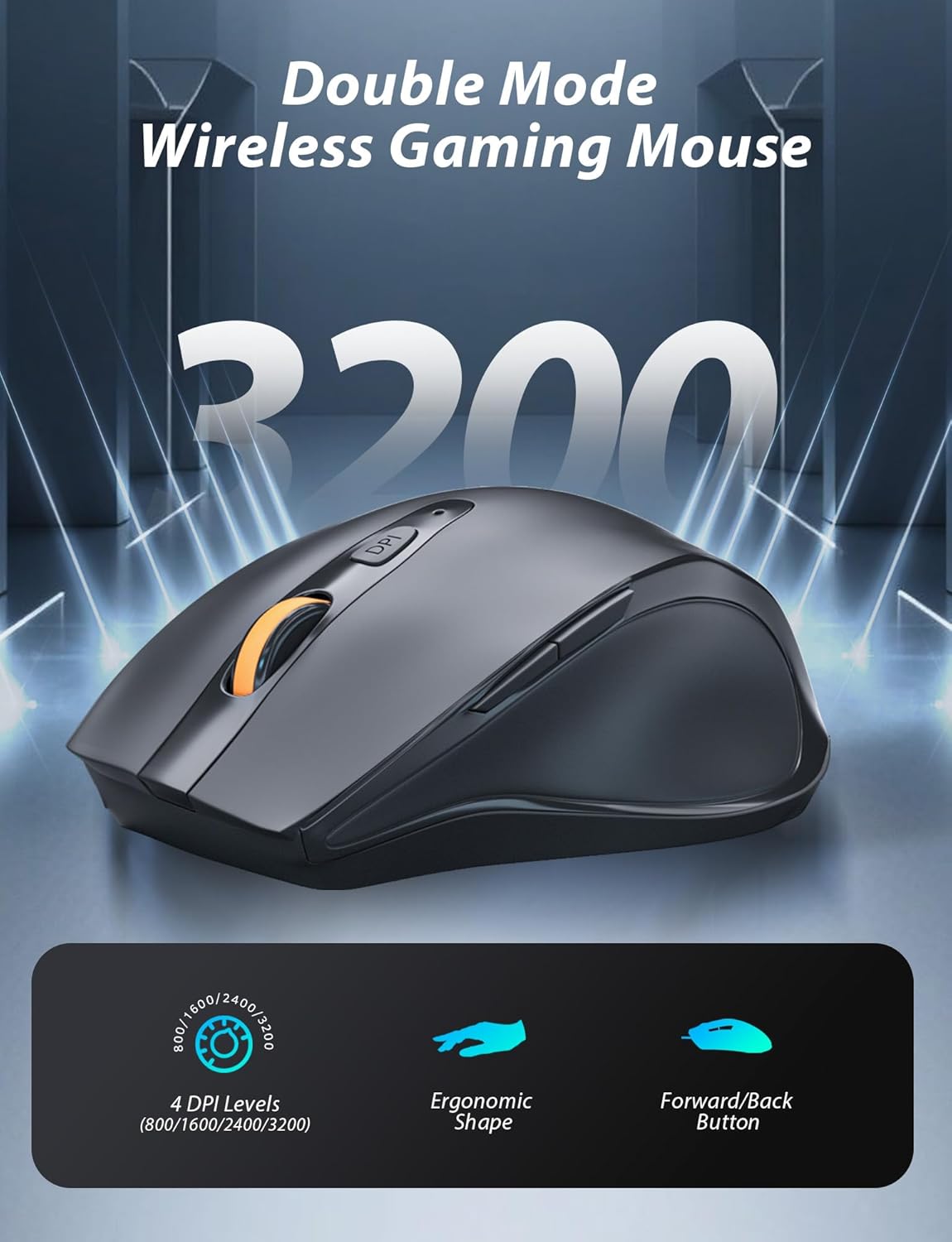
ภาพที่ 3.3: เมาส์เกมมิ่งไร้สาย โดดเด่นด้วยรูปทรงที่ออกแบบตามหลักสรีรศาสตร์และระดับ DPI ที่ปรับได้สี่ระดับ
4. คำแนะนำในการตั้งค่า
4.1 การเชื่อมต่อแป้นพิมพ์
คีย์บอร์ดนี้รองรับการเชื่อมต่อสามโหมด ได้แก่ ไร้สาย 2.4G, บลูทูธ และแบบมีสาย USB-C

ภาพที่ 4.1: แป้นพิมพ์แสดงตัวเลือกการเชื่อมต่อสามแบบ ได้แก่ บลูทูธ, การเชื่อมต่อไร้สาย 2.4GHz และการเชื่อมต่อแบบใช้สาย USB-C
โหมดไร้สาย 2.4G:
- ค้นหาตัวรับสัญญาณ USB 2.4G ซึ่งโดยปกติจะอยู่ในช่องใส่แบตเตอรี่ของเมาส์
- เสียบตัวรับสัญญาณ USB เข้ากับพอร์ต USB ที่พร้อมใช้งานบนคอมพิวเตอร์ของคุณ
- บนแป้นพิมพ์ ให้เลื่อนสวิตช์โหมด (โดยปกติจะอยู่ที่ขอบด้านบนหรือด้านล่าง) ไปที่ตำแหน่ง '2.4G'
- แป้นพิมพ์ควรเชื่อมต่อโดยอัตโนมัติ
โหมดบลูทู ธ :
- เลื่อนสวิตช์โหมดบนแป้นพิมพ์ไปที่ตำแหน่ง 'BT' (บลูทูธ)
- ไฟแสดงสถานะบนแป้นพิมพ์จะกะพริบ แสดงว่าอยู่ในโหมดจับคู่
- บนอุปกรณ์ของคุณ (คอมพิวเตอร์ แล็ปท็อป สมาร์ทโฟน) เปิดการตั้งค่าบลูทูธ แล้วค้นหาอุปกรณ์ใหม่
- เลือก "Taiahiro Bk6301" หรือชื่อที่คล้ายกันจากรายการอุปกรณ์ที่พร้อมจับคู่
- เมื่อจับคู่เสร็จแล้ว ไฟแสดงสถานะจะติดค้าง
โหมด USB-C แบบมีสาย:
- เชื่อมต่อสาย USB-C ที่ให้มาเข้ากับพอร์ต USB-C ของแป้นพิมพ์
- เชื่อมต่อปลายอีกด้านหนึ่ง (USB-A) เข้ากับพอร์ต USB ที่ว่างอยู่บนคอมพิวเตอร์ของคุณ
- คีย์บอร์ดจะทำงานเหมือนอุปกรณ์เสียบสาย และจะชาร์จไฟไปพร้อมกันด้วย
4.2 การเชื่อมต่อเมาส์
เมาส์รุ่นนี้รองรับการเชื่อมต่อไร้สาย 2.4G และบลูทูธ

ภาพที่ 4.2: ด้านล่างของเมาส์ แสดงช่องใส่แบตเตอรี่ AA หนึ่งก้อน และช่องเก็บตัวรับสัญญาณ USB ขนาดเล็ก
การติดตั้งแบตเตอรี่:
- เปิดช่องใส่แบตเตอรี่ที่อยู่ด้านล่างของเมาส์
- ใส่แบตเตอรี่ AA หนึ่งก้อน ตรวจสอบให้แน่ใจว่าขั้วถูกต้อง
- ปิดช่องใส่แบตเตอรี่
โหมดไร้สาย 2.4G:
- ตรวจสอบให้แน่ใจว่าได้เสียบตัวรับสัญญาณ USB 2.4G เข้ากับคอมพิวเตอร์ของคุณแล้ว
- เลื่อนสวิตช์โหมดที่ด้านล่างของเมาส์ไปที่ตำแหน่ง '2.4G'
- เมาส์ควรเชื่อมต่อโดยอัตโนมัติ
โหมดบลูทู ธ :
- เลื่อนสวิตช์โหมดที่ด้านล่างของเมาส์ไปที่ตำแหน่ง 'BT' (บลูทูธ)
- เมาส์จะเข้าสู่โหมดจับคู่
- บนอุปกรณ์ของคุณ ให้เปิดการตั้งค่าบลูทูธ แล้วค้นหาอุปกรณ์ใหม่
- เลือก "Taiahiro Mouse" หรือชื่อที่คล้ายกันจากรายการเพื่อจับคู่
5. คู่มือการใช้งาน
5.1 ฟังก์ชั่นคีย์บอร์ด
การควบคุมแบ็คไลท์:
คีย์บอร์ดรุ่นนี้มีไฟแบ็คไลท์ RGB ที่สามารถปรับแต่งได้
- เปลี่ยนโหมดไฟแบ็คไลท์: กด Fn + บ้าน เพื่อสลับไปมาระหว่างเอฟเฟกต์แสง 18 แบบที่แตกต่างกัน
- ปรับความสว่าง: กด Fn + ↑ (ลูกศรขึ้น) or Fn + ↓ (ลูกศรลง) สามารถปรับระดับความสว่างได้ 5 ระดับ
- ปรับความเร็ว: กด Fn + ← (ลูกศรซ้าย) or Fn + → (ลูกศรชี้ไปทางขวา) เพื่อปรับระดับความเร็วแสงได้ 5 ระดับ

ภาพที่ 5.1: แผนผังแป้นพิมพ์ที่แสดงการรวมปุ่มฟังก์ชันสำหรับการควบคุมโหมดแสงไฟ ความสว่าง และความเร็ว
ฟังก์ชั่นมัลติมีเดีย:
เข้าถึงการควบคุมมัลติมีเดียโดยการกดปุ่ม Fn กดปุ่มนี้ร่วมกับปุ่ม F ที่กำหนด (F1-F12)
- Fn+F1: เครื่องเล่นสื่อ
- Fn+F2: ลดระดับเสียง
- Fn+F3: เพิ่มระดับเสียง
- Fn+F4: ปิดเสียง
- Fn+F5: หยุด
- Fn+F6: เพลงก่อนหน้า
- Fn+F7: เล่น/หยุดชั่วคราว
- Fn+F8: เพลงถัดไป
- Fn+F9: อีเมล
- Fn+F10: Web เบราว์เซอร์
- Fn+F11: คอมพิวเตอร์ของฉัน
- Fn+F12: เครื่องคิดเลข
5.2 ฟังก์ชันเมาส์
การปรับ DPI:
กดปุ่ม ปุ่ม DPI (อยู่ด้านหลังวงล้อเลื่อน) เพื่อสลับไปมาระหว่างการตั้งค่า DPI ทั้งสี่ระดับ: 800, 1600, 2400 และ 3200 การกดแต่ละครั้งจะเปลี่ยนความไว ทำให้คุณสามารถปรับความเร็วของเคอร์เซอร์ได้ตามต้องการ
6. การบำรุงรักษา
6.1 การทำความสะอาด
- แป้นพิมพ์: ใช้ผ้าแห้งนุ่มเช็ดทำความสะอาดพื้นผิว สำหรับการทำความสะอาดอย่างล้ำลึก ให้ใช้ลมเป่าเพื่อขจัดเศษฝุ่นที่อยู่ระหว่างปุ่ม หลีกเลี่ยงการใช้สารเคมีรุนแรงหรือวัสดุที่มีฤทธิ์กัดกร่อน
- หนู: เช็ดพื้นผิวเมาส์ด้วยผ้านุ่มๆ เช็ดเบาๆamp ผ้า. ตรวจสอบให้แน่ใจว่าไม่มีของเหลวเข้าไปในส่วนประกอบภายใน
6.2 การจัดการแบตเตอรี่
- แป้นพิมพ์: คีย์บอร์ดมีแบตเตอรี่แบบชาร์จไฟได้ในตัว เชื่อมต่อสาย USB-C เข้ากับแหล่งจ่ายไฟ (เช่น พอร์ต USB ของคอมพิวเตอร์ อะแดปเตอร์ติดผนัง USB) เพื่อชาร์จ ไฟแสดงสถานะจะแสดงสถานะการชาร์จ
- หนู: เมาส์นี้ใช้แบตเตอรี่ AA 1 ก้อน เปลี่ยนแบตเตอรี่เมื่อประสิทธิภาพการทำงานของเมาส์ลดลงหรือหยุดทำงาน ตรวจสอบให้แน่ใจว่าใส่แบตเตอรี่ถูกขั้วเมื่อใส่แบตเตอรี่ใหม่
7 การแก้ไขปัญหา
หากคุณพบปัญหาในการใช้งานชุดคีย์บอร์ดและเมาส์ Taiahiro โปรดดูวิธีแก้ไขปัญหาต่อไปนี้:
| ปัญหา | วิธีแก้ปัญหาที่เป็นไปได้ |
|---|---|
| แป้นพิมพ์/เมาส์ไม่ตอบสนอง (2.4G) |
|
| คีย์บอร์ด/เมาส์เชื่อมต่อไม่ได้ (บลูทูธ) |
|
| ไฟแบ็คไลท์คีย์บอร์ดไม่ทำงานหรือค้าง |
|
| คีย์ไม่ตอบสนองหรือพิมพ์ซ้ำ |
|
8. ข้อมูลจำเพาะ
| คุณสมบัติ | รายละเอียด |
|---|---|
| หมายเลขรุ่น | บข6301 |
| การเชื่อมต่อ | บลูทูธ 5.0, ไร้สาย 2.4G, USB-C แบบมีสาย |
| ประเภทแป้นพิมพ์ | แป้นพิมพ์สำหรับเล่นเกมแบบเครื่องกล |
| เค้าโครงคีย์ | แป้นพิมพ์ 98 ปุ่ม (พร้อมแป้นตัวเลข) |
| ประเภทสวิตซ์ | สวิตช์สีน้ำเงินเครื่องกล |
| Backlight แป้นพิมพ์ | RGB (18 โหมด, ความสว่าง 5 ระดับ, ระดับความเร็ว 5 ระดับ) |
| แบตเตอรี่คีย์บอร์ด | 2000mAh ชาร์จใหม่ได้ |
| ระดับ DPI ของเมาส์ | 800 / 1600 / 2400 / 3200 |
| แบตเตอรี่เมาส์ | แบตเตอรี่ AA 1 ก้อน |
| อุปกรณ์ที่รองรับ | คอมพิวเตอร์ส่วนบุคคล, แล็ปท็อป, สมาร์ทโฟน |
| น้ำหนักสินค้า | 2.72 ปอนด์ (รวม) |
| ขนาดแพ็คเกจ | 15 x 5.59 x 3.11 นิ้ว |
9. การรับประกันและการสนับสนุน
9.1 ข้อมูลการรับประกัน
ผลิตภัณฑ์ของ Taiahiro มีการรับประกันแบบจำกัดนับจากวันที่ซื้อ โปรดดูรายละเอียดในบัตรรับประกันที่อยู่ในบรรจุภัณฑ์ หรือเยี่ยมชมเว็บไซต์อย่างเป็นทางการของ Taiahiro webดูรายละเอียดเงื่อนไขและข้อกำหนดการรับประกันได้ที่เว็บไซต์ การรับประกันนี้โดยทั่วไปครอบคลุมถึงข้อบกพร่องจากการผลิตและความผิดพลาดของวัสดุภายใต้การใช้งานปกติ
9.2 การสนับสนุนลูกค้า
หากต้องการความช่วยเหลือด้านเทคนิค การแก้ไขปัญหา หรือมีข้อสงสัยใด ๆ เกี่ยวกับชุดเครื่องเล่นแผ่นเสียง Taiahiro Bk6301 โปรดติดต่อทีมสนับสนุนลูกค้าของเรา คุณสามารถค้นหาข้อมูลการติดต่อได้ที่เว็บไซต์อย่างเป็นทางการของ Taiahiro webคุณสามารถติดต่อฝ่ายสนับสนุนได้ทางเว็บไซต์หรือผ่านแพลตฟอร์มการซื้อของคุณ เมื่อติดต่อฝ่ายสนับสนุน โปรดเตรียมหมายเลขรุ่นผลิตภัณฑ์ (Bk6301) และรายละเอียดการซื้อให้พร้อม


