1. บทนำ
Thank you for choosing the MP Mobile Pixels 27-inch Pixcase Portable Touchscreen Monitor. This device is designed to provide a versatile and immersive entertainment and productivity experience on the go. This manual provides essential information for setting up, operating, and maintaining your Pixcase monitor.
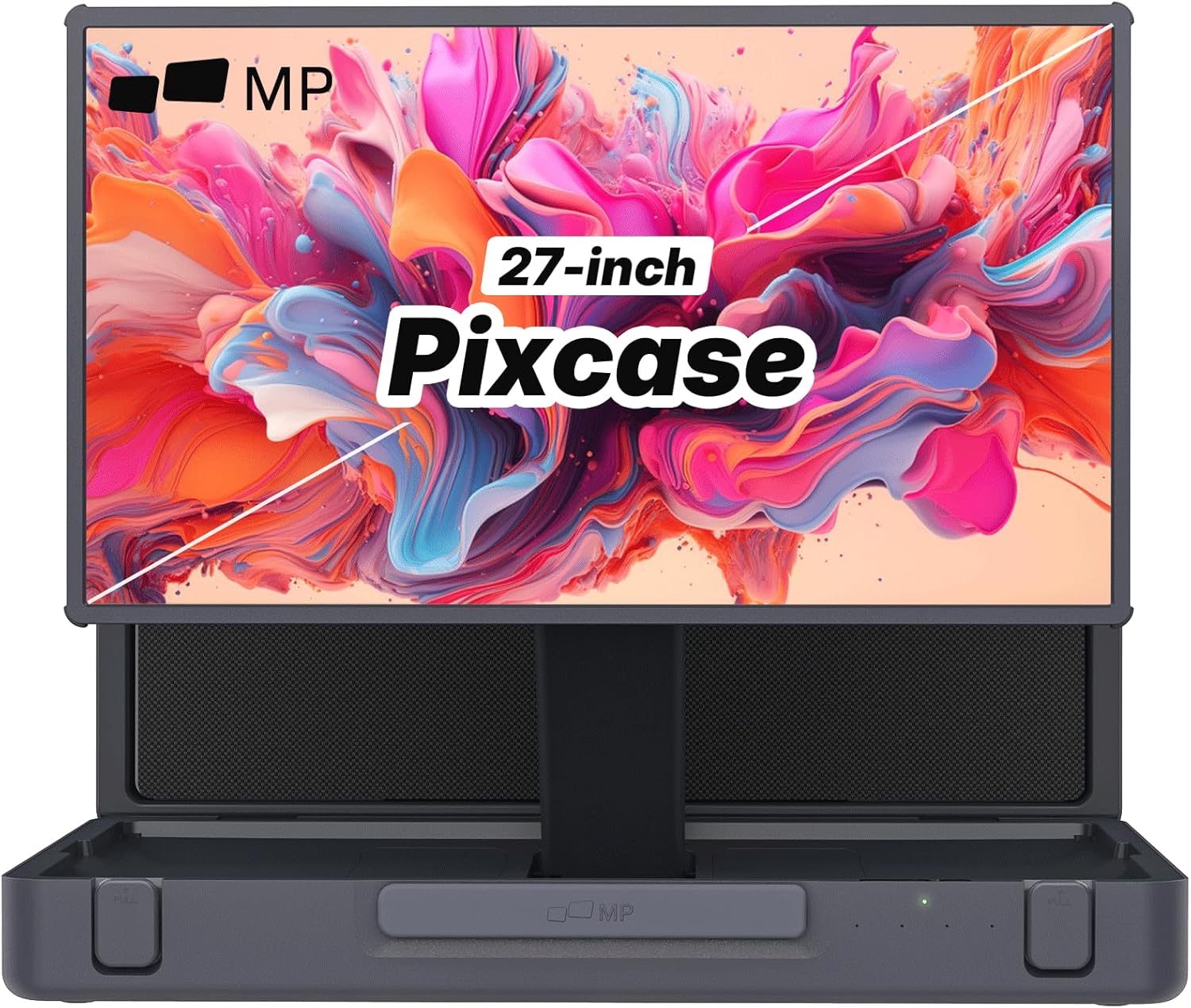
Figure 1: MP Mobile Pixels 27-inch Pixcase Portable Touchscreen Monitor
2. สินค้าหมดview
The Pixcase monitor combines a large 27-inch 1080P touchscreen display with a compact, portable suitcase design. It features integrated 40W speakers, 16GB RAM, and access to Google Play, making it suitable for various applications from gaming and movie streaming to presentations and extended desktop use.
- Portable Entertainment System: Combines a 27-inch 1080P touchscreen with a compact suitcase design for easy portability and versatile use.
- การออกแบบกระเป๋าเดินทางแบบพกพา: Transforms into a compact suitcase for effortless transport and quick setup. Features 10-point capacitive touch for responsive navigation.
- Powerful 40W Audio System: Built-in 40W speakers, including dual tweeters and subwoofers, deliver crisp and immersive sound.
- ตัวเลือกการเชื่อมต่อที่หลากหลาย: Equipped with HDMI, USB-A, and USB-C ports for easy connection to laptops, gaming consoles, and other devices.
- 5-Hour Battery & Google Play Access: Offers up to 5 hours of battery life and access to thousands of apps via the Google Play Store. Supports device charging via the USB-C port.
Video 1: Pixcase offers power and portability with a 27" touchscreen.
3. อะไรอยู่ในกล่อง
ตรวจสอบให้แน่ใจว่าสิ่งของทั้งหมดครบถ้วนและอยู่ในสภาพดีก่อนแกะกล่อง
- 1 x Pixcase Portable Monitor
- 1 x แป้นเกมแพด
- 1 x รีโมทคอนโทรล
- 1 x คู่มือผู้ใช้
- 1 x สายไฟ AC
- สาย USB-C 1 เส้น

Figure 2: Included components with the Pixcase monitor.
4. การตั้งค่า
4.1 การแกะกล่องและการประกอบขาตั้ง
- Carefully remove the Pixcase monitor and all accessories from the packaging.
- Open the suitcase-style casing. The integrated handle folds out to form a stable stand.
- The monitor magnetically attaches to the stand, allowing for adjustable height and rotation.

Figure 3: The integrated handle transforms into a stand.
4.2 การต่อสายไฟ
- Connect the AC power cord to the monitor's power input.
- เสียบปลายอีกด้านหนึ่งของสายไฟ AC เข้ากับเต้ารับที่ผนัง
4.3 การเชื่อมต่ออุปกรณ์
The Pixcase monitor offers multiple connectivity options:
- ยูเอสบี-C: Use the included USB-C cable to connect to compatible laptops, smartphones, or gaming consoles for both video/audio signal and power delivery.
- ช่องต่อ HDMI: Use an HDMI cable to connect to devices like laptops, desktop PCs, or gaming consoles for video and audio.
- ยูเอสบี-เอ: Connect USB peripherals such as a mouse, keyboard, or flash drive.

Figure 4: Versatile connectivity options for various devices.
Video 2: Instructions on how to set up extended mode on a MacBook.
5. คู่มือการใช้งาน
5.1 เปิด/ปิดเครื่อง
กดปุ่มเปิด/ปิดที่อยู่ด้านข้างของจอภาพเพื่อเปิดหรือปิดเครื่อง
5.2 Display Modes (Tiling, Mirroring, Extended)
The Pixcase monitor supports various display modes when connected to a computer. These modes can typically be configured through your device's display settings:
- โหมดมิเรอร์: Duplicates your primary screen's content onto the Pixcase.
- โหมดขยาย: Extends your desktop workspace across both screens, allowing for more screen real estate.
- Tiling Mode: Specific to certain multi-monitor setups, allowing screens to be stacked or arranged.
5.3 Touchscreen Usage
The 27-inch display features 10-point capacitive touch, enabling intuitive interaction with applications and content. Use gestures similar to those on a tablet or smartphone.

Figure 5: Responsive 10-point multi-touch for intuitive navigation.
5.4 ระบบเสียง
The integrated 40W speakers provide powerful audio. Adjust volume using the controls on the monitor or the included remote control.

Figure 6: Powerful 40W audio system with dual tweeters and subwoofers.
5.5 Google Play Access
With 16GB RAM and Google Play access, you can download and use thousands of Android applications directly on the monitor. This enhances its functionality for entertainment, productivity, and gaming.

Figure 7: Access to Google Play for a wide range of applications.
5.6 แบตเตอรี่และการชาร์จ
The Pixcase monitor features a built-in battery providing up to 5 hours of usage. It also supports pass-through charging, allowing you to charge connected devices like laptops or smartphones via its USB-C ports.
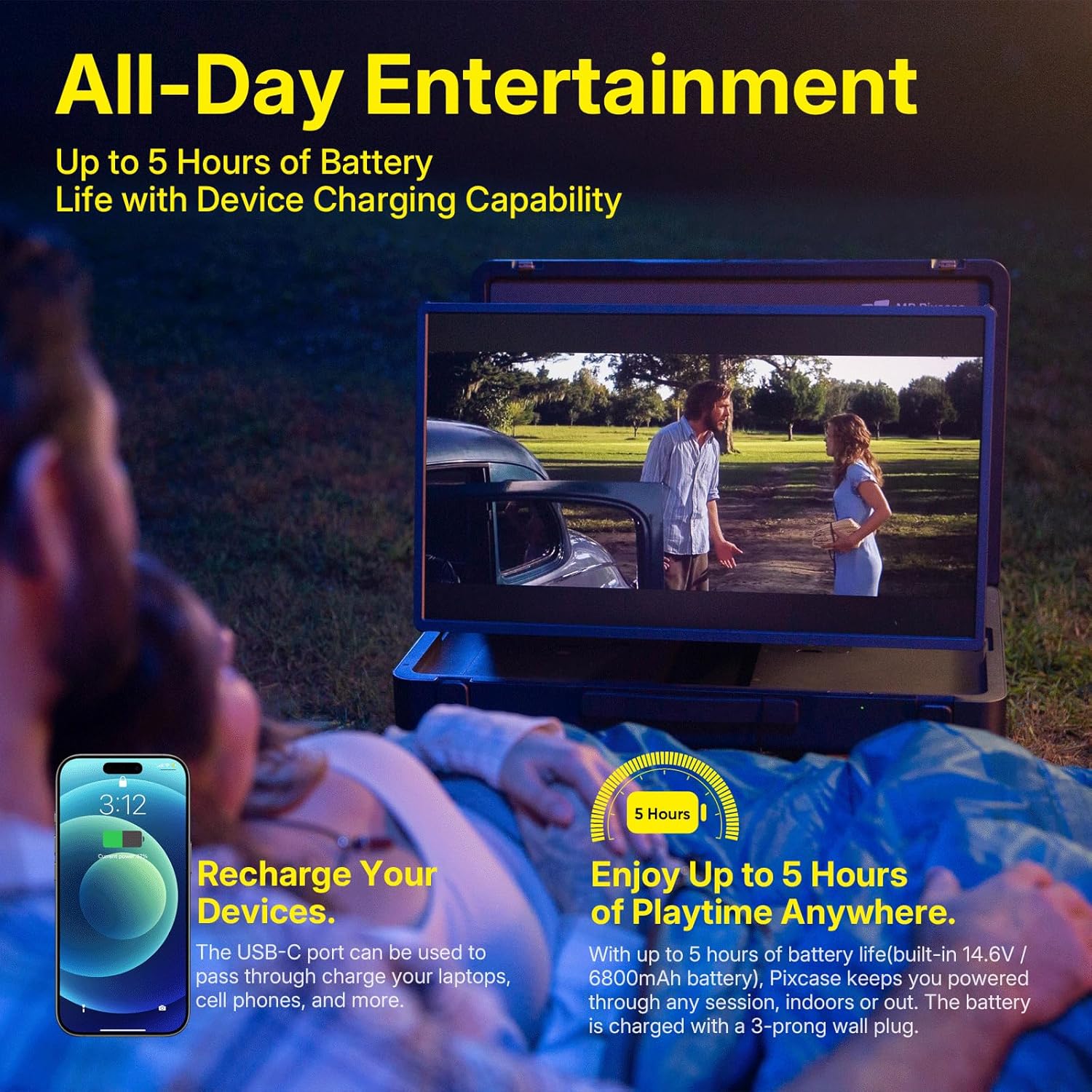
Figure 8: Up to 5 hours of battery life and device charging capability.
5.7 Portability and Screen Rotation
The monitor's suitcase design allows for easy transport. The screen can be rotated between landscape and portrait orientations to suit different content and usage scenarios.
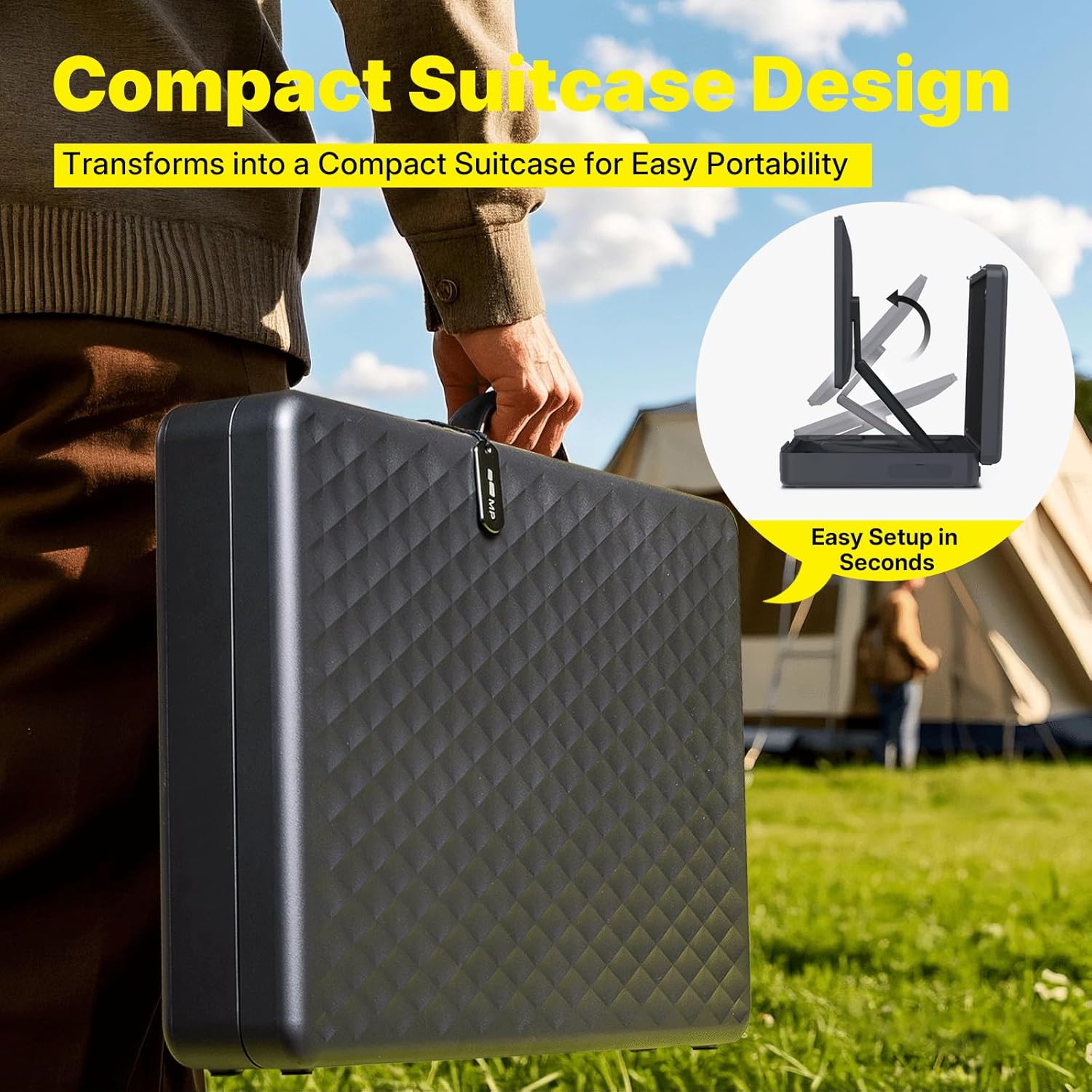
Figure 9: Compact suitcase design for easy portability.
Video 3: Demonstrates the portability and versatility of the Pixcase entertainment system.
Video 4: Shows how to close and pack the portable monitor.
6. การบำรุงรักษา
- การทำความสะอาด: ใช้ผ้าเนื้อนุ่มที่ไม่เป็นขุยเช็ดทำความสะอาดหน้าจอ สำหรับคราบฝังแน่น ให้เช็ดเบาๆampชุบผ้าด้วยน้ำหรือน้ำยาทำความสะอาดหน้าจอ หลีกเลี่ยงสารเคมีรุนแรง
- พื้นที่จัดเก็บ: When not in use, fold the monitor into its suitcase form to protect the screen and components. Store in a cool, dry place away from direct sunlight.
- การจัดการ: Always use the integrated handle for carrying. Avoid dropping or subjecting the device to strong impacts.
7 การแก้ไขปัญหา
- ไม่มีไฟฟ้า: Ensure the AC power cord is securely connected to both the monitor and a working power outlet. Check if the power button is pressed.
- ไม่มีสัญญาณ: Verify that the video cable (USB-C or HDMI) is securely connected to both the monitor and the source device. Ensure the source device's display settings are correctly configured for external monitors (mirror or extend).
- หน้าจอสัมผัสไม่ตอบสนอง: Disconnect and reconnect the USB-C cable. Restart the monitor and the connected device. Ensure the connected device supports touchscreen input.
- ปัญหาเกี่ยวกับเสียง: Check the volume settings on both the monitor and the connected device. Ensure cables are properly connected.
- แบตเตอรี่ไม่ชาร์จ: Ensure the AC power cord is properly connected. If using USB-C for charging, verify the source device provides sufficient power output.
8. ข้อมูลจำเพาะ
| คุณสมบัติ | รายละเอียด |
|---|---|
| ขนาดสินค้า | 26.33 x 16.53 x 4.52 นิ้ว |
| น้ำหนักสินค้า | 29.5 ปอนด์ |
| ผู้ผลิต | พิกเซลมือถือ |
| ASIN | B0DSBCXF2M |
| หมายเลขรุ่นสินค้า | 121-1001P01 |
| แบตเตอรี่ | ต้องใช้แบตเตอรี่ลิเธียมไอออน 1 ก้อน (รวมอยู่ด้วย) |
| ขนาดหน้าจอยืน | 27 นิ้ว |
| อัตราส่วนภาพ | 16:9 น. |
| ปณิธาน | 1920 x 1080 พิกเซล (FHD 1080p) |
| พอร์ต USB รวม | 2 |
| คำอธิบายพื้นผิวหน้าจอ | มันเงา |
9. การรับประกันและการสนับสนุน
For warranty information, technical support, or service inquiries, please refer to the documentation included with your product or visit the official Mobile Pixels website. Contact information for customer service is typically found in the user guide or on the manufacturer's webเว็บไซต์.