
การแนะนำ
This manual provides instructions for the iPazzPort Mini Bluetooth Keyboard with Air Mouse. This device combines a QWERTY keyboard, gyroscopic air mouse, and remote control functions, designed for use with smart TVs, Windows PCs, and Android devices. Please read this manual thoroughly before use to ensure proper operation and to maximize your experience.

Image: The iPazzPort Mini Bluetooth Keyboard with Air Mouse, displaying its dual-sided design with the remote control interface on one side and the full QWERTY keyboard on the other.
การตั้งค่า
1. การชาร์จอุปกรณ์
The device features a built-in rechargeable lithium battery. Connect the included Type-C charging cable to the device and a compatible USB power source to charge. The indicator light will show charging status.
2. การเชื่อมต่อไร้สาย 2.4G
- Locate the USB receiver, typically stored within the device's battery compartment or a dedicated slot.
- Insert the USB receiver into an available USB port on your target device (e.g., Smart TV, PC, TV Box).
- Press and hold the "OK" and "Back" buttons simultaneously on the keyboard until the indicator light flashes, indicating 2.4G pairing mode.
- The device should automatically connect. This is a plug-and-play connection.
3. การเชื่อมต่อบลูทู ธ
- Ensure the USB receiver is disconnected from your device.
- Press and hold the "Home" and "Back" buttons simultaneously on the keyboard until the indicator light flashes, indicating Bluetooth pairing mode.
- On your target device (e.g., Smart TV, PC, Tablet), navigate to the Bluetooth settings and search for new devices.
- Select the iPazzPort keyboard from the list of available devices to complete the pairing process.

Image: A visual representation of the iPazzPort Mini Bluetooth Keyboard connecting to a smart TV via both 2.4G and Bluetooth modes, highlighting the respective button combinations for pairing.
4. ฟังก์ชันการเรียนรู้ IR
The device features an IR learning button, typically the power button, allowing it to learn commands from your traditional TV remote. This enables you to consolidate remote controls.

Image: A diagram illustrating the three steps for IR learning: 1. Long-press the keyboard's power button until the indicator blinks rapidly. 2. Long-press the TV remote's power button until the keyboard's indicator blinks rapidly then goes off. 3. Short-press the keyboard's power button to release and save the learned command.
- Place the iPazzPort keyboard and your original TV remote control head-to-head, approximately 1-3 cm apart.
- Long-press the Power On/Off button on the iPazzPort keyboard until its indicator light begins to blink rapidly. Keep holding until it blinks rapidly and then releases.
- Long-press the Power On/Off button on your TV's original remote control. The iPazzPort keyboard's indicator light will blink rapidly and then turn off, indicating successful learning.
- Short-press the Power On/Off button on the iPazzPort keyboard to exit the learning mode.
การดำเนินการ
1. Basic Keyboard and Remote Functions
The device features a full QWERTY keyboard on one side for typing and a remote control interface on the other for navigation and media control. The device automatically switches between modes when flipped.

Image: A clear diagram outlining the functions of each button on the remote control side, including Power On/Off, Cursor Locking, Indicator Light, Direction Keys, OK, Voice, Home, Mute, Return, Menu, Volume Up/Down, and Page Up/Down.
2. Air Mouse Control
The integrated gyroscopic air mouse allows for intuitive cursor navigation by moving the remote in the air. To activate or deactivate the air mouse, press the 'Cursor Locking' button (often depicted as a hand icon or similar).

Image: A user demonstrating the air mouse functionality by moving the remote, which controls the cursor on a connected display. Instructions for adjusting cursor speed (OK+Volume+ for speed up, OK+Volume- for slow down) are also shown.
- การปรับความเร็ว: To increase cursor speed, press "OK" and "Volume+" simultaneously. To decrease cursor speed, press "OK" and "Volume-" simultaneously.
3. การควบคุมด้วยเสียง
The device supports Google Voice ค้นหา hands-free queries. Press the dedicated Voice button (often depicted as a microphone icon) and speak your command or search query.
Note: Voice assistants are not supported on all devices. If the voice function does not work on certain devices, it does not indicate a product defect.
4. ความเข้ากันได้
The iPazzPort Mini Bluetooth Keyboard is compatible with a wide range of devices, including:
- พีซี Windows 11/10
- Smart TVs (excluding Samsung/LG TVs)
- อุปกรณ์แอนดรอยด์
- Multimedia centers and HTPC setups
- Projectors, Laptops, Tablets, Set-top boxes, Streaming devices
Important: Not compatible with Samsung/LG TVs or Firestick devices.
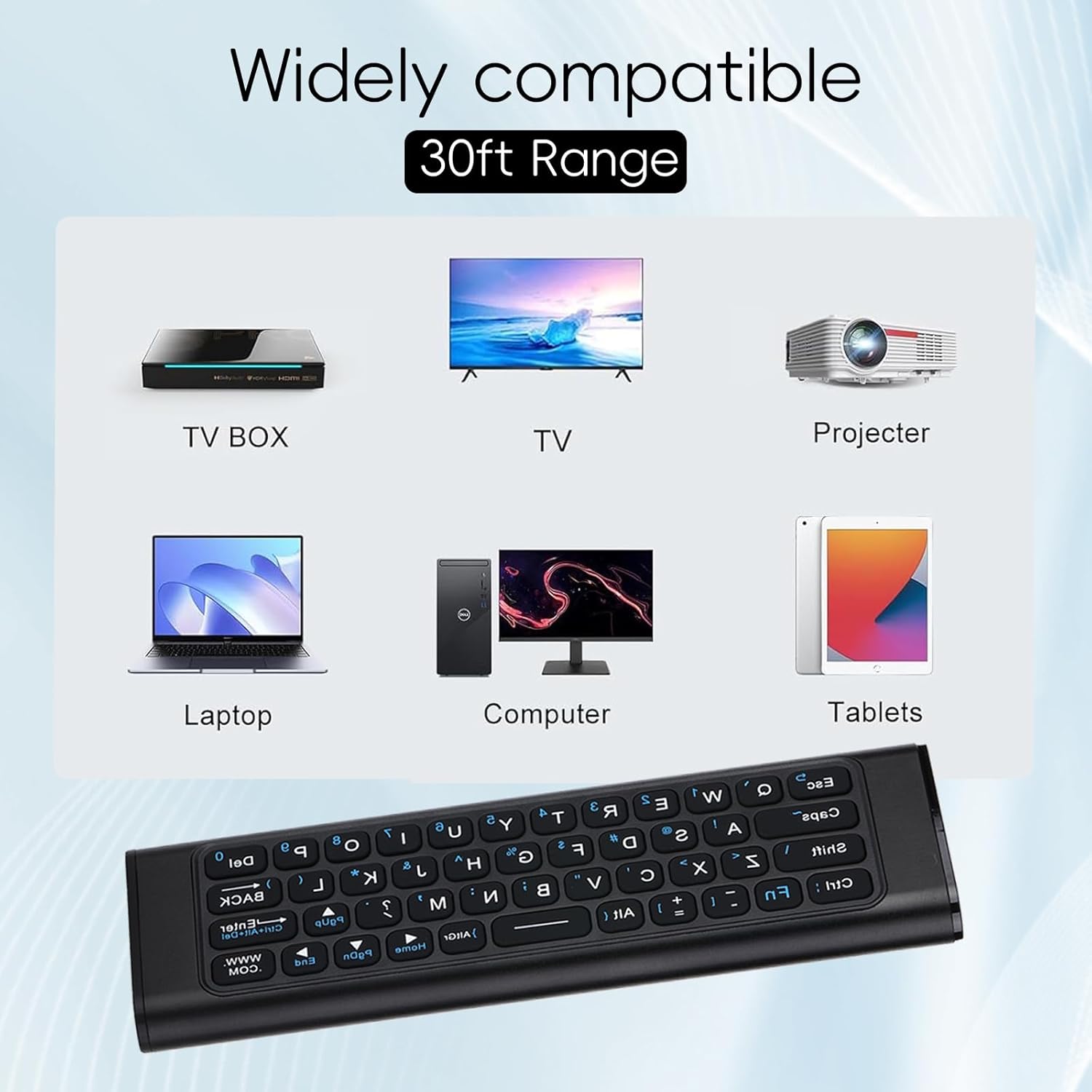
Image: An infographic displaying various devices such as TV boxes, televisions, projectors, laptops, computers, and tablets, indicating the wide compatibility of the iPazzPort Mini Bluetooth Keyboard.
ข้อมูลจำเพาะ
| คุณสมบัติ | รายละเอียด |
|---|---|
| ขนาดสินค้า | 4.8 x 1.5 x 0.5 นิ้ว |
| น้ำหนักสินค้า | 3.52 ออนซ์ |
| หมายเลขรุ่น | 00389cb4-5863-480c-bb3e-1efa7e45efd1 |
| แบตเตอรี่ | แบตเตอรี่ 12V 1 ก้อน (รวมอยู่ด้วย) |
| วิธีการเชื่อมต่อ | Bluetooth & 2.4GHz |
| ระยะการทำงาน | 10 เมตร (393.7 นิ้ว) |
| ระบบที่เข้ากันได้ | หน้าต่าง, แอนดรอยด์ |
| คุณสมบัติพิเศษ | Rechargeable, Voice Search, Lightweight, Portable |
| สี | สีดำ |
| อุปกรณ์ที่รองรับสูงสุด | 1 |
| กุญแจสำคัญในการเรียนรู้ IR | 1 (Power button) |
| แสงไฟแบ็คไลท์ | เลขที่ |
| ทัชแพด | เลขที่ |
Table: Detailed technical specifications for the iPazzPort Mini Bluetooth Keyboard with Air Mouse.
การแก้ไขปัญหา
- อุปกรณ์ไม่ตอบสนอง: Ensure the device is charged. Check the connection method (2.4G USB receiver or Bluetooth pairing). Re-pair the device if necessary.
- Air Mouse Not Working: Ensure the air mouse function is activated (check the Cursor Locking button). If the cursor is erratic, try recalibrating by placing the device on a flat surface for a few seconds.
- ปัญหาการควบคุมด้วยเสียง: Verify that your connected device supports voice input and that the application you are using is compatible with voice commands. Remember that voice assistants are not universally supported.
- IR Learning Failure: Ensure the remotes are placed correctly (head-to-head, 1-3 cm apart) and that the original remote has sufficient battery power. Repeat the learning steps carefully.
- การปิดเครื่องโดยไม่คาดคิด: The power button may be sensitive. Ensure it is not accidentally pressed during use.
การดูแลรักษา
- การทำความสะอาด: ใช้ผ้านุ่มและแห้งเช็ดทำความสะอาดอุปกรณ์ หลีกเลี่ยงการใช้น้ำยาทำความสะอาดหรือวัสดุที่มีฤทธิ์กัดกร่อน
- การดูแลแบตเตอรี่ Charge the device regularly to maintain battery health. Avoid extreme temperatures.
- พื้นที่จัดเก็บ: เก็บอุปกรณ์ไว้ในที่แห้งและเย็นเมื่อไม่ใช้งาน
- ความทนทาน: The aluminum shell is designed for durability and resistance to fingerprints and scratches. However, avoid dropping the device or subjecting it to excessive force.
การรับประกันและการสนับสนุน
iPazzPort is committed to providing reliable customer service. If you encounter any issues or have questions regarding your iPazzPort Mini Bluetooth Keyboard with Air Mouse, please contact us through Amazon's in-site messaging service. We are dedicated to providing a satisfactory solution.