การแนะนำ
This manual provides detailed instructions for the setup, operation, and maintenance of your Taiahiro Wireless Gaming Keyboard and Mouse Combo. This combo features a 98-key RGB backlit mechanical keyboard with blue switches and an ergonomic wireless gaming mouse, offering versatile connectivity options (USB-C, 2.4G, Bluetooth 5.0) for various devices.
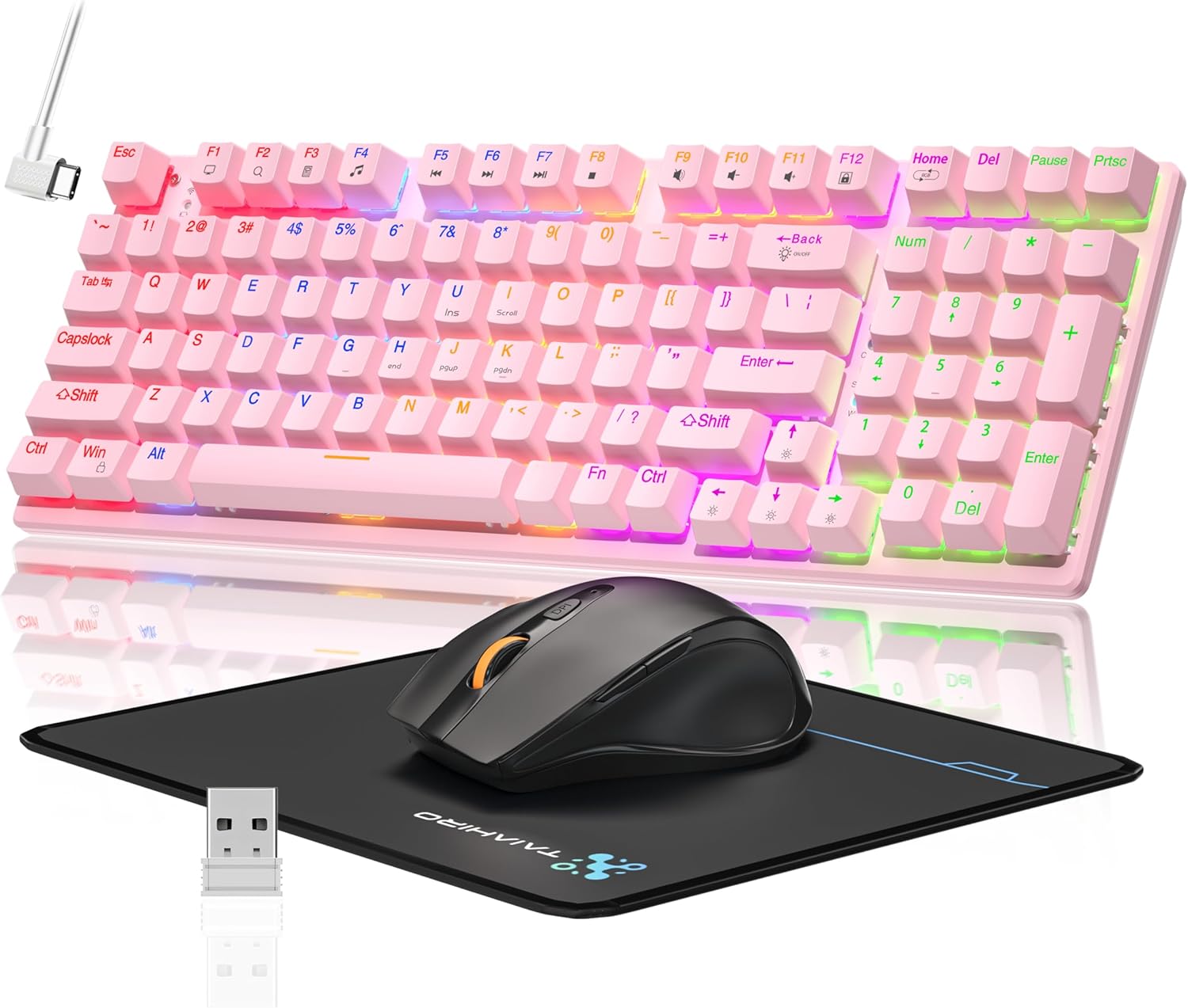
Image: The Taiahiro Wireless Gaming Keyboard and Mouse Combo, featuring a pink 98-key mechanical keyboard with RGB backlighting, a black ergonomic mouse, and a mouse pad. A USB receiver is also visible.
เนื้อหาแพ็คเกจ
- คีย์บอร์ดไร้สาย
- เมาส์สำหรับเล่นเกมไร้สาย
- สาย USB-C
- ตัวรับสัญญาณ USB 2.4G
- แผ่นรองเม้าส์
- คู่มือการใช้งาน (เอกสารนี้)
การตั้งค่า
การตั้งค่าแป้นพิมพ์
The keyboard supports three connectivity modes: USB-C wired, 2.4G wireless, and Bluetooth 5.0.
- การเชื่อมต่อแบบมีสาย USB-C: Connect the provided USB-C cable from the keyboard to an available USB port on your computer. The keyboard will be recognized automatically.
- การเชื่อมต่อไร้สาย 2.4G:
- Locate the 2.4G USB receiver, typically stored in the mouse or keyboard compartment.
- เสียบตัวรับสัญญาณ USB 2.4G เข้ากับพอร์ต USB ที่ว่างอยู่บนคอมพิวเตอร์ของคุณ
- Ensure the keyboard's mode switch (usually on the back or side) is set to 2.4G mode.
- แป้นพิมพ์ควรเชื่อมต่อโดยอัตโนมัติ
- การเชื่อมต่อบลูทูธ 5.0:
- ตรวจสอบให้แน่ใจว่าสวิตช์โหมดของแป้นพิมพ์ถูกตั้งค่าเป็นโหมดบลูทูธ
- บนอุปกรณ์ของคุณ (พีซี แล็ปท็อป แท็บเล็ต สมาร์ทโฟน) เปิดใช้งาน Bluetooth และค้นหาอุปกรณ์ใหม่
- Select "Taiahiro Keyboard" (or similar name) from the list of available devices.
- ปฏิบัติตามคำแนะนำบนหน้าจอเพื่อทำการจับคู่ให้เสร็จสิ้น

Image: A pink mechanical keyboard connected to various devices (monitor, laptop, tablet) illustrating its triple-mode connectivity via Bluetooth, 2.4GHz, and USB-C.
การตั้งค่าเมาส์
เมาส์รุ่นนี้รองรับการเชื่อมต่อไร้สาย 2.4G และบลูทูธ
- การเชื่อมต่อไร้สาย 2.4G:
- Insert 1 AA battery (not included) into the mouse.
- Plug the 2.4G USB receiver (shared with keyboard) into an available USB port on your computer.
- Ensure the mouse's power switch is turned ON.
- เมาส์ควรเชื่อมต่อโดยอัตโนมัติ
- การเชื่อมต่อบลูทู ธ :
- Insert 1 AA battery (not included) into the mouse.
- Ensure the mouse's power switch is turned ON and set to Bluetooth mode.
- บนอุปกรณ์ของคุณ เปิดใช้งานบลูทูธและค้นหาอุปกรณ์ใหม่
- Select "Taiahiro Mouse" (or similar name) from the list of available devices.
- ปฏิบัติตามคำแนะนำบนหน้าจอเพื่อทำการจับคู่ให้เสร็จสิ้น

Image: A wireless gaming mouse highlighting its 4 adjustable DPI levels and showing the battery compartment with a tiny USB receiver and space for a 1AA battery.
คำแนะนำการใช้งาน
ฟังก์ชั่นคีย์บอร์ด
- ไฟแบ็คไลท์ RGB: The keyboard features 8 different RGB lighting modes.
- กด Fn + บ้าน เพื่อหมุนเวียนผ่านโหมดแสงสว่าง
- กด ฟน + ↑/↓ to adjust brightness (5 levels).
- กด Fn + ←/→ to adjust breathing speed (5 levels).
- คีย์มัลติมีเดีย: ใช้ Fn key in combination with F-keys for multimedia controls (e.g., Fn+F1 for media player, Fn+F2 for volume down, etc.). Refer to the keycap legends for specific functions.
- เท้าปรับระดับได้: The keyboard has adjustable feet on the underside to change the typing angle for ergonomic comfort.
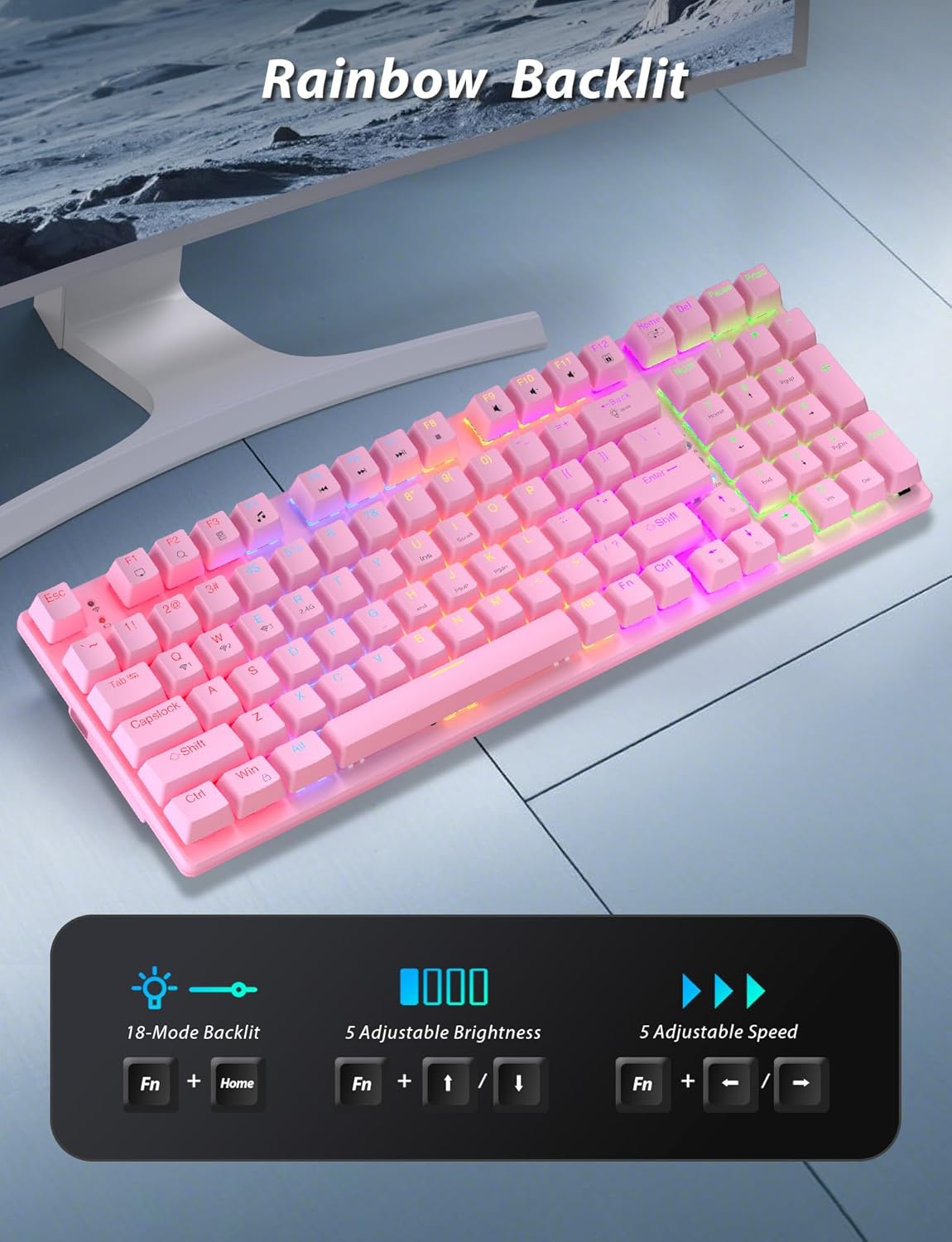
Image: A pink mechanical keyboard displaying its rainbow backlit keys, with an overlay showing the key combinations (Fn + Home, Fn + ↑/↓, Fn + ←/→) for controlling 8 modes, 5 adjustable brightness levels, and 5 adjustable speeds.

ภาพ: ภาพระยะใกล้ view of the side of the pink mechanical keyboard, showing its ergonomic sloped design and the adjustable feet extended for comfortable typing. The accompanying mouse is also shown on a mousepad.
ฟังก์ชั่นเมาส์
- การปรับ DPI: The mouse features 4 adjustable DPI levels (800/1600/2400/3200). Press the DPI button (usually located behind the scroll wheel) to cycle through the sensitivity settings.
- การออกแบบตามหลักสรีรศาสตร์: The contoured shape of the mouse is designed to fit comfortably in your hand, reducing fatigue during extended use.
- Anti-skid Scroll Wheel: ให้การควบคุมการเลื่อนที่แม่นยำ
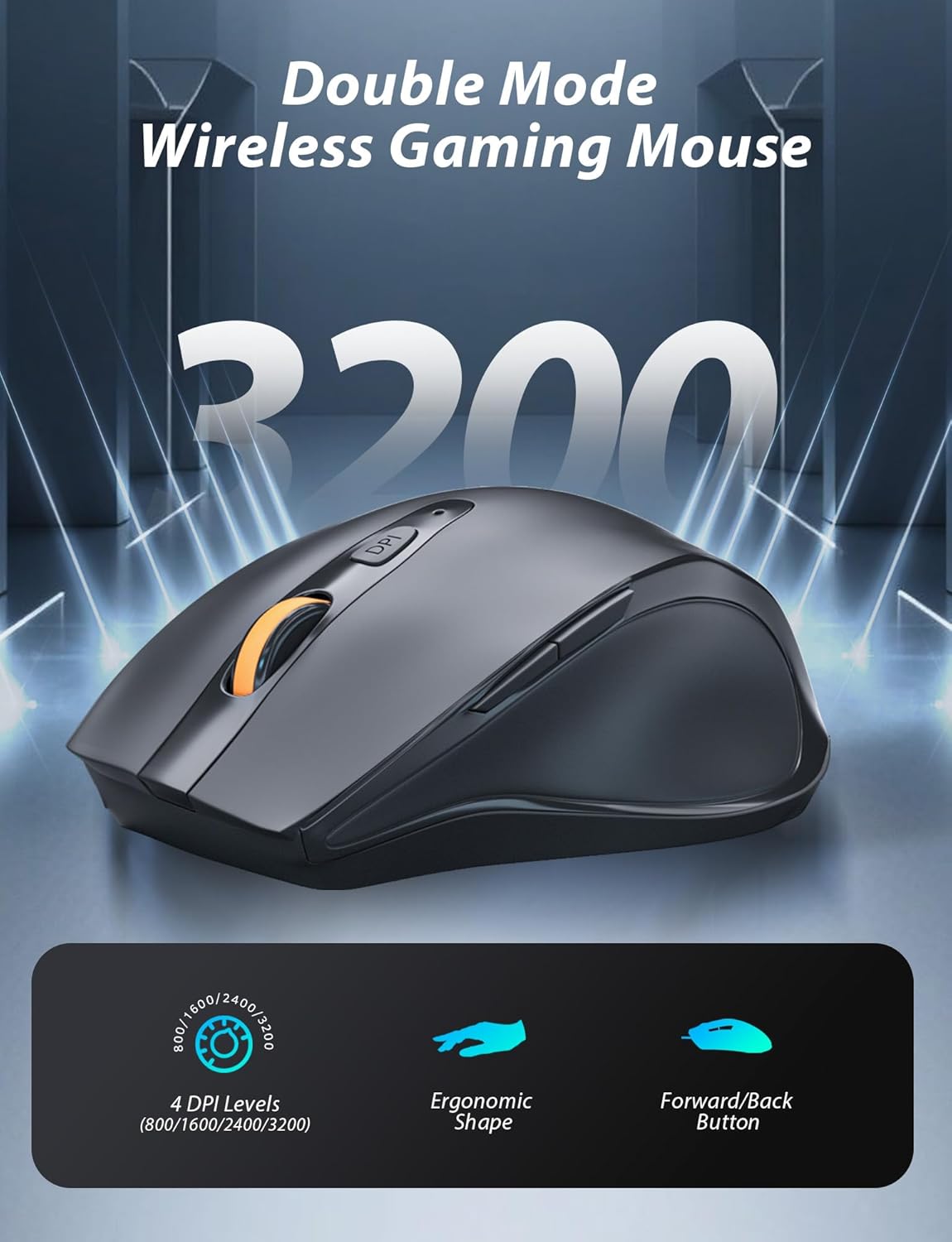
Image: A wireless gaming mouse with a prominent scroll wheel and DPI button, illustrating its 4 adjustable DPI levels (800/1600/2400/3200), ergonomic shape, and forward/back buttons.
การซ่อมบำรุง
- การทำความสะอาด: ใช้ผ้านุ่มและแห้งเช็ดทำความสะอาดพื้นผิวของแป้นพิมพ์และเมาส์ สำหรับการทำความสะอาดที่ล้ำลึกยิ่งขึ้น ให้เช็ดเบาๆamp cloth can be used, ensuring no liquid enters the internal components. Avoid harsh chemicals or abrasive materials.
- การเปลี่ยนแบตเตอรี่: For the mouse, replace the AA battery when performance degrades. For the keyboard, recharge via the USB-C cable when the battery indicator shows low power.
- พื้นที่จัดเก็บ: เมื่อไม่ได้ใช้งานเป็นเวลานาน ควรเก็บชุดอุปกรณ์ไว้ในที่แห้งและเย็น หลีกเลี่ยงแสงแดดโดยตรงและอุณหภูมิที่สูงหรือต่ำเกินไป
การแก้ไขปัญหา
| ปัญหา | สารละลาย |
|---|---|
| Keyboard/Mouse not connecting via 2.4G. |
|
| Keyboard/Mouse not connecting via Bluetooth. |
|
| RGB backlighting not working or dim. |
|
| เคอร์เซอร์เมาส์ทำงานผิดปกติหรือไม่ตอบสนอง |
|
ข้อมูลจำเพาะ
| คุณสมบัติ | รายละเอียด |
|---|---|
| หมายเลขรุ่น | BK6301 |
| ประเภทแป้นพิมพ์ | คีย์บอร์ดเชิงกล 98 คีย์ |
| ประเภทสวิตซ์ | บลูสวิตซ์ |
| การเชื่อมต่อแป้นพิมพ์ | USB-C (Wired), 2.4G Wireless, Bluetooth 5.0 |
| การเชื่อมต่อเมาส์ | 2.4G ไร้สาย, บลูทูธ |
| ระดับ DPI ของเมาส์ | 800/1600/2400/3200 |
| การแบ็คไลท์ | RGB (8 Modes, 5 Brightness, 5 Speed) |
| อุปกรณ์ที่รองรับ | PC, Laptop, Smartphone, Tablet (Windows, macOS, Android) |
| Keyboard Key Life | 50 ล้านคลิก |
| ขนาดแป้นพิมพ์ | Approx. 14.96 x 5.51 x 3.15 inches (from Package Dimensions) |
| น้ำหนักสินค้า | 2.72 pounds (combo weight) |
| แบตเตอรี่เมาส์ | แบตเตอรี่ AA 1 ก้อน (ไม่รวม) |
| แบตเตอรี่คีย์บอร์ด | 1 x C battery (included) Note: This seems unusual for a keyboard, usually Li-ion. Based on input "1 C batteries required. (included)". Will state as per input. |

ภาพ: ภาพระยะใกล้ view of the mechanical blue switches on the keyboard, showing the keycap removed and the switch mechanism, along with specifications like 50,000,000 keystrokes life, key force, and stroke travel.
การรับประกันและการสนับสนุน
Taiahiro products are designed for reliability and performance. For warranty information or technical support, please refer to the contact details provided on the product packaging or visit the official Taiahiro webไซต์นี้ โปรดเก็บใบเสร็จรับเงินที่ซื้อไว้เพื่อใช้เรียกร้องการรับประกัน
For further assistance, you may contact Taiahiro customer service through their official channels. Please provide your product model number (BK6301) and a detailed description of the issue when seeking support.


