1. สินค้าหมดview
The Inateck NEO Magic Keyboard is designed to enhance your iPad experience, offering a full-size keyboard, a precision touchpad, and a floating cantilever design. It connects directly to your iPad via a Smart Connector adapter, eliminating the need for Bluetooth pairing or separate charging.

รูปที่ 1.1: Inateck NEO Magic Keyboard with an iPad in floating mode. The keyboard features a multi-color backlit layout and a large touchpad.
2. ความเข้ากันได้
This keyboard is compatible with specific iPad models. Please verify your iPad's model number (Axxxx) on the back of your device before use.
- iPad Air 11-inch: M3 (2025), M2 (2024), 5th Gen (2022), 4th Gen (2020)
- iPad Pro 11 นิ้ว: 4th Gen (2022), 3rd Gen (2021), 2nd Gen (2020), 1st Gen (2018)
Note: Not compatible with iPad 10th Gen (2022) or iPad Pro 11-inch (2024).
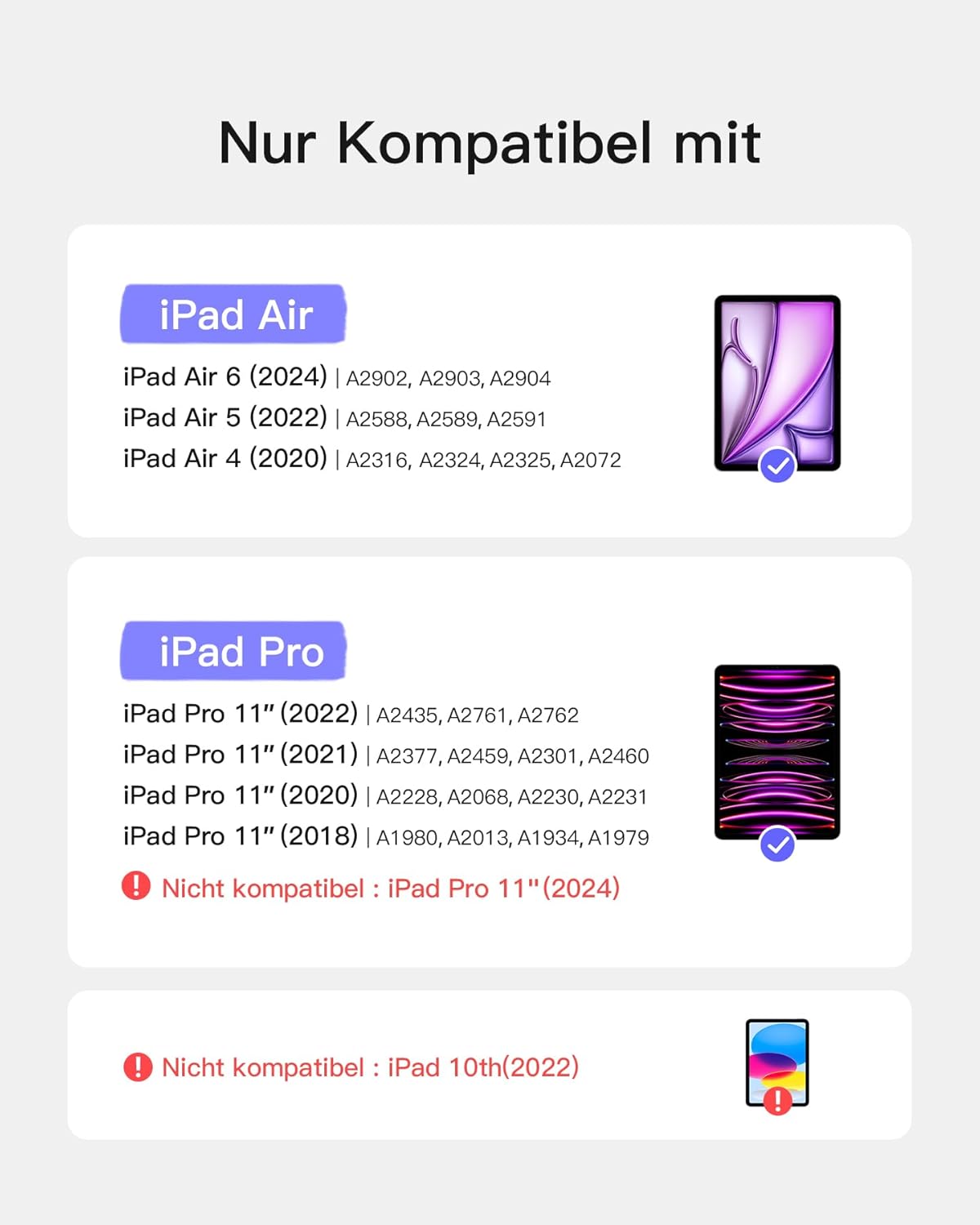
รูปที่ 2.1: Visual guide detailing compatible iPad Air and iPad Pro 11-inch models, along with incompatible models.
3. การตั้งค่า
The Inateck NEO Magic Keyboard features a plug-and-play design for instant connection.
3.1 การเชื่อมต่อคีย์บอร์ด
- Align your compatible iPad with the magnetic back cover of the keyboard case. The iPad will snap into place securely.
- Locate the compact Inateck adapter (USB-C to Pogo Pin) provided with the keyboard.
- Insert the Pogo Pin end of the adapter into the Smart Connector port on the keyboard case.
- Insert the USB-C end of the adapter into the USB-C port on your iPad.
The keyboard will instantly connect and draw power directly from your iPad. No Bluetooth pairing is required.

รูปที่ 3.1: Illustration of the plug-and-play connection using the Smart Connector adapter, highlighting the direct power and data transfer.
3.2 แหล่งจ่ายไฟ
The keyboard is powered directly by your iPad through the Smart Connector adapter. It does not require an internal battery or separate charging.
Important: The keyboard cannot charge your iPad.

รูปที่ 3.2: Diagram showing the keyboard drawing power from the iPad when connected, and the iPad's USB-C port being used for power input to the keyboard.
4. คู่มือการใช้งาน
4.1 Floating Design and Viewอิงแองเกิลส์
The keyboard features a floating cantilever design with strong magnetic attachment, allowing for adjustable viewมุมตั้งแต่ 75° ถึง 130°
- Attach your iPad magnetically to the back panel of the keyboard case.
- Adjust the iPad's angle by gently tilting it to your preferred viewing position. The magnetic hinges will hold it securely.

รูปที่ 4.1: Illustration of the floating design, showing the magnetic attachment points and the adjustable viewing angles (75° to 130°).
4.2 การทำงานของแบ็คไลท์
The keyboard features a 3-zone mixed backlight with adjustable brightness levels for comfortable typing in various lighting conditions.
- To turn on/off backlight: กดปุ่ม Fn คีย์ + หลอดไฟ สำคัญ.
- ในการปรับความสว่าง: กดปุ่ม Fn คีย์ + ลูกศรขึ้น or ลูกศรลง keys (or dedicated brightness keys if available) to cycle through three brightness levels.
- To change backlight color (if applicable): กดปุ่ม Fn คีย์ + ลูกศรขวา or ลูกศรซ้าย keys to cycle through available color modes.

รูปที่ 4.2: A user typing on the keyboard in a dimly lit environment, showcasing the multi-color backlit keys.
4.3 Precision Touchpad
The full-surface precision touchpad supports multi-touch gestures for seamless navigation and control of your iPad.
- แตะนิ้วเดียว: Click/select.
- เลื่อนด้วยสองนิ้ว: เลื่อนขึ้น/ลง หรือ ซ้าย/ขวา
- หยิกเพื่อซูม: ซูมเข้า/ออกจากเนื้อหา
- Three-finger swipe up: Access App Switcher.
- ใช้สามนิ้วปัดไปทางซ้าย/ขวา: สลับไปมาระหว่างแอปที่เปิดอยู่
For a complete list of iPadOS gestures, refer to your iPad's user guide or settings.

รูปที่ 4.3: ระเบิด view of the touchpad, illustrating its glass surface and internal components for precise and smooth touch interaction.
5. การบำรุงรักษา
To ensure the longevity and optimal performance of your Inateck NEO Magic Keyboard, follow these maintenance guidelines:
- การทำความสะอาด: ใช้ผ้านุ่มไม่เป็นขุยเช็ดเล็กน้อยampened with water or a mild cleaning solution to wipe the keyboard and touchpad surfaces. Avoid harsh chemicals or abrasive materials.
- พื้นที่จัดเก็บ: When not in use, keep the keyboard closed to protect the screen of your iPad and the keyboard keys. Store in a dry, cool place away from direct sunlight.
- การจัดการ: Avoid dropping the keyboard or exposing it to excessive force, which could damage internal components or the magnetic connection.
6 การแก้ไขปัญหา
If you encounter issues with your Inateck NEO Magic Keyboard, refer to the following common troubleshooting steps:
- แป้นพิมพ์ไม่ตอบสนอง:
- Ensure the Smart Connector adapter is securely plugged into both the keyboard and the iPad's USB-C port.
- Remove and reattach the iPad to the keyboard case to re-establish the connection.
- รีสตาร์ท iPad ของคุณ
- Intermittent connection/disconnection:
- Check for any debris or obstructions on the Smart Connector pins on the keyboard and the USB-C port on the iPad. Clean gently if necessary.
- Ensure the iPad is firmly seated in the magnetic case.
- Avoid excessive movement or bending of the adapter cable during use.
- ไฟแบ็คไลท์ไม่ทำงาน:
- Ensure the keyboard is properly connected and receiving power from the iPad.
- กด Fn + หลอดไฟ key to toggle the backlight.
- กด Fn + ลูกศรขึ้น / ลง ปุ่มสำหรับปรับความสว่าง
- Touchpad not responding or inaccurate:
- Ensure the touchpad surface is clean and free of moisture or debris.
- Check iPad settings for touchpad sensitivity and gesture preferences.
- ถอดและเสียบคีย์บอร์ดใหม่อีกครั้ง
- Keyboard drains iPad battery quickly:
- The keyboard draws power from the iPad. Prolonged use, especially with high backlight brightness, may affect iPad battery life.
- ลดความสว่างของไฟแบ็คไลท์หรือปิดไฟเมื่อไม่ต้องการใช้งาน
- Disconnect the keyboard when not in active use to conserve iPad battery.
- USB-C port on adapter only charges, no data/display output:
- The USB-C port on the adapter is designed primarily for power passthrough to the keyboard and does not support data transfer or external display output.
- For data transfer or external display, connect accessories directly to the iPad's USB-C port (after detaching the keyboard if necessary).
- Keyboard only works after iPad lock screen:
- This is expected behavior for some iPadOS configurations. You may need to manually unlock your iPad before the keyboard becomes fully active.
7. ข้อมูลจำเพาะ
| คุณสมบัติ | ข้อมูลจำเพาะ |
|---|---|
| ยี่ห้อ | อินาเท็ค |
| หมายเลขรุ่น | KB19117-BK-DE |
| ขนาด | 25.22 x 19.43 x 1.78 ซม. |
| น้ำหนัก | 689 กรัม |
| เทคโนโลยีการเชื่อมต่อ | Smart Connector (via adapter) |
| ประเภทพลังงาน | USB (powered by iPad) |
| แสงไฟแบ็คไลท์ | 3-zone mixed backlight, RGB color support |
| คุณสมบัติพิเศษ | Floating Stand |
| วัสดุ | พลาสติก |
| เค้าโครงแป้นพิมพ์ | QWERTZ (ภาษาเยอรมัน) |
8. การรับประกันและการสนับสนุน
For warranty information and customer support, please refer to the official Inateck webหรือติดต่อฝ่ายบริการลูกค้าโดยตรง โปรดเก็บใบเสร็จรับเงินไว้เป็นหลักฐานการซื้อ
อินาเทค อย่างเป็นทางการ Webเว็บไซต์: www.inatec.com


