
1. ความเข้ากันได้
เคสคีย์บอร์ดนี้ได้รับการออกแบบมาโดยเฉพาะสำหรับ iPad Pro 11-inch (M4) 2024. To ensure proper fit, verify your iPad's model numbers. Compatible model numbers include A2836, A2837 และ A3006. This case is ไม่เข้ากัน with the iPad Air 11-inch (M2) 2024 or any other iPad models.

Image: A visual guide illustrating the compatible iPad Pro 11 (M4) 2024 model and its corresponding model numbers (A2836, A2837, A3006), alongside an incompatible iPad Air 11 (M2) 2024 model.
2. อะไรอยู่ในกล่อง
เมื่อเปิดแพ็คเกจของคุณ โปรดตรวจสอบให้แน่ใจว่ามีสิ่งของทั้งหมดต่อไปนี้อยู่:
- 1 x CHESONA Rugged Case for iPad Pro 11 (M4) (Tablet NOT included)
- 1 x คีย์บอร์ดไร้สาย
- 1 x USB Charging Cable (No Charger)
- 1 x คู่มือผู้ใช้

ภาพ: เหนือศีรษะ view displaying the CHESONA keyboard, magnetic case, USB charging cable, user manual, and product packaging box.
3. คู่มือการติดตั้ง
Follow these steps to set up your CHESONA Rugged Keyboard Case:
3.1. Step 1: Adjust the Kickstand
Bend the integrated kickstand to achieve your desired viewing angle. The stand is designed to be adjustable from 15° to 180° for optimal comfort.
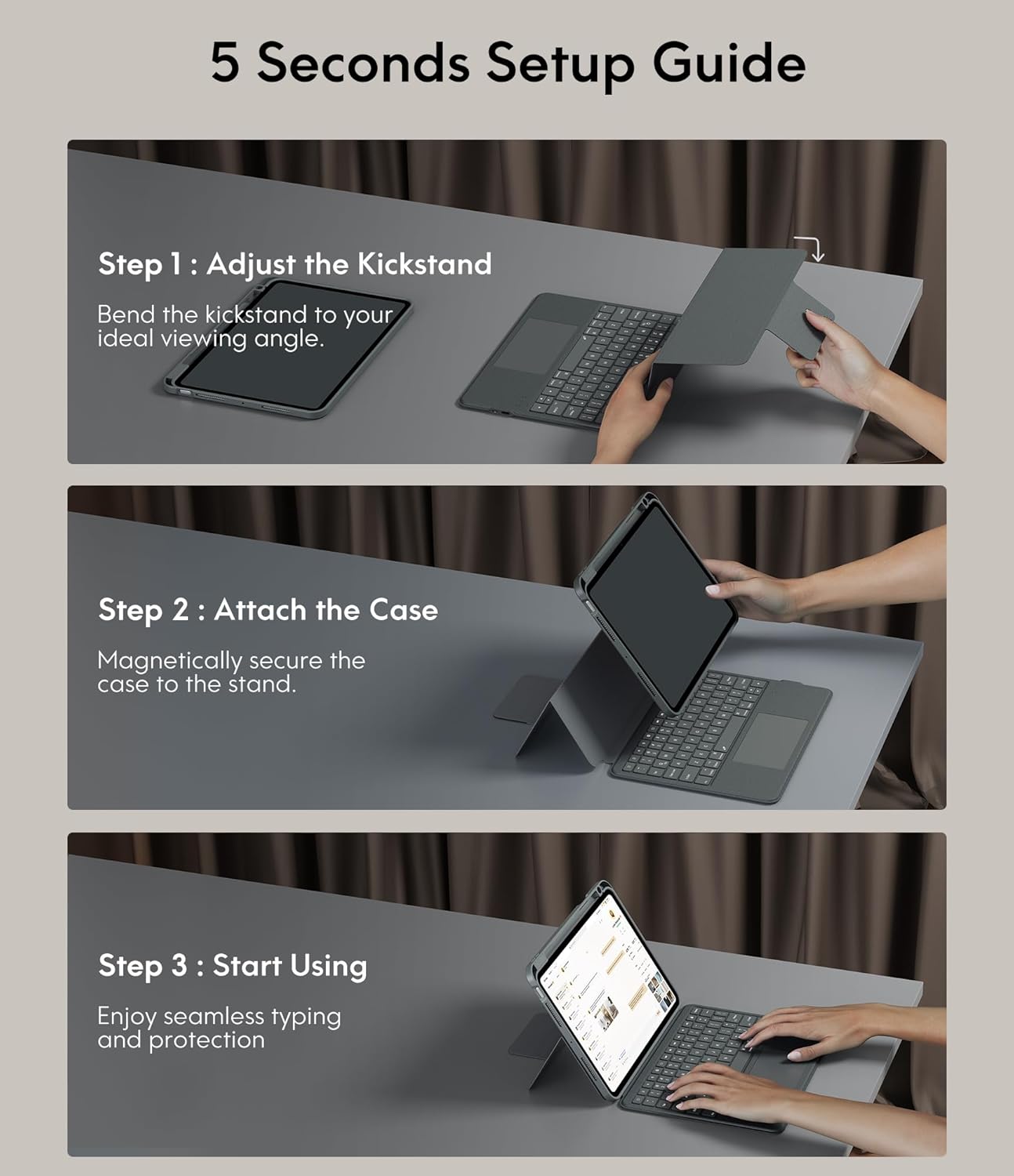
Image: A three-step visual guide showing how to adjust the kickstand, attach the iPad to the magnetic case, and begin using the keyboard.
3.2. Step 2: Attach the Case
Securely place your iPad into the protective case. The case features strong magnets that will hold the iPad firmly in place on the stand.
3.3. Step 3: Start Using
Once the iPad is securely attached and the kickstand is adjusted, you can begin using your keyboard case for typing and protection.
3.4. การจับคู่บลูทู ธ
- ตรวจสอบให้แน่ใจว่าแป้นพิมพ์มีประจุไฟแล้ว
- เปิดแป้นพิมพ์โดยใช้สวิตช์เปิด/ปิด
- บน iPad ของคุณไปที่ การตั้งค่า > บลูทูธ และเปิดบลูทูธ
- Select the keyboard from the list of available devices (it may appear as 'CHESONA Keyboard' or similar).
- Confirm the pairing code if prompted. The keyboard will now be connected.
4. คู่มือการใช้งาน
4.1. Magnetic Detachable Keyboard
The keyboard is magnetically attached to the case, allowing for easy detachment. This feature enables you to switch between a laptop-like setup and a standalone tablet experience. Simply pull the keyboard away from the case when not needed, or reattach it when typing is required.

Image: A hand detaching the magnetic keyboard from the iPad case, illustrating the strong magnetic connection.
4.2. Adjustable Stand and Viewโหมด ing
The case offers a wide range of adjustable angles (15°-180°) and supports multiple placement modes for various activities:
- โหมดการพิมพ์: Use with the keyboard for productivity.
- โหมดการวาดภาพ: Lay the iPad flat or at a low angle for creative tasks.
- โหมดการอ่าน: Detach the keyboard and hold the iPad comfortably.
- Viewโหมดการใช้งาน: Adjust the stand for watching videos or video calls.

Image: A visual representation of five different usage modes: Video Call, Draw, To Read, Writing Documents, and Watch Movies, demonstrating the case's versatility.
4.3. Keyboard Backlight Control
The keyboard features 7-color backlighting and 3 levels of brightness, enhancing visibility in various lighting conditions.
- วิธีเปลี่ยนสีไฟแบ็คไลท์: กด Shift + Return.
- เพื่อปรับความสว่าง: กด กะ + กะ (or dedicated brightness keys if available).

Image: The keyboard illuminated with various backlight colors, demonstrating the 7-color options and the keys used to adjust brightness and color.
4.4. Trackpad Functionality
The integrated multi-touch trackpad provides precise navigation and supports various gestures for enhanced productivity:
- ลาก: Tap and hold an item, then drag to move it.
- ปัด: Use two fingers to scroll up/down or left/right.
- ซูมเข้า/ออก: ใช้สองนิ้วบีบเพื่อซูมเข้าออก
- App Publication (App Switcher): Swipe up with three fingers to reveal open applications.
- Swipe between full screen apps: Swipe left or right with three fingers to switch between full-screen applications.

Image: A close-up of the trackpad with illustrations of common multi-touch gestures like drag, swipe, zoom in/out, app publication, and switching between full-screen apps.
4.5. ปุ่มฟังก์ชันและปุ่มลัด
The keyboard includes a dedicated row of function keys for quick access to common iPad features:
- บ้าน: กลับสู่หน้าจอหลัก
- ค้นหา: Activate iPad search.
- การควบคุมความสว่าง: ปรับความสว่างหน้าจอ
- การควบคุมสื่อ: เล่น/หยุดชั่วคราว เพลงก่อนหน้า เพลงถัดไป
- การควบคุมระดับเสียง: ปิดเสียง, ลดเสียง, เพิ่มเสียง
- ล็อกหน้าจอ: Lock your iPad.

ภาพ: รายละเอียด view of the keyboard's top row, highlighting the function keys for media control, volume, brightness, and other shortcuts.
5. คุณสมบัติการป้องกัน
The CHESONA Rugged Keyboard Case provides comprehensive protection for your iPad Pro 11 (M4) 2024:
- Hard-Shell Design: The premium hard-shell design protects all sides of your tablet.
- การป้องกัน 360°: The included compatible camera case ensures 360° protection against accidental drops, scratches, and dust.
- Pen Slot: A dedicated pen slot securely holds your Apple Pencil, preventing loss and allowing for convenient charging.
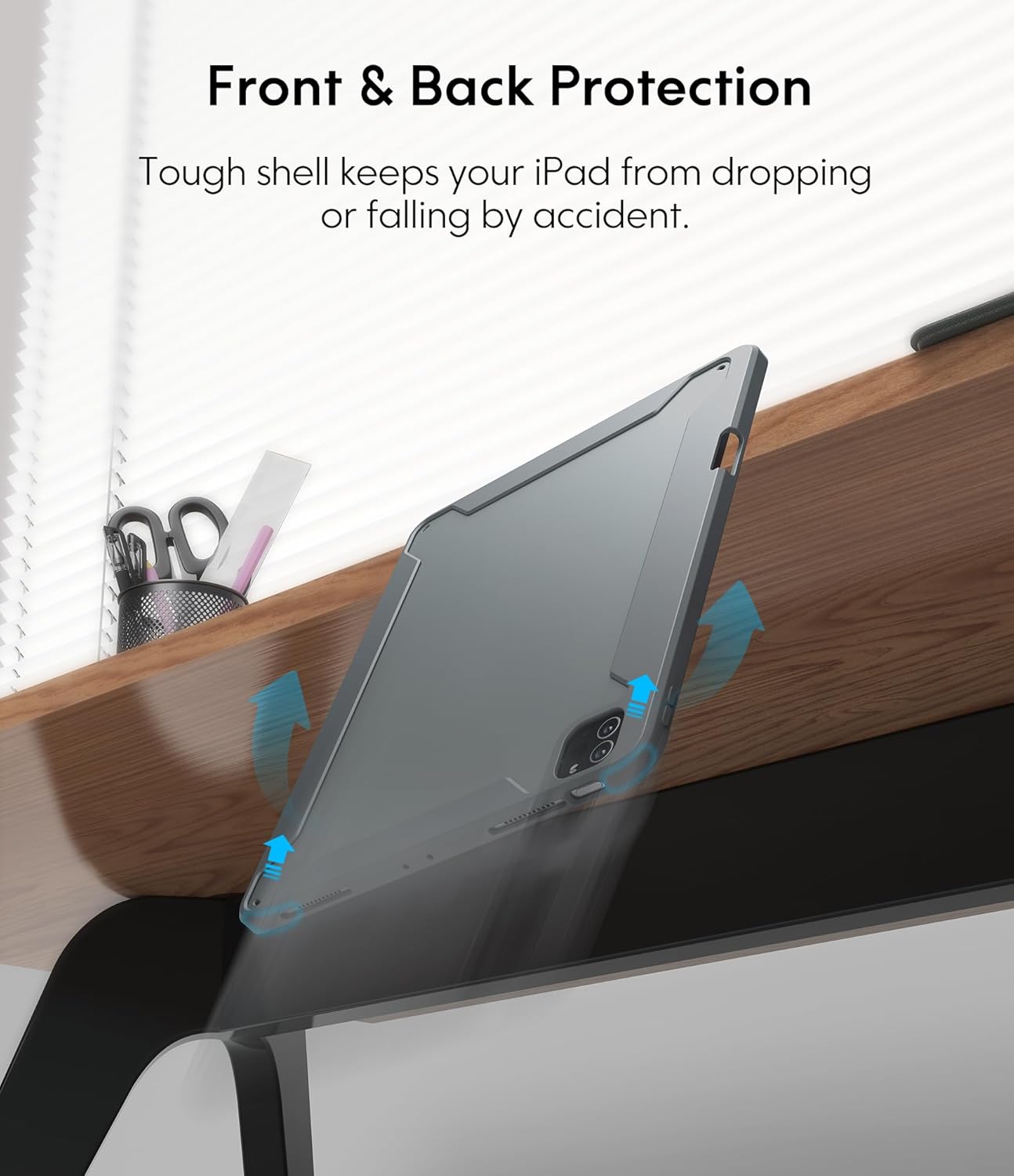
Image: An illustration showing the iPad case protecting the device from a fall, emphasizing its tough shell and front and back protection.
6. Battery and Power Management
The keyboard features a built-in rechargeable battery designed for extended use:
- อายุการใช้งานแบตเตอรี่: A full charge provides over 50 hours of working time.
- เวลาในการชาร์จ: Approximately 2-3 hours for a full charge using the provided USB charging cable.
- โหมดสลีป: If the keyboard is inactive for 10 minutes, it will enter sleep mode and disconnect from your iPad to conserve power. Press any key to wake it up and automatically reconnect.
7. การบำรุงรักษา
เพื่อให้เคสแป้นพิมพ์ของคุณมีอายุการใช้งานยาวนานและมีประสิทธิภาพสูงสุด โปรดปฏิบัติตามคำแนะนำในการบำรุงรักษาดังต่อไปนี้:
- การทำความสะอาด: ใช้แบบนุ่มๆamp ใช้ผ้าเช็ดทำความสะอาดภายนอกเคสและแป้นพิมพ์ หลีกเลี่ยงสารเคมีรุนแรงหรือวัสดุที่มีฤทธิ์กัดกร่อน
- พื้นที่จัดเก็บ: เมื่อไม่ได้ใช้งานเป็นเวลานาน ควรเก็บเคสแป้นพิมพ์ไว้ในที่แห้งและเย็น
- หลีกเลี่ยงของเหลว: Keep the keyboard away from liquids to prevent damage to electronic components.
8 การแก้ไขปัญหา
If you encounter any issues, refer to the following troubleshooting tips:
- แป้นพิมพ์ไม่เชื่อมต่อ:
- ตรวจสอบให้แน่ใจว่าคีย์บอร์ดได้รับการชาร์จและเปิดอยู่
- ตรวจสอบให้แน่ใจว่าได้เปิดใช้งานบลูทูธบน iPad ของคุณแล้ว
- ลบอุปกรณ์ออกจากเมนูบลูทูธใน iPad ของคุณ แล้วลองเชื่อมต่อใหม่อีกครั้ง
- รีสตาร์ททั้ง iPad และคีย์บอร์ดของคุณ
- Trackpad Not Responding:
- ตรวจสอบให้แน่ใจว่าได้เชื่อมต่อแป้นพิมพ์ผ่านบลูทูธแล้ว
- Check if the trackpad is enabled in your iPad's settings (Settings > Accessibility > Touch > AssistiveTouch).
- Clean the trackpad surface for any debris.
- แสงไฟไม่ทำงาน:
- ตรวจสอบให้แน่ใจว่าแป้นพิมพ์มีประจุแบตเตอรี่เพียงพอ
- Press the backlight adjustment keys (Shift + Shift or dedicated keys) to cycle through brightness levels.
- คีย์ไม่ตอบสนอง:
- ตรวจสอบการเชื่อมต่อบลูทูธ
- ตรวจสอบให้แน่ใจว่าแป้นพิมพ์ไม่ได้อยู่ในโหมดพักเครื่อง
- ชาร์จคีย์บอร์ดอีกครั้ง
9. ข้อมูลจำเพาะผลิตภัณฑ์
| ขนาดสินค้า | 10.04 x 7.68 x 0.83 นิ้ว |
| น้ำหนักสินค้า | 1.72 ปอนด์ |
| ยี่ห้อ | เชโซนา |
| อุปกรณ์ที่รองรับ | iPad Pro 11 (M4) 2024 |
| เทคโนโลยีการเชื่อมต่อ | ไร้สาย (Bluetooth) |
| คำอธิบายแป้นพิมพ์ | มัลติฟังก์ชั่น |
| คุณสมบัติพิเศษ | มีไฟส่องด้านหลัง แทร็กแพด |
| สี | สีเทา |
| แหล่งพลังงาน | ใช้พลังงานจากแบตเตอรี่ |
| แบตเตอรี่ | แบตเตอรี่ P76 1 ก้อน (รวมอยู่ด้วย) |
10. การรับประกันและการสนับสนุน
CHESONA products are designed for durability and performance. For information regarding warranty coverage, product support, or to report any issues, please refer to the contact information provided with your purchase or visit the official CHESONA webไซต์ โปรดเก็บหลักฐานการซื้อไว้เพื่อใช้ในการเรียกร้องการรับประกัน


