
KNAON Y50P-BK
KNAON Bluetooth Label Maker Machine Y50P User Manual
Model: Y50P-BK
การแนะนำ
This manual provides comprehensive instructions for the KNAON Y50P Portable Thermal Label Maker. It covers setup, operation, maintenance, and troubleshooting to ensure optimal performance and a seamless labeling experience. The Y50P is designed for versatile use in home, office, small business, and school environments, offering both Bluetooth and USB connectivity for efficient label printing.

Figure 1: KNAON Y50P Label Maker and included label roll.
มีอะไรอยู่ในกล่อง
Upon unboxing your KNAON Y50P Label Maker, please verify that all the following components are included:
- Y50P Label Maker
- Label Tape 1.97' x 1.18' (50mm x 30mm thermal print paper roll)
- คู่มือการใช้งาน (เอกสารนี้)
- สายเคเบิล USB Type-C
การตั้งค่า
1. การชาร์จอุปกรณ์
The KNAON Y50P Label Maker is powered by a durable 1200 mAh battery. Before first use, it is recommended to fully charge the device using the provided USB Type-C cable. Connect the Type-C end to the printer and the USB-A end to a compatible power adapter or computer USB port.
2. Loading the Label Roll
To load the thermal label paper:
- เปิดฝาด้านบนของเครื่องพิมพ์ฉลาก
- Insert the label roll with the printing surface facing upwards, ensuring it aligns correctly with the paper guides.
- ดึงกระดาษฉลากออกมาเล็กน้อยให้เลยหัวพิมพ์ไป
- ปิดฝาครอบด้านบนให้แน่นจนกระทั่งล็อคเข้าที่

Figure 2: Proper insertion of the label roll into the KNAON Y50P Label Maker.
3. การติดตั้งและการเชื่อมต่อแอป
The KNAON Y50P requires the 'FlashLabel Pro' application for wireless operation via Bluetooth. For wired connection, drivers are required for macOS and Windows.
3.1. Bluetooth Connection (via 'FlashLabel Pro' App)
For iOS and Android devices:
- Download the 'FlashLabel Pro' app from the Apple App Store or Google Play Store.
- Ensure your label maker is turned on and Bluetooth is enabled on your smartphone or tablet.
- Open the 'FlashLabel Pro' app. The app will guide you through the connection process. Select your Y50P printer from the list of available devices.
- Note: The device cannot be connected directly via your phone's Bluetooth settings; connection must be initiated through the 'FlashLabel Pro' app.
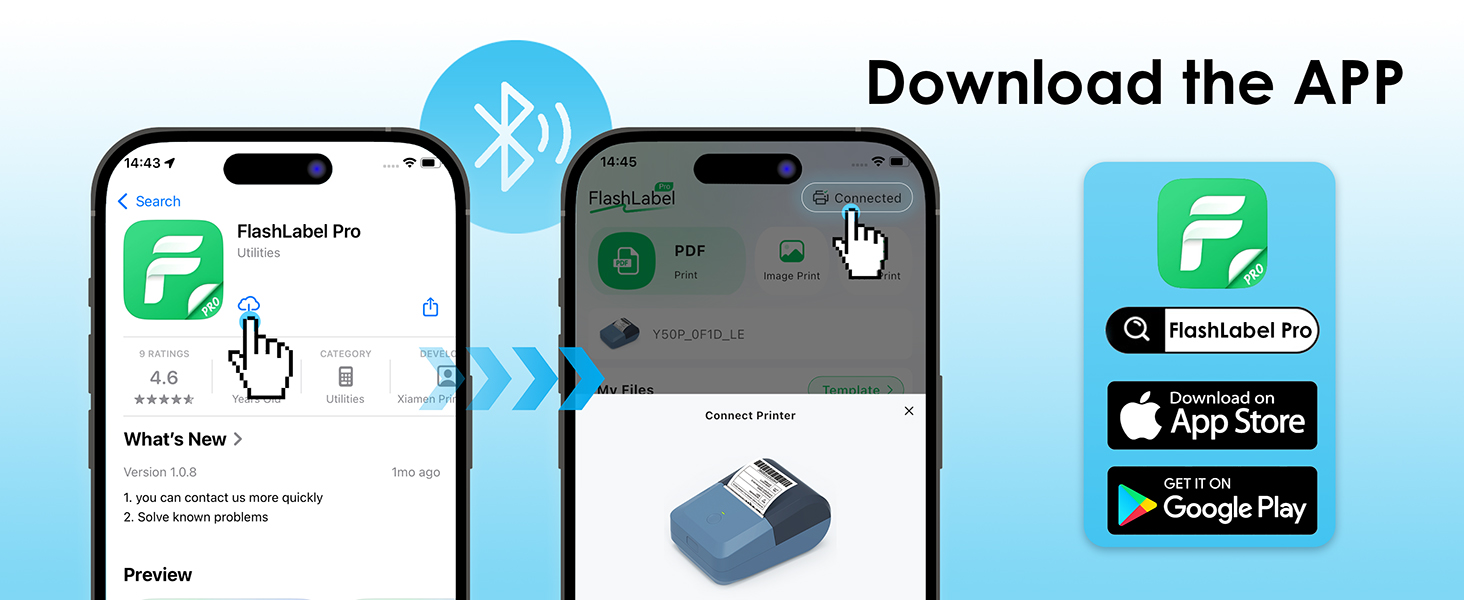
Figure 3: Steps to download and connect the FlashLabel Pro app.

Figure 4: Bluetooth and USB connection options for the label maker.
3.2. USB Cable Connectivity (for macOS and Windows)
For macOS and Windows (7 and above) users:
- Connect the label maker to your computer using the provided USB Type-C cable.
- Drivers must be installed on your operating system for proper functionality. Please refer to the official KNAON website or the support section for driver downloads and installation guides.
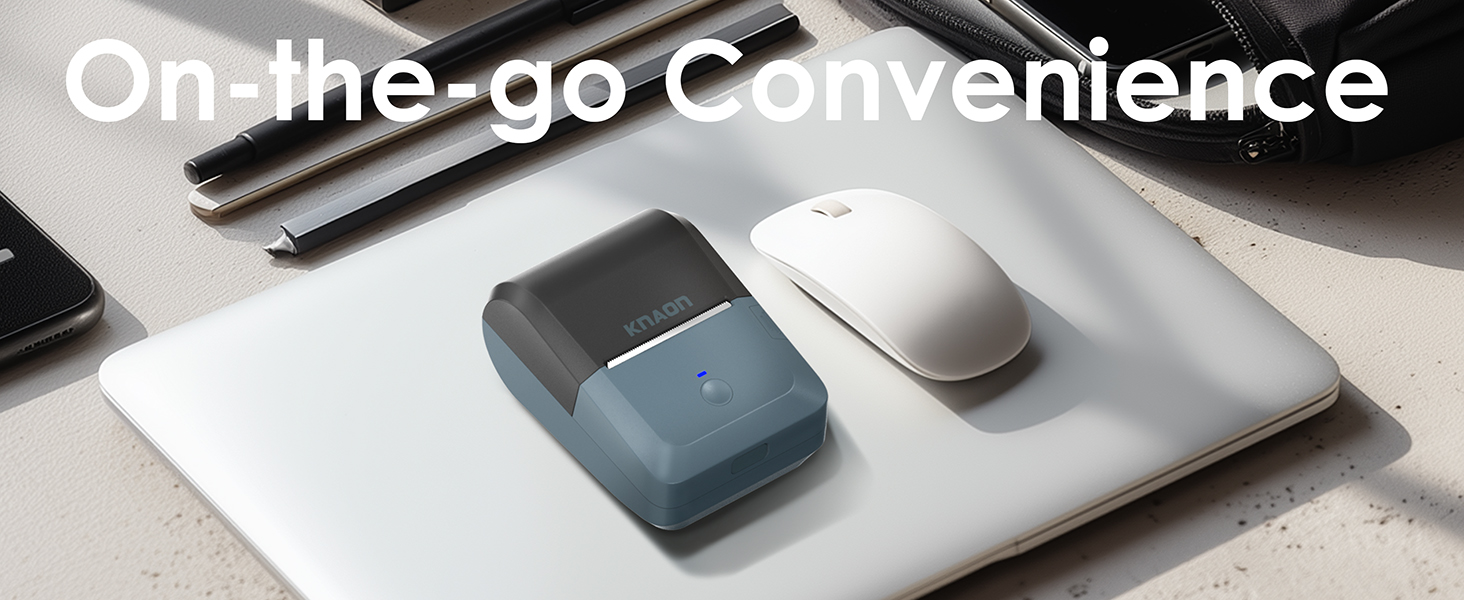
Figure 5: USB cable connection for macOS and Windows.
คำแนะนำการใช้งาน
1. Designing Labels with 'FlashLabel Pro' App
The 'FlashLabel Pro' app provides extensive customization options for your labels:
- After connecting your printer, tap the "+" icon to create a new label.
- Choose the appropriate label size that matches your loaded label roll (e.g., 50x30mm).
- Utilize the app's features to design your label:
- Access over 3,000 pre-designed templates.
- Select from over 5,000 icons.
- Choose from over 100 fonts.
- Add text, barcodes, QR codes, images, and other elements.
- Double-click on elements to edit their content and properties.
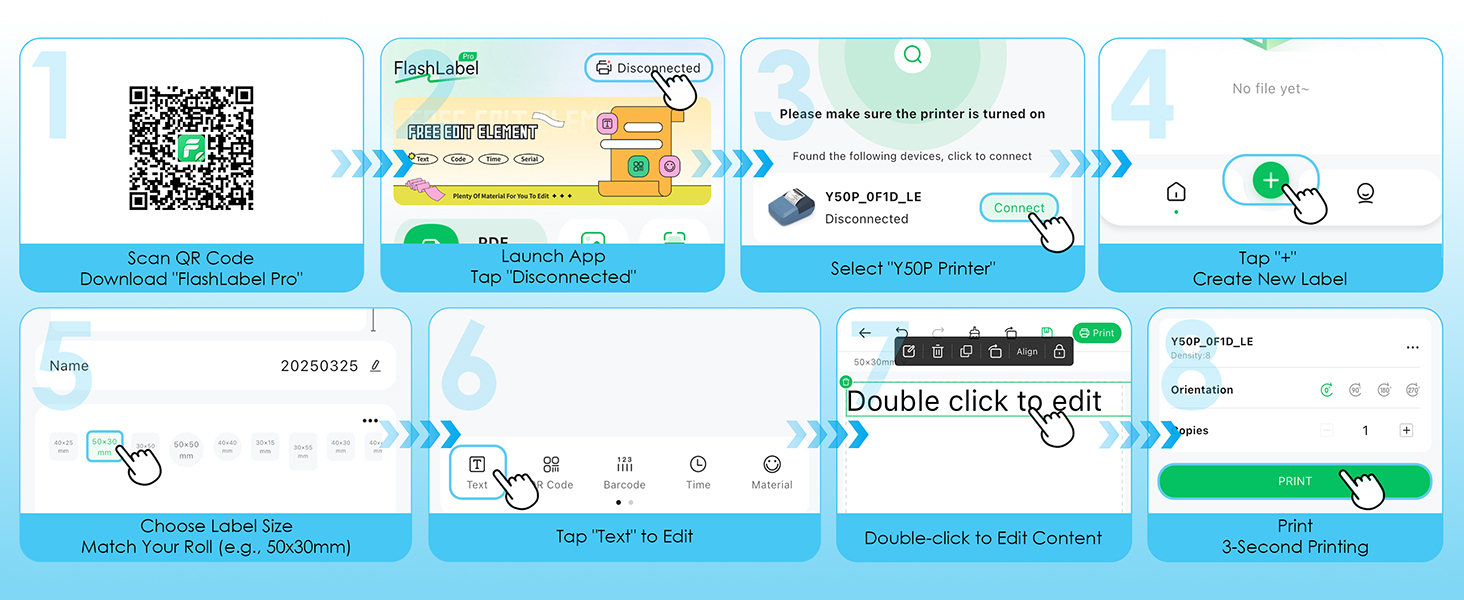
Figure 6: Step-by-step guide for designing and printing labels using the FlashLabel Pro app.
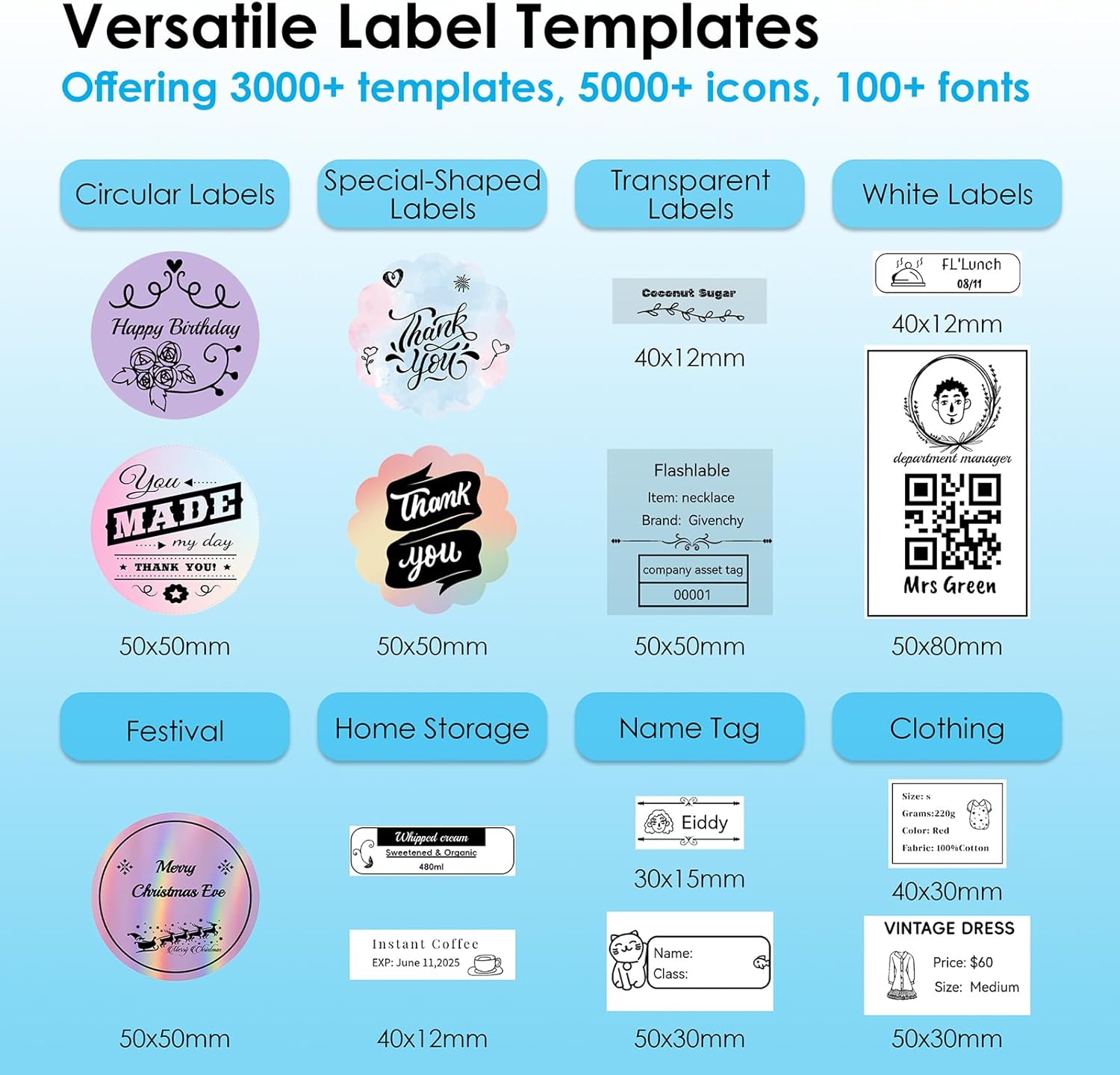
รูปที่ 7: อดีตamples of versatile label templates available in the app.
2. Printing Your Label
Once your design is complete, tap the "Print" button in the app. The printer will quickly produce your label.

Figure 8: The four-step process from app to print.
3. Supported Label Sizes and Applications
The KNAON Y50P supports various thermal paper sizes, ranging from 0.6 to 2.2 inches (15-58mm) in width. This versatility makes it suitable for a wide range of labeling needs, including:
- Home Storage: Organizing pantry items, containers, and storage bins.
- ชื่อ Tags: Creating personalized name tags for events or personal items.
- ราคา Tags: Generating price labels for retail or small business products.
- Shipping Labels: Printing small shipping or return labels.
- DIY Barcode Labels: Customizing labels with barcodes for inventory.
- Thank-You Labels: Adding a personal touch to packages or gifts.

Figure 9: Versatile applications of the KNAON Y50P Label Maker.

Figure 10: The compact size of the label maker allows for easy portability.
การซ่อมบำรุง
Regular maintenance ensures the longevity and optimal performance of your KNAON Y50P Label Maker.
1. การทำความสะอาดหัวพิมพ์
The thermal print head can accumulate dust or residue over time, affecting print quality. To clean it:
- ปิดเครื่องพิมพ์ฉลากและถอดปลั๊กออกจากแหล่งจ่ายไฟใดๆ
- Open the top cover and carefully locate the print head (the dark strip across which the paper feeds).
- ค่อยๆ เช็ดหัวพิมพ์ด้วยสำลีเบาๆampened with isopropyl alcohol. Allow it to dry completely before closing the cover and resuming use.
- Avoid touching the print head with bare hands as oils can transfer and affect printing.
2. การดูแลแบตเตอรี่
เพื่อยืดอายุการใช้งานแบตเตอรี่ให้สูงสุด:
- หลีกเลี่ยงการปล่อยแบตเตอรี่จนหมดบ่อยครั้ง
- เก็บอุปกรณ์ไว้ในที่แห้งและเย็นเมื่อไม่ได้ใช้งานเป็นเวลานาน
- ควรชาร์จอุปกรณ์เป็นประจำ แม้ว่าจะไม่ได้ใช้งานบ่อย เพื่อรักษาอายุการใช้งานของแบตเตอรี่
การแก้ไขปัญหา
If you encounter issues with your KNAON Y50P Label Maker, refer to the common problems and solutions below.
| ปัญหา | สาเหตุที่เป็นไปได้ | สารละลาย |
|---|---|---|
| เครื่องพิมพ์ไม่เชื่อมต่อผ่านบลูทูธ | Incorrect connection method; Bluetooth off; app not recognizing device. | Ensure you are connecting through the 'FlashLabel Pro' app, not directly via phone settings. Verify Bluetooth is enabled on both devices. Restart the app and printer. |
| Poor print quality (faint, streaky, or incomplete print). | Dirty print head; incorrect label roll insertion; low battery. | Clean the print head as described in the Maintenance section. Re-insert the label roll correctly, ensuring the printing surface faces up. Charge the printer fully. |
| Labels are tilted or misaligned. | Label roll not properly aligned with guides. | Open the cover and ensure the label roll is seated firmly and straight within the paper guides. Adjust if necessary. |
| Printer not responding. | แบตเตอรี่อ่อน อุปกรณ์ค้าง | Charge the printer. If unresponsive, try resetting by holding the power button for 10 seconds or until it powers off, then restart. |
| Cannot print via USB on computer. | Drivers not installed or outdated. | Ensure the correct drivers for your operating system (macOS/Windows) are installed. Visit the KNAON support webเว็บไซต์สำหรับไดรเวอร์ล่าสุด |
For further assistance, including instructional guides and troubleshooting videos, please visit the official KNAON support resources.
ข้อมูลจำเพาะ
Key technical specifications for the KNAON Y50P Portable Thermal Label Maker:
| คุณสมบัติ | รายละเอียด |
|---|---|
| ชื่อรุ่น | Y50P-BK |
| ขนาดสินค้า | ลึก 4.76 นิ้ว x กว้าง 3.35 นิ้ว x สูง 2.3 นิ้ว |
| น้ำหนักสินค้า | 8.6 ออนซ์ (ประมาณ 0.54 ปอนด์) |
| เทคโนโลยีการเชื่อมต่อ | บลูทูธ, ยูเอสบี |
| เทคโนโลยีการพิมพ์ | เทอร์มอล |
| เอาท์พุตเครื่องพิมพ์ | เอกรงค์ |
| ความละเอียดการพิมพ์ขาวดำสูงสุด | 300 จุดต่อนิ้ว |
| ความเร็วในการคัดลอกสูงสุด (ขาวดำ) | 75 หน้าต่อนาที |
| ขนาดสื่อสูงสุด | 1.97 x 1.18 นิ้ว (50 มม. x 30 มม.) |
| ความกว้างของฉลากที่รองรับ | 0.6 - 2.2 นิ้ว (15 - 58 มม.) |
| แบตเตอรี่ | แบตเตอรี่ลิเธียมไอออน 1200 mAh (มีมาให้ในชุด) |
| ส่วนประกอบที่รวมอยู่ | Y50P Label Maker, Label Tape, User Manual, USB Type-C Cable |
การรับประกันและการสนับสนุน
The KNAON Y50P Portable Thermal Label Maker comes with a limited warranty. For details regarding the warranty period and coverage, please refer to the warranty information provided with your product packaging or contact KNAON customer support.
KNAON is committed to providing a seamless user experience. For additional support, including printer drivers, instructional guides, and troubleshooting videos, please visit the official KNAON website or contact their customer service team. You can also visit the KNAON Store on Amazon สำหรับข้อมูลผลิตภัณฑ์และทรัพยากรสนับสนุนเพิ่มเติม
Ask a question about this manual
Ask about setup, troubleshooting, compatibility, parts, safety, or missing instructions. Manuals+ will review the question and use this page’s manual context to help answer it.