1. บทนำ
This manual provides detailed instructions for the setup, operation, and maintenance of your FoMaKo M4 SDI 4K HDMI Video Mixer Switcher. Please read this manual thoroughly before using the device to ensure proper functionality and to prevent damage.
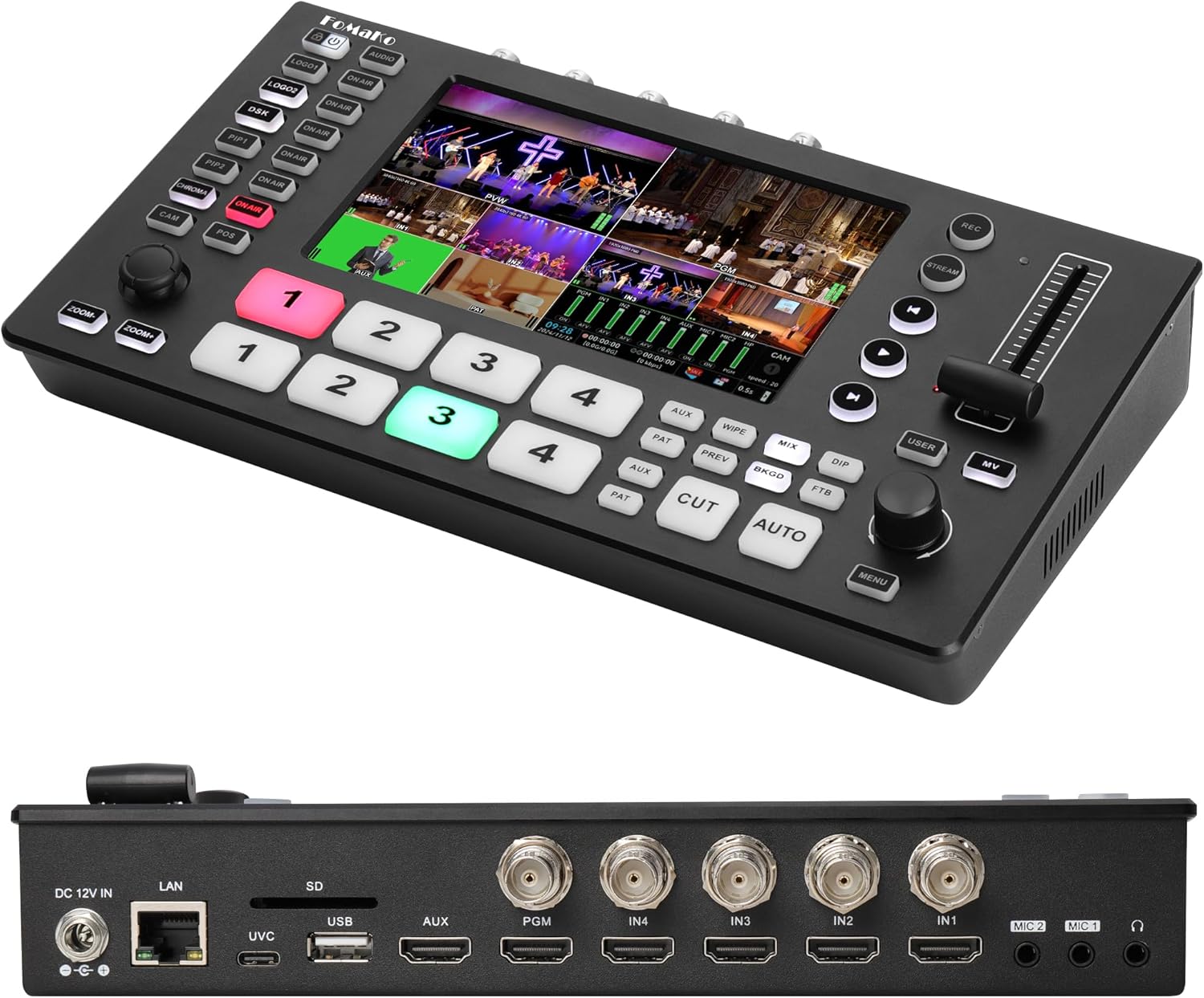
ภาพที่ 1.1: ด้านหน้าและด้านหลัง view of the FoMaKo M4 SDI 4K HDMI Video Mixer Switcher, showcasinด้วยการออกแบบที่กะทัดรัดและพอร์ตต่างๆ
2. เนื้อหาบรรจุภัณฑ์
ตรวจสอบว่ามีรายการทั้งหมดอยู่ในแพ็คเกจ:
- FoMaKo M4 SDI 4K HDMI Video Mixer Switcher Unit
- อะแดปเตอร์พาวเวอร์ซัพพลาย
- สายเคเบิล USB 3.1
- คู่มือการใช้งาน (เอกสารนี้)
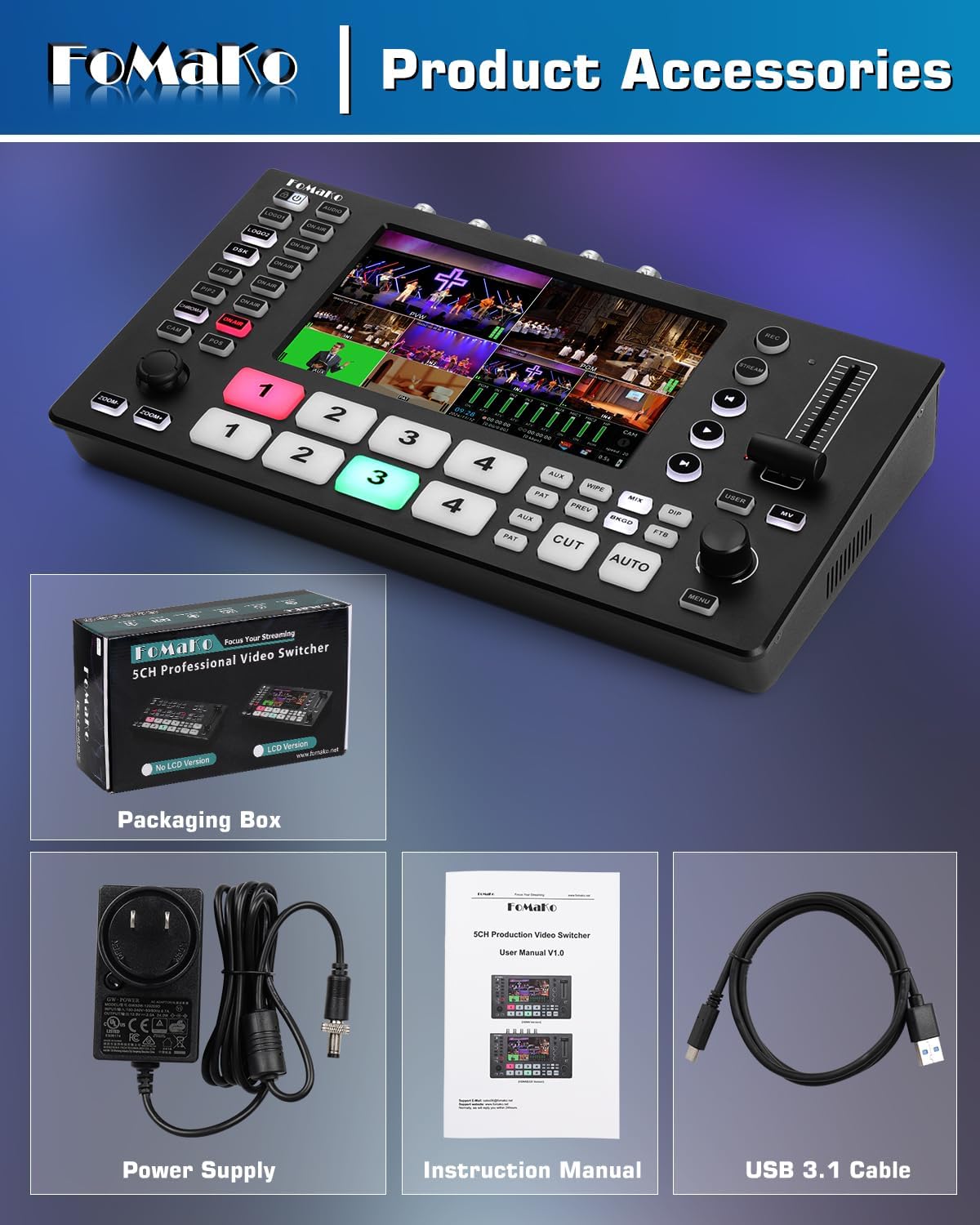
Image 2.1: Included accessories: the switcher unit, power supply, instruction manual, and USB 3.1 cable.
3. การตั้งค่า
3.1. อุปกรณ์โอเวอร์view และการเชื่อมต่อ
The FoMaKo M4 features a comprehensive set of inputs and outputs for professional video production. Familiarize yourself with the panel layout and port functions.

Image 3.1: Detailed diagram illustrating the front panel controls and rear interface ports of the M4 switcher.
3.2. การเชื่อมต่ออุปกรณ์ของคุณ
Follow the connection diagram to integrate your cameras, monitors, and other equipment with the switcher.
- อินพุตวิดีโอ: Connect up to four HDMI sources and four SDI sources. HDMI IN1 and IN2 support 4K 60FPS input.
- อินพุตเสียง: Utilize the two independent 3.5mm inputs for microphones or line devices.
- เอาต์พุตวิดีโอ: Connect your program (PGM) and auxiliary (AUX) monitors via SDI and HDMI outputs.
- ยูเอสบี 3.1: Connect to a computer for lossless live streaming.
- ยูเอสบี 2.0: For PGM recording and firmware upgrades.
- พอร์ต LAN: For network control and RTSP live streaming.

Image 3.2: A visual guide for connecting various devices such as cameras, computers, monitors, and audio equipment to the M4 switcher.
3.3. เปิดเครื่อง
After all connections are secure, connect the power supply to the DC 12V IN port and then to a power outlet. Press the power button to turn on the device.
4. คู่มือการใช้งาน
4.1. Input and Output Management
The 5.5-inch FHD LCD screen provides real-time monitoring of all multi-source feeds. Use the input selection buttons (1-4) to choose your preview (PVW) and program (PGM) sources.

Image 4.1: The M4 switcher's capability to simultaneously accept 4K P60 and 1080P60 inputs across its various ports.
4.2. Transition Effects
The M4 offers 30 professional transition effects, including MIX, WIPE, and DIP. Select your desired effect using the dedicated buttons and execute transitions with the T-Bar or CUT/AUTO buttons.

Image 4.2: Visual representation of the 30 available switching effects, categorized by MIX, WIPE, and DIP.
4.3. Advanced Keying Functions
Utilize Chroma Key, Luma Key, and DSK for real-time graphics overlay, picture-in-picture (PIP), and logo insertion.
- โครมาคีย์: For green screen effects. Ensure the PAT layer is active during chroma operations.
- DSK: For adding subtitles and other graphic overlays.
- ปี๊บ: แสดงแหล่งวิดีโอหลายแหล่งพร้อมกัน

Image 4.3: Demonstration of double channel chroma keying functionality, showing both preview and program outputs with green screen effects.
4.4. PTZ Camera Control
The M4 supports PTZ camera control, allowing for rapid and precise camera switching. Ensure all PTZ cameras and the video mixer are connected to the same router.
- ปุ่ม CAM: Short press to activate a camera; long press to select a camera for knob control.
- POS Button: Save and recall camera presets.
- ZOOM+/- Buttons: Control the zoom function of the PTZ camera lens.

Image 4.4: The PTZ camera control interface on the M4, highlighting the joystick and dedicated buttons for camera movement and zoom.
4.5. การบันทึกวิดีโอ
The M4 supports high bit rate dual recording via both SD card and USB storage options. Users can select a bit rate range from 5-30 Mbps (default is 20 Mbps).

Image 4.5: The M4 switcher connected to external USB storage and an SD card, illustrating its dual recording capabilities.
4.6. การสตรีมสด
The M4 offers two-channel RTSP network livestreaming to various platforms and Type-C USB 3.1 for direct live streaming. Users can control bitrate (5-50 Mbps) and frame rate (24-60fps) for each channel.

Image 4.6: The M4 switcher displaying both vertical (mobile) and horizontal (computer) live streaming modes, adaptable for different platforms.
4.7. รีโมทคอนโทรล
ในตัว web server allows for remote control via computers and smartphones. Access the switcher's interface through a web browser for comprehensive control.

ภาพที่ 4.7: อดีตamples of remote control interfaces on a smartphone, tablet, and computer web browser for the M4 switcher.
4.8. Customization: Videos, Backgrounds, and Logos
The AUX input can import SD cards and USB drives to record videos, as well as import custom videos. You can add custom logos and backgrounds, with adjustable position and cropping.

Image 4.8: Interface showing options to add custom videos, backgrounds, and logos to the M4 switcher's output.
5. การบำรุงรักษา
5.1. การทำความสะอาด
Regularly clean the device with a soft, dry cloth. Avoid using liquid cleaners or solvents that may damage the surface or internal components.
5.2. การอัปเดตเฟิร์มแวร์
Periodically check the FoMaKo official website for firmware updates. Updates can be performed via the USB 2.0 port to enhance functionality and performance.
6 การแก้ไขปัญหา
If you encounter issues with your FoMaKo M4, refer to the following common solutions:
- ไม่มีไฟฟ้า: ตรวจสอบให้แน่ใจว่าอะแดปเตอร์ไฟฟ้าเชื่อมต่อกับอุปกรณ์และเต้ารับไฟฟ้าที่ใช้งานได้แน่นหนา
- ไม่มีเอาต์พุตวิดีโอ: Verify that input sources are active and correctly connected. Check output monitor connections and ensure the correct PGM source is selected.
- ปัญหาเกี่ยวกับเสียง: Confirm audio input levels and settings. Check cable connections for microphones or line devices.
- หน้าจอกระพริบ: If the internal display flickers, try powering the unit off and on. If the issue persists, contact customer support.
- Remote Control Connectivity: Ensure the switcher and your control device are on the same network and the LAN cable is properly connected.
7. ข้อมูลจำเพาะ
| คุณสมบัติ | รายละเอียด |
|---|---|
| หมายเลขรุ่น | M4 |
| ขนาดสินค้า | 7 x 14 x 4 นิ้ว |
| น้ำหนักสินค้า | 2.2 ปอนด์ |
| อินพุตวิดีโอ | 4x HDMI (IN1/IN2 support 4K 60FPS), 4x SDI |
| เอาท์พุตวิดีโอ | 1x SDI PGM, 1x HDMI PGM, 1x HDMI AUX, 1x USB 3.1 Lossless |
| อินพุตเสียง | 2x 3.5mm (MIC/Line) |
| แสดง | 5.5 Inch FHD LCD Screen |
| การบันทึก | SD Card, USB 2.0 (PGM recording) |
| ถ่ายทอดสด | Type-C USB 3.1, 2-Channel RTSP Network |
| Keying Functions | Chroma Key, Luma Key, DSK, PIP, LOGO |
| ผลการเปลี่ยนแปลง | 30 (MIX, WIPE, DIP) |
| ควบคุม | PTZ Camera Control, Built-in Web Server (Remote Control) |
8. การรับประกันและการสนับสนุน
FoMaKo provides comprehensive support for your product:
- การรับประกันจำกัด 3 ปี: ครอบคลุมถึงข้อบกพร่องจากการผลิตและรับประกันความน่าเชื่อถือของผลิตภัณฑ์
- การรับประกันคืนเงินภายใน 30 วัน: Risk-free purchase.
- Free Online Training: Resources to help you get started easily.
- 24/7 Expert Assistance: Responses within 24 hours. Please include your Order ID for faster service.
- Lifetime Customer Technical Support: ให้ความช่วยเหลืออย่างต่อเนื่องตลอดอายุการใช้งานของผลิตภัณฑ์ของคุณ

ภาพที่ 8.1: จบแล้วview of FoMaKo's customer support and warranty offerings, including 24/7 assistance and a 3-year limited warranty.


