1. สินค้าหมดview
The ShanWan Q37 Wireless Bluetooth Controller is a versatile gaming accessory designed for multi-platform compatibility. It offers a rich gaming experience with features like customizable buttons, macro functions, motion controls, linear motor vibration, and precise joysticks and triggers. This manual provides detailed instructions for setup, operation, and maintenance of your controller.

ภาพ: ด้านหน้า view of the ShanWan Q37 Wireless Bluetooth Controller in blue.
2. การตั้งค่าเริ่มต้น
2.1 การชาร์จคอนโทรลเลอร์
Before first use, fully charge the controller. Connect the provided USB-C cable to the controller's charging port and the other end to a USB power source (e.g., computer, wall adapter). The indicator lights will show charging status and turn off when fully charged.
2.2 คำแนะนำในการจับคู่
The ShanWan Q37 controller supports various platforms. Follow the specific pairing instructions for your device:
- นินเทนโด สวิตช์/สวิตช์ 2: Turn on your Switch console. On the HOME Menu, select 'Controllers' > 'Change Grip/Order'. Press and hold the pairing button on the controller until the indicator lights flash rapidly. Once paired, the corresponding player LED(s) will light up.
- พีซี (Windows): Connect via Bluetooth in your PC's settings. Alternatively, connect directly using a USB-C cable for wired mode.
- Android/iOS/iPad/macOS: Enable Bluetooth on your device and search for 'ShanWan Q37'. Select it to pair.
- ดาดฟ้าไอน้ำ: Follow standard Bluetooth pairing procedures for Steam Deck.
2.3 Firmware Update for Switch 2 Compatibility
For full compatibility with Switch 2 and to customize buttons, you may need to download the official 'Gamepad Space' software to upgrade the controller's firmware. Visit the official ShanWan website for the latest software version and instructions.
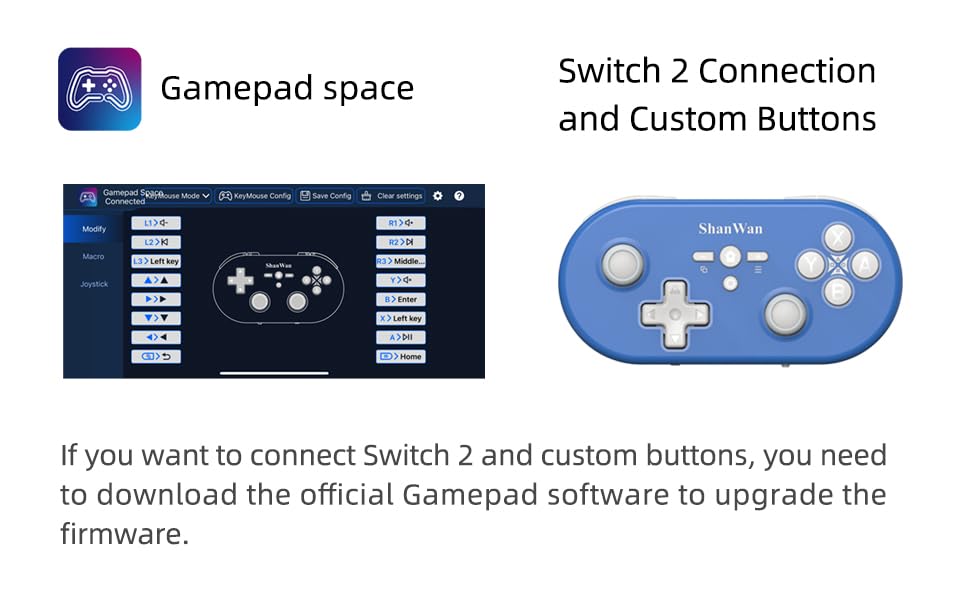
Image: Screenshot of the 'Gamepad Space' software interface for button customization and firmware updates, alongside the controller.
3. คู่มือการใช้งาน
3.1 เค้าโครงปุ่มและฟังก์ชั่น
The controller features standard gaming buttons including A/B/X/Y, D-pad, L/R, L2/R2, joysticks, and function buttons (e.g., Home, Share, Plus, Minus).
3.2 Three-Position Mode Switch
The controller is equipped with a three-position mode switch (X, S, P) allowing seamless switching between different platforms:
- X-block: For PC/Android/iOS Native Games.
- S-block: For Nintendo Switch.
- P-block: For PS4 Console (Note: PS4 compatibility may require specific setup or adapter, refer to official webเว็บไซต์สำหรับรายละเอียด)

Image: Diagram illustrating the three-position mode switch (X, S, P) and their corresponding platform functionalities.
3.3 Software Customization (Gamepad Space)
Download the official 'Gamepad Space' software to:
- ปรับแต่งการแมปปุ่มได้ตามต้องการ
- Set macro functions for complex commands.
- Calibrate joysticks for optimal precision.
3.4 ฟังก์ชั่นพิเศษ
- One-click Reconnection: Quickly reconnect to previously paired devices.
- Switch Screenshot: Dedicated button for capturing screenshots on Nintendo Switch.
4. คุณสมบัติหลัก
- 6-axis Gyro Motion Control: Provides precise motion sensing for compatible games, enhancing immersive gameplay.
- Adjustable Dual Motor Vibration: Experience immersive haptic feedback with customizable vibration intensity.
- Customizable Buttons and Macros: Personalize your gaming experience by remapping buttons and setting up complex macro sequences via the 'Gamepad Space' software.
- Soft Rubber Non-slip Grip: ออกแบบมาเพื่อการจับถือที่สะดวกสบายและมั่นคงระหว่างการเล่นเกมเป็นเวลานาน
- ปุ่มสัมผัสที่ตอบสนอง: Engineered for optimal tactile feedback and durability.

Image: Illustration of the 6-axis body gyroscope in action.

Image: Illustration of the dual motor vibration feature.
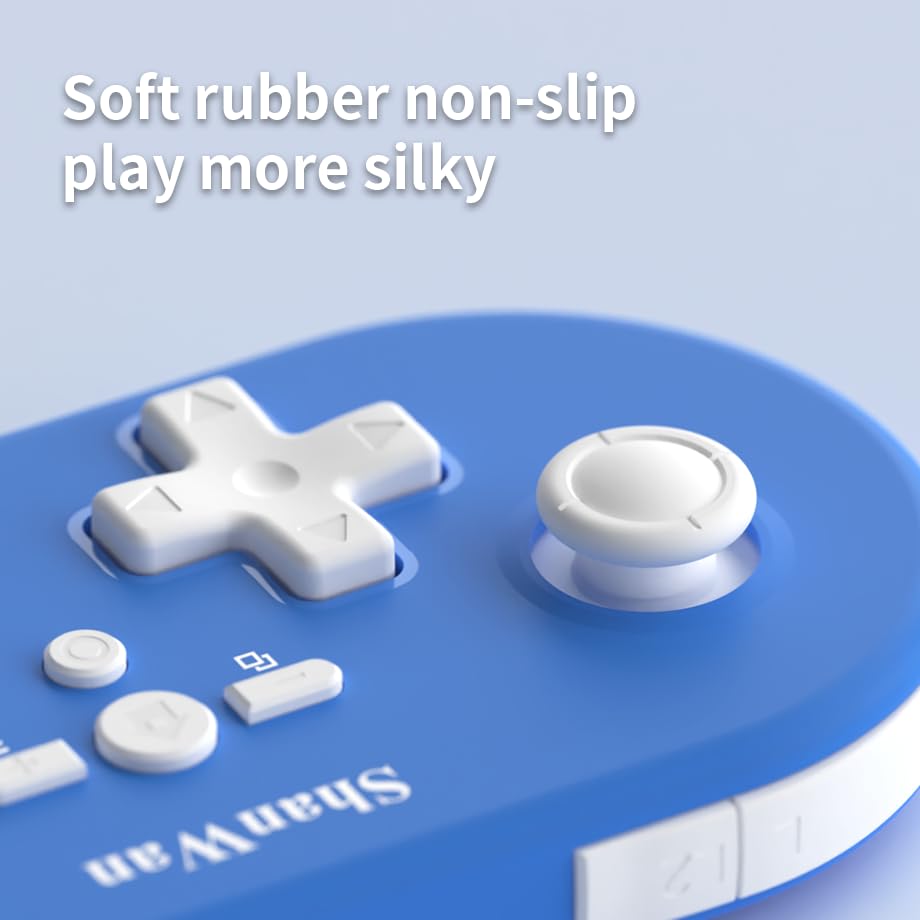
ภาพ: ระยะใกล้ view of the controller's joystick, highlighting the soft rubber non-slip material.
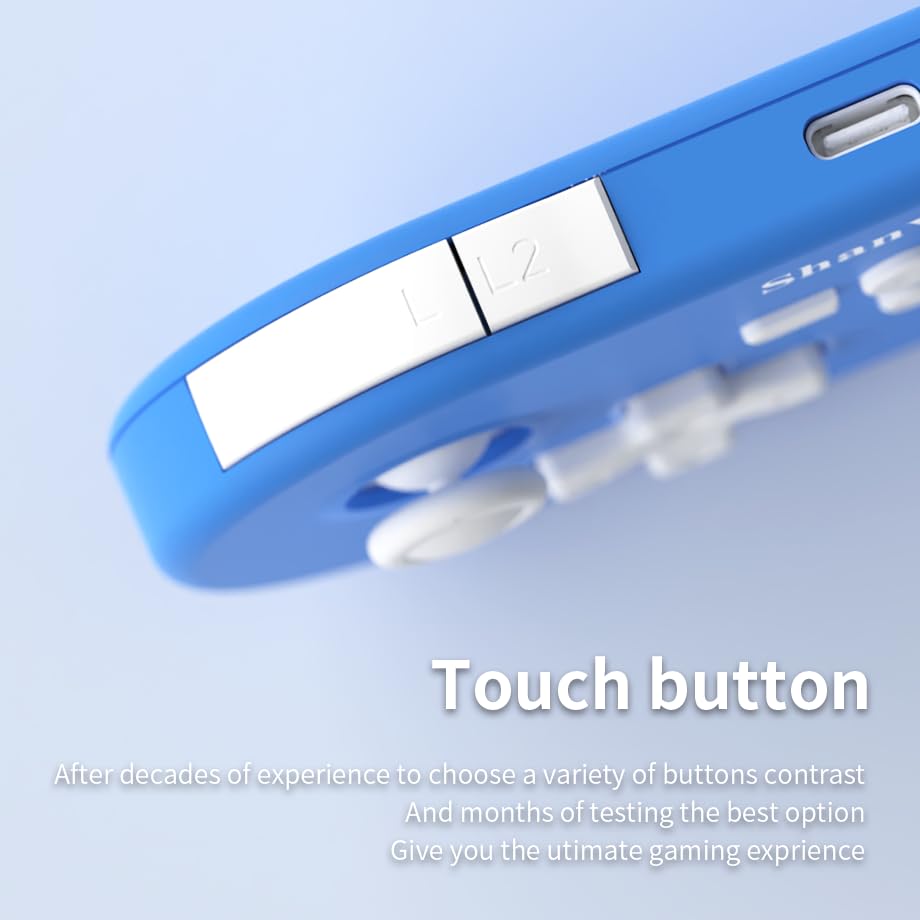
ภาพ: ระยะใกล้ view of the controller's L/L2 shoulder buttons, emphasizing their design.

Image: A visual summary of key features including 6-axis body gyroscope, one-touch reconnect/wake-up, one-touch pairing, one-touch screenshot, dual motor vibration, and Switch key printing.
5. ความเข้ากันได้
The ShanWan Q37 controller is compatible with a wide range of gaming platforms:
- Nintendo Switch / Switch 2 / Switch Lite / Switch OLED
- ดาดฟ้าไอน้ำ
- พีซี (Windows)
- อุปกรณ์แอนดรอยด์
- iPhone / iPad (iOS / iPadOS)
- อุปกรณ์ macOS
- PS4 Console (via P-block mode, specific setup may be required)
It supports simultaneous gameplay for up to 4 players on compatible systems.
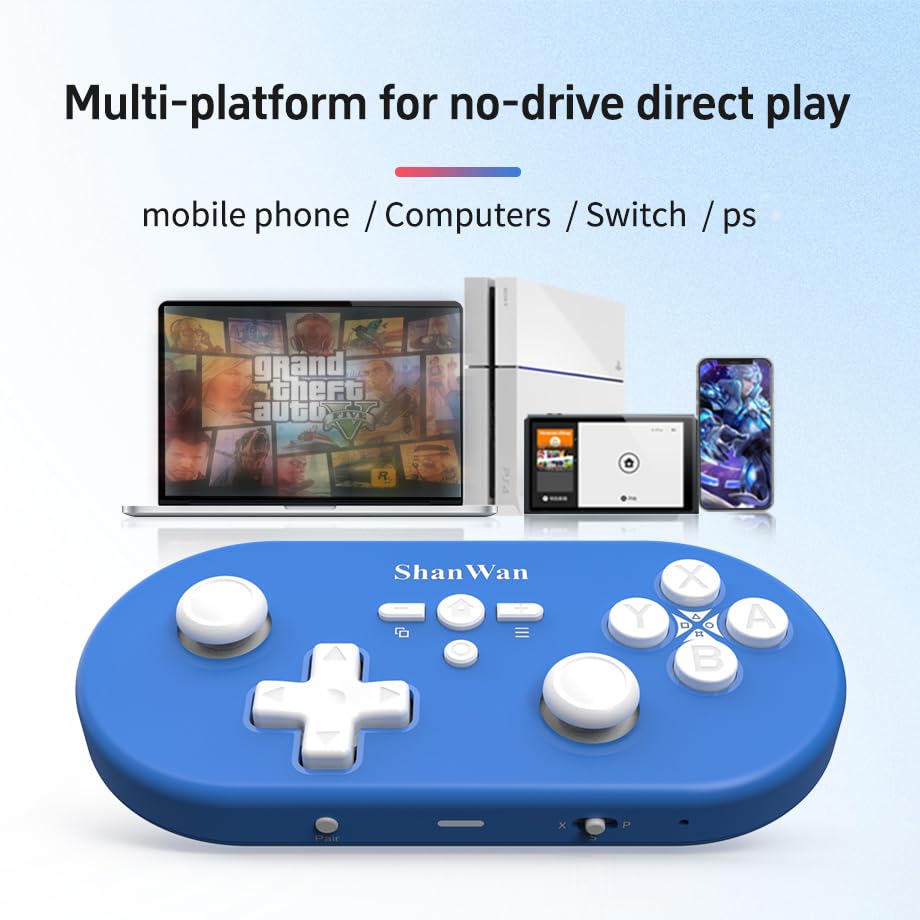
Image: Illustration showing the controller's compatibility with mobile phones, computers, Switch, and PS consoles.
6. ข้อมูลแบตเตอรี่
The controller is equipped with a 500mAh large-capacity Lithium Polymer battery. This allows for extended play sessions and convenient portability. Battery life varies depending on usage and vibration settings.
เวลาในการชาร์จ: ใช้เวลาประมาณ 2-3 ชั่วโมงในการชาร์จเต็ม
เวลาทำการ : Up to 8-10 hours on a full charge (may vary).
7. ข้อมูลจำเพาะทางเทคนิค
| ข้อมูลจำเพาะ | รายละเอียด |
|---|---|
| หมายเลขรุ่น | Q37XSP |
| การเชื่อมต่อ | Wireless Bluetooth, USB-C (wired) |
| ความจุของแบตเตอรี่ | 500mAh ลิเธียมโพลิเมอร์ |
| ขนาดสินค้า | 4.92 x 2.44 x 0.81 นิ้ว (12.5 x 6.2 x 2.05 ซม.) |
| น้ำหนักสินค้า | 3.2 ออนซ์ (90.7 กรัม) |
| การควบคุมการเคลื่อนไหว | Gyroscope แกนหมุน 6 |
| การสั่นสะเทือน | Dual Motor Vibration (Adjustable) |

Image: Diagram showing the precise dimensions of the ShanWan Q37 controller.
8 การแก้ไขปัญหา
8.1 ตัวควบคุมไม่เชื่อมต่อ/จับคู่
- ตรวจสอบให้แน่ใจว่าตัวควบคุมมีประจุไฟเต็ม
- Verify the correct mode (X, S, P) is selected for your device.
- Make sure Bluetooth is enabled on your device and no other devices are interfering.
- ลองรีสตาร์ททั้งคอนโทรลเลอร์และอุปกรณ์เล่นเกมของคุณดู
- If issues persist, try resetting the controller (refer to manufacturer's website for reset procedure, usually a small pinhole button).
8.2 ความล่าช้าของอินพุตหรือการตัดการเชื่อมต่อ
- Ensure you are within the effective range of your Bluetooth device.
- Minimize wireless interference from other devices (Wi-Fi routers, other Bluetooth devices).
- Ensure the controller's firmware is up to date using the 'Gamepad Space' software.
8.3 ปุ่ม/จอยสติ๊กไม่ตอบสนอง
- Calibrate joysticks and test button functionality using the 'Gamepad Space' software.
- ตรวจสอบให้แน่ใจว่าไม่มีเศษขยะติดอยู่รอบ ๆ ปุ่มหรือจอยสติ๊ก
- If using wired connection, try a different USB-C cable or port.
9. การดูแลรักษา
- การทำความสะอาด: ใช้ผ้านุ่มและแห้งเช็ดทำความสะอาดคอนโทรลเลอร์ สำหรับคราบสกปรกฝังแน่น ให้เช็ดเบาๆampชุบผ้าด้วยน้ำหรือน้ำยาทำความสะอาดอ่อนๆ หลีกเลี่ยงสารเคมีรุนแรงหรือสารกัดกร่อน
- พื้นที่จัดเก็บ: เก็บตัวควบคุมไว้ในที่แห้งและเย็น ห่างจากแสงแดดโดยตรงและอุณหภูมิที่สูงหรือต่ำมาก
- การดูแลแบตเตอรี่ อย่าให้แบตเตอรี่โดนอุณหภูมิสูงหรือพยายามถอดชิ้นส่วนแบตเตอรี่ ชาร์จตัวควบคุมเป็นประจำ แม้ว่าจะไม่ได้ใช้งาน เพื่อรักษาอายุการใช้งานของแบตเตอรี่
- หลีกเลี่ยงการหยด: ควรปกป้องตัวควบคุมจากการกระแทกและการตกหล่น ซึ่งอาจทำให้ชิ้นส่วนภายในเสียหายได้
10. การรับประกันและการสนับสนุน
For warranty information, technical support, or further assistance, please visit the official ShanWan webหรือติดต่อฝ่ายบริการลูกค้า เก็บใบเสร็จรับเงินไว้เป็นหลักฐานการซื้อ
Official ShanWan Store: https://www.amazon.com/stores/ShanWan/page/C625C726-C0DE-4DFB-8E9B-4AA41A6E200C


