1. บทนำ
Thank you for choosing the TECPHILE K936 Wireless Keyboard and Mouse Combo. This product is designed to provide versatile and efficient input for multiple devices, featuring both Bluetooth 5.0 and 2.4GHz USB connectivity. This manual will guide you through the setup, operation, and maintenance of your new keyboard and mouse.
2. เนื้อหาบรรจุภัณฑ์
- TECPHILE K936 Wireless Keyboard
- TECPHILE Wireless Mouse
- ตัวรับสัญญาณ USB (เก็บไว้ในช่องใส่แบตเตอรี่ของเมาส์)
- สายชาร์จ USB-C
- Keyboard Protective Cover
- คู่มือการใช้งาน
3. สินค้าหมดview
Familiarize yourself with the components of your TECPHILE K936 Wireless Keyboard and Mouse Combo.

ภาพที่ 3.1: The TECPHILE K936 Wireless Keyboard and Mouse Combo in Grey. The keyboard features a full layout with a numeric keypad, and the mouse is a compact, ergonomic design.

ภาพที่ 3.2: Diagram showing the dimensions of the keyboard (368mm x 121mm) and mouse (110mm x 63mm x 30mm).
คุณสมบัติแป้นพิมพ์:
- Multi-device connectivity: 3 x Bluetooth 5.0, 1 x 2.4GHz USB
- Dedicated function keys (F1-F12) with multimedia controls
- แบตเตอรี่ลิเธียม 300mAh แบบชาร์จไฟได้
- พอร์ตชาร์จแบบ Type-C
- Automatic sleep mode for power saving
- Scissor-leg key structure for comfortable typing
- Transparent protective cover included
คุณสมบัติเมาส์:
- Dual-mode connectivity: 1 x Bluetooth, 1 x 2.4GHz USB
- Optical movement detection technology
- การออกแบบแบบถนัดทั้งสองข้าง
- Quiet click buttons
4. การตั้งค่า
4.1 การชาร์จเริ่มต้น
Before first use, fully charge both the keyboard and mouse. Connect the provided USB-C charging cable to the charging port on the keyboard and mouse, and the other end to a 5V/1A power adapter (not included) or a computer USB port. The charging indicator light will show charging status and turn off when fully charged.
Note: Only use a 5V/1 Amp power adapter for charging to ensure optimal battery life.

ภาพที่ 4.1: Illustration of the keyboard's battery specifications: 2-4 hours charging time, 300mAh battery capacity, and up to 180 days standby time.
4.2 การเชื่อมต่อคีย์บอร์ด
The keyboard supports up to three Bluetooth connections and one 2.4GHz USB connection.

ภาพที่ 4.2: Diagram illustrating the keyboard's ability to connect to multiple devices via Bluetooth (3 channels) and 2.4GHz USB.
2.4GHz USB Connection:
- ค้นหาตัวรับสัญญาณ USB ภายในช่องใส่แบตเตอรี่ของเมาส์
- เสียบตัวรับสัญญาณ USB เข้ากับพอร์ต USB ที่ว่างอยู่บนคอมพิวเตอร์หรืออุปกรณ์ของคุณ
- เปิดใช้งานแป้นพิมพ์ แป้นพิมพ์จะเชื่อมต่อโดยอัตโนมัติ
การเชื่อมต่อบลูทูธ (BT1, BT2, BT3):
- เปิดคีย์บอร์ด
- กดปุ่มค้างไว้ Fn กุญแจและกุญแจบลูทูธหนึ่งดอก (BT1, BT2, หรือ BT3) for 3-5 seconds until the corresponding indicator light flashes rapidly. This indicates pairing mode.
- บนอุปกรณ์ของคุณ (คอมพิวเตอร์ แท็บเล็ต สมาร์ทโฟน) ไปที่การตั้งค่าบลูทูธ และค้นหาอุปกรณ์ใหม่
- Select "TECPHILE Keyboard" from the list of available devices to pair.
- เมื่อจับคู่สำเร็จแล้ว ไฟแสดงสถานะจะหยุดกะพริบและติดสว่างอยู่สองสามวินาทีก่อนจะดับลง
- Repeat for other Bluetooth channels to connect to additional devices.
4.3 การเชื่อมต่อเมาส์
The mouse supports one Bluetooth connection and one 2.4GHz USB connection.
2.4GHz USB Connection:
- Ensure the USB receiver is plugged into your device.
- Switch the mouse to 2.4GHz mode using the switch on the bottom of the mouse.
- เมาส์ควรเชื่อมต่อโดยอัตโนมัติ
การเชื่อมต่อบลูทู ธ :
- เปลี่ยนเมาส์เป็นโหมดบลูทูธโดยใช้สวิตช์ที่ด้านล่างของเมาส์
- Press and hold the Bluetooth pairing button on the bottom of the mouse for 3-5 seconds until the indicator light flashes.
- บนอุปกรณ์ของคุณ ไปที่การตั้งค่าบลูทูธและค้นหาอุปกรณ์ใหม่
- Select "TECPHILE Mouse" from the list to pair.
5. คู่มือการใช้งาน
5.1 Switching Between Devices (Keyboard)
To switch between connected devices on the keyboard, simply press the Fn key along with the corresponding connection key (BT1, BT2, BT3, หรือ 2.4จี for USB). The keyboard will switch to the selected device instantly.
5.2 Switching Between Devices (Mouse)
To switch between 2.4GHz USB and Bluetooth modes on the mouse, use the toggle switch located on the bottom of the mouse.
5.3 Function Keys (Keyboard)
The keyboard features dedicated function keys (F1-F12) that can be used in conjunction with the Fn key for various multimedia and system controls.
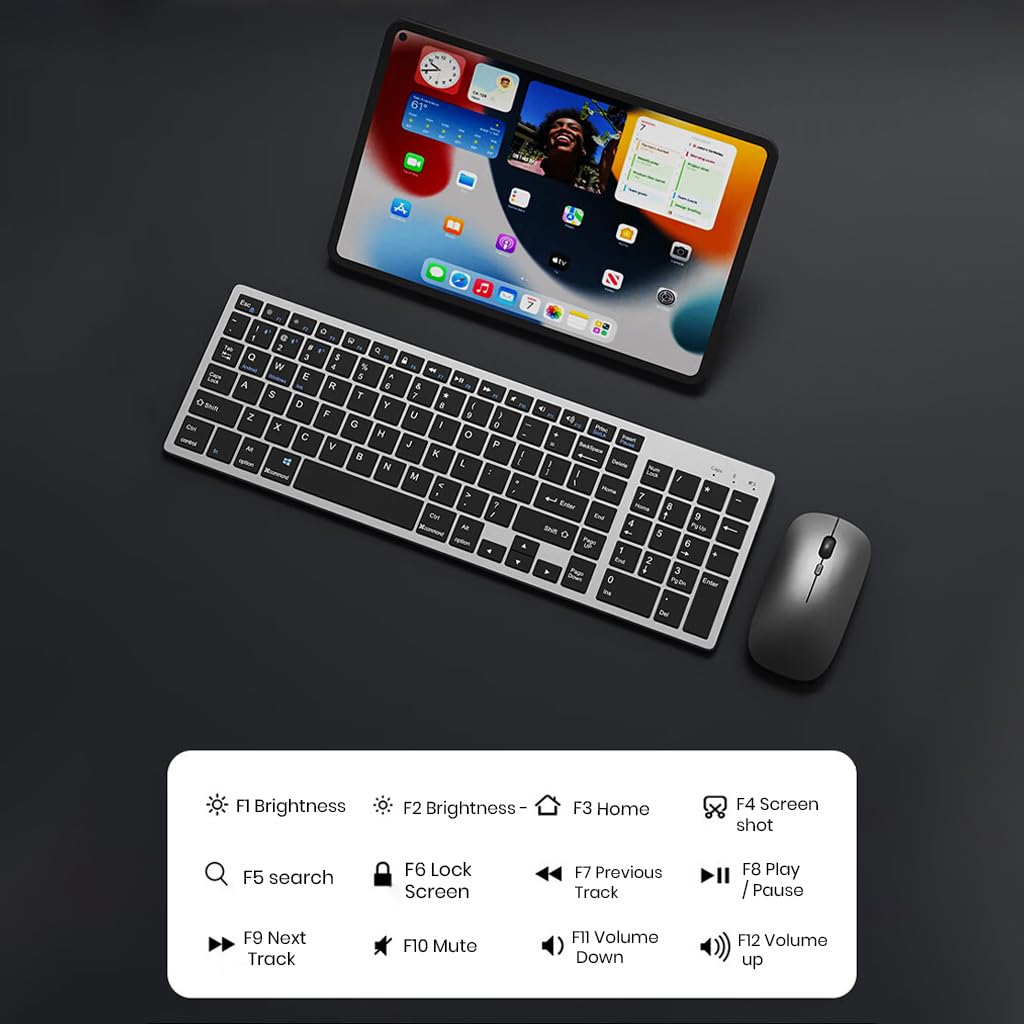
ภาพที่ 5.1: The keyboard displaying its function keys and their associated actions, such as brightness control, home, screen shot, search, lock screen, media playback, and volume control.
- Fn+F1: ลดความสว่าง
- Fn+F2: เพิ่มความสว่าง
- Fn+F3: บ้าน
- Fn+F4: ภาพหน้าจอ
- Fn+F5: ค้นหา
- Fn+F6: ล็อคหน้าจอ
- Fn+F7: เพลงก่อนหน้า
- Fn+F8: เล่น/หยุดชั่วคราว
- Fn+F9: เพลงถัดไป
- Fn+F10: ปิดเสียง
- Fn+F11: ลดระดับเสียง
- Fn+F12: เพิ่มระดับเสียง
5.4 โหมดประหยัดพลังงาน
The keyboard and mouse are equipped with an automatic sleep mode to conserve battery life. If inactive for 10 minutes, the devices will enter sleep mode. To wake them up, simply press any key on the keyboard or move/click the mouse.

ภาพที่ 5.2: Diagram illustrating the auto-sleep mode and how to reactivate the keyboard and mouse by pressing any key.
6. การบำรุงรักษา
- การทำความสะอาด: ใช้ผ้านุ่มและแห้งเช็ดทำความสะอาดคีย์บอร์ดและเมาส์ สำหรับคราบสกปรกฝังแน่น ให้เช็ดเบาๆamp สามารถใช้ผ้าเช็ดทำความสะอาดได้ เพื่อป้องกันไม่ให้ของเหลวเข้าไปในอุปกรณ์
- ฝาครอบป้องกัน: Utilize the included transparent protective cover for the keyboard to guard against dust and accidental spills.
- พื้นที่จัดเก็บ: เก็บอุปกรณ์ไว้ในที่แห้งและเย็น หลีกเลี่ยงแสงแดดโดยตรงและอุณหภูมิที่สูงหรือต่ำเกินไป
- การชาร์จ: Always use a 5V/1A power adapter for charging to prevent damage and ensure battery longevity.

ภาพที่ 6.1: The keyboard shown with its transparent protective keyskin, designed to prevent dust and spills.
7 การแก้ไขปัญหา
| ปัญหา | สาเหตุที่เป็นไปได้ | สารละลาย |
|---|---|---|
| Keyboard/Mouse not connecting via 2.4GHz USB. | USB receiver not properly inserted, low battery, incorrect mode selected. |
|
| คีย์บอร์ด/เมาส์เชื่อมต่อผ่านบลูทูธไม่ได้ | Not in pairing mode, device's Bluetooth is off, already connected to max devices, low battery. |
|
| การเชื่อมต่อล่าช้าหรือขาดๆ หายๆ | สัญญาณรบกวน ระยะห่างจากเครื่องรับ/อุปกรณ์ แบตเตอรี่เหลือน้อย |
|
| Keyboard keys not responding. | Low battery, device in sleep mode, connection issue. |
|
8. ข้อมูลจำเพาะ
| คุณสมบัติ | รายละเอียด |
|---|---|
| ยี่ห้อ | เทคฟิล |
| แบบอย่าง | เค936 |
| เทคโนโลยีการเชื่อมต่อ | Keyboard: 3 x Bluetooth 5.0, 1 x 2.4GHz USB; Mouse: 1 x Bluetooth, 1 x 2.4GHz USB |
| อุปกรณ์ที่รองรับ | แล็ปท็อป, คอมพิวเตอร์ส่วนบุคคล, สมาร์ทโฟน, แท็บเล็ต |
| ระบบปฏิบัติการ | แอนดรอยด์, ไอโอเอส, วินโดวส์, แมคอาสตอล |
| แบตเตอรี่คีย์บอร์ด | แบตเตอรี่ลิเธียมไอออน 300 mAh (ชาร์จไฟได้) |
| พอร์ตชาร์จ | ยูเอสบี ไทป์ ซี |
| เวลาในการชาร์จ | 2-4 ชั่วโมง (โดยประมาณ) |
| เวลาสแตนด์บาย | นานถึง 180 วัน |
| ขนาดของแป้นพิมพ์ (ยาวxกว้างxสูง) | 36 x 13 x 1.5 ซม. |
| ขนาดของเมาส์ (ยาวxกว้างxสูง) | 11 x 6.3 x 3 ซม. (โดยประมาณ) |
| น้ำหนักสินค้า | 661 กรัม (ชุดรวม) |
| เทคโนโลยีตรวจจับการเคลื่อนไหว | ออฟติคอล |
| การวางแนวมือ | ถนัดทั้งสองมือ |
9. การรับประกันและการสนับสนุน
TECPHILE products come with a standard warranty. For warranty claims, technical support, or any product-related inquiries, please contact TECPHILE customer service through the retailer where the product was purchased or visit the official TECPHILE webเว็บไซต์สำหรับข้อมูลการติดต่อ
โปรดเก็บหลักฐานการซื้อไว้เพื่อวัตถุประสงค์การรับประกัน
Manufacturer/Importer: TECPHILE, 2nd Floor, A36, Block B, Naraina Industrial Area Phase 2, Naraina, New Delhi, Delhi, 110028


