1. การตั้งค่า
1.1. เนื้อหาบรรจุภัณฑ์
ตรวจสอบให้แน่ใจว่ามีส่วนประกอบทั้งหมดอยู่ในบรรจุภัณฑ์:
- AUSDOM 108-Key Wireless Keyboard
- AUSDOM Wireless Mouse
- ตัวรับสัญญาณ USB (เก็บไว้ในเมาส์)
- สายชาร์จ USB-C
- คู่มือการใช้งาน
1.2. Connecting the Combo
- ค้นหาตัวรับ USB: The 2.4GHz USB receiver is conveniently stored in a compartment on the underside of the wireless mouse. Gently slide open the battery cover to access it.
- ใส่ตัวรับสัญญาณ: Plug the USB receiver into an available USB port on your computer (PC, laptop, or tablet). The system will automatically detect and install the necessary drivers.
- เปิดอุปกรณ์: Ensure both the keyboard and mouse are switched to the 'ON' position. The power switch for the keyboard is located on its top edge, and for the mouse, it is on the underside.

1.3. Charging the Combo
Both the keyboard and mouse are equipped with built-in rechargeable Lithium Polymer batteries. Use the provided USB-C cable to charge them.
- Connect the USB-C end of the cable to the charging port on the keyboard (located on the top edge) or the mouse (located on the front).
- ต่อปลายสายด้าน USB-A เข้ากับพอร์ต USB ที่มีไฟเลี้ยงบนคอมพิวเตอร์ของคุณ หรืออะแดปเตอร์ USB ที่เสียบกับผนัง
- A full charge takes approximately 2 hours and provides up to 300 hours of standby time.

2. คู่มือการใช้งาน
2.1. คุณสมบัติของแป้นพิมพ์
The AUSDOM KAM200X keyboard features a full-size 108-key layout, including a dedicated numeric keypad and various function keys for enhanced productivity.
- Mechanical-Feel Keys: Experience tactile feedback similar to mechanical keyboards, combined with quiet scissor-switch mechanisms and a short 3.8mm key travel for comfortable and precise typing.
- ปุ่มมัลติมีเดียและปุ่มลัด: Utilize dedicated media controls (volume, play/pause) and app-switching shortcuts for streamlined workflow. Refer to the user manual for a complete list of function key combinations.
- การสลับระบบปฏิบัติการ: Easily switch between Windows and macOS layouts using specific function key combinations (e.g., Fn + P for Windows, Fn + O for Mac).


2.2. คุณสมบัติของเมาส์
The ergonomic wireless mouse is designed for comfortable use and precise control.
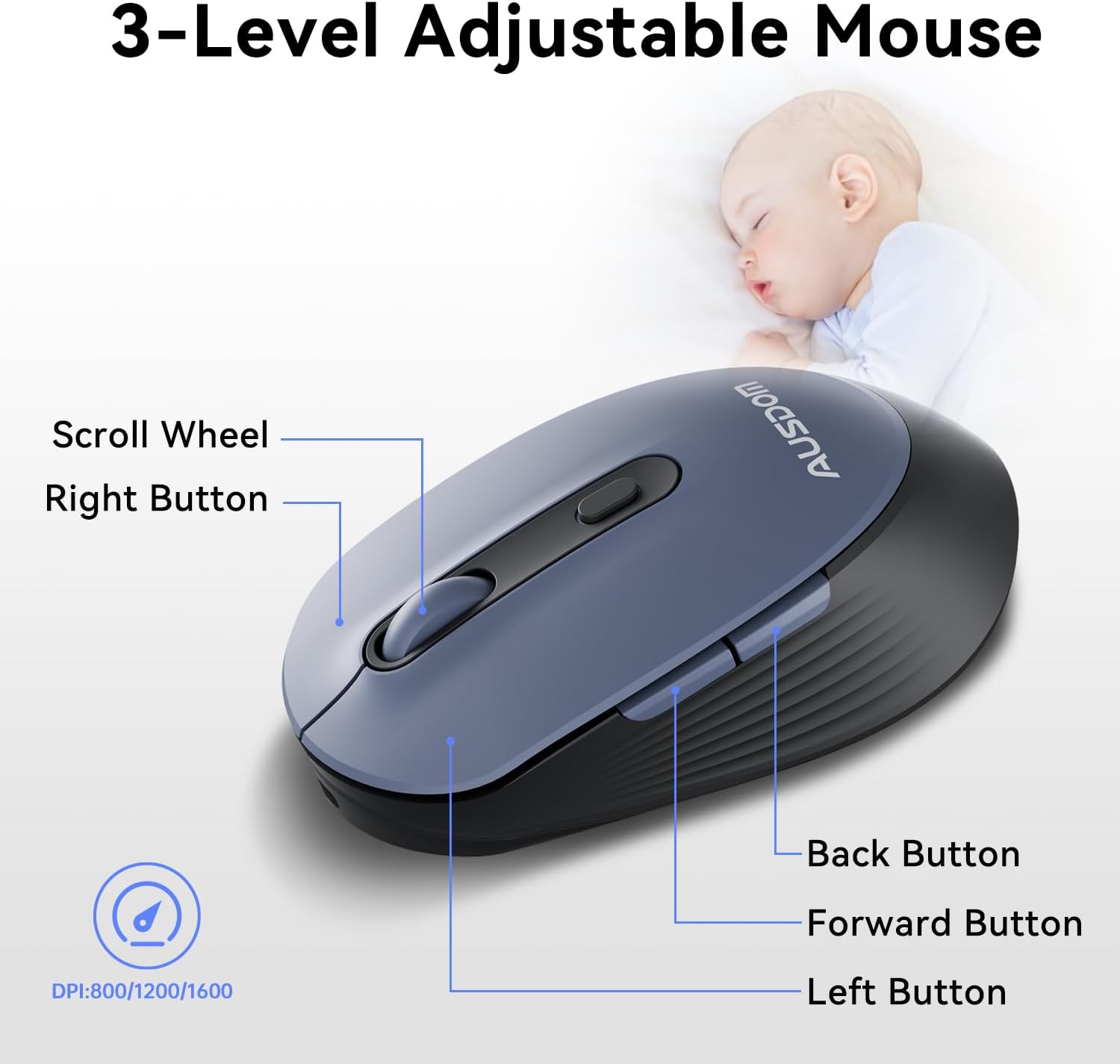
- DPI ที่ปรับได้: Cycle through 3 DPI levels (800, 1200, 1600) using the dedicated DPI button to adjust cursor sensitivity for different tasks.
- ปุ่มเดินหน้า/ถอยหลัง: ใช้ปุ่มด้านข้างเพื่อการนำทางอย่างรวดเร็วใน web เบราว์เซอร์และแอปพลิเคชัน
- คลิกเงียบ: The mouse features silent click buttons to minimize noise in quiet environments.
2.3. ความเข้ากันได้กว้าง
The AUSDOM wireless combo is compatible with a broad range of operating systems and devices, ensuring seamless integration into your existing setup.
- ระบบปฏิบัติการ: Compatible with Windows XP/ME/Vista/7/8/10/11 and macOS.
- อุปกรณ์: Works instantly with desktops, laptops, and other computers without requiring additional software or drivers.

3. การบำรุงรักษา
3.1. การทำความสะอาด
To ensure the longevity and optimal performance of your AUSDOM combo, regular cleaning is recommended.
- ใช้ผ้าแห้งนุ่มและไม่เป็นขุยเช็ดพื้นผิวของแป้นพิมพ์และเมาส์
- สำหรับสิ่งสกปรกฝังแน่น ให้เช็ดออกเล็กน้อยampen the cloth with water or a mild cleaning solution, ensuring no liquid enters the device openings.
- หลีกเลี่ยงการใช้สารเคมีรุนแรง น้ำยาทำความสะอาดที่มีฤทธิ์กัดกร่อน หรือตัวทำละลาย
3.2. การจัดเก็บ
When not in use for extended periods, store the keyboard and mouse in a cool, dry place away from direct sunlight and extreme temperatures. The USB receiver can be stored inside the mouse to prevent loss.
4 การแก้ไขปัญหา
4.1. ปัญหาการเชื่อมต่อ
- ตรวจสอบเครื่องรับ: Ensure the USB receiver is firmly plugged into a working USB port on your computer.
- เปิดเครื่อง: Verify that both the keyboard and mouse are switched to the 'ON' position.
- ระดับแบตเตอรี่: Confirm that both devices have sufficient battery charge. Recharge if necessary.
- ลองใช้พอร์ตอื่นดู: Plug the USB receiver into a different USB port on your computer.
4.2. Lag or Unresponsiveness
- ลดการรบกวน: Move the keyboard and mouse closer to the USB receiver. Avoid placing large metal objects between the devices and the receiver.
- Check for Other Devices: Other 2.4GHz wireless devices might cause interference. Try to minimize their use or move them further away.
- เติมเงิน: ตรวจสอบให้แน่ใจว่าอุปกรณ์ทั้งสองชาร์จเต็มแล้ว
4.3. Keyboard Specific Issues
- คีย์ไม่ตอบสนอง: ค่อยๆ ทำความสะอาดบริเวณรอบๆ ปุ่มที่ได้รับผลกระทบเพื่อกำจัดเศษฝุ่นหรือสิ่งสกปรกออกไป
- เอาต์พุตคีย์ไม่ถูกต้อง: Check your computer's operating system settings to ensure the correct keyboard layout is selected.
4.4. Mouse Specific Issues
- Erratic Cursor: Clean the optical sensor on the underside of the mouse. Ensure you are using the mouse on a suitable, non-reflective surface.
- การปรับ DPI: Press the DPI button on the top of the mouse to cycle through the 800/1200/1600 DPI settings.
5. ข้อมูลจำเพาะผลิตภัณฑ์
| คุณสมบัติ | ข้อมูลจำเพาะ |
|---|---|
| ยี่ห้อ | ออสโดม |
| หมายเลขรุ่น | KAM200X |
| ขนาดสินค้า | 17.44 x 5.31 x 0.79 นิ้ว |
| น้ำหนักสินค้า | 1.8 ปอนด์ |
| แบตเตอรี่ | ต้องใช้แบตเตอรี่ลิเธียมโพลิเมอร์ 2 ก้อน (รวมอยู่ด้วย) |
| เทคโนโลยีการเชื่อมต่อ | ไร้สาย 2.4Ghz |
| คุณสมบัติพิเศษ | Lightweight, Rechargeable, Scissor Switch, Wireless |
| อุปกรณ์ที่รองรับ | แล็ปท็อป คอมพิวเตอร์ส่วนบุคคล แท็บเล็ต |
6. ข้อมูลการรับประกัน
For detailed warranty information regarding your AUSDOM KAM200X Wireless Keyboard and Mouse Combo, please refer to the official documentation included in your product packaging or visit the manufacturer's official webไซต์ เงื่อนไขการรับประกันอาจแตกต่างกันไปตามภูมิภาคและผลิตภัณฑ์
7. การสนับสนุนลูกค้า
If you encounter any issues or have questions about your AUSDOM KAM200X Wireless Keyboard and Mouse Combo, please contact AUSDOM customer support through their official channels. You can often find support contact information, FAQs, and additional resources on the AUSDOM Store Page หรืออย่างเป็นทางการของพวกเขา webเว็บไซต์.


