1. บทนำ
This manual provides essential information for the safe and efficient use of your BenQ GW2791 27-inch Full HD 100Hz IPS Eye-Care Monitor. Please read it thoroughly before operating the device and retain it for future reference. The BenQ GW2791 is designed to deliver stunning visuals with advanced eye-care features for enhanced comfort during extended use.
2. ข้อมูลด้านความปลอดภัย
- แหล่งพลังงาน: Use only the power adapter supplied with the monitor. Ensure the power outlet meets the specified voltagข้อกำหนดอี
- การระบายอากาศ : Do not block ventilation openings. Maintain adequate space around the monitor for proper airflow to prevent overheating.
- การจัดวาง: วางจอภาพบนพื้นผิวที่มั่นคงและเรียบ หลีกเลี่ยงการวางในที่ที่มีแสงแดดส่องโดยตรง ใกล้แหล่งความร้อน หรือในสภาพแวดล้อมที่มีฝุ่นละอองหรือความชื้นสูง
- การทำความสะอาด: Disconnect the power cord before cleaning. Use a soft, dry cloth to clean the screen and exterior. Avoid liquid cleaners or abrasive materials.
- การจัดการ: โปรดใช้งานจอภาพด้วยความระมัดระวัง หลีกเลี่ยงการทำตกหรือการกระแทกอย่างแรง
- ถอดชิ้นส่วน: อย่าพยายามถอดประกอบหรือซ่อมแซมจอภาพด้วยตนเอง แนะนำให้ส่งช่างผู้ชำนาญการไปรับบริการทั้งหมด
3. เนื้อหาบรรจุภัณฑ์
ตรวจสอบว่าสินค้าทั้งหมดอยู่ในบรรจุภัณฑ์ครบถ้วน หากมีสินค้าใดขาดหายหรือเสียหาย โปรดติดต่อผู้ค้าปลีก
- จอภาพ BenQ GW2791
- ขาตั้งจอมอนิเตอร์ (ฐานและคอ)
- สาย HDMI
- อะแดปเตอร์แปลงไฟ
- สายไฟ
- คู่มือเริ่มต้นใช้งานฉบับย่อ / คู่มือผู้ใช้
วีดีโอ: Unboxing and First Impressions of the BenQ Eye Care Monitor. This video demonstrates the contents of the package and initial setup steps.
4. การตั้งค่า
4.1 การประกอบขาตั้งจอภาพ
- ถอดส่วนประกอบของจอภาพและขาตั้งออกจากบรรจุภัณฑ์อย่างระมัดระวัง
- Attach the stand neck to the monitor panel by aligning the connectors and pressing firmly until it clicks into place.
- ติดฐานขาตั้งเข้ากับส่วนคอของขาตั้ง ยึดให้แน่นด้วยสกรูยึดที่อยู่ด้านล่างของฐาน
- วางจอภาพที่ประกอบแล้วไว้บนพื้นผิวที่มั่นคงและเรียบ
วีดีโอ: Demonstration of monitor stand assembly and initial power-on. This video illustrates the physical setup process.
4.2 สายเชื่อมต่อ
- Connect the power cord to the power adapter, then connect the adapter to the monitor's power input. Plug the power cord into a wall outlet.
- Connect one end of the HDMI cable to the HDMI port on your computer and the other end to an available HDMI port on the monitor. Alternatively, use a DisplayPort cable for DisplayPort connections.
- If desired, connect external audio devices to the audio output port on the monitor.
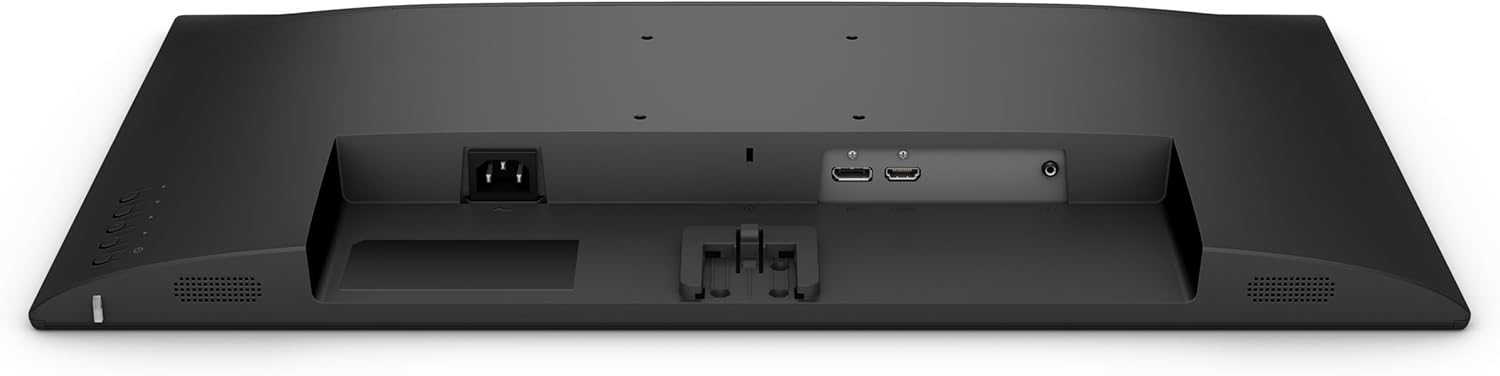
ภาพ: หลัง view of the BenQ GW2791 monitor, highlighting the HDMI, DisplayPort, and power input connections.
5. คู่มือการใช้งาน
5.1 เปิด/ปิดเครื่อง
กดปุ่มเปิด/ปิดที่อยู่ด้านล่างขวาของจอภาพเพื่อเปิดหรือปิด ไฟแสดงสถานะจะสว่างขึ้นเมื่อจอภาพทำงานอยู่
5.2 การนำทางเมนูการแสดงผลบนหน้าจอ (OSD)
The OSD menu allows you to adjust various monitor settings. Use the joystick or buttons located on the bottom right of the monitor to navigate the menu:
- กด: เข้าสู่/ยืนยันการเลือก
- ขึ้นลง: นำทางผ่านตัวเลือกเมนู
- ซ้าย/ขวา: ปรับค่าต่างๆ หรือสลับไปมาระหว่างเมนูย่อย
5.3 การตั้งค่าปุ่ม
- ความสว่าง/คอนทราสต์: ปรับความสว่างและความคมชัดโดยรวมของจอภาพ
- โหมดสี: Select from various preset color modes (e.g., Standard, Movie, ePaper, FPS) to optimize the display for different content types.
- การเลือกอินพุต: สลับระหว่างอินพุต HDMI และ DisplayPort ด้วยตนเอง
- คุณสมบัติการดูแลดวงตา: Access and configure Flicker-Free, Low Blue Light Plus, and Eyesafe 2.0 settings.
6. คุณสมบัติมากกว่าview
The BenQ GW2791 monitor incorporates several technologies to enhance visual quality and user comfort.
- แผง IPS: Provides accurate color and image reproduction with wide viewing angles (99% sRGB color space).
- อัตราการรีเฟรช 100Hz: Offers a smoother visual experience, reducing motion blur and improving responsiveness.
- Ultrathin Bezel Design: Minimizes distractions and allows for seamless multi-monitor setups.
- ePaper Mode: Optimizes display settings for reading, reducing eye strain during long sessions by simulating a paper-like appearance.
- TUV-Certified Eye-Care: Certified by TUV Rheinland for eye-friendly technologies.
- เทคโนโลยีปราศจากการสั่นไหว: Eliminates screen flickering at all brightness levels, reducing eye fatigue.
- Low Blue Light Plus: Filters out harmful blue-violet light while maintaining vivid colors, protecting your eyes from potential damage.
- Eyesafe 2.0: Ensures reduced blue light emission with vivid color retention.
- Eye-CareU Software: Integrated software for easy access and customization of eye-care features.

ภาพ: The BenQ GW2791 monitor showcasing its IPS panel, 99% sRGB color space, TUV certification, and Eye-Care features for stunning visuals.

ภาพ: Visual explanation of Low Blue Light Plus technology, demonstrating how it filters harmful blue-violet light to protect eyes.
7. การบำรุงรักษา
- การทำความสะอาดหน้าจอ: เช็ดหน้าจอเบาๆ ด้วยผ้านุ่มที่ไม่เป็นขุย สำหรับรอยฝังแน่น ให้เช็ดเบาๆampen the cloth with water or a specialized screen cleaner (ensure it's alcohol-free) and wipe carefully.
- การทำความสะอาดภายนอก: ใช้ผ้าแห้งนุ่มๆ เช็ดทำความสะอาดจอภาพasing. Avoid harsh chemicals that may damage the finish.
- พื้นที่จัดเก็บ: เมื่อไม่ได้ใช้งานเป็นเวลานาน ควรเก็บจอภาพไว้ในที่แห้งและเย็น หลีกเลี่ยงแสงแดดโดยตรงและอุณหภูมิที่สูงหรือต่ำเกินไป
8 การแก้ไขปัญหา
| ปัญหา | สาเหตุที่เป็นไปได้ | สารละลาย |
|---|---|---|
| ไม่มีภาพบนหน้าจอ | สายไฟถูกตัดการเชื่อมต่อ; สายวิดีโอถูกตัดการเชื่อมต่อ; เลือกอินพุตไม่ถูกต้อง | ตรวจสอบให้แน่ใจว่าสายไฟและสายวิดีโอเชื่อมต่อแน่นดีแล้ว เลือกแหล่งสัญญาณเข้าที่ถูกต้องผ่านเมนู OSD |
| ภาพเบลอหรือบิดเบี้ยว | ความละเอียดไม่ถูกต้อง สายวิดีโอหลวม | Set the display resolution to 1920x1080. Check video cable connection. |
| หน้าจอกะพริบ | ปัญหาอัตราการรีเฟรช สัญญาณรบกวนจากภายนอก | Ensure refresh rate is set to 100Hz. Check for nearby electronic devices causing interference. |
| ไม่มีเสียง | Audio cable disconnected; Volume too low; Muted. | Check audio cable connections. Adjust volume via OSD or connected device. Ensure not muted. |
9. ข้อมูลจำเพาะ
| คุณสมบัติ | ข้อมูลจำเพาะ |
|---|---|
| ชื่อรุ่น | GW2791 |
| ขนาดหน้าจอ | 27 นิ้ว |
| ประเภทแผง | ไอพีเอส |
| ปณิธาน | 1920 x 1080 (FHD 1080p) |
| อัตราการรีเฟรช | 100เฮิรตซ์ |
| อัตราส่วนภาพ | 16:9 น. |
| ช่วงสี | 99% sRGB |
| พื้นผิวหน้าจอ | แมทต์ |
| การเชื่อมต่อ | HDMI, ดิสเพลย์พอร์ต |
| คุณสมบัติการดูแลดวงตา | TUV-Certified, Flicker-Free, Low Blue Light Plus, Eyesafe 2.0, Eye-CareU |
| น้ำหนักสินค้า | 12.14 ปอนด์ |
| ขนาดสินค้า | 18 x 7 x 24 นิ้ว |
| สี | สีดำ |
10. การรับประกันและการสนับสนุน
BenQ provides a limited warranty for its products. Please refer to the warranty card included in your package or visit the official BenQ webเว็บไซต์สำหรับข้อกำหนดและเงื่อนไขการรับประกันโดยละเอียดที่เฉพาะเจาะจงกับภูมิภาคของคุณ
สำหรับการสนับสนุนด้านเทคนิค การลงทะเบียนผลิตภัณฑ์ หรือการสอบถามบริการ โปรดไปที่ ร้าน BenQ บน Amazon or the official BenQ support webเว็บไซต์.


