1. บทนำ
The 8BitDo 64 Bluetooth Controller is designed for enhanced gaming experiences across multiple platforms. This manual provides essential information for setting up, operating, and maintaining your controller.
ความเข้ากันได้: Analogue 3D, Switch, Switch 2, Windows, Android.
การเชื่อมต่อ: Bluetooth or Wired USB.
2. เนื้อหาบรรจุภัณฑ์
- 8BitDo 64 ตัวควบคุมบลูทูธ
- สาย USB-C
- คู่มือการใช้งาน (เอกสารนี้)
3. ผู้ควบคุมview

รูปที่ 1 : ด้านหน้า View. This image displays the front of the 8BitDo 64 Bluetooth Controller, highlighting the classic button layout including the D-pad, analog stick, A, B, X, Y buttons, and central function buttons like Start and Select.

รูปที่ 2: ย้อนกลับ View. This image shows the rear of the controller, featuring the S/D mode switch for different input modes and the product information label.

รูปที่ 3: ด้านบน View. This image illustrates the top edge of the controller, detailing the L/R shoulder buttons, Z-triggers, and the USB-C charging/connection port.

Figure 4: Hall Effect Joystick. รายละเอียด view of the controller's Hall Effect Joystick, known for its precision and durability.
4. การตั้งค่า
4.1 การชาร์จคอนโทรลเลอร์
Connect the supplied USB-C cable to the controller's USB-C port and the other end to a USB power source (e.g., computer, USB wall adapter). The LED indicators will show charging status and turn off when fully charged.
4.2 Firmware Update (Critical)
It is highly recommended to update your controller's firmware before first use, especially for compatibility with Analogue 3D and Switch 2. Firmware updates often include critical bug fixes and performance improvements.
- เยี่ยมชมฝ่ายสนับสนุน 8BitDo อย่างเป็นทางการ webเว็บไซต์.
- Download the latest firmware update tool for your operating system (Windows/macOS).
- Connect your 8BitDo 64 Bluetooth Controller to your computer using the USB-C cable.
- Follow the on-screen instructions in the update tool to complete the firmware update.
4.3 การเชื่อมต่อผ่าน Bluetooth
Ensure the controller is charged and updated before attempting Bluetooth connection.
4.3.1 Mode Selection (S/D Switch)
The switch on the back of the controller allows you to select between 'S' (Switch/Analogue 3D) and 'D' (Windows/Android) input modes. Ensure the correct mode is selected for your device.
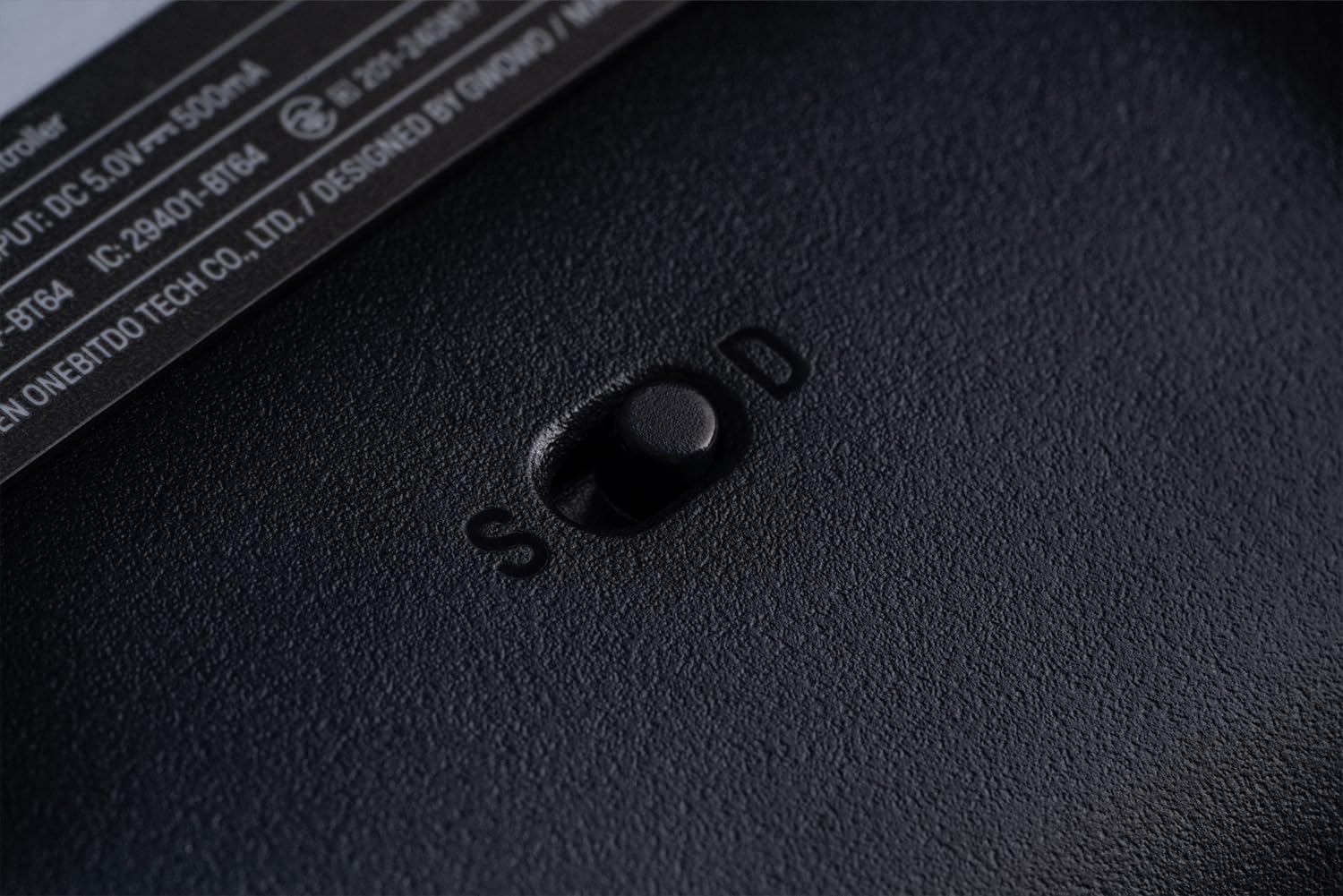
Figure 5: S/D Mode Switch. This image highlights the physical switch on the controller's rear for selecting input modes.
4.3.2 Pairing with Analogue 3D / Switch / Switch 2
- Set the mode switch on the back of the controller to 'S'.
- Press and hold the Start button on the controller for 3 seconds until the LED indicators begin to flash rapidly.
- On your Analogue 3D or Switch console, navigate to the controller pairing menu.
- Select the 8BitDo 64 Bluetooth Controller from the list of available devices.
- ไฟ LED บนตัวควบคุมจะติดสว่างตลอดเมื่อจับคู่สำเร็จแล้ว
4.3.3 Pairing with Windows / Android
- Set the mode switch on the back of the controller to 'D'.
- Press and hold the Start button on the controller for 3 seconds until the LED indicators begin to flash rapidly.
- On your Windows PC or Android device, enable Bluetooth and search for new devices.
- Select the 8BitDo 64 Bluetooth Controller from the list of available devices.
- ไฟ LED บนตัวควบคุมจะติดสว่างตลอดเมื่อจับคู่สำเร็จแล้ว
4.4 Connecting via Wired USB
For a wired connection, simply connect the 8BitDo 64 Bluetooth Controller to your device (PC, Switch dock, Analogue 3D) using the supplied USB-C cable. The controller will automatically switch to wired mode.
5. คู่มือการใช้งาน
5.1 เค้าโครงปุ่มและฟังก์ชั่น
The 8BitDo 64 Bluetooth Controller features a layout inspired by classic N64 controllers, adapted for modern gaming.
- แท่งอนาล็อก: การควบคุมการเคลื่อนไหวเบื้องต้น
- ดี-แพด: การป้อนข้อมูลแบบทิศทาง
- ปุ่ม A/B: ปุ่มควบคุมหลัก
- C-Buttons (Triangle, Circle, Square, Cross): Context-sensitive actions, often camera control or specific game functions.
- ปุ่มเริ่มต้น: หยุดชั่วคราว เข้าถึงเมนู
- Shoulder Buttons (L/R): ปุ่มการทำงานเพิ่มเติม
- Z-Triggers (L/R): Located on the underside of the shoulder buttons, providing quick access for specific actions like aiming or shielding.
5.2 ฟังก์ชันเทอร์โบ
The Turbo function allows a button to be pressed repeatedly as long as it is held down. To activate/deactivate:
- Press and hold the button you wish to assign Turbo to.
- While holding the button, press the Star button (Turbo button). The LED will flash to confirm activation.
- To deactivate, repeat the process.
5.3 ฟังก์ชั่นการสั่นสะเทือน
Vibration is supported on Analogue 3D and Switch (Nintendo 64 Online only). The intensity of vibration is game-dependent and cannot be manually adjusted on the controller.
6. การบำรุงรักษา
- เก็บตัวควบคุมให้แห้งและห่างจากอุณหภูมิที่สูงหรือต่ำเกินไป
- ทำความสะอาดคอนโทรลเลอร์ด้วยผ้านุ่มและแห้ง ห้ามใช้สารเคมีรุนแรงหรือวัสดุที่มีฤทธิ์กัดกร่อน
- หลีกเลี่ยงการทำตกหรือให้ตัวควบคุมได้รับแรงกระแทกรุนแรง
- เก็บตัวควบคุมไว้ในสถานที่ปลอดภัยเมื่อไม่ได้ใช้งานเพื่อป้องกันความเสียหาย
7 การแก้ไขปัญหา
- ตัวควบคุมไม่ได้เชื่อมต่อ: Ensure the mode switch (S/D) is set correctly for your device. Try re-pairing the controller. Ensure the controller is charged.
- ปุ่มไม่ตอบสนอง: Check for any physical obstructions. Ensure the controller's firmware is up to date.
- ความล่าช้าของอินพุต: Ensure you are within the optimal range for Bluetooth connectivity. Try a wired connection to rule out wireless interference.
- ปัญหาเกี่ยวกับการอัปเดตเฟิร์มแวร์: Ensure you are using the correct update tool for your operating system and controller model. Try a different USB port or cable.
8. ข้อมูลจำเพาะ
| หมายเลขรุ่น | 6922621507161 |
| การเชื่อมต่อ | Bluetooth 5.0 (Support Bluetooth LE), Wired USB |
| ป้อนข้อมูล | กระแสตรง 5V === 500mA |
| แบตเตอรี่ | แบตเตอรี่ลิเธียมไอออน 1 ก้อน (รวมอยู่ด้วย) |
| ขนาด | 15.94 x 8.07 x 12.4 นิ้ว |
| น้ำหนัก | 7.05 ออนซ์ |
9. การรับประกันและการสนับสนุน
For warranty information, technical support, or further assistance, please visit the official 8BitDo webหรือติดต่อฝ่ายบริการลูกค้าโดยตรง โปรดเก็บหลักฐานการซื้อไว้เพื่อใช้ในการเคลมประกัน


