สินค้าเกินview
The Teslong USB-C Borescope Inspection Camera is a versatile tool designed for inspecting hard-to-reach areas. Featuring an 8-LED light system and a flexible, waterproof snake scope, it offers clear visuals for various applications. Compatible with iPhone 15 and Android phones via USB-C, it provides a convenient plug-and-play experience without the need for Wi-Fi or complex setups.

Image: The Teslong Endoscope Camera connected to a smartphone, showing its application in inspecting pipes.
มีอะไรอยู่ในกล่อง
- NTC30LD85L10 USB C Endoscope
- อะแดปเตอร์สายฟ้า
- Accessories (Magnet, Hook, Mirror)
- คู่มือการใช้งาน

Image: The complete package contents, including the coiled endoscope cable, user manual, and accessory attachments.
คุณสมบัติหลัก
- Ultra-Long 33FT Cable: The extended 15M/50ft probe with an IP67 waterproof camera expands visual reach for challenging, hard-to-reach areas.
- การเชื่อมต่อแบบสากล: Features a USB-C plug design with a Lightning adapter for seamless connection to iPhone 15, Android smartphones, and Android tablets. No Wi-Fi or complex setups required.
- ปรับความสว่างได้: Equipped with 8 high-brightness adjustable LED lights to provide unparalleled clarity in dark environments.
- Flexible & Waterproof Design: The semi-rigid cable molds into any shape, and its IP67 waterproof rating ensures suitability for wet environments.
- การใช้งานแบบอเนกประสงค์: Ideal for plumbing, automotive repairs, home DIY, and inspecting elusive spaces.

Image: Visual representation of the 33ft flexible cable's versatility, demonstrating its use with various tools for extended reach in DIY projects.

Image: The endoscope camera head with its 8 adjustable LED lights, emphasizing its IP67 waterproof rating and illumination capabilities.
คู่มือการติดตั้ง
- Download the "Xscope" App: ค้นหา "Xscope" on Google Play Store (for Android) or Apple App Store (for iOS) and install the application on your smartphone or tablet.
- การอนุญาติ: After installation, open the app. When prompted, click "Allow" to grant the app necessary permissions to access your device's camera and photos/videos.
- เชื่อมต่อกล้องเอนโดสโคป: Plug the USB-C connector of the endoscope camera directly into your compatible smartphone or tablet. If using an iPhone with a Lightning port, attach the provided Lightning adapter first, then plug in the endoscope.
- Start Inspection: Once connected, the app should automatically detect the endoscope. You can then start using the camera for inspection.

Image: Illustrates the USB-C compatibility of the endoscope with modern smartphones and tablets, including iPhone 15 and Android devices.

Image: Shows the simple plug-and-play operation of the endoscope, emphasizing that no Wi-Fi, Bluetooth, or external charging is needed.
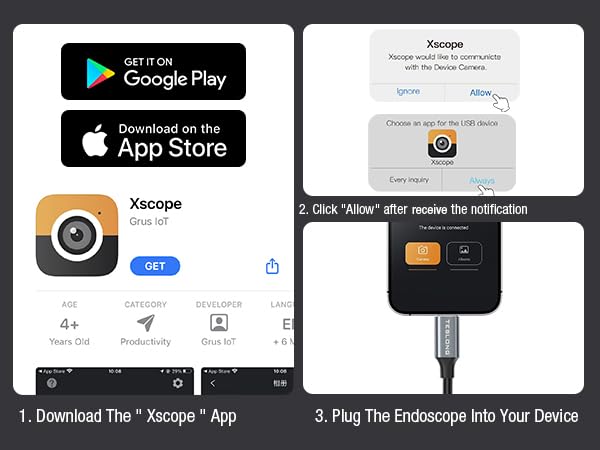
Image: A step-by-step visual guide on how to download the Xscope app, grant necessary permissions, and connect the endoscope to your device.
คำแนะนำการใช้งาน
Once the endoscope is connected and the Xscope app is running, you can control various functions directly from your device's screen.
- การหมุนภาพ: Rotate the image 90 degrees for optimal viewมุมการเอียง
- Color/Black and White Mode: Switch between color and black and white display modes.
- โหมดแยกหน้าจอ: Utilize split screen for comparative viewการไอเอ็นจี
- มิเรอร์หน้าจอ: Mirror the screen for easier viewไอเอ็นจีหรือการนำเสนอ
- อัลบั้ม: การเข้าถึงและอีกครั้งview จับภาพและวิดีโอ
- ซูม: Pinch with two fingers on the screen to zoom in or out (1X, 1.5X, 2X).
- สลับโหมดถ่ายภาพ/วิดีโอ: Easily toggle between photo and video capture modes.
- การจับกุม: Press the dedicated button within the app to take photos or record videos.
- การปรับความสว่าง LED: Use the physical control wheel on the cable to adjust the brightness of the 8 LED lights.

Image: The Xscope app interface, detailing controls for image manipulation, capture, and album access.

Image: The useful accessories provided with the endoscope, including a magnet, hook, and mirror, which attach to the camera head for enhanced functionality.
การซ่อมบำรุง
- การทำความสะอาดเลนส์: After each use, especially in dirty or wet environments, gently wipe the camera lens with a soft, dry cloth. For stubborn dirt, a slightly damp cloth can be used, followed by drying. Ensure no moisture remains on the lens.
- การดูแลสายเคเบิล: Coil the cable neatly after use to prevent kinks and damage. Avoid sharp bends or excessive force when manipulating the cable.
- พื้นที่จัดเก็บ: Store the endoscope in a cool, dry place, away from direct sunlight and extreme temperatures. Keep it in its original packaging or a protective case to prevent dust accumulation and physical damage.
- การดูแลอุปกรณ์เสริม: Clean the magnet, hook, and mirror attachments as needed. Ensure they are dry before storing.
การแก้ไขปัญหา
| ปัญหา | สาเหตุที่เป็นไปได้ | สารละลาย |
|---|---|---|
| ไม่มีภาพปรากฏบนหน้าจอ / แอปตรวจไม่พบกล้อง |
|
|
| LED lights not working or dim |
|
|
| ภาพเบลอหรือไม่ชัดเจน |
|
|
ข้อมูลจำเพาะ
- หมายเลขรุ่น: กทช30L
- ประเภทเลนส์: เลนส์เดี่ยว
- เส้นผ่าศูนย์กลางกล้อง: 8.5มม.
- ปณิธาน: 1280*960
- ไฟกล้อง: ไฟ LED ปรับได้ 8 ดวง
- View มุม: 79°
- ความเข้ากันได้ของอุปกรณ์: For all smartphone or tablet devices powered by USB-C (Android 8.0+ / iOS 12.0+)
- ระดับการกันน้ำ: IP67
- ระยะโฟกัส: 30-100 มม. (1.2-4.0 นิ้ว)
- ความยาวสายเคเบิล: 33 ฟุต (10 เมตร)
- สี: สีดำ
- ผู้ผลิต: เทสลอง
การรับประกันและการสนับสนุน
Teslong products are designed for durability and performance. For any questions, technical support, or warranty claims, please refer to the contact information provided in the included User Manual or visit the official Teslong webเว็บไซต์.
โปรดเก็บหลักฐานการซื้อไว้เพื่อวัตถุประสงค์การรับประกัน
สำหรับแหล่งข้อมูลเพิ่มเติมและคำถามที่พบบ่อย คุณสามารถเยี่ยมชม ร้าน Teslong บน Amazon.


