สินค้าเกินview
The SimpliSafe Smart Lock Series 2 is designed to integrate seamlessly with your SimpliSafe Gen 3 Home Security System, providing enhanced door security and convenient access control. This smart lock ensures your door is secured automatically when your system is armed and offers multiple unlocking methods.

Image: The SimpliSafe Smart Lock Series 2 (Black) and its accompanying PIN Pad, showcasing the sleek design of both components.

Image: An installed SimpliSafe Smart Lock on a door, illustrating its function in securing the home when the system is armed.
การติดตั้งและการตั้งค่า
The SimpliSafe Smart Lock is designed for straightforward installation without the need for drilling. It requires a single-cylinder deadbolt and is compatible with the SimpliSafe Gen 3 Home Security System.
ข้อกำหนดด้านความเข้ากันได้
- Requires the latest SimpliSafe Home Security system (Gen 3).
- Compatible with single-cylinder deadbolts.
ขั้นตอนการติดตั้ง
- Remove your existing deadbolt's interior thumb turn. The exterior portion of the deadbolt remains in place.
- Attach the SimpliSafe Smart Lock interior unit over the existing deadbolt mechanism. Ensure proper alignment.
- Secure the Smart Lock with the provided screws. No drilling is typically required.
- Pair the Smart Lock with your SimpliSafe Base Station following the instructions in the SimpliSafe App.
- Calibrate the lock through the SimpliSafe App to ensure smooth operation.
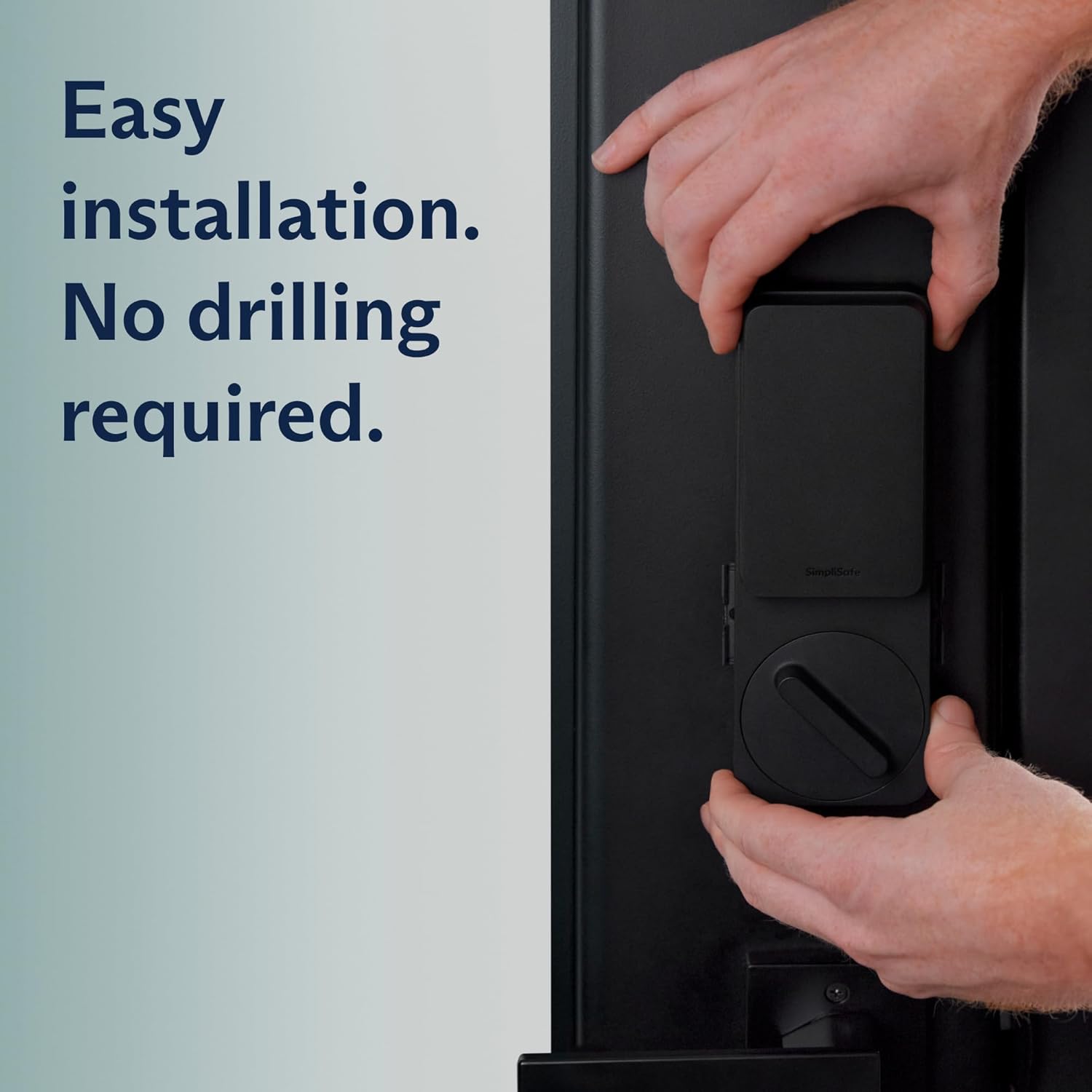
Image: A close-up of hands installing the SimpliSafe Smart Lock onto a door, demonstrating the screw-in installation process.

Image: Visual representation of the easy installation process, highlighting compatibility with existing keys, screwdriver-only installation, and no drilling required.
การใช้งานสมาร์ทล็อค
The SimpliSafe Smart Lock offers multiple ways to secure and access your home, integrating with your security system for automated locking and remote control.
ล็อคอัตโนมัติ
- The lock automatically secures your door when you arm your SimpliSafe system.
- You can set a timer within the SimpliSafe App for automatic locking at specific intervals or after a set duration.

Image: The SimpliSafe Smart Lock on a door, emphasizing its automatic locking feature when the system is armed or a timer is set.
การควบคุมด้วยมือและรีโมทคอนโทรล
- PIN Pad: Use the included PIN Pad to enter your access code for unlocking. The PIN Pad lights up for visibility in low light conditions.
- SimpliSafe App: Lock and unlock your door remotely from anywhere using the SimpliSafe App on your smartphone or tablet.
- SimpliSafe Key Fob (sold separately): For quick access, use a SimpliSafe Key Fob to unlock the door.

Image: A user interacting with the SimpliSafe PIN Pad, demonstrating how to manually unlock the door using a code.

Image: The SimpliSafe PIN Pad mounted on a door, highlighting its design and functionality as a primary access method.

Image: A user operating the SimpliSafe app on a smartphone to control the smart lock remotely.

Image: The SimpliSafe app interface on a smartphone, illustrating the ability to grant remote access and manage user codes.
คุณสมบัติด้านความปลอดภัย
- Instant Phone Alerts: Receive notifications via the SimpliSafe App when your door is locked or unlocked.
- ระบบป้องกันผู้บุกรุก: If an incorrect PIN is entered five times, the Smart Lock will notify you, indicating a potential security breach.
- การเชื่อมต่อที่เชื่อถือได้: Maintains a stable connection to your SimpliSafe system and wireless network for continuous protection.
การซ่อมบำรุง
Regular maintenance ensures the optimal performance and longevity of your SimpliSafe Smart Lock.
การเปลี่ยนแบตเตอรี่
The Smart Lock is battery-powered. When battery levels are low, you will receive notifications through the SimpliSafe App and potentially on the device itself. Replace batteries promptly to avoid interruption of service.
- Use alkaline batteries as specified by SimpliSafe.
- Refer to the SimpliSafe App for specific instructions on accessing the battery compartment and replacing batteries.
การทำความสะอาด
Wipe the exterior of the Smart Lock and PIN Pad with a soft, dry cloth. Avoid using abrasive cleaners or solvents that could damage the finish.
การแก้ไขปัญหา
This section addresses common issues you might encounter with your SimpliSafe Smart Lock.
Lock is Noisy or Requires Frequent Recalibration
- Ensure the deadbolt mechanism operates smoothly without the Smart Lock installed. Stiffness in the deadbolt can affect Smart Lock performance.
- Re-run the calibration process through the SimpliSafe App.
- Check that the Smart Lock is securely mounted and not loose.
Unreliable Status Reporting or Random Unlocking
- Verify the Smart Lock's connection to your SimpliSafe Base Station. Ensure the Base Station is within range and not obstructed.
- ตรวจสอบระดับแบตเตอรี่และเปลี่ยนใหม่หากเหลือน้อย
- Ensure your SimpliSafe system firmware and app are up to date.
PIN Pad Not Responding
- Check the PIN Pad's batteries.
- Ensure the PIN Pad is properly paired with your SimpliSafe system.
For further assistance, refer to the SimpliSafe support webเว็บไซต์หรือติดต่อฝ่ายบริการลูกค้า
ข้อมูลจำเพาะ
| คุณสมบัติ | รายละเอียด |
|---|---|
| ยี่ห้อ | ซิมพลิเซฟ |
| หมายเลขรุ่น | CA010-02RUS |
| สี | สีดำ |
| แหล่งพลังงาน | ใช้พลังงานจากแบตเตอรี่ |
| อุปกรณ์ที่รองรับ | SimpliSafe Gen 3 Home Security System, Personal Computer, Smartphone, Tablet |
| ขนาด (กว้าง x ยาว x สูง) | 7.67 x 2.75 x 1.27 นิ้ว |
| น้ำหนักสินค้า | 15.2 ออนซ์ |
| เทคโนโลยีการเชื่อมต่อ | ไร้สาย |
| ประเภทการติดตั้ง | Screw-In (No drilling required) |
| วิธีการควบคุม | App, Touch (PIN Pad) |
| ส่วนประกอบของเซลล์แบตเตอรี่ | ด่าง |
| ส่วนประกอบที่รวมอยู่ | Smart Lock, PIN Pad |
| คุณสมบัติพิเศษ | Alarm, Auto-Lock, Break-in Detection, Fob Unlock, Passcode Unlock |
| ยูพีซี | 843261113986 |
การรับประกันและการสนับสนุน
For detailed warranty information and customer support, please refer to the official SimpliSafe website or contact SimpliSafe customer service directly. Keep your purchase receipt for warranty claims.
SimpliSafe Support: simplisafe.com/support
SimpliSafe Store: SimpliSafe Amazon Store


