1. บทนำ
The FREEWOLF A2 is a transparent wireless gaming mouse designed for versatility and performance. It features dual-mode connectivity (2.4G wireless and Bluetooth 5.0), a PixArt 3212 optical sensor with adjustable DPI, a built-in rechargeable battery with a digital display, and customizable RGB backlighting. Its ergonomic design ensures comfort during extended use across various operating systems like Windows, Mac, and Linux.

Image 1.1: The FREEWOLF A2 Transparent Wireless Gaming Mouse, showcasing its transparent shell and internal components.
2. เนื้อหาบรรจุภัณฑ์
โปรดตรวจสอบว่าสินค้าทั้งหมดมีอยู่ในแพ็คเกจ:
- FREEWOLF A2 Wireless Gaming Mouse
- ตัวรับสัญญาณ USB (ดองเกิล 2.4G)
- สายชาร์จ USB-C
- คู่มือการใช้งาน (เอกสารนี้)
3. สินค้าหมดview
Familiarize yourself with the various components and features of your FREEWOLF A2 mouse.

Image 3.1: Exploded diagram illustrating the internal components of the FREEWOLF A2 mouse, including the transparent shell, battery, PCB board, and switches.

ภาพที่ 3.2: จากบนลงล่าง view of the FREEWOLF A2 mouse with key components labeled, including the 2.4G receiver storage, DPI switch, power switch, and dimensions.
คุณสมบัติหลัก:
- Dual Mode Connection: 2.4G Wireless and Bluetooth 5.0.
- PixArt 3212 Sensor: High sensitivity and accuracy.
- DPI ที่ปรับได้: 5 levels up to 4000 DPI.
- แบตเตอรี่แบบชาร์จไฟได้: Built-in 400 mAh battery with USB-C charging.
- หน้าจอดิจิตอล: แสดงเปอร์เซ็นต์แบตเตอรี่tage and DPI level.
- ไฟแบ็คไลท์ RGB: สามารถปรับแต่งเอฟเฟกต์แสงได้ตามต้องการ
- การออกแบบตามหลักสรีรศาสตร์: Comfortable for various grip styles.
4. การตั้งค่า
4.1. การชาร์จเมาส์
Before first use, it is recommended to fully charge the mouse. Connect the provided USB-C charging cable to the mouse's charging port and the other end to a USB power source (e.g., computer USB port, USB wall adapter). The digital screen will display the battery percentage ระหว่างการชาร์จ
Note: The USB-C cable is for charging only and does not provide a wired connection for mouse operation.

Image 4.1: Close-up of the FREEWOLF A2 mouse showing the digital screen displaying battery percentage.
4.2. Connecting via 2.4G Wireless
- ค้นหาตัวรับสัญญาณ USB (ดองเกิล) ที่เก็บไว้ในช่องด้านล่างของเมาส์
- เสียบตัวรับสัญญาณ USB เข้ากับพอร์ต USB ที่พร้อมใช้งานบนคอมพิวเตอร์ของคุณ
- Slide the power switch on the underside of the mouse to the '2.4G' position.
- The mouse should connect automatically. Your computer will typically install the necessary drivers.
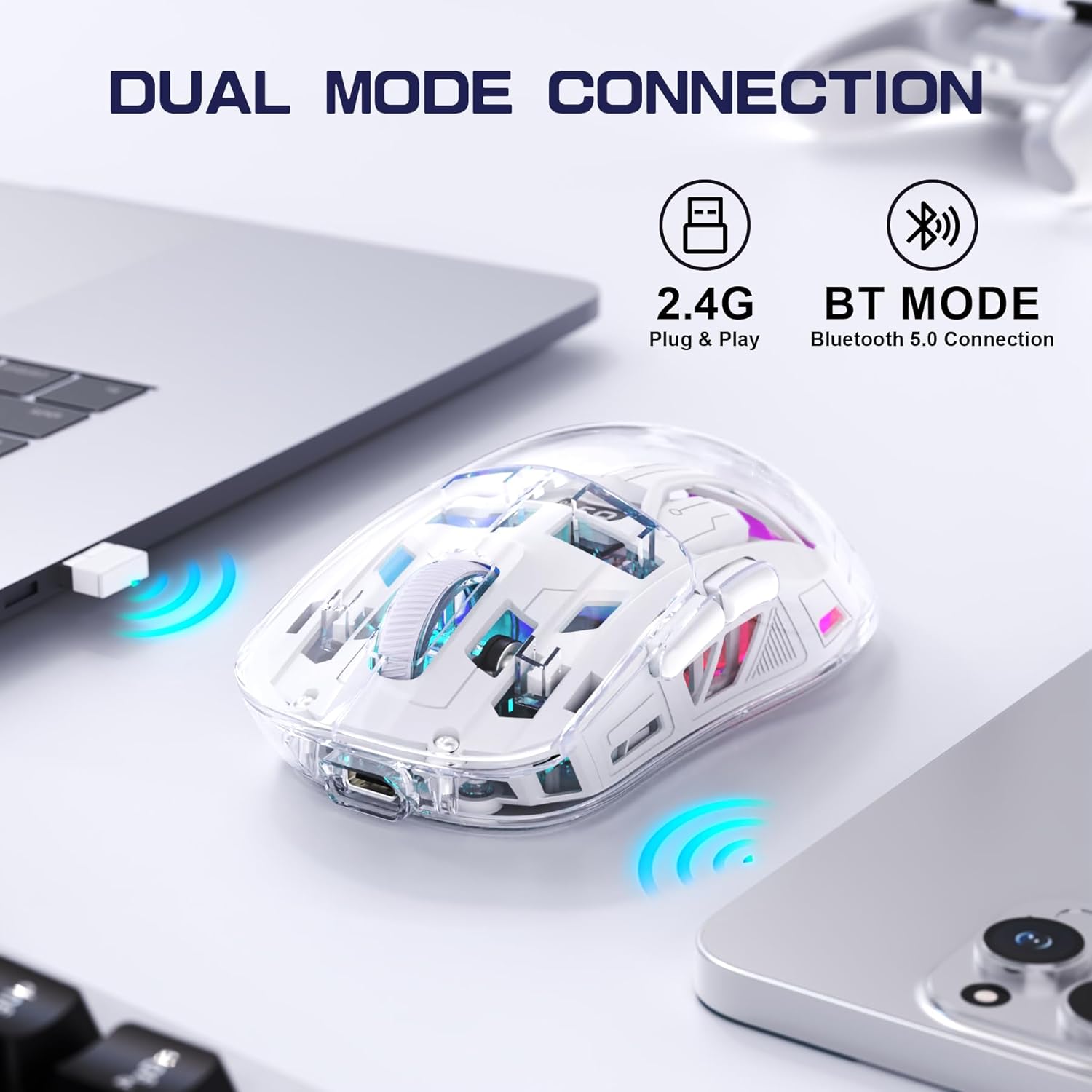
Image 4.2: The FREEWOLF A2 mouse connected to a laptop via its 2.4G wireless USB receiver.
4.3. การเชื่อมต่อผ่านบลูทูธ 5.0
- Slide the power switch on the underside of the mouse to the 'BT' (Bluetooth) position.
- เปิดการตั้งค่าบลูทูธบนคอมพิวเตอร์หรืออุปกรณ์ของคุณ
- ค้นหา new devices. The mouse should appear as 'FREEWOLF A2' or similar.
- เลือกเมาส์ที่จะจับคู่ ทำตามคำแนะนำบนหน้าจอ
5. คู่มือการใช้งาน
5.1. การปรับ DPI
The mouse features 5 adjustable DPI levels (1200-4000 DPI) to suit different tasks and preferences. To change the DPI, press the DPI button located on the underside of the mouse. The digital screen will briefly display the current DPI setting.

Image 5.1: Diagram illustrating the 5 adjustable DPI levels (1200, 1600, 2000, 2400, 4000) available on the FREEWOLF A2 mouse.
5.2. การควบคุมไฟแบ็คไลท์ RGB
The FREEWOLF A2 mouse features vibrant RGB backlighting. To cycle through different lighting effects or turn the backlight off, press and hold the scroll wheel button for a few seconds.

Image 5.2: Two FREEWOLF A2 mice on a desk, showcasing their cool RGB lighting effects in a low-light environment.
5.3. จอแสดงผลแบตเตอรี่
The integrated digital screen on the mouse continuously displays the current battery percentagซึ่งช่วยให้คุณสามารถตรวจสอบระดับพลังงานและชาร์จไฟได้ตามต้องการ
5.4. การออกแบบตามหลักสรีรศาสตร์
The mouse is designed to conform to various hand grip styles (Palm Grip, Fingertip Grip, Claw Grip), reducing discomfort during prolonged use.
Image 5.3: A hand demonstrating a comfortable grip on the FREEWOLF A2 mouse, highlighting its ergonomic design.
6. การบำรุงรักษา
- การทำความสะอาด: ใช้ผ้านุ่มและแห้งเช็ดทำความสะอาดเมาส์ หลีกเลี่ยงการใช้สารเคมีรุนแรงหรือวัสดุที่มีฤทธิ์กัดกร่อน
- พื้นที่จัดเก็บ: When not in use, store the mouse in a cool, dry place. If storing for an extended period, ensure the mouse is fully charged and turn off the power.
- การดูแลแบตเตอรี่ To prolong battery life, avoid fully discharging the mouse frequently. Recharge when the battery level is low.
7 การแก้ไขปัญหา
- เมาส์ไม่ตอบสนอง:
- Ensure the mouse is powered on and the correct connection mode (2.4G or BT) is selected.
- Check battery level on the digital screen and recharge if necessary.
- สำหรับโหมด 2.4G โปรดตรวจสอบให้แน่ใจว่าตัวรับสัญญาณ USB เสียบเข้ากับพอร์ต USB ที่ใช้งานได้แน่นดีแล้ว ลองใช้พอร์ต USB อื่น
- For Bluetooth mode, ensure Bluetooth is enabled on your device and the mouse is paired correctly. Try unpairing and re-pairing.
- รีสตาร์ทเครื่องคอมพิวเตอร์หรืออุปกรณ์ของคุณ
- Cursor movement is erratic or frozen:
- ทำความสะอาดเซ็นเซอร์ออปติคัลที่อยู่ใต้เมาส์
- ตรวจสอบให้แน่ใจว่าคุณกำลังใช้เมาส์บนพื้นผิวที่เหมาะสม (ไม่สะท้อนแสงมากหรือโปร่งใส)
- ตรวจสอบสัญญาณรบกวนจากอุปกรณ์ไร้สายอื่นๆ
- Adjust DPI settings to see if it resolves the issue.
- RGB backlight not working:
- ตรวจสอบให้แน่ใจว่าเมาส์มีประจุแบตเตอรี่เพียงพอ
- Press and hold the scroll wheel button to cycle through lighting modes or turn the backlight on/off.
- ปัญหาการชาร์จ:
- Ensure the USB-C cable is properly connected to both the mouse and the power source.
- ลองใช้สาย USB-C หรืออะแดปเตอร์ไฟอื่น
- ยืนยันว่าแหล่งพลังงานทำงานได้
8. ข้อมูลจำเพาะ
| คุณสมบัติ | รายละเอียด |
|---|---|
| หมายเลขรุ่น | A2 |
| เทคโนโลยีการเชื่อมต่อ | 2.4G ไร้สาย, บลูทูธ 5.0 |
| เทคโนโลยีตรวจจับการเคลื่อนไหว | ออปติคอล (PixArt 3212) |
| DPI ที่ปรับได้ | 1200-4000 (5 levels) |
| ความจุของแบตเตอรี่ | 400 มิลลิแอมป์ (ในตัว) |
| พอร์ตชาร์จ | ยูเอสบี-ซี |
| คุณสมบัติพิเศษ | Ergonomic Design, LED Lights (RGB), Portable, Rechargeable, Digital Battery Display |
| ขนาดสินค้า | 6.89 x 4.53 x 0.04 นิ้ว |
| น้ำหนักสินค้า | 4.9 ออนซ์ |
| ผู้ผลิต | ฟรีวูล์ฟ |
9. การรับประกันและการสนับสนุน
Specific warranty information for the FREEWOLF A2 Transparent Wireless Gaming Mouse is not provided in the available product data. Please refer to the product packaging or the retailer's webเข้าชมเว็บไซต์เพื่อดูรายละเอียดเกี่ยวกับการรับประกัน
For technical support or further assistance, please contact the manufacturer or your point of purchase. Contact information may be available on the product packaging or the official FREEWOLF webเว็บไซต์.


