1. บทนำ
Thank you for choosing the BALILA CM6 Speakerphone. This device is designed to provide clear, high-quality audio for online meetings, remote work, video conferencing, and online education. With its 360° omnidirectional sound pickup and advanced noise cancellation technology, it ensures effective communication in various environments. This manual will guide you through the setup, operation, and maintenance of your speakerphone.
2. สินค้าหมดview
2.1. เนื้อหาบรรจุภัณฑ์
- 1 x BALILA CM6 Speakerphone
- ไมโครโฟนแบบหนีบปก 6 ตัว
- สาย USB 1 เส้น (Type-C)
- 1 x คู่มือผู้ใช้
2.2. คุณสมบัติหลัก
- 360° Omnidirectional Sound Pickup: Equipped with 6 omnidirectional microphones to capture sound from all directions, ideal for 6-8 person meetings.
- การประมวลผลเสียงขั้นสูง: Features echo cancellation, reverberation suppression, and noise reduction for crystal-clear calls.
- การเชื่อมต่อ USB แบบ Plug-and-Play: Simple USB Type-A and Type-C connection, no driver installation required.
- ความเข้ากันได้กว้าง: Works seamlessly with popular online meeting platforms like Zoom, Skype, GoToMeeting, Webอดีต และอื่นๆ อีกมากมาย
- การออกแบบที่กะทัดรัดและพกพาได้: Palm-sized and lightweight, making it easy to carry for meetings on the go.
- การควบคุมที่สะดวก: Integrated mute button and volume controls directly on the unit for easy operation.
- อายุการใช้งานแบตเตอรี่ที่ยาวนานขึ้น: Up to 10 hours of continuous use, ensuring long meeting sessions without power concerns.
2.3. แผนภาพสินค้า
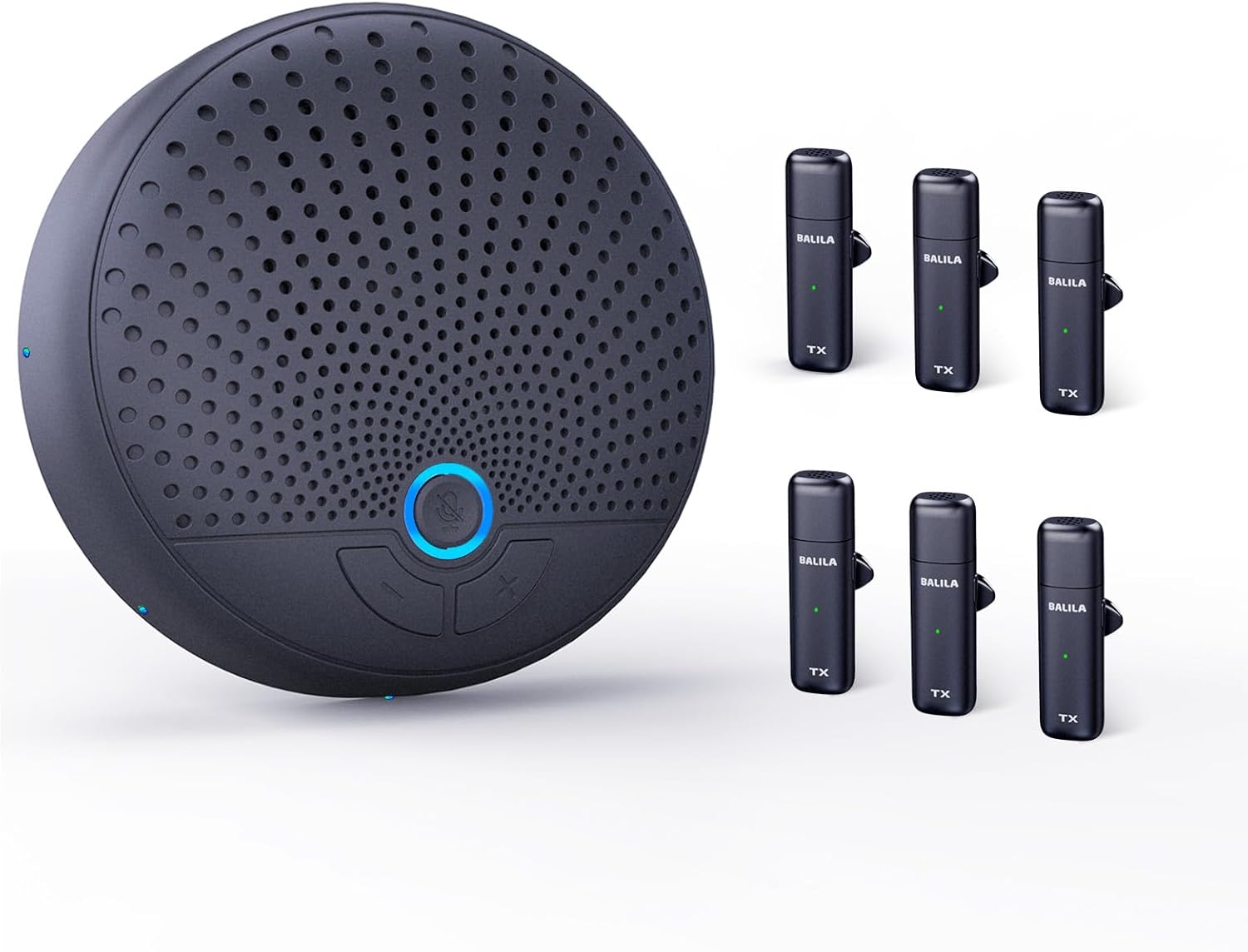
Figure 2.3.1: BALILA CM6 Speakerphone and included lavalier microphones.

Figure 2.3.2: Close-up of the convenient mute button and LED indicator on the speakerphone.
3. คู่มือการติดตั้ง
- เชื่อมต่อลำโพงโทรศัพท์: Use the provided USB Type-C cable to connect the BALILA CM6 speakerphone to your computer's USB-A or USB-C port. The device is plug-and-play, so no additional drivers are typically needed.

Figure 3.1: Connecting the speakerphone via USB-C or USB-A.
- Connect Lavalier Microphones: The 6 lavalier microphones are designed to connect wirelessly to the speakerphone. Ensure they are charged and powered on. They will automatically pair with the main unit.
- Select Audio Device:
On your computer, navigate to your sound settings (e.g., Windows: Sound Settings > Sound Control Panel; macOS: System Settings > Sound). Select "USB PHONE" as both your input (microphone) and output (speaker) device.

Figure 3.2: Selecting "USB PHONE" in your computer's sound settings.
- Launch Meeting Software: Open your preferred online meeting application (e.g., Zoom, Skype, Microsoft Teams) and ensure that "USB PHONE" is selected as the audio input and output device within the application's settings.
4. คู่มือการใช้งาน
4.1. การทำงานพื้นฐาน
- เปิด/ปิดเครื่อง: The speakerphone powers on automatically when connected via USB. The lavalier microphones have their own power buttons.
- การควบคุมระดับเสียง: Use the volume up (+) and volume down (-) buttons on the speakerphone to adjust the audio output level.
- ปิดเสียง/เปิดเสียงไมโครโฟน: Press the dedicated mute button on the speakerphone to mute or unmute the microphones. A blue LED indicator will show the microphone status (blue light on: recording; blue light off: muted).
4.2. สถานการณ์การใช้งาน
The BALILA CM6 is versatile and suitable for various communication needs:
- การประชุมออนไลน์: Ideal for small to medium-sized conference rooms (6-8 people) or individual use.
- Remote Work/Home Office: Provides clear audio for virtual team collaborations.
- การประชุมทางวิดีโอ: Enhances the audio experience for video calls.
- Online Education/Webใน: Ensures participants can hear and be heard clearly during lectures or presentations.

Figure 4.2.1: The BALILA CM6 speakerphone is suitable for diverse environments.

Figure 4.2.2: Optimal for large meetings with its multiple microphones.
5. การบำรุงรักษา
- รักษาความสะอาดของอุปกรณ์ด้วยการเช็ดด้วยผ้าแห้งเนื้อนุ่ม
- ควรหลีกเลี่ยงการวางลำโพงโทรศัพท์ไว้ในที่ที่มีอุณหภูมิสูง ความชื้นสูง หรือแสงแดดโดยตรง
- อย่าพยายามถอดประกอบหรือซ่อมแซมอุปกรณ์ด้วยตนเอง ติดต่อฝ่ายสนับสนุนลูกค้าเพื่อขอความช่วยเหลือ
- Store the speakerphone and microphones in a cool, dry place when not in use.
6 การแก้ไขปัญหา
| ปัญหา | สาเหตุที่เป็นไปได้ | สารละลาย |
|---|---|---|
| No sound from speakerphone / Speakerphone not recognized by computer. |
|
|
| Microphone not picking up sound / Other participants cannot hear me. |
|
|
| Audio quality is poor (echo, noise). |
|
|
| Volume is too low/high. |
|
|
7. ข้อมูลจำเพาะ
| คุณสมบัติ | รายละเอียด |
|---|---|
| ชื่อรุ่น | CM6 |
| ยี่ห้อ | บาลิลา |
| เทคโนโลยีการเชื่อมต่อ | ยูเอสบี |
| ประเภทขั้วต่อ | ยูเอสบี ไทป์ ซี |
| ปัจจัยรูปแบบไมโครโฟน | ปลอกคอ |
| รูปแบบขั้ว | รอบทิศทาง |
| การตอบสนองความถี่ | 20 เฮิรตซ์ - 120 กิโลเฮิรตซ์ |
| ขนาดสินค้า | 10 x 10 x 2 ซม.; 430 กรัม |
| แหล่งพลังงาน | สายไฟ |
| รวมแบตเตอรี่แล้ว | Yes (for lavalier mics) |
| อุปกรณ์ที่รองรับ | Smartphones, Desktop PCs, Laptops |
| คุณสมบัติพิเศษ | Echo Control, Clip-on, Noise Reduction, Battery Indicator Light, Mute Function |
| การใช้ที่แนะนำ | Online Education, Streaming, Video Conferencing, Business Travel |
8. การรับประกันและการสนับสนุน
For warranty information and technical support, please refer to the official BALILA website or contact BALILA customer service directly. Keep your purchase receipt for warranty claims.
หากต้องการความช่วยเหลือเพิ่มเติม โปรดไปที่: BALILA Official Store on Amazon


