1. บทนำ
This manual provides detailed instructions for the setup, operation, and maintenance of your YUNZII B75 Mechanical Keyboard. The YUNZII B75 is a 75% layout mechanical keyboard featuring hot-swappable switches, RGB backlighting, a gasket-mounted design, and double-shot PBT keycaps. It is designed for compatibility with Windows and Mac operating systems.

Figure 1: YUNZII B75 Mechanical Keyboard Overview
2. เนื้อหาบรรจุภัณฑ์
ตรวจสอบว่ามีรายการทั้งหมดอยู่ในแพ็คเกจของคุณ:
- คีย์บอร์ดแมคคานิค YUNZII B75
- ผ้าคลุมป้องกันฝุ่น
- ตัวดึงกุญแจ
- สาย USB (Type-C ถึง Type-A)
- ปุ่มกดและสวิตช์พิเศษ
- คู่มือการใช้งาน (เอกสารนี้)

Figure 2: Keyboard and Included Accessories
การแกะกล่องและการตรวจสอบเบื้องต้น
Upon opening the package, carefully remove the keyboard and all accessories. Inspect for any visible damage. The keyboard is protected by a dust cover during transit.
Video 1: YUNZII B75 Black Hot Swappable Mechanical Keyboard with Knob - Unboxing and Overview
3. การตั้งค่า
3.1 การเชื่อมต่อคีย์บอร์ด
The YUNZII B75 keyboard connects via a detachable USB-C cable. Ensure the cable is securely connected to both the keyboard and your computer.
- หาพอร์ต USB-C ที่ด้านหลังของคีย์บอร์ด
- เชื่อมต่อปลาย USB-C ของสายเคเบิลที่ให้มากับแป้นพิมพ์
- เชื่อมต่อปลายสาย USB-A เข้ากับพอร์ต USB ที่ว่างอยู่บนคอมพิวเตอร์ของคุณ
- For Mac users with only USB-C ports, a USB hub or adapter may be required.
Video 2: How to connect your B75 Keyboard to your devices
3.2 การปรับความสูงของแป้นพิมพ์
คีย์บอร์ดมีคุณสมบัติแบบ dual-stage adjustable stands on the underside to customize the typing angle for ergonomic comfort.
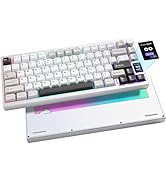
Figure 3: Dual-Stagขาตั้งปรับระดับได้
4. การใช้งานคีย์บอร์ด
4.1 Key Layout and Design
The B75 features a 75% layout, providing a compact form factor while retaining essential keys, including a dedicated function row and arrow keys. The keyboard incorporates a gasket-mounted structure and multi-layer padding for a consistent and comfortable typing experience.

Figure 4: Gasket Keyboard Structure Diagram
4.2 การควบคุมไฟแบ็คไลท์ RGB
The keyboard features customizable RGB backlighting with multiple effects and colors. Use the following shortcuts to adjust the lighting:
- Fn + แบ็คสเปซ: Turn ON/OFF backlights.
- Fn + Insert: Change backlight mode (19 types available).
- Fn + สิ้นสุด: Change backlight color (9 types available).
- Fn + PgUp: Change lighting effect direction.
- Fn + ลูกศรขึ้น: เพิ่มความสว่าง (5 ระดับ)
- Fn + ลูกศรลง: ลดความสว่าง (5 ระดับ)
- ปุ่ม Fn + ลูกศรซ้าย: Decrease blinking speed (5 levels).
- ปุ่ม Fn + ลูกศรขวา: Increase blinking speed (5 levels).
Video 3: Backlight Adjustment of YUNZII B75 Mechanical Keyboard

Figure 5: RGB Shortcuts
4.3 Multi-Function Rotary Knob
The keyboard includes a rotary knob for quick adjustments. Long press the knob to switch between RGB control mode and Multimedia control mode.
- โหมดมัลติมีเดีย: Rotate to adjust volume (+/-), press to mute/unmute.
- โหมด RGB: Rotate to adjust backlight brightness, press to change backlight mode.

Figure 6: Multi-Function Rotary Knob
4.4 FN Key Shortcuts
Utilize the FN key in combination with the F-row keys for quick access to various functions:
| FN Shortcut | การทำงาน |
|---|---|
| Fn+F1 | คอมพิวเตอร์ |
| Fn+F2 | หน้าแรก |
| Fn+F3 | เครื่องคิดเลข |
| Fn+F4 | ผู้เล่น |
| Fn+F5 | เพลงก่อนหน้า |
| Fn+F6 | เพลงต่อไป |
| Fn+F7 | เล่น/หยุดชั่วคราว |
| Fn+F8 | หยุด |
| Fn+F9 | ปิดเสียง |
| Fn+F10 | ลดระดับเสียง |
| Fn+F11 | เพิ่มระดับเสียง |
| Fn+F12 | เมล |
4.5 Custom Software
The YUNZII B75 supports custom software (Windows only) for advanced personalization. This software allows you to:
- Program macro keys.
- Customize lighting colors and effects.
- ตั้งค่าปุ่มลัดแบบกำหนดเอง
- แก้ไขแมโคร
- Adjust sleep time settings.

Figure 7: Custom Software Interface
5. การบำรุงรักษา
5.1 การทำความสะอาดแป้นพิมพ์
เพื่อรักษาประสิทธิภาพและรูปลักษณ์ที่เหมาะสม ควรทำความสะอาดแป้นพิมพ์ของคุณเป็นประจำ:
- Use the provided dust cover when the keyboard is not in use.
- Gently wipe the keycaps and frame with a soft, damp ผ้า.
- For deeper cleaning, use the keycap puller to remove keycaps and clean underneath.
5.2 สวิตช์และปุ่มกดแบบถอดเปลี่ยนได้ขณะใช้งาน
The YUNZII B75 features hot-swappable switch sockets, allowing you to easily change mechanical switches without soldering. It supports both 3-pin and 5-pin mechanical switches.

รูปที่ 8: สวิตช์แบบถอดเปลี่ยนได้ขณะทำงาน
The keyboard comes with durable double-shot PBT keycaps in a Cherry profile, known for their resistance to wear and shine. Use the included keycap puller to safely remove and replace keycaps.

Figure 9: Double-Shot PBT Keycaps
6 การแก้ไขปัญหา
6.1 ปัญหาการเชื่อมต่อ
If the keyboard is not responding or backlights are off after connecting:
- Ensure the USB-C cable is fully inserted into both the keyboard and the computer.
- ลองเชื่อมต่อคีย์บอร์ดกับพอร์ต USB อื่นบนคอมพิวเตอร์ของคุณ
- If using a USB hub, try connecting the keyboard directly to the computer or a different hub port.
- ทดสอบด้วยสาย USB-C อื่นหากมี
6.2 การรีเซ็ตแป้นพิมพ์
To reset the keyboard to its factory default settings (white backlight, default speed):
- กดค้างไว้ Fn + ESC เป็นเวลา 3-5 วินาที
- The keyboard will reset, and the backlights will restore to white.
6.3 การล็อกปุ่ม Windows
To lock or unlock the Windows key:
- กด Fn + วิน. The WIN indicator light will illuminate when locked and turn off when unlocked.
7. ข้อมูลจำเพาะ
| คุณสมบัติ | รายละเอียด |
|---|---|
| ขนาดสินค้า | 13.17 x 13.17 x 1.66 นิ้ว |
| น้ำหนักสินค้า | 1.76 ปอนด์ |
| ผู้ผลิต | ยูนซี |
| หมายเลขรุ่นสินค้า | B75 |
| อุปกรณ์ที่รองรับ | iOS, Windows, Mac, Android |
| เทคโนโลยีการเชื่อมต่อ | ยูเอสบี-ซี |
| คำอธิบายแป้นพิมพ์ | เครื่องจักรกล |
| คุณสมบัติพิเศษ | Backlit, Ergonomic, Hot-Swappable, Customizable Display Keys |
| รองรับสีแบ็คไลท์ของคีย์บอร์ด | อาร์จีบี |
| วัสดุ | โพลีบิวทิลีนเทเรฟทาเลต (PBT) |
8. การรับประกันและการสนับสนุน
For warranty information, technical support, or any product-related inquiries, please refer to the official YUNZII webหรือติดต่อฝ่ายบริการลูกค้าโดยตรง โดยทั่วไปรายละเอียดการติดต่อจะระบุไว้บนบรรจุภัณฑ์ผลิตภัณฑ์หรือหน้าสนับสนุนอย่างเป็นทางการของผู้ผลิต


