การแนะนำ
This manual provides detailed instructions for the Xtrike Me 9D Wired Gaming Mouse, Model 415. Please read this manual thoroughly before using the product to ensure proper setup and operation. This gaming mouse is designed for precision and customization, offering an enhanced experience for various computing tasks and gaming environments.
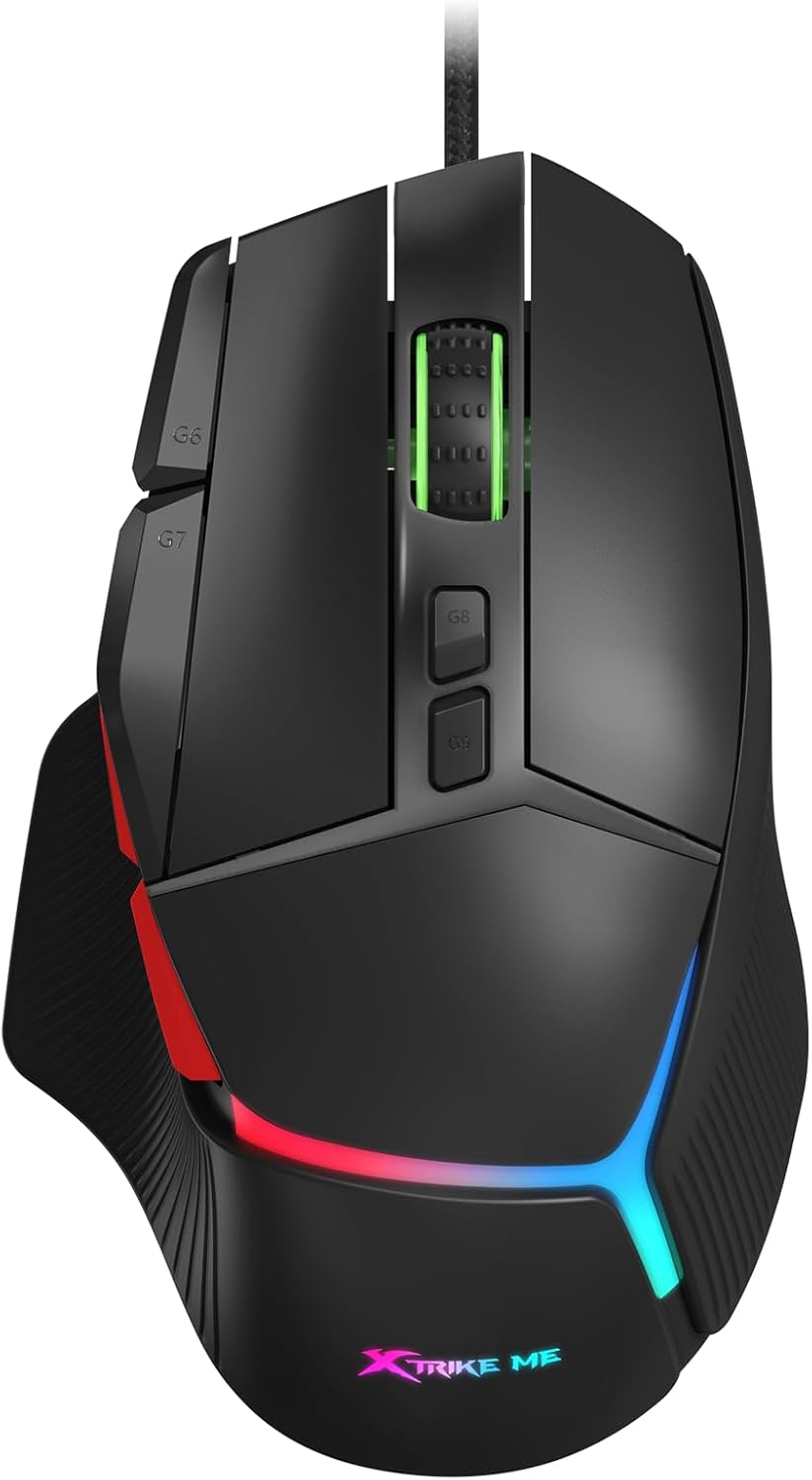
ภาพ: ด้านหน้า view of the Xtrike Me 9D Wired Gaming Mouse, showcasing its ergonomic design and vibrant RGB lighting.
การตั้งค่า
The Xtrike Me 9D Wired Gaming Mouse is designed for plug-and-play functionality, requiring minimal setup. Follow these steps to begin using your mouse:
- แกะกล่องเมาส์: นำเมาส์ออกจากบรรจุภัณฑ์อย่างระมัดระวัง
- เชื่อมต่อกับคอมพิวเตอร์: เสียบขั้วต่อ USB ของเมาส์เข้ากับพอร์ต USB ที่มีอยู่ในคอมพิวเตอร์ของคุณ
- การติดตั้งไดร์เวอร์: Your operating system (Windows XP and newer) should automatically detect and install the necessary drivers. No additional software installation is typically required for basic functionality. For advanced customization, such as programming buttons or specific RGB settings, driver support may be available from the manufacturer's webเว็บไซต์.
- ทดสอบฟังก์ชันการทำงาน: Move the mouse and click the buttons to ensure it is working correctly.

Image: The Xtrike Me 9D Wired Gaming Mouse positioned on a gaming mat, illustrating its readiness for use after connection.
คุณสมบัติหลัก
The Xtrike Me 9D Wired Gaming Mouse offers a range of features designed to enhance your control and experience:
- เซ็นเซอร์ออปติคัล 8000 DPI: Adjustable sensitivity from 800 to 8000 DPI for precise tracking.
- 9D Programmable Buttons: Nine customizable buttons for assigning commands and shortcuts.
- ไฟแบ็คไลท์ RGB: Dynamic and customizable lighting effects.
- 8 Million Click Rating: Durable switches designed for extended use.
- อัตราการสำรวจ 125Hz: Ensures smooth and accurate tracking with minimal lag.
- การออกแบบน้ำหนักเบา: Weighs 58g (excluding wire) for agile and responsive movement.
- 1.8m Braided Cable: Durable and tangle-free cable for reliable connectivity.
- รูปทรงตามหลักสรีรศาสตร์: Designed for comfort during prolonged use.

ภาพ: เหนือศีรษะ view of the mouse, visually indicating its key features such as DPI sensor, RGB backlight, and polling rate.
คำแนะนำการใช้งาน
Understanding the functions of your Xtrike Me 9D Wired Gaming Mouse will allow you to optimize your experience.
การปรับ DPI
The mouse features an adjustable DPI (Dots Per Inch) setting, allowing you to change cursor sensitivity on the fly. The DPI can be adjusted from 800 to 8000. Typically, there are dedicated buttons (often labeled G8 and G9 or similar) near the scroll wheel for this purpose. Pressing these buttons will cycle through predefined DPI levels.
ภาพ: รายละเอียด view of the mouse's top surface, highlighting the G8 and G9 buttons used for DPI adjustment.
ปุ่มที่สามารถตั้งโปรแกรมได้
The mouse is equipped with 9 programmable buttons. These buttons can be customized to perform specific functions, macros, or shortcuts. To program these buttons, you may need to download and install the official driver software from the Xtrike Me webเว็บไซต์ โปรดดูคำแนะนำของซอฟต์แวร์สำหรับตัวเลือกการปรับแต่งโดยละเอียด
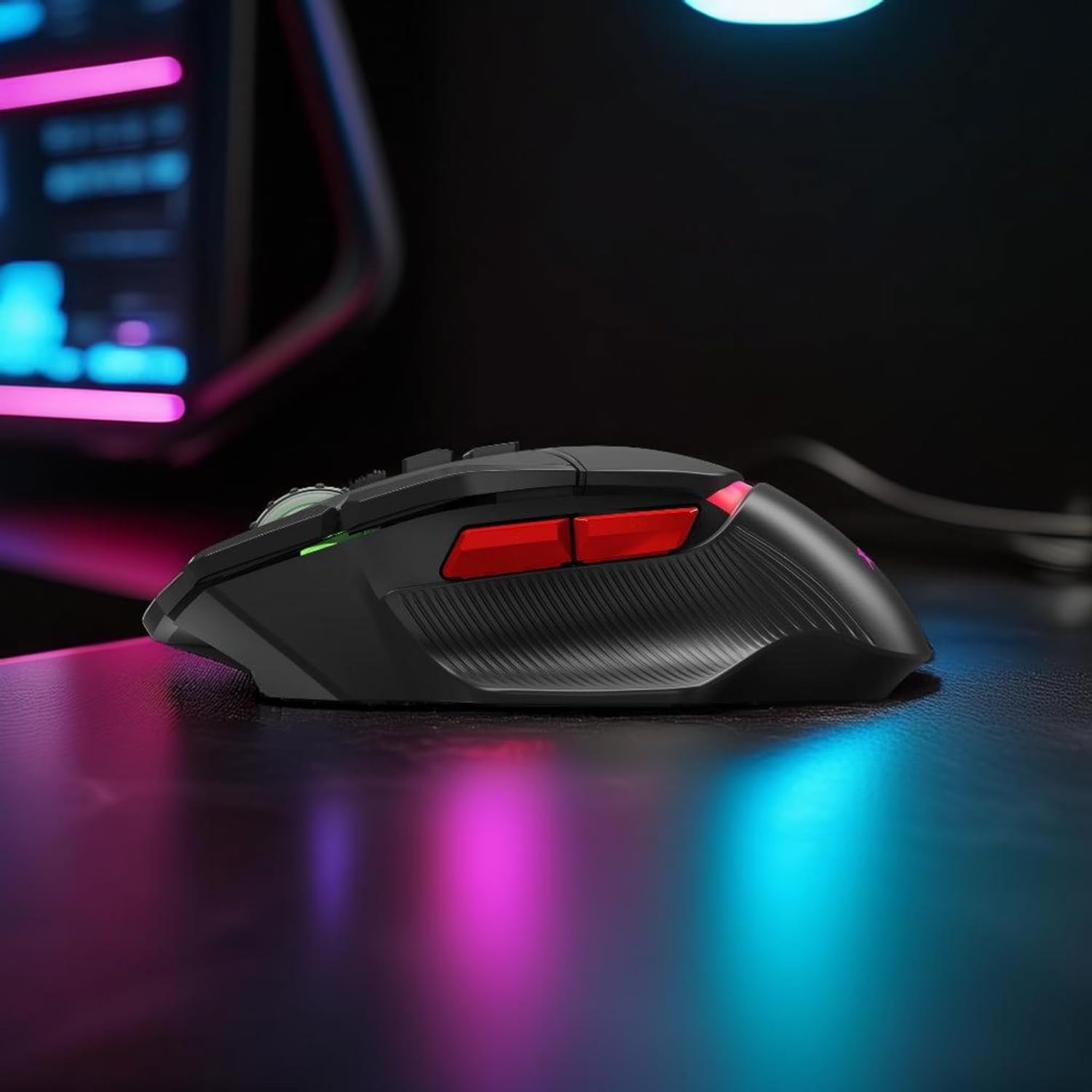
ภาพ: โปรด้านข้างfile of the mouse, illustrating the placement of the additional programmable buttons.
การควบคุมไฟแบ็คไลท์ RGB
The integrated RGB backlighting can be customized to match your preferences. Depending on the model and driver software, you may be able to:
- Change lighting colors.
- Select different lighting effects (e.g., static, breathing, wave).
- Adjust brightness or turn off the lighting.
These settings are typically managed through the dedicated driver software. Consult the software's user interface for specific instructions.
การซ่อมบำรุง
Proper care and maintenance will extend the lifespan of your gaming mouse:
- การทำความสะอาด: ใช้ผ้านุ่มและแห้งเช็ดพื้นผิวของเมาส์ สำหรับสิ่งสกปรกฝังแน่น ให้เช็ดเบาๆamp สามารถใช้ผ้าเช็ดทำความสะอาดได้ เพื่อให้แน่ใจว่าไม่มีของเหลวเข้าไปในตัวหนู หลีกเลี่ยงสารเคมีรุนแรงหรือวัสดุที่มีฤทธิ์กัดกร่อน
- การทำความสะอาดเซ็นเซอร์: บางครั้งอาจมีฝุ่นหรือเศษสิ่งสกปรกสะสมอยู่รอบๆ เซ็นเซอร์รับภาพที่ด้านล่างของเมาส์ ให้ใช้สำลีหรือลมเป่าทำความสะอาดบริเวณเซ็นเซอร์เบาๆ
- การดูแลสายเคเบิล: Avoid sharply bending or twisting the USB cable. Store the cable neatly to prevent tangles and damage.
- พื้นที่จัดเก็บ: เมื่อไม่ได้ใช้งาน ให้เก็บเมาส์ไว้ในสภาพแวดล้อมที่สะอาดและแห้ง ห่างจากอุณหภูมิที่สูงหรือต่ำเกินไป

Image: The underside of the mouse, displaying the optical sensor and glide feet, important areas for cleaning and maintenance.
การแก้ไขปัญหา
If you encounter issues with your Xtrike Me 9D Wired Gaming Mouse, refer to the following common solutions:
- Mouse Not Detected:
- ตรวจสอบให้แน่ใจว่าสาย USB เสียบเข้ากับพอร์ต USB ที่ใช้งานได้แน่นดีแล้ว
- ลองเสียบเมาส์เข้ากับพอร์ต USB อื่นบนคอมพิวเตอร์ของคุณ
- รีสตาร์ทเครื่องคอมพิวเตอร์ของคุณ
- Check your computer's Device Manager (Windows) or System Information (Mac) to see if the mouse is recognized.
- การเคลื่อนไหวของเคอร์เซอร์ที่ไม่แน่นอน:
- ทำความสะอาดเซ็นเซอร์ออปติคอลที่ด้านล่างของเมาส์
- ตรวจสอบให้แน่ใจว่าคุณใช้เมาส์บนพื้นผิวที่เหมาะสม (เช่น แผ่นรองเมาส์) หลีกเลี่ยงพื้นผิวที่สะท้อนแสงสูงหรือโปร่งใส
- ตรวจสอบดูว่ามีความขัดแย้งของซอฟต์แวร์หรือไดรเวอร์ที่ล้าสมัยหรือไม่
- ปุ่มไม่ตอบสนอง:
- ตรวจสอบให้แน่ใจว่าเชื่อมต่อเมาส์อย่างถูกต้อง
- If using programmable buttons, verify that the driver software is installed and the buttons are correctly configured.
- ทดสอบเมาส์บนคอมพิวเตอร์เครื่องอื่นเพื่อตัดปัญหาเฉพาะระบบออกไป
- ไฟ RGB ไม่ทำงาน:
- Check the driver software for lighting settings and ensure they are enabled.
- ตรวจสอบให้แน่ใจว่าเมาส์ได้รับพลังงานเพียงพอจากพอร์ต USB
ข้อมูลจำเพาะ
| คุณสมบัติ | รายละเอียด |
|---|---|
| ยี่ห้อ | เอ็กซ์ไตรค์ มี |
| แบบอย่าง | 415 |
| เทคโนโลยีการเชื่อมต่อ | สาย USB |
| เทคโนโลยีตรวจจับการเคลื่อนไหว | ออฟติคอล |
| DPI Sensor | 800-8000 DPI (ปรับได้) |
| อัตราการสำรวจความคิดเห็น | 125เฮิรตซ์ |
| ปุ่ม | 9D Programmable Buttons |
| Click Rating | 8 ล้านคลิก |
| การแบ็คไลท์ | อาร์จีบี |
| ความยาวสายเคเบิล | สายถัก 1.8 ม |
| น้ำหนัก | 58 กรัม (ไม่รวมลวด) |
| ขนาด | 128 × 78 × 42มม. |
| วัสดุ | พลาสติก |
| การวางแนวมือ | ถนัดทั้งสองมือ |
| ระบบปฏิบัติการที่รองรับ | Windows XP และใหม่กว่า |
การรับประกันและการสนับสนุน
For warranty information and technical support, please refer to the documentation included with your purchase or visit the official Xtrike Me webไซต์ เก็บหลักฐานการซื้อของคุณไว้เพื่อใช้ในกรณีเรียกร้องการรับประกัน


