การแนะนำ
This manual provides detailed instructions for the setup, operation, and maintenance of your Nulea KM75 Advanced Ergonomic Wireless Keyboard and Mouse Combo. Please read this manual thoroughly before using the product to ensure optimal performance and longevity.
เนื้อหาแพ็คเกจ
- Nulea KM75 Ergonomic Wireless Keyboard
- Nulea Ergonomic Wireless Mouse
- 2.4G USB Receiver (shared for keyboard and mouse)
- สายชาร์จ USB-C
- คู่มือการใช้งาน (เอกสารนี้)
สินค้าเกินview
คุณสมบัติของแป้นพิมพ์
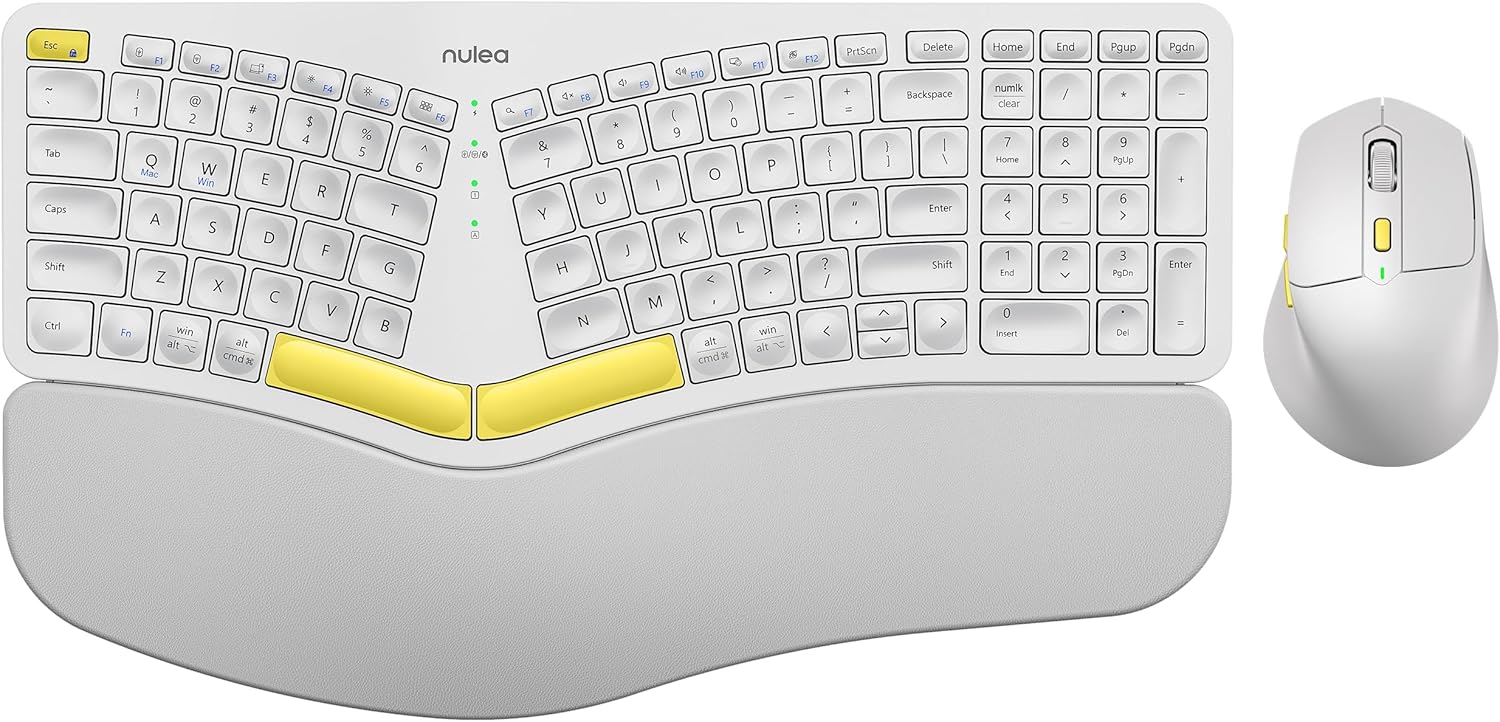
Image: The Nulea KM75 ergonomic keyboard and mouse combo. The keyboard features a curved and split layout with an integrated palm rest, and the mouse is sculpted for comfort. Both are white with yellow accents.
- Ergonomic Curved and Split Key-frame: Designed to position wrists and forearms naturally.
- ที่วางฝ่ามือแบบบูรณาการ: Features a soft memory foam layer for wrist support.
- Adjustable Tilt Design: Allows for optimal keyboard positioning.
- การเชื่อมต่อหลายอุปกรณ์: Supports USB cable, 2.4G USB receiver, and Bluetooth.
- แบตเตอรี่แบบชาร์จไฟได้: 500mAh capacity with USB-C charging.
- โหมดพักอัตโนมัติ: Conserves power after 30 minutes of inactivity.
คุณสมบัติของเมาส์

Image: A close-up of the Nulea ergonomic mouse, showing its sculpted design for a natural hand posture with integrated palm and thumb rests. The mouse is white with yellow accents.
- Ergonomic Sculpted Design: Integrated palm and thumb rests for natural hand position.
- การตั้งค่า DPI ที่ปรับได้: เพื่อการควบคุมเคอร์เซอร์ที่แม่นยำยิ่งขึ้น
- ปุ่มเดินหน้า/ถอยหลัง: เพื่อความสะดวก web การนำทาง
- การเชื่อมต่อหลายอุปกรณ์: Supports 2.4G USB receiver and Bluetooth.
- แบตเตอรี่แบบชาร์จไฟได้: 300mAh capacity with USB-C charging.
- โหมดพักอัตโนมัติ: Conserves power after 30 minutes of inactivity.
การตั้งค่า
1. การชาร์จอุปกรณ์
Before initial use, fully charge both the keyboard and mouse using the provided USB-C cable. Connect the USB-C end to the device and the USB-A end to a power source (e.g., computer USB port, USB wall adapter).

Image: Illustration showing the keyboard and mouse connected via USB-C cables for charging. The keyboard has a 500mAh battery and the mouse has a 300mAh battery.
The indicator lights will show charging status and turn off when fully charged. A full charge provides approximately two months of operation.
2. การเชื่อมต่อผ่านตัวรับสัญญาณ USB 2.4G
- ค้นหาตัวรับสัญญาณ USB 2.4G โดยปกติจะเก็บไว้ในช่องด้านล่างของเมาส์
- Insert the USB receiver into an available USB-A port on your computer.
- เปิดคีย์บอร์ดและเมาส์โดยใช้สวิตช์เปิด/ปิดตามลำดับ
- สำหรับแป้นพิมพ์ ให้กด Fn+F2 to select 2.4G mode.
- For the mouse, switch the mode selector on the bottom to 2.4G.
- อุปกรณ์ควรเชื่อมต่อกันโดยอัตโนมัติ

Image: A close-up of the underside of the mouse, showing the storage compartment for the 2.4G USB receiver.
3. การเชื่อมต่อผ่าน Bluetooth
- เปิดแป้นพิมพ์และเมาส์
- สำหรับแป้นพิมพ์ ให้กด Fn+F3 to select Bluetooth mode. The indicator light will blink, indicating pairing mode.
- For the mouse, switch the mode selector on the bottom to Bluetooth. The indicator light will blink.
- บนอุปกรณ์ของคุณ (คอมพิวเตอร์ แท็บเล็ต สมาร์ทโฟน) เปิดใช้งาน Bluetooth และค้นหาอุปกรณ์ใหม่
- Select "Nulea Keyboard" and "Nulea Mouse" from the list of available devices to pair.
- ปฏิบัติตามคำแนะนำบนหน้าจอเพื่อดำเนินการจับคู่ให้เสร็จสมบูรณ์
4. Connecting via Wired Mode
- Connect the USB-C charging cable to the keyboard or mouse and the USB-A end to your computer.
- สำหรับแป้นพิมพ์ ให้กด Fn+F1 to select wired mode.
- For the mouse, switch the mode selector on the bottom to wired mode.
- The devices will function as wired peripherals.

Image: Diagram illustrating the simple connectivity options for the Nulea KM75. Pressing Fn+F1 connects via wired, Fn+F2 via 2.4G, and Fn+F3 via Bluetooth, allowing connection to multiple devices like PCs, laptops, and mobile devices.
5 การสลับระหว่างอุปกรณ์
The Nulea KM75 combo supports multi-device connectivity. You can switch between up to three connected devices (one wired, one 2.4G, one Bluetooth) by pressing the corresponding function keys on the keyboard (Fn + F1/F2/F3) and adjusting the mode selector on the mouse.
คำแนะนำการใช้งาน
การใช้แป้นพิมพ์
- การออกแบบตามหลักสรีรศาสตร์: The curved and split key-frame is designed for natural hand and wrist positioning. Allow some time to adapt to this layout for optimal comfort.
- ขาปรับเอียงได้: Located on the underside of the keyboard, these legs allow you to adjust the typing angle for personalized comfort.

Image: A user demonstrating the adjustable tilt legs of the Nulea KM75 keyboard, showing how to customize the typing angle for ergonomic comfort.
- ปุ่มฟังก์ชัน (Fn): ปุ่มหลายปุ่มมีฟังก์ชันรองที่สามารถเข้าถึงได้โดยการกดปุ่มค้างไว้ Fn key and pressing the desired function key (e.g., media controls, volume). Refer to the keycap legends for specific functions.
การใช้เมาส์
- การปรับ DPI: Use the DPI switch button, usually located near the scroll wheel, to cycle through different sensitivity levels (DPI). This allows for precise control or faster cursor movement.

Image: A close-up of the Nulea ergonomic mouse, highlighting the DPI switch key and indicator light for adjusting cursor sensitivity.
- ปุ่มด้านข้าง: The side buttons (typically on the left for right-handed users) are often pre-programmed for forward and backward navigation in web เบราว์เซอร์หรือ file นักสำรวจ
การซ่อมบำรุง
- การทำความสะอาด: ใช้ผ้านุ่มและแห้งเช็ดทำความสะอาดพื้นผิวของแป้นพิมพ์และเมาส์ สำหรับคราบสกปรกฝังแน่น ให้เช็ดเบาๆamp สามารถใช้ผ้าชุบสบู่เหลวอ่อนๆ เช็ดทำความสะอาดได้ โดยระวังอย่าให้ของเหลวเข้าไปในตัวเครื่อง หลีกเลี่ยงสารเคมีรุนแรงหรือวัสดุที่มีฤทธิ์กัดกร่อน
- การดูแลแบตเตอรี่ To prolong battery life, avoid fully discharging the devices frequently. Recharge when the low battery indicator appears. Store in a cool, dry place if not used for extended periods.
- พื้นที่จัดเก็บ: When not in use, store the USB receiver in its designated compartment on the mouse to prevent loss.
การแก้ไขปัญหา
- อุปกรณ์ไม่ได้เชื่อมต่อ:
- ตรวจสอบให้แน่ใจว่าทั้งคีย์บอร์ดและเมาส์เปิดอยู่
- Verify the correct connection mode (2.4G, Bluetooth, Wired) is selected on both devices and your computer.
- สำหรับระบบ 2.4G โปรดตรวจสอบให้แน่ใจว่าตัวรับสัญญาณ USB เสียบเข้ากับพอร์ต USB ที่ใช้งานได้อย่างแน่นหนา
- For Bluetooth, ensure Bluetooth is enabled on your device and the devices are in pairing mode. Try re-pairing if necessary.
- Ensure the devices are charged.
- Try restarting your computer and the devices.
- การเชื่อมต่อล่าช้าหรือขาดๆ หายๆ:
- Move the devices closer to the USB receiver or your computer to reduce interference.
- Avoid placing the receiver near other wireless devices or large metal objects.
- ตรวจสอบให้แน่ใจว่าแบตเตอรี่มีประจุไฟเพียงพอ
- ปุ่มไม่ตอบสนองหรือเมาส์ไม่ขยับ:
- ตรวจสอบระดับแบตเตอรี่และชาร์จใหม่หากจำเป็น
- Ensure the devices are properly connected (see "Device not connecting" above).
- ทำความสะอาดเศษฝุ่นหรือสิ่งสกปรกต่างๆ ที่อยู่รอบๆ ปุ่มคีย์บอร์ดหรือเซ็นเซอร์เมาส์
ข้อมูลจำเพาะ
| คุณสมบัติ | รายละเอียด |
|---|---|
| ยี่ห้อ | นูเลีย |
| แบบอย่าง | KM75 |
| การเชื่อมต่อ | Bluetooth, 2.4G USB, Wired (USB-C) |
| แบตเตอรี่คีย์บอร์ด | แบตเตอรี่ลิเธียม 500mAh |
| แบตเตอรี่เมาส์ | แบตเตอรี่ลิเธียม 300mAh |
| ระบบปฏิบัติการที่รองรับ | วินโดวส์, แมคโอเอส, แอนดรอยด์ |
| คุณสมบัติพิเศษ | Ergonomic design, Curved/Split key-frame, Integrated palm rest, Adjustable tilt, Adjustable mouse DPI |
| น้ำหนักสินค้า | น้ำหนักรวม 4.2 ปอนด์ |
| ขนาดแพ็คเกจ | 16.97 x 11.69 x 2.05 นิ้ว |
การรับประกันและการสนับสนุน
Nulea products are designed for reliability and performance. For warranty information, technical support, or customer service inquiries, please refer to the contact details provided on the Nulea official website or your purchase documentation. Please retain your proof of purchase for warranty claims.


