1. บทนำ
This manual provides essential instructions for setting up, operating, and maintaining your SUAAT S10 10-inch Android 14 Tablet. Please read this manual thoroughly before using your device to ensure proper functionality and to maximize its lifespan. The SUAAT S10 tablet features an Octa-Core processor, 22GB RAM, 128GB ROM (expandable to 1TB), 5G+2.4G WiFi, Bluetooth 5.0, an 8000mAh battery, and an 8MP rear camera with a 5MP front camera.
2. เนื้อหาบรรจุภัณฑ์
ตรวจสอบว่ารายการทั้งหมดที่ระบุไว้ด้านล่างมีอยู่ในบรรจุภัณฑ์ผลิตภัณฑ์ของคุณ:
- แท็บเล็ต SUAAT S10
- แป้นพิมพ์บลูทูธ
- เมาส์ไร้สาย
- เคสป้องกัน
- Screen Protector (Tempered Glass)
- สายชาร์จแบบ USB Type-C
- อะแดปเตอร์แปลงไฟ
- อะแดปเตอร์ OTG
- SIM Ejector Pin (for microSD card slot)
- คู่มือการใช้งาน

Figure 2.1: Included accessories with the SUAAT S10 tablet.
3. การตั้งค่าเริ่มต้น
3.1 การชาร์จแท็บเล็ต
Before first use, fully charge the tablet. Connect the USB Type-C charging cable to the tablet's charging port and the power adapter to a wall outlet. The charging indicator will show the charging status. A full charge typically takes several hours.
3.2 การเปิด/ปิดเครื่อง
- การเปิดเครื่อง: กดปุ่มเปิด/ปิดค้างไว้จนกว่าหน้าจอจะสว่างขึ้น
- วิธีปิดเครื่อง: กดปุ่มเปิด/ปิดค้างไว้ จากนั้นเลือก "ปิดเครื่อง" จากตัวเลือกบนหน้าจอ
- ในการรีสตาร์ท: กดปุ่มเปิด/ปิดค้างไว้ จากนั้นเลือก "รีสตาร์ท" จากตัวเลือกบนหน้าจอ
3.3 การเชื่อมต่อกับ Wi-Fi
- ไปที่ การตั้งค่า > เครือข่ายและอินเตอร์เน็ต > ไวไฟ.
- สลับ Wi-Fi On.
- เลือกเครือข่าย Wi-Fi ที่คุณต้องการจากรายการ
- ป้อนรหัสผ่านเครือข่ายหากได้รับแจ้ง จากนั้นแตะ เชื่อมต่อ.
3.4 Pairing Bluetooth Accessories (Keyboard & Mouse)
- Ensure the Bluetooth keyboard and mouse are powered on and in pairing mode (refer to their respective manuals for specific instructions).
- บนแท็บเล็ตของคุณ ให้ไปที่ การตั้งค่า > อุปกรณ์ที่เชื่อมต่อ > บลูทูธ.
- สลับบลูทูธ On.
- แตะ จับคู่อุปกรณ์ใหม่.
- Select the keyboard or mouse from the list of available devices and follow any on-screen prompts to complete pairing.

Figure 3.1: SUAAT S10 tablet with keyboard and mouse accessories.
4. การใช้งานแท็บเล็ต
4.1 อินเทอร์เฟซ Android 14
Your SUAAT S10 tablet runs on Android 14, offering a user-friendly interface. Navigate by tapping, swiping, and pinching the screen. The home screen provides quick access to applications and widgets. Swipe down from the top for notifications and quick settings.

Figure 4.1: Android 14 operating system on SUAAT S10.
4.2 การใช้กล้อง
The tablet is equipped with an 8MP rear camera and a 5MP front camera. Open the Camera application to capture photos and videos. Tap the screen to focus and press the shutter button to take a picture.

รูปที่ 4.2: คุณสมบัติและฟังก์ชันของกล้องampไฟล์ภาพ
4.3 การบริโภคสื่อ
The 10-inch display with 1920x1200 resolution and Widevine L1 support provides an optimal viewing experience for videos and other media. The 8000mAh battery supports extended usage for video playback, music, and gaming.

Figure 4.3: High-definition display of the SUAAT S10 tablet.
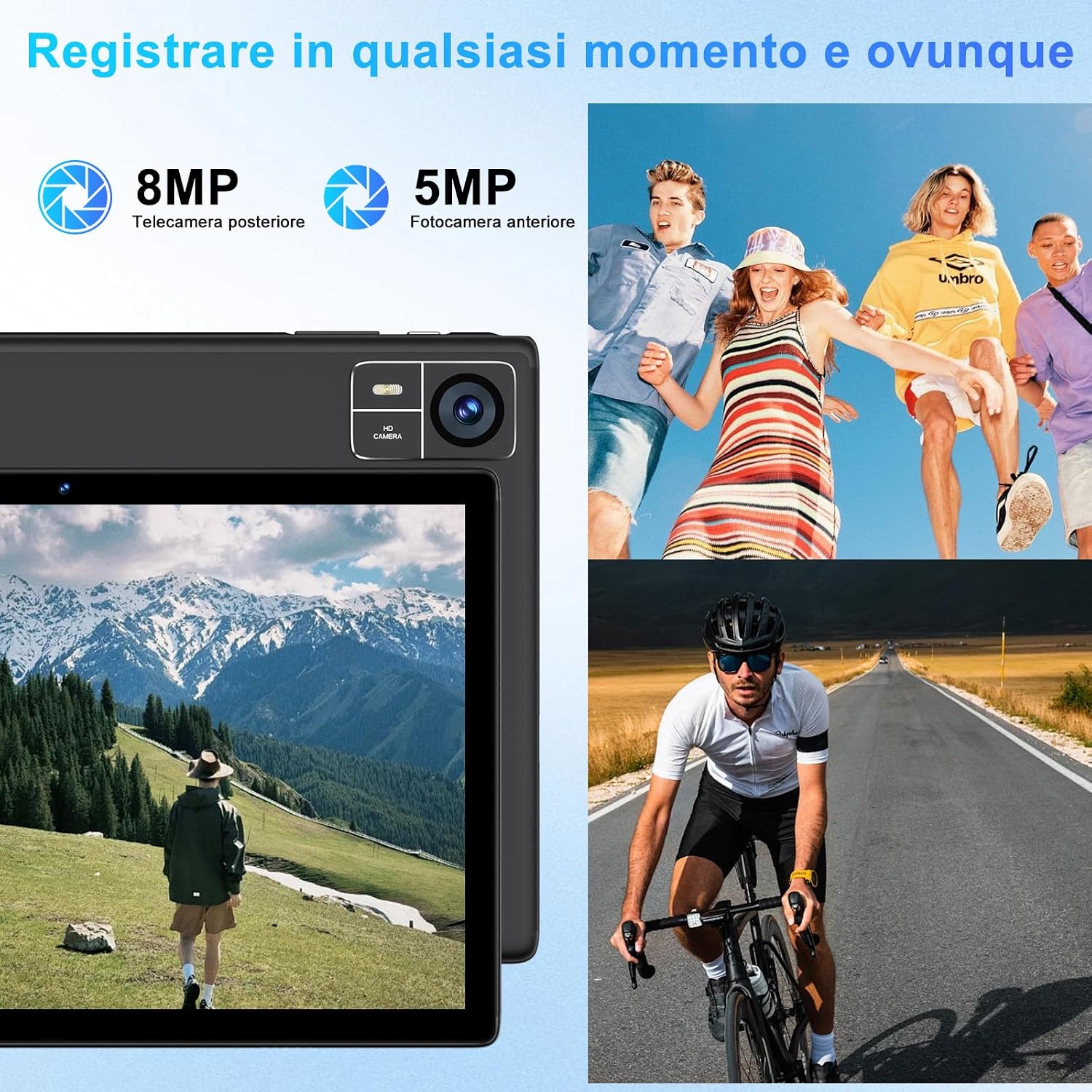
Figure 4.4: 8000mAh battery for extended use.

Figure 4.5: Tablet performance for media and applications.
5. การบำรุงรักษา
5.1 การทำความสะอาดแท็บเล็ต
Use a soft, lint-free cloth to clean the screen and body of the tablet. Avoid using harsh chemicals or abrasive materials, which can damage the screen coating or finish. For stubborn smudges, slightly dampเทน้ำหรือน้ำยาทำความสะอาดหน้าจอลงบนผ้า
5.2 การดูแลแบตเตอรี่
- ควรหลีกเลี่ยงการวางแท็บเล็ตไว้ในที่ที่มีอุณหภูมิสูงหรือต่ำเกินไป เพราะอาจทำให้ประสิทธิภาพของแบตเตอรี่ลดลงได้
- อย่าปล่อยให้แบตเตอรี่หมดเกลี้ยงเป็นเวลานาน
- For optimal battery longevity, avoid constantly charging the tablet to 100% or letting it frequently drop to 0%.
5.3 การอัปเดตซอฟต์แวร์
ตรวจสอบและติดตั้งการอัปเดตซอฟต์แวร์เป็นประจำเพื่อให้แน่ใจว่าแท็บเล็ตของคุณมีฟีเจอร์ แพตช์ความปลอดภัย และการปรับปรุงประสิทธิภาพล่าสุด ไปที่ การตั้งค่า > ระบบ > การอัพเดทระบบ.
6 การแก้ไขปัญหา
แท็บเล็ต 6.1 ไม่เปิด
- ตรวจสอบให้แน่ใจว่าแท็บเล็ตมีแบตเตอรี่เพียงพอ เสียบแท็บเล็ตเข้ากับที่ชาร์จอย่างน้อย 30 นาที
- กดปุ่มเปิด/ปิดค้างไว้ 10-15 วินาทีเพื่อรีสตาร์ทอัตโนมัติ
6.2 ปัญหาการเชื่อมต่อ Wi-Fi
- ตรวจสอบว่าเปิดใช้งาน Wi-Fi แล้วหรือไม่ การตั้งค่า.
- รีสตาร์ทเราเตอร์ Wi-Fi และแท็บเล็ตของคุณ
- ลืมเรื่องเครือข่ายไปซะ การตั้งค่า > เครือข่ายและอินเตอร์เน็ต > ไวไฟ, then reconnect.
6.3 ประสิทธิภาพช้า
- ปิดแอพพลิเคชันพื้นหลังที่ไม่จำเป็น
- Clear cache data for frequently used apps in การตั้งค่า > แอปพลิเคชั่น > [ชื่อแอป] > การจัดเก็บและแคช.
- Ensure sufficient storage space is available. Delete unused files หรือแอพ
- รีสตาร์ทแท็บเล็ต
6.4 Bluetooth Accessories Not Connecting
- Ensure the accessories are charged and in pairing mode.
- Check if Bluetooth is enabled on the tablet.
- Unpair and re-pair the accessories.
- Restart both the tablet and the accessories.
7. ข้อมูลจำเพาะ
| คุณสมบัติ | ข้อมูลจำเพาะ |
|---|---|
| ยี่ห้อ | ซัวต |
| หมายเลขรุ่น | S10 |
| ระบบปฏิบัติการ | แอนดรอยด์ 14 |
| ยี่ห้อโปรเซสเซอร์ | Unisoc Octa-Core (2.0 GHz) |
| แรม | 22GB (Note: This typically includes virtual RAM expansion. Actual physical RAM may be lower.) |
| การจัดเก็บข้อมูลภายใน | 128GB |
| พื้นที่เก็บข้อมูลแบบขยายได้ | Up to 1TB via TF card (microSD) |
| ขนาดหน้าจอ | 10 นิ้ว |
| ความละเอียดการแสดงผล | 1920x1200 พิกเซล (FHD) |
| กล้องหลัง | 8MP |
| กล้องหน้า | 5MP |
| ความจุของแบตเตอรี่ | 8000mAh |
| การเชื่อมต่อแบบไร้สาย | 5G+2.4G WiFi (802.11ac, 802.11b, 802.11g, 802.11n), Bluetooth 5.0 |
| ประเภทการเชื่อมต่อ | ยูเอสบี ไทป์ ซี |
| ขนาด (กว้าง x ยาว x สูง) | 17 x 12 x 0.8 ซม. |
| คุณสมบัติพิเศษ | Widevine L1 Support, Includes Keyboard and Mouse |
8. การรับประกันและการสนับสนุน
SUAAT is committed to providing professional technical assistance and 24-hour after-sales service. For any issues, questions, or warranty claims, please contact SUAAT customer support through the official channels provided with your purchase or on the SUAAT brand webเว็บไซต์.

Figure 8.1: SUAAT customer support details.


