1. บทนำ
This manual provides essential information for the proper setup, operation, and maintenance of your FUNYET 2-in-1 Laptop Tablet. Please read this manual thoroughly before using the device to ensure optimal performance and longevity. Keep this manual for future reference.
2. สินค้าหมดview
2.1 เนื้อหาบรรจุภัณฑ์
- FUNYET 2-in-1 Laptop Tablet
- แป้นพิมพ์ที่ถอดออกได้
- อะแดปเตอร์ AC
- คู่มือการใช้งาน (เอกสารนี้)
2.2 การจัดวางอุปกรณ์และพอร์ต
Familiarize yourself with the various ports and buttons on your device.

ภาพ: ด้านข้าง view of the FUNYET 2-in-1 Laptop Tablet illustrating the location of the power button, volume control, two Type-C ports, and Micro HDMI port.
- ปุ่มเปิด/ปิด: Press and hold to power on/off or sleep/wake the device.
- การควบคุมระดับเสียง: ปรับระดับเสียงของระบบ
- Type-C (Full-featured): รองรับการถ่ายโอนข้อมูล การส่งสัญญาณวิดีโอ และการจ่ายพลังงาน
- Type-C (Charging and Data Transfer): Primarily for charging the device and data transfer.
- ไมโคร HDMI: Connects to external displays.
2.3 คุณสมบัติหลัก
- โปรเซสเซอร์: Intel 12th Gen Celeron N100 (up to 3.4 GHz, 4 cores, 4 threads).
- หน่วยความจำ: แรม DDR5 ขนาด 16GB เพื่อการทำงานหลายอย่างพร้อมกันอย่างมีประสิทธิภาพ
- พื้นที่จัดเก็บ: 512GB SSD for fast boot times and ampที่เก็บของ
- แสดง: 14-inch 1920 x 1200 IPS Touchscreen.
- การเชื่อมต่อ: Wi-Fi 6 (802.11ax) และ Bluetooth 5.2
- กล้องถ่ายรูป: 2MP Front Camera and 5MP Rear Camera.
- แป้นพิมพ์: Detachable, backlit keyboard.
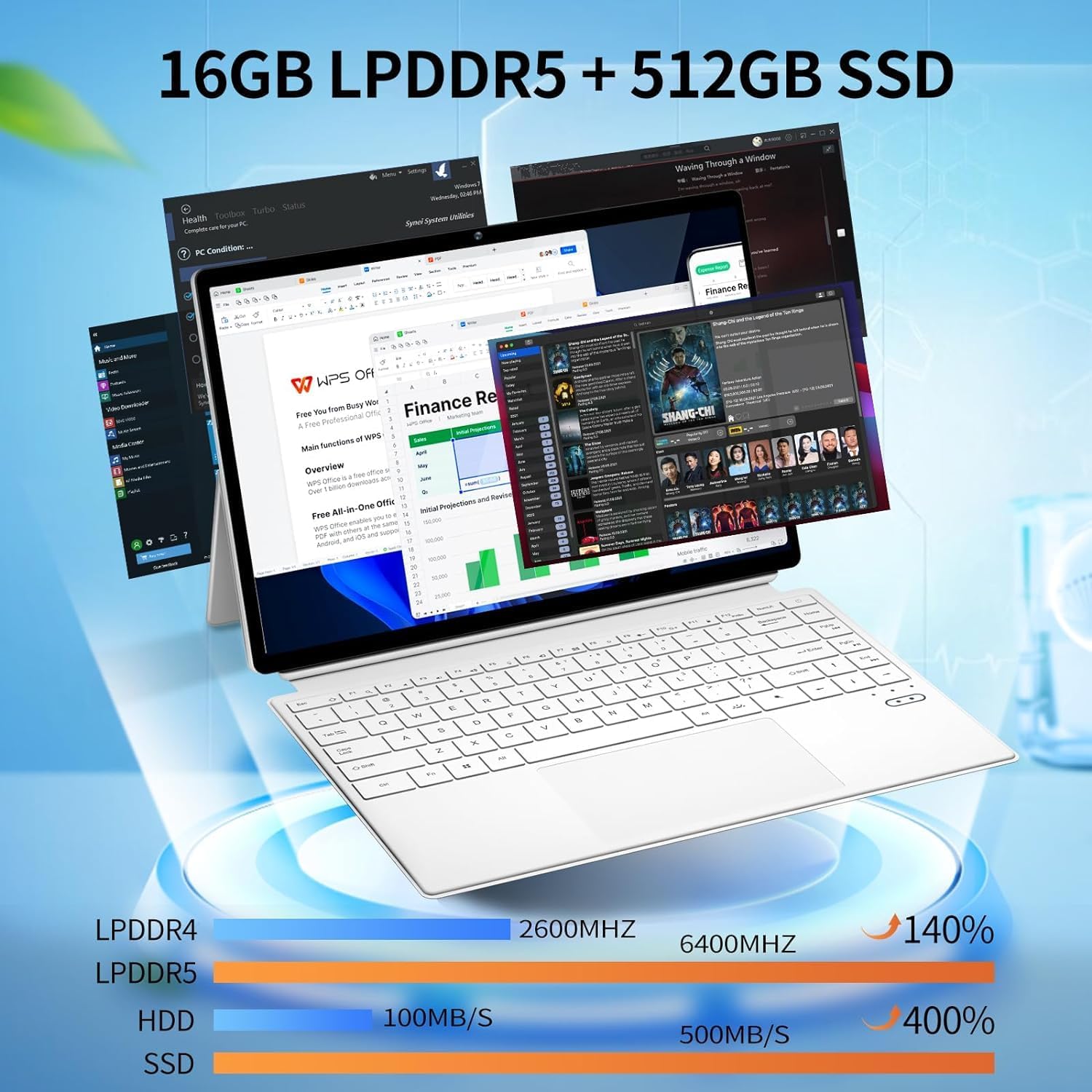
ภาพ: The device displaying multiple open applications, illustrating its multitasking capabilities with 16GB LPDDR5 RAM and 512GB SSD.
3. การตั้งค่า
3.1 การชาร์จเริ่มต้น
Before first use, connect the AC power adapter to the device's charging Type-C port and a power outlet. Charge the device until the battery is full. The battery indicator will show charging status.
3.2 การติดตั้งและถอดแป้นพิมพ์
The keyboard connects magnetically to the tablet. Align the magnetic connectors on the tablet and keyboard until they snap into place. To detach, gently pull the tablet away from the keyboard.
3.3 Adjusting the Kickstand
The integrated kickstand allows for various viewing angles. Extend the kickstand from the back of the tablet and adjust it to your desired position. Ensure the kickstand is fully extended and stable to prevent the device from tipping.

ภาพ: Visual guide demonstrating the correct method for deploying the device's kickstand for stable use, alongside examples of incorrect positioning.
3.4 การบูตครั้งแรกและการตั้งค่า Windows
Press and hold the Power Button until the screen turns on. Follow the on-screen instructions to complete the Windows 11 Pro setup, including language selection, network connection, and user account creation.
4. คู่มือการใช้งาน
4.1 การเปิด/ปิดเครื่องและโหมดสลีป
- เปิดเครื่อง: กดปุ่มเปิด/ปิดค้างไว้สักสองสามวินาที
- หมดแรง: From Windows, go to Start > Power > Shut down. Alternatively, press and hold the Power Button, then select 'Shut down' from the options.
- โหมดสลีป: Briefly press the Power Button to enter or exit sleep mode.
4.2 การใช้หน้าจอสัมผัส
The 14-inch display supports multi-touch gestures. Use your fingers to navigate, tap, swipe, pinch-to-zoom, and interact with applications.
4.3 การใช้แป้นพิมพ์และทัชแพด
When the keyboard is attached, it functions as a standard laptop keyboard. The integrated touchpad supports multi-touch gestures for navigation. The keyboard features backlighting for use in low-light conditions.

ภาพ: ภาพระยะใกล้ view of the detachable backlit keyboard, showing the key layout and touchpad.
4.4 การเชื่อมต่ออุปกรณ์ต่อพ่วง
- อุปกรณ์ USB-C: Connect compatible USB-C devices to the Type-C ports for data transfer or external display output (if full-featured).
- จอแสดงผลภายนอก: Use the Micro HDMI port to connect to an external monitor or TV. An appropriate adapter may be required.
4.5 การเชื่อมต่อแบบไร้สาย
- ไวไฟ : Access network settings in Windows to connect to available Wi-Fi 6 networks.
- บลูทูธ: Pair Bluetooth devices such as headphones, mice, or keyboards through Windows Bluetooth settings.

ภาพ: The device in use, highlighting its wireless capabilities (Wi-Fi 6, Bluetooth 5.2) and integrated cameras (2MP front, 5MP rear).
4.6 การใช้งานกล้อง
The device includes a 2MP front camera and a 5MP rear camera. Use the built-in Camera application in Windows to take photos, record videos, or participate in video calls.
5. การบำรุงรักษา
5.1 การทำความสะอาด
ใช้ผ้าเนื้อนุ่มที่ไม่เป็นขุยเช็ดทำความสะอาดหน้าจอและพื้นผิวด้านนอก สำหรับคราบฝังแน่น ให้ใช้ผ้าชนิดอื่นเช็ดampชุบผ้าให้เปียกหมาดๆ หรือใช้น้ำยาทำความสะอาดหน้าจอก็ได้ หลีกเลี่ยงสารเคมีรุนแรงหรือวัสดุที่มีฤทธิ์กัดกร่อน
5.2 การดูแลแบตเตอรี่
เพื่อยืดอายุแบตเตอรี่:
- หลีกเลี่ยงอุณหภูมิที่สูงหรือต่ำเกินไป
- อย่าปล่อยแบตเตอรี่จนหมดบ่อยๆ
- If storing the device for an extended period, charge it to about 50-70%.

ภาพ: An illustration of the 38Wh battery capacity and estimated usage times: 10 hours for daily use, 6-8 hours for video playback (Wi-Fi off), and 4 hours for video playback (Wi-Fi on).
5.3 การอัปเดตซอฟต์แวร์
Regularly check for and install Windows updates to ensure system stability, security, and access to the latest features. Go to Start > Settings > Windows Update.
5.4 การจัดการการจัดเก็บข้อมูล
รีเป็นระยะๆview and manage your storage space. Delete unnecessary fileควรถอนการติดตั้งแอปพลิเคชันที่ไม่ได้ใช้งาน และพิจารณาใช้พื้นที่จัดเก็บข้อมูลบนคลาวด์สำหรับไฟล์ขนาดใหญ่ fileเพื่อรักษาประสิทธิภาพการทำงานให้อยู่ในระดับที่เหมาะสม
6 การแก้ไขปัญหา
- อุปกรณ์ไม่เปิดเครื่อง: Ensure the device is charged. Connect the AC adapter and try again. If unresponsive, press and hold the power button for 15-20 seconds to perform a hard reset.
- แป้นพิมพ์ไม่ตอบสนอง: Ensure the keyboard is securely attached. Check if the keyboard's power is on (if it has a separate power switch or indicator). Re-attach the keyboard.
- ปัญหาการเชื่อมต่อ Wi-Fi: Check if Wi-Fi is enabled in Windows settings. Restart your router and the device. Ensure you are within range of a Wi-Fi network.
- ประสิทธิภาพช้า: Close unnecessary applications. Check for background processes consuming resources. Ensure sufficient free storage space. Run a system scan for malware.
- หน้าจอไม่หมุน: Ensure auto-rotation is enabled in Windows settings (Action Center).
7. ข้อมูลจำเพาะ
| คุณสมบัติ | ข้อมูลจำเพาะ |
|---|---|
| ชื่อรุ่น | FUNYET-2-IN-1-LAPTOP-TABLET-1 |
| โปรเซสเซอร์ | Intel Celeron N100 (12th Gen) |
| แรม | แรม 16GB DDR5 |
| พื้นที่จัดเก็บ | SSD ความจุ 512GB |
| ขนาดหน้าจอ | 14 นิ้ว |
| ความละเอียดหน้าจอ | 1920 x 1200 พิกเซล |
| ระบบปฏิบัติการ | วินโดวส์ 11 โปร |
| ประเภทไร้สาย | 802.11ax (ไวไฟ 6) |
| บลูทูธ | บลูทูธ 5.2 |
| กล้องหน้า | 2 MP |
| กล้องหลัง | 5 MP |
| น้ำหนักสินค้า | 5.37 ปอนด์ |
| ขนาดสินค้า | 12.5 x 8.4 x 0.4 นิ้ว |
| สี | สีขาว |
8. การรับประกันและการสนับสนุน
FUNYET offers a เปลี่ยนฟรี 30 วัน และก ซ่อมฟรี 1 ปี service for all its products. For any questions or assistance regarding your FUNYET 2-in-1 Laptop Tablet, please contact FUNYET support. We aim to respond within 24 hours.
For support, please visit the official FUNYET store or contact customer service through your purchase platform.


