1. บทนำ
This manual provides detailed instructions for the installation, operation, and maintenance of your NETVUE Sentry Plus 3 Outdoor Security Surveillance Camera. Please read this manual thoroughly before using the product to ensure proper functionality and safety. Keep this manual for future reference.
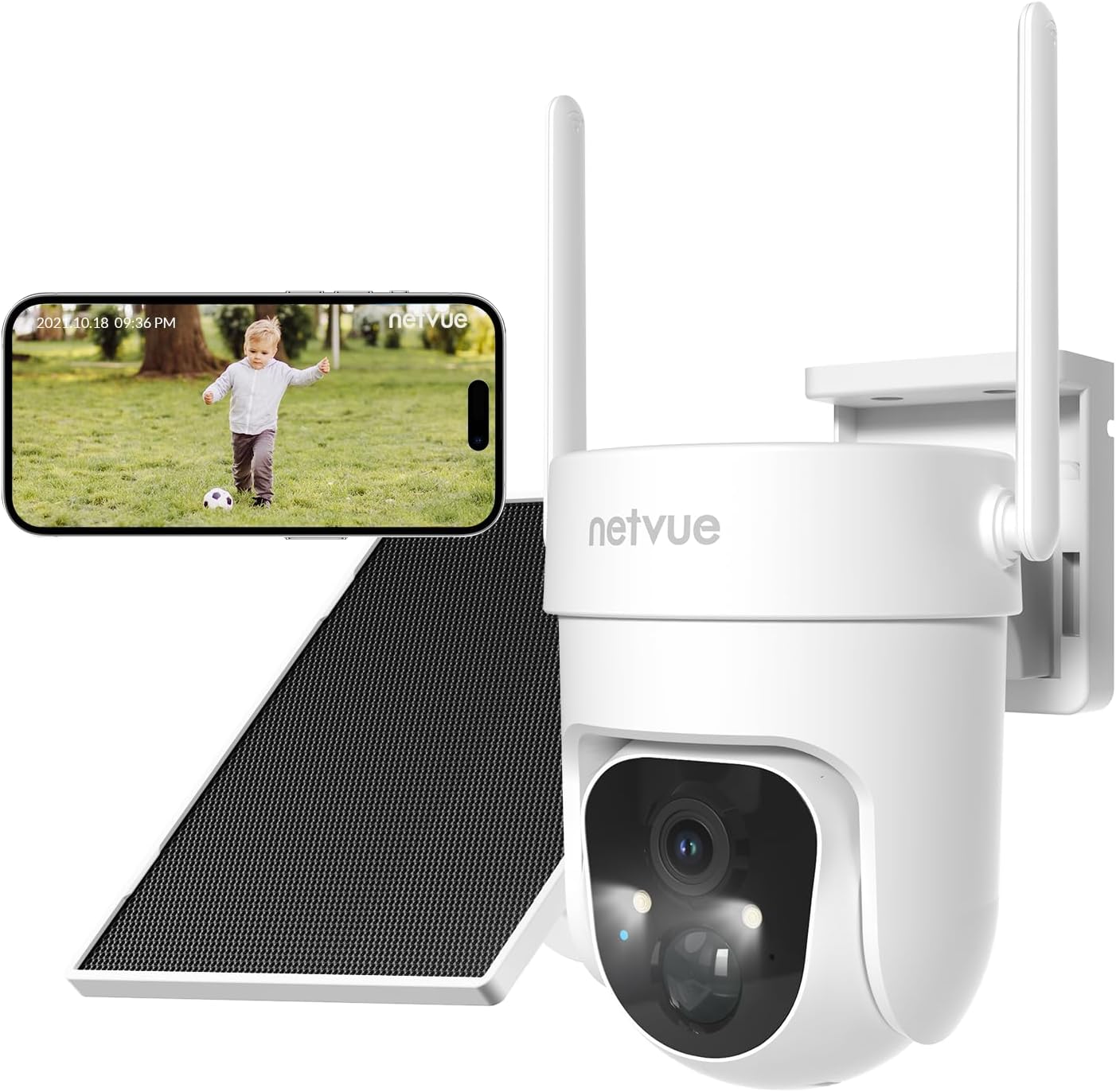
Image 1.1: NETVUE Sentry Plus 3 Outdoor Security Surveillance Camera. This image shows the camera unit, a solar panel, and a smartphone displaying a live feed from the camera.
2. สินค้าหมดview
2.1 เนื้อหาบรรจุภัณฑ์
- NETVUE Sentry Plus 3 Camera
- แผงโซล่าเซลล์
- ตัวยึด
- สกรูยึดและตัวล็อค
- สายชาร์จ USB
- คู่มือการใช้งาน
2.2 ส่วนประกอบของกล้อง
- เลนส์กล้อง
- Infrared LEDs / Spotlight
- ไมโครโฟน
- ลำโพง
- ไฟแสดงสถานะ
- MicroSD Card Slot (under protective cover)
- Reset Button (under protective cover)
- USB Charging Port (under protective cover)
- เสาอากาศ (2 อัน)
3. การตั้งค่า
3.1 การชาร์จเริ่มต้น
Before first use, fully charge the camera using the provided USB cable and a 5V/2A power adapter (not included). The status indicator light will show charging progress.
3.2 การดาวน์โหลดแอปและสร้างบัญชี
- Download the NETVUE app from the App Store (iOS) or Google Play Store (Android).
- เปิดแอปพลิเคชันและสร้างบัญชีใหม่ หรือเข้าสู่ระบบด้วยบัญชีที่มีอยู่แล้ว
3.3 การเชื่อมต่อ Wi-Fi
- ทำตามคำแนะนำในแอปเพื่อเพิ่มกล้องของคุณ
- ตรวจสอบให้แน่ใจว่าสมาร์ทโฟนของคุณเชื่อมต่อกับเครือข่าย Wi-Fi 2.4GHz กล้องไม่รองรับ Wi-Fi 5GHz
- สแกนคิวอาร์โค้ดที่แสดงบนโทรศัพท์ของคุณด้วยเลนส์กล้อง
- Wait for the camera to connect to your Wi-Fi network. A voice prompt will confirm successful connection.

Image 3.3: Enhanced Wi-Fi Signal. This image illustrates the NETVUE camera's capability to maintain a strong Wi-Fi connection, showing a clear timestamped image compared to a blurry 'Other' camera feed.
3.4 การติดตั้งกล้อง
The NETVUE Sentry Plus 3 supports both wall-mount and ceiling-mount installations.
- Choose a suitable location for installation, ensuring good Wi-Fi signal and optimal solar panel exposure.
- ใช้ตัวยึดเป็นแม่แบบในการทำเครื่องหมายรูเจาะ
- เจาะรูและใส่พุกยึดผนังหากจำเป็น
- Secure the mounting bracket to the wall or ceiling with screws.
- ติดกล้องเข้ากับขายึด
- Adjust the solar panel to face direct sunlight for maximum charging efficiency.

Image 3.4: Two-Way Installation. This image demonstrates the flexibility of installing the camera either mounted on a wall or suspended from a ceiling.
4. การใช้งานกล้อง
4.1 สด View และการเล่น
Open the NETVUE app to access the live view of your camera. You can also review บันทึกเสียงฟูtage from the MicroSD card or cloud storage.
4.2 AI-Powered Motion Detection
The camera features advanced AI motion detection with customizable alert filters. You can configure the app to detect specific objects such as pets, humans, or vehicles, reducing false alarms.

Image 4.2: AI-Powered Motion Detection. This image illustrates the camera's ability to detect and filter alerts for pets, humans, and vehicles, showing a notification on a smartphone.
พาโนรามา 4.3 องศา View ควบคุม
Utilize the app to remotely control the camera's pan (355°) and tilt (90°) angles, allowing you to monitor a vast panoramic area.

Image 4.3: Vast Panoramic View. This image highlights the camera's 355-degree horizontal pan and 90-degree vertical tilt capabilities, controlled via the app.
4.4 เสียงสองทาง
The integrated microphone and speaker enable real-time two-way communication through the camera. This allows you to speak to visitors or deter intruders directly from your smartphone.

Image 4.4: Talk Through Your Camera. This image depicts a delivery person interacting with a homeowner via the camera's two-way audio feature.
4.5 การมองเห็นตอนกลางคืน
The Sentry Plus 3 offers both infrared (black and white) and full-color night vision modes, ensuring clear visibility even in low-light conditions.

Image 4.5: Full Color Night Vision. This image compares the camera's infrared night vision (monochrome) with its full-color night vision, highlighting improved detail and color in the latter.
4.6 ตัวเลือกการจัดเก็บข้อมูล
The camera supports local storage via a MicroSD card (up to 128GB, not included) and cloud storage (subscription required). You can manage recordings and playback through the NETVUE app.

Image 4.6: MicroSD Card & Cloud Storage. This image illustrates the camera's MicroSD card slot for local storage and the option for cloud storage via subscription.
5. การบำรุงรักษา
5.1 ความต้านทานต่อสภาพอากาศ
The NETVUE Sentry Plus 3 camera is rated IP66 waterproof, designed to withstand various weather conditions including snow, rain, and sun. Regularly check the camera and solar panel for any debris accumulation that might obstruct their function.

Image 5.1: Outlasts in Harsh Weather. This image visually confirms the camera's IP66 waterproof rating, showing it functioning in snowy, rainy, and sunny environments.
5.2 Solar Panel Charging
Ensure the solar panel is positioned to receive maximum direct sunlight throughout the day to keep the camera's battery charged. Clean the solar panel surface periodically to remove dust or dirt that may reduce charging efficiency.
6 การแก้ไขปัญหา
- กล้องไม่เชื่อมต่อกับ Wi-Fi: Ensure your router is broadcasting a 2.4GHz Wi-Fi signal. The Sentry Plus 3 does not support 5GHz Wi-Fi networks. Verify the Wi-Fi password is correct and the camera is within range of the router. Try resetting the camera by pressing the reset button.
- คุณภาพของภาพไม่ดี: Check if the camera lens is clean and free from obstructions. Ensure there is adequate lighting for optimal performance, especially at night.
- การตรวจจับการเคลื่อนไหวไม่ทำงาน: Verify that motion detection is enabled in the app settings. Adjust sensitivity levels and detection zones as needed. Ensure the camera's view ไม่ถูกกีดขวาง
- ไม่ชาร์จแบตเตอรี่: Confirm the solar panel is clean and receiving direct sunlight. Check the connection between the solar panel and the camera. If using USB charging, ensure the cable and power adapter are functioning correctly.
- App not connecting to live view: This can sometimes occur due to server issues. Try closing and reopening the app, or wait a few minutes and try again. Ensure your phone has a stable internet connection.
7. ข้อมูลจำเพาะ
| คุณสมบัติ | ข้อมูลจำเพาะ |
|---|---|
| หมายเลขรุ่น | Sentry Plus 3 |
| เทคโนโลยีการเชื่อมต่อ | ไร้สาย (Wi-Fi) |
| เทคโนโลยีการสื่อสารไร้สาย | Wi-Fi (2.4GHz เท่านั้น) |
| แหล่งพลังงาน | Solar Powered (with rechargeable Lithium Ion battery) |
| วัดtage | 5 วัตต์ |
| แบตเตอรี่ | แบตเตอรี่ลิเธียมไอออน 1 ก้อน (รวมอยู่ด้วย) |
| คุณสมบัติพิเศษ | Easy to Install, AI Motion Detection, Spotlight Siren, Color Night Vision, Two-Way Audio |
| การใช้ที่แนะนำ | ในร่ม/กลางแจ้ง |
| ระดับการป้องกันน้ำและฝุ่น (IP) | กันน้ำระดับ IP66 |
| ช่วงแพน/เอียง | แพน 355°, เอียง 90° |
| อุปกรณ์ที่รองรับ | ไอโอเอส, แอนดรอยด์ |
| น้ำหนักสินค้า | 862 กรัม |
8. การรับประกันและการสนับสนุน
For warranty information and technical support, please refer to the NETVUE official website or contact NETVUE customer service directly. Keep your purchase receipt as proof of purchase for warranty claims.


