1. บทนำ
This manual provides detailed instructions for the E-YOOSO X-45 Ergonomic Vertical Mouse. Designed for comfort and versatility, this mouse offers multiple connectivity options and adjustable sensitivity to enhance your computing experience. Please read this manual thoroughly before using the product to ensure proper operation and longevity.
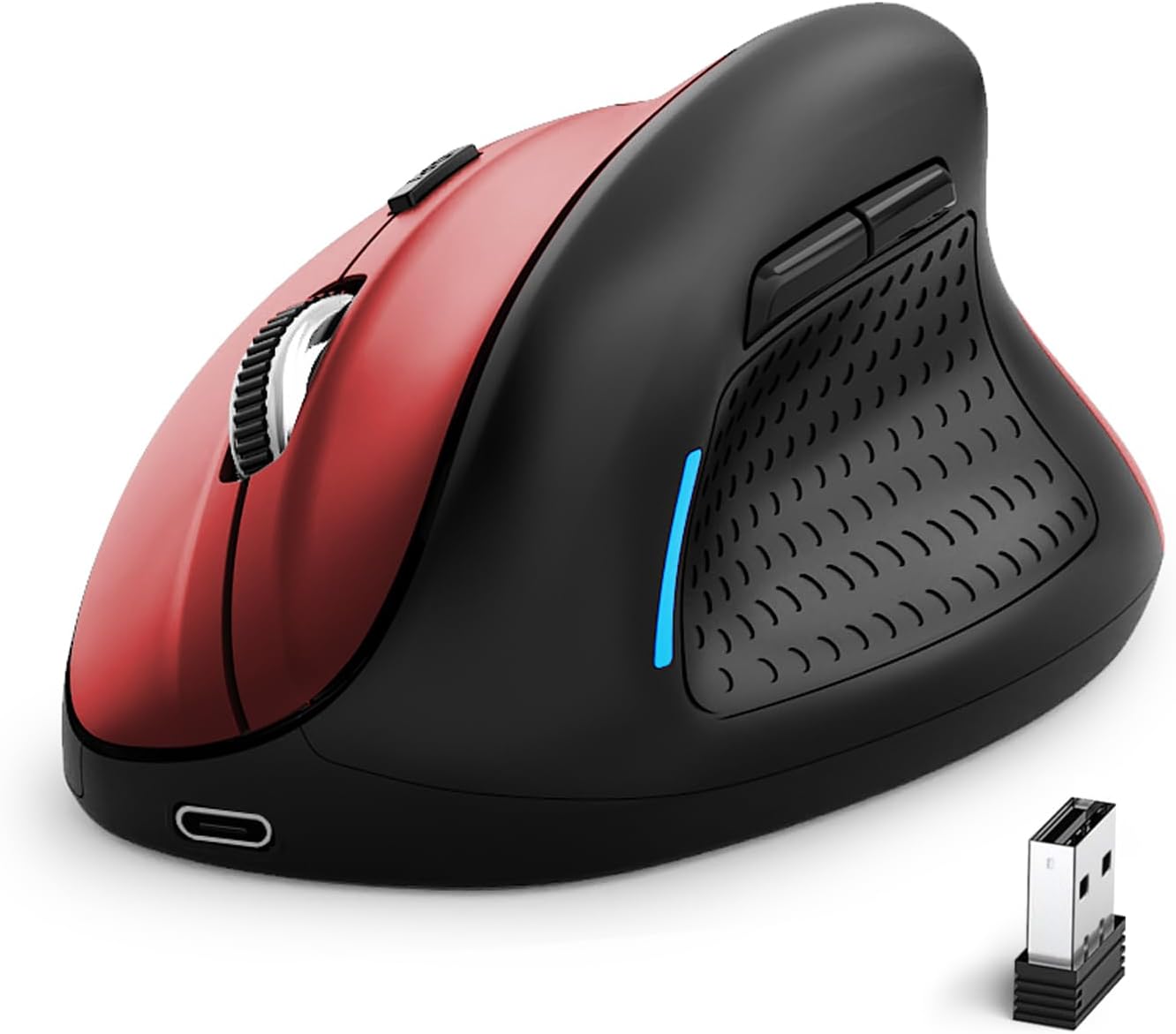
Image 1: E-YOOSO X-45 Ergonomic Vertical Mouse (Red Black)
2. เนื้อหาบรรจุภัณฑ์
ตรวจสอบว่ามีรายการทั้งหมดอยู่ในแพ็คเกจของคุณ:
- 1 x E-YOOSO X-45 Ergonomic Vertical Mouse
- ตัวรับสัญญาณ USB 1 ตัว (2.4G)
- สายชาร์จ 1 x USB-C
- 1 x คู่มือผู้ใช้ (เอกสารนี้)
3. สินค้าหมดview
Familiarize yourself with the various components of your E-YOOSO X-45 mouse:

Image 2: Labeled components of the E-YOOSO X-45 Vertical Mouse
- ปุ่มซ้าย: ฟังก์ชั่นคลิกซ้ายมาตรฐาน
- ปุ่มสลับ DPI: Adjusts cursor sensitivity (DPI levels).
- ล้อเลื่อน: For vertical scrolling and middle-click.
- ปุ่มขวา: ฟังก์ชั่นคลิกขวามาตรฐาน
- ตัวรับสัญญาณ USB: Stores the 2.4G wireless dongle (located on the bottom of the mouse).
- ปุ่มไปข้างหน้า: นำทางไปข้างหน้าใน web เบราว์เซอร์หรือ file นักสำรวจ
- ปุ่มย้อนกลับ: นำทางย้อนกลับใน web เบราว์เซอร์หรือ file นักสำรวจ
- Power/Mode Switch Button: Turns the mouse on/off and switches between connection modes.
- ปุ่มจับคู่: เริ่มโหมดการจับคู่บลูทูธ
4. การตั้งค่า
4.1 การชาร์จเมาส์
The E-YOOSO X-45 mouse features a rechargeable battery. Use the provided USB-C cable to charge the mouse. A full charge typically takes 2-3 hours and can provide power for 2-3 months of usage, depending on usage patterns.
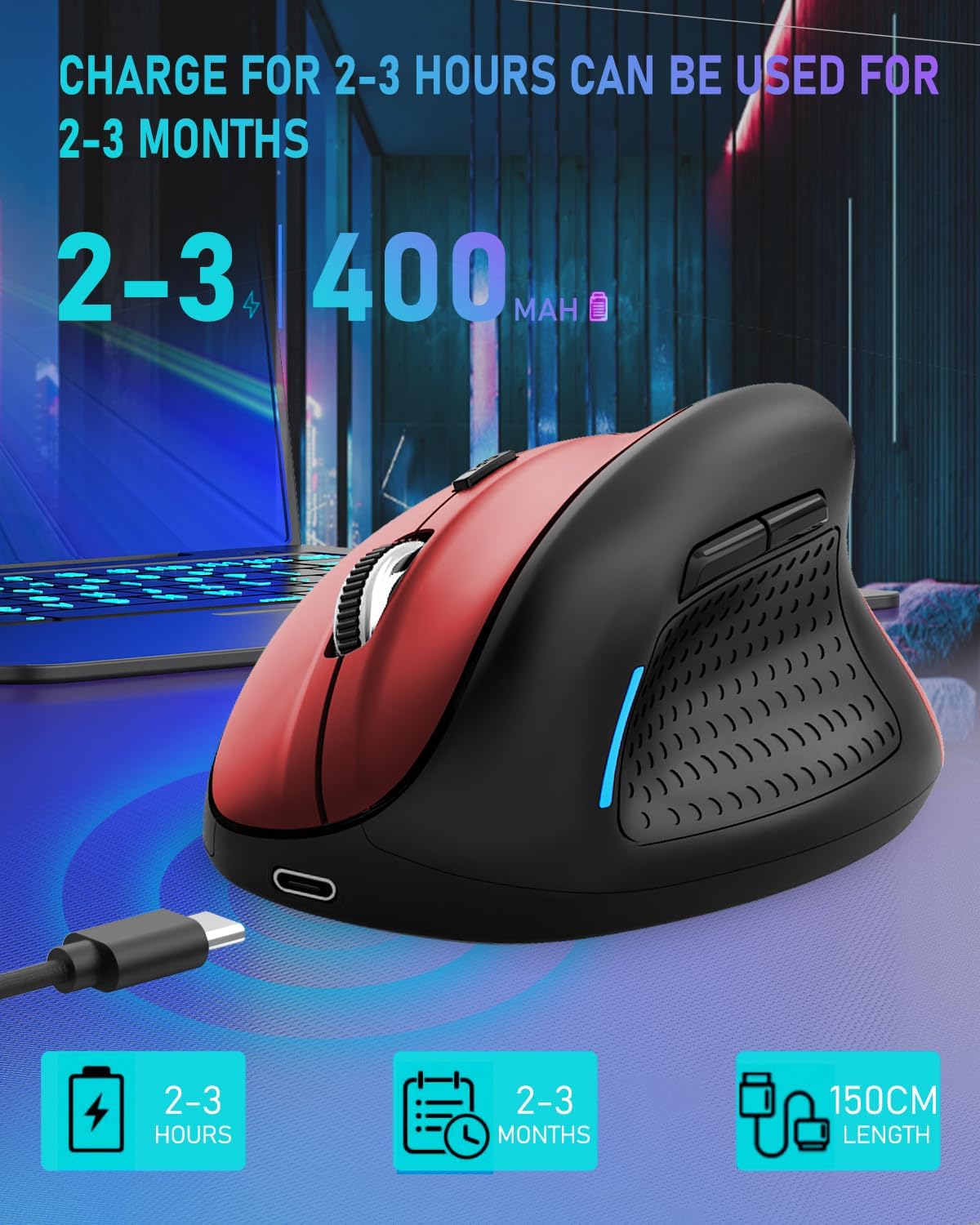
Image 3: Charging the E-YOOSO X-45 mouse
4.2 โหมดการเชื่อมต่อ
The mouse supports three connection modes: 2.4G Wireless, Bluetooth, and Wired.

Image 4: Tri-Mode Connection Options
4.2.1 การเชื่อมต่อไร้สาย 2.4G
- ค้นหาตัวรับสัญญาณ USB ที่เก็บไว้ในช่องด้านล่างของเมาส์
- เสียบตัวรับสัญญาณ USB เข้ากับพอร์ต USB ที่พร้อมใช้งานบนคอมพิวเตอร์ของคุณ
- Turn on the mouse using the Power/Mode Switch button on the bottom. Select the 2.4G mode.
- เมาส์ควรเชื่อมต่อโดยอัตโนมัติ
4.2.2 การเชื่อมต่อบลูทูธ
- Turn on the mouse using the Power/Mode Switch button on the bottom. Select one of the Bluetooth modes (BT1 or BT2).
- Press and hold the Pairing Button (9) on the bottom of the mouse until the indicator light flashes, indicating it is in pairing mode.
- บนอุปกรณ์ของคุณ (คอมพิวเตอร์ แท็บเล็ต สมาร์ทโฟน) ไปที่การตั้งค่าบลูทูธ และค้นหาอุปกรณ์ใหม่
- Select "E-YOOSO X-45" (or similar name) from the list of available devices to pair.
- เมื่อจับคู่แล้วไฟแสดงสถานะจะหยุดกะพริบ
4.2.3 การเชื่อมต่อแบบมีสาย
- Connect the USB-C end of the charging cable to the mouse and the USB-A end to your computer.
- The mouse will automatically switch to wired mode and function without needing a battery or wireless connection.
5. คู่มือการใช้งาน
5.1 การปรับ DPI
The mouse features 5 adjustable DPI (Dots Per Inch) levels, allowing you to customize cursor sensitivity. Press the DPI Switch Button (2) to cycle through the following settings:
- 800 จุดต่อนิ้ว
- 1200 จุดต่อนิ้ว
- 1600 จุดต่อนิ้ว
- 2000 จุดต่อนิ้ว
- 4800 จุดต่อนิ้ว
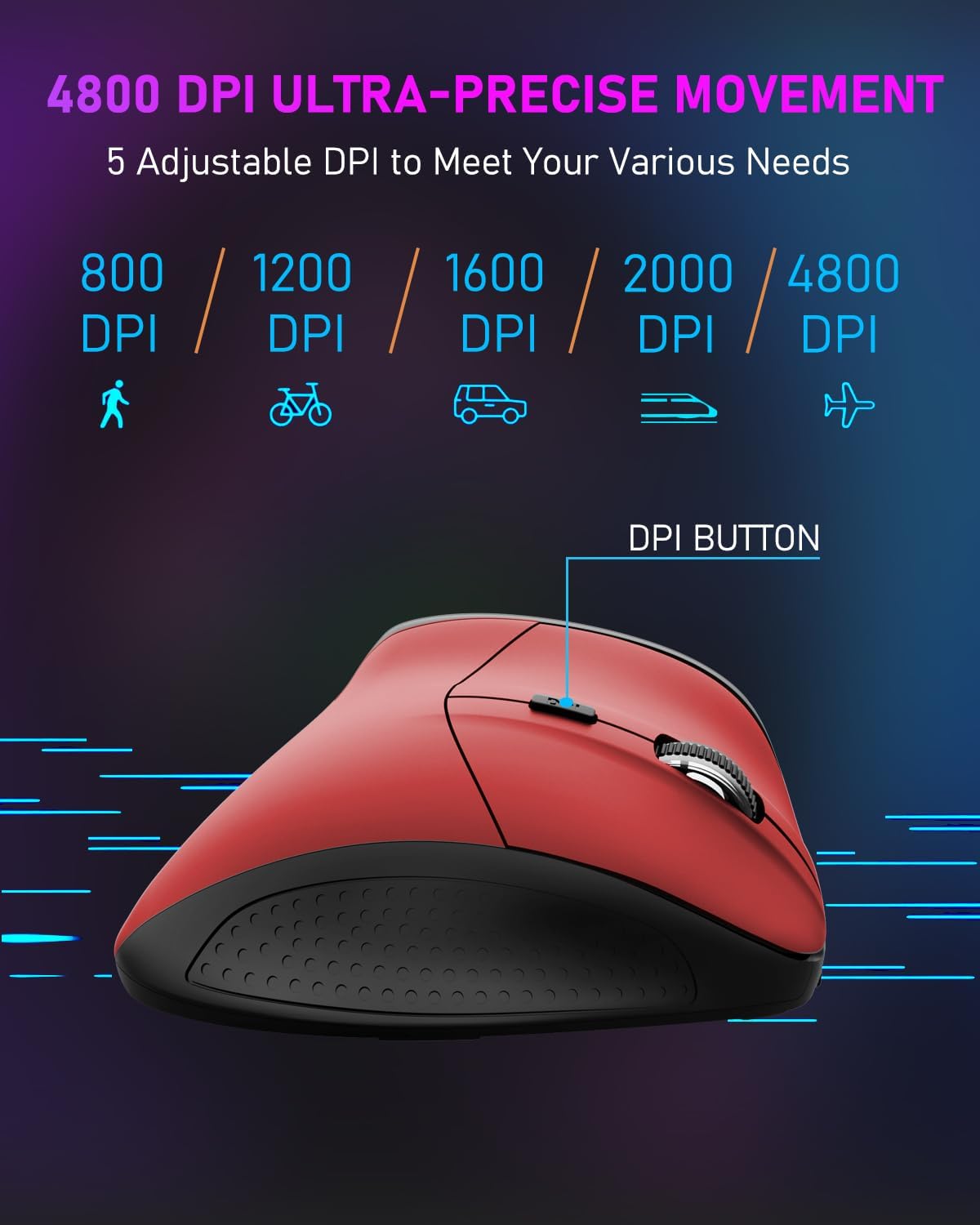
Image 5: DPI Adjustment Levels
5.2 ฟังก์ชันปุ่ม
In addition to standard left and right clicks, the mouse includes:
- ล้อเลื่อน (3): For smooth vertical scrolling. Pressing it acts as a middle-click button.
- Forward Button (6): ใช้สำหรับการนำทางไปข้างหน้าใน web เบราว์เซอร์หรือ file นักสำรวจ
- Backward Button (7): Used for navigating backward in web เบราว์เซอร์หรือ file นักสำรวจ
5.3 Ergonomic Design Benefits
The vertical design of the E-YOOSO X-45 mouse promotes a natural 'handshake' wrist and arm posture, which can help reduce wrist strain and discomfort during prolonged use compared to traditional horizontal mice.
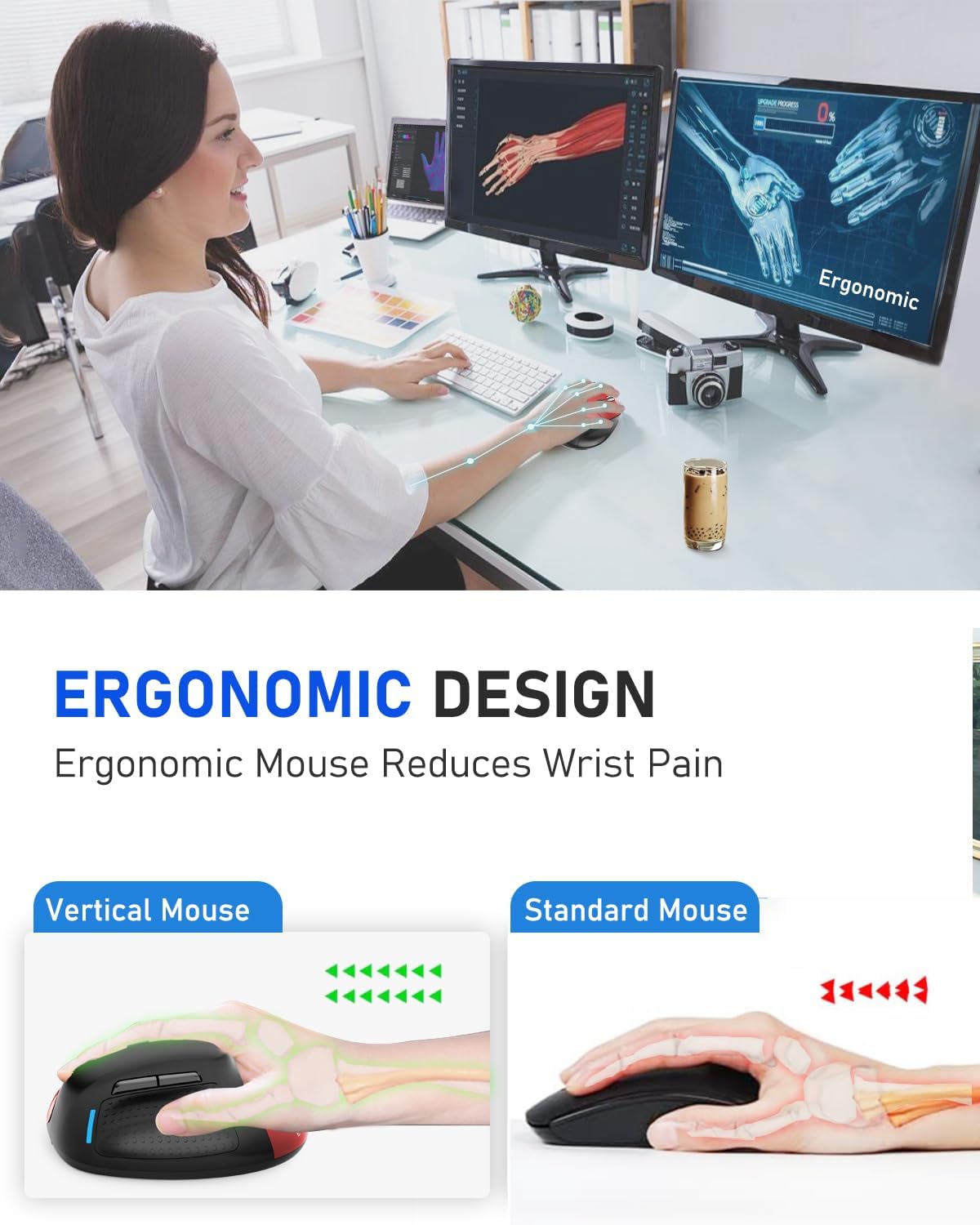
Image 6: Ergonomic Design Reduces Wrist Pain
6. การบำรุงรักษา
To ensure optimal performance and longevity of your E-YOOSO X-45 mouse:
- การทำความสะอาด: ใช้ผ้านุ่มและแห้งเช็ดทำความสะอาดเมาส์ หลีกเลี่ยงการใช้สารเคมีรุนแรงหรือวัสดุที่มีฤทธิ์กัดกร่อน
- พื้นที่จัดเก็บ: เมื่อไม่ได้ใช้งานเป็นเวลานาน ควรปิดเมาส์เพื่อประหยัดแบตเตอรี่ เก็บไว้ในที่แห้งและเย็น
- การดูแลแบตเตอรี่ ควรหลีกเลี่ยงการปล่อยให้แบตเตอรี่หมดเกลี้ยงบ่อยๆ ชาร์จเมาส์เมื่อไฟแสดงสถานะแบตเตอรี่เหลือน้อย
7 การแก้ไขปัญหา
If you encounter issues with your E-YOOSO X-45 mouse, refer to the following common solutions:
| ปัญหา | สาเหตุที่เป็นไปได้ | สารละลาย |
|---|---|---|
| เมาส์ไม่ตอบสนอง (2.4G) | Low battery; USB receiver not properly connected; Incorrect mode selected. | Charge the mouse; Re-insert the USB receiver; Ensure the mouse is in 2.4G mode. |
| เมาส์ไม่ตอบสนอง (บลูทูธ) | Low battery; Not paired; Incorrect mode selected; Device Bluetooth off. | Charge the mouse; Re-pair the mouse; Ensure the mouse is in BT mode; Enable Bluetooth on your device. |
| Cursor erratic or unresponsive | เซ็นเซอร์แสงสกปรก; พื้นผิวไม่เหมาะสม; แบตเตอรี่เหลือน้อย | Clean the optical sensor; Use on a mouse pad or smooth, opaque surface; Charge the mouse. |
| ปุ่มต่างๆ ไม่ทำงาน | Software conflict; Low battery. | Restart your computer; Charge the mouse. |
8. ข้อมูลจำเพาะ
Key technical specifications for the E-YOOSO X-45 Ergonomic Vertical Mouse:
- แบบอย่าง: เอ็กซ์-45
- การเชื่อมต่อ: 2.4G Wireless, Bluetooth (BT 5.1), Wired (USB)
- ระดับ DPI: 800 / 1200 / 1600 / 2000 / 4800 (ปรับได้)
- ปุ่ม: 6 (ซ้าย, ขวา, ล้อเลื่อน, สวิตช์ DPI, เดินหน้า, ถอยหลัง)
- การตรวจจับการเคลื่อนไหว: ออฟติคอล
- คุณสมบัติพิเศษ: Soundless clicks
- ขนาดสินค้า : 4.63 x 3.22 x 0.1 inches (Note: The provided dimension 0.1 inches for height seems incorrect for a vertical mouse, typically it would be larger. Please refer to actual product for accurate height.)
- น้ำหนักสินค้า: 6.4 ออนซ์
- ผู้ผลิต: อี-ยูโซ่
- ความเข้ากันได้: Windows, Mac OS, Linux, Android, Chromebook, Laptops, Desktops
9. การรับประกันและการสนับสนุน
E-YOOSO products are designed for reliability and performance. For warranty information, technical support, or customer service inquiries, please refer to the contact details provided on the product packaging or the official E-YOOSO webไซต์ โปรดเก็บใบเสร็จรับเงินไว้เป็นหลักฐานการซื้อสำหรับการเรียกร้องการรับประกัน


